Buying a new Mac is the fun part. The confusing part starts about thirty seconds after you press the power button, when the screen begins asking questions — Do you want to migrate? Share analytics? Sign in now or later? If you have just brought home a Mac mini M4 (or any new Mac, honestly — the screens are the same on a Mac Studio or a MacBook), this guide walks you through the complete Mac mini M4 setup exactly as it happens on a real machine, including the two or three screens where a wrong click actually matters.
The short version: connect the Mac to a monitor, turn it on, pick your language and country, join Wi-Fi, skip the migration, create your computer account, say no to the optional data sharing, choose how your Mac looks — and you are on the desktop in about ten minutes. After that, only two real jobs remain: signing in with an Apple Account and installing a very large first update. Let’s go through it slowly.
First, Plug Everything In (and the One Thing Nobody Tells You)
A Mac mini is just a small box — it brings no screen, keyboard or mouse of its own. Connect it to your monitor with an HDMI or USB-C cable, connect the power cable, and you are nearly ready. Here is the part that surprises Windows switchers: the Mac mini has no regular USB-A ports, so an old pen drive, a wired keyboard or a USB receiver will not plug straight in. For those, you need a small USB-C hub. It is a tiny purchase, but if you don’t have one on day one, your old accessories are simply stuck.
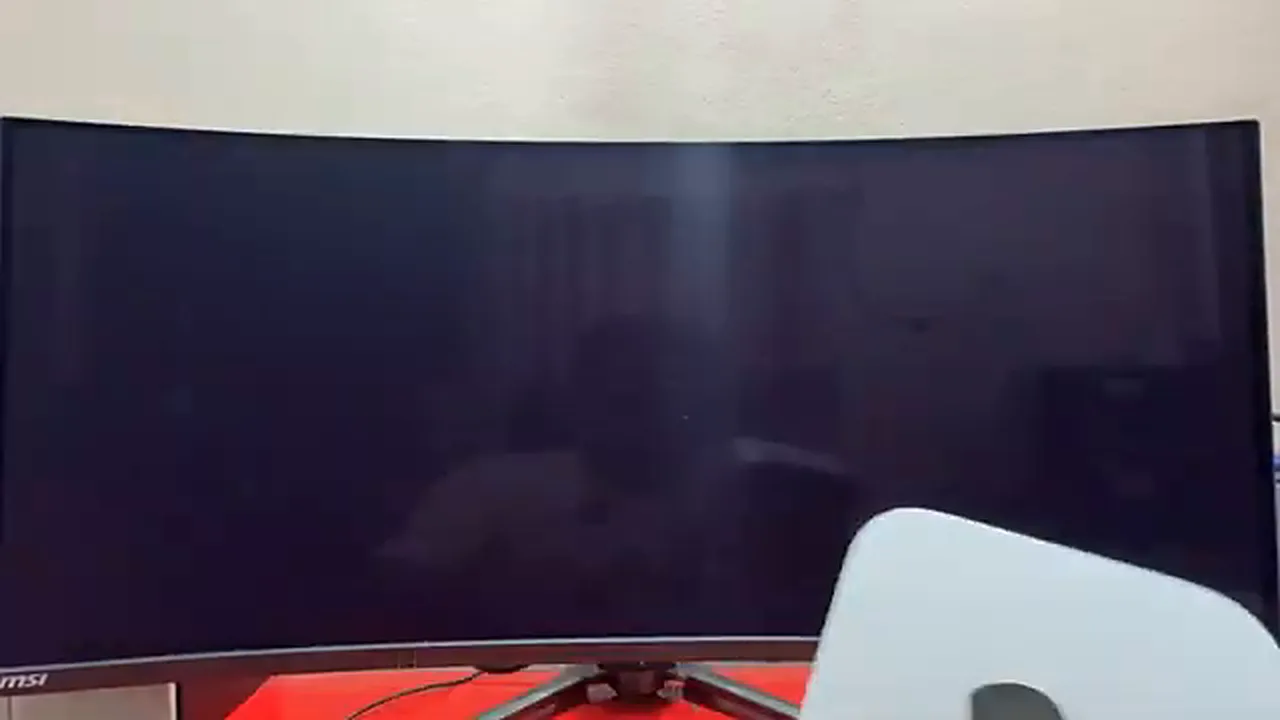
Apple’s own keyboard and mouse connect over Bluetooth, so they pair without any of this drama. Once everything is connected, press the power button — on the M4 model it sits underneath the body, which feels odd the first time — and the setup assistant wakes up.
The Opening Screens Move Fast
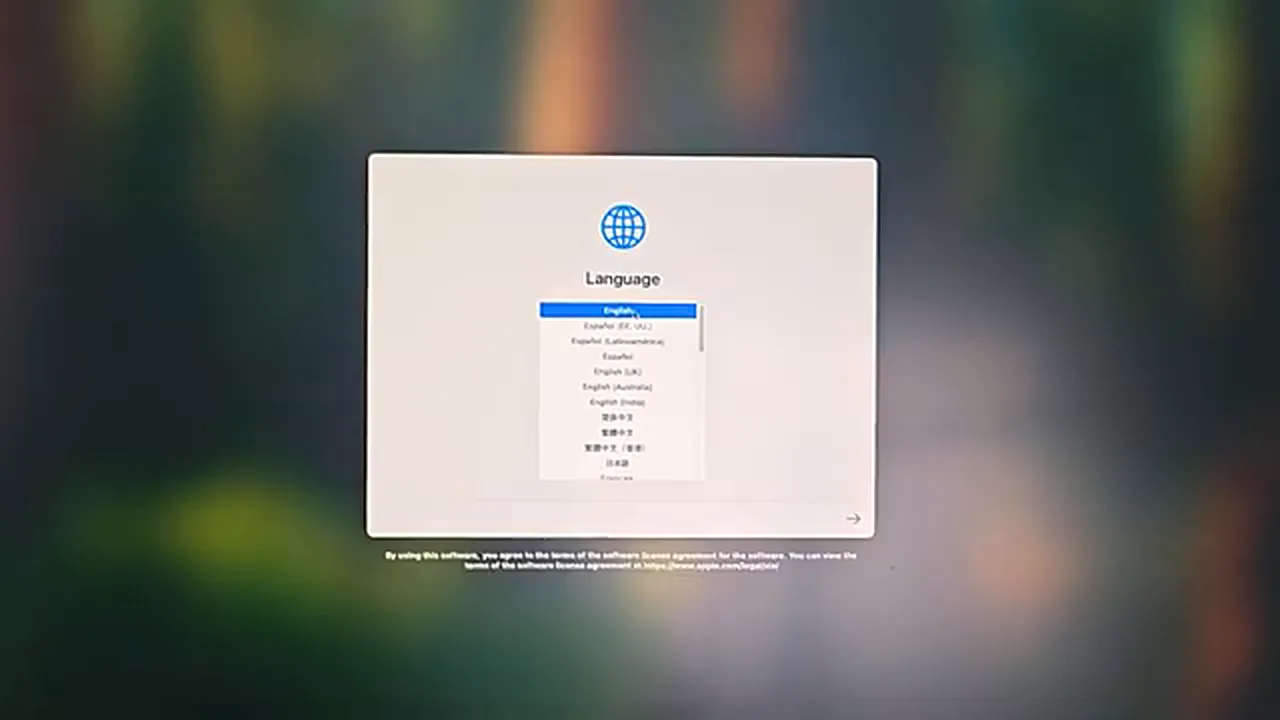
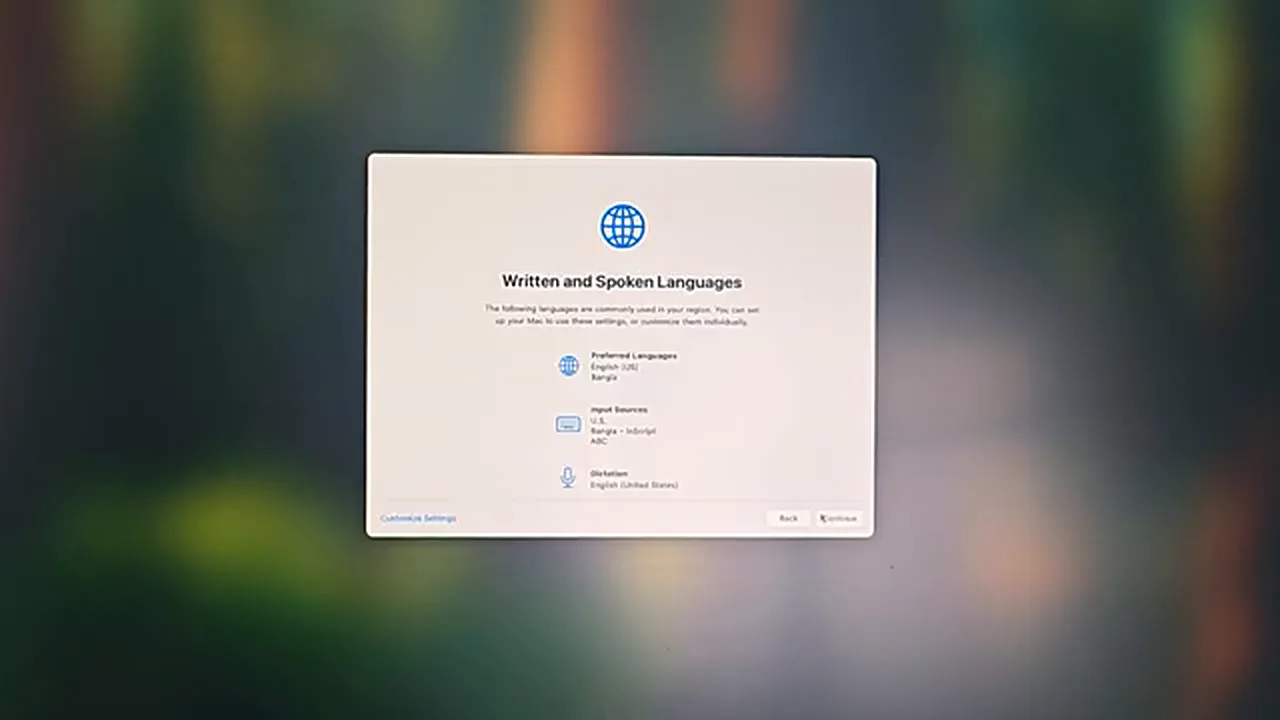
The first screen asks for your language. Keep it on English unless you genuinely prefer another one, and press Continue. Next comes your country or region — choose Bangladesh, or wherever you live, because this decides things like date formats and which services you are offered later. A “Written and Spoken Languages” screen follows; the defaults it suggests from your first two choices are fine for almost everyone.
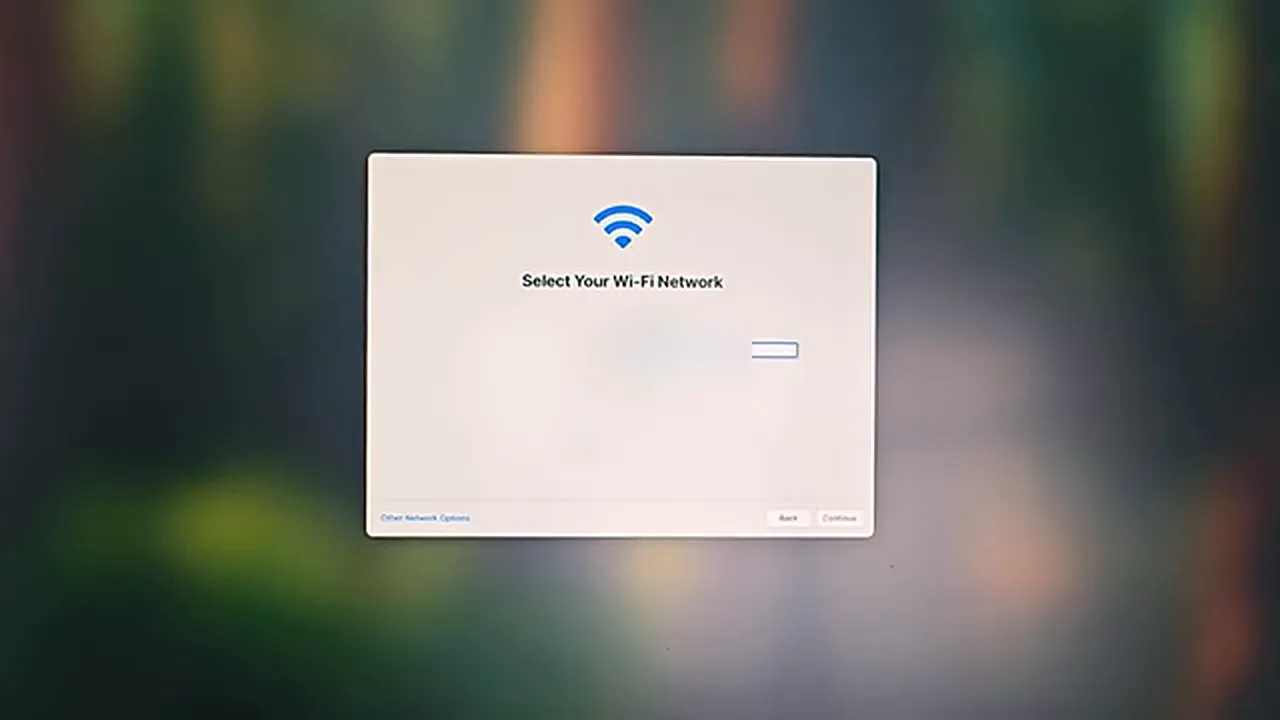
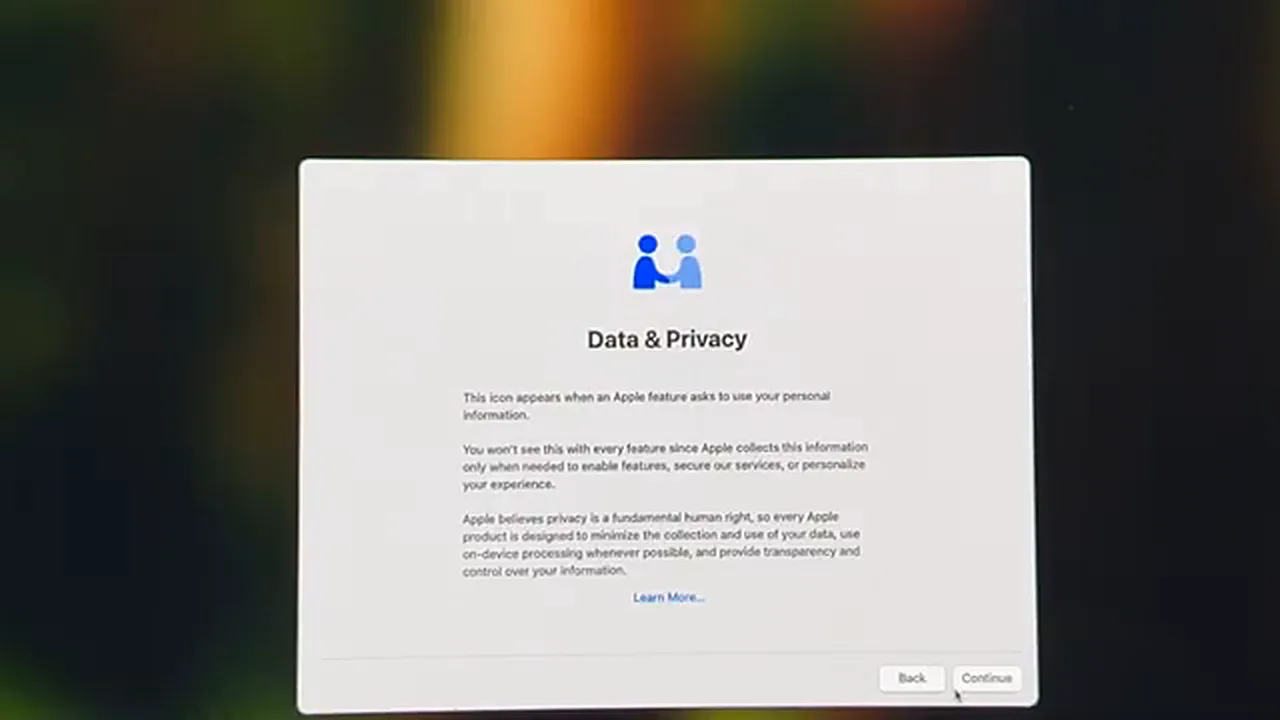
Then the Mac asks for Wi-Fi. Pick your network, type the password carefully — this is not the screen to rush, because a wrong password just sends you in a circle — and click Continue. Once you are online, a short “Data & Privacy” page explains how Apple handles your information; read it if you like, then Continue.
Migration Assistant: The Screen to Skip (Probably)
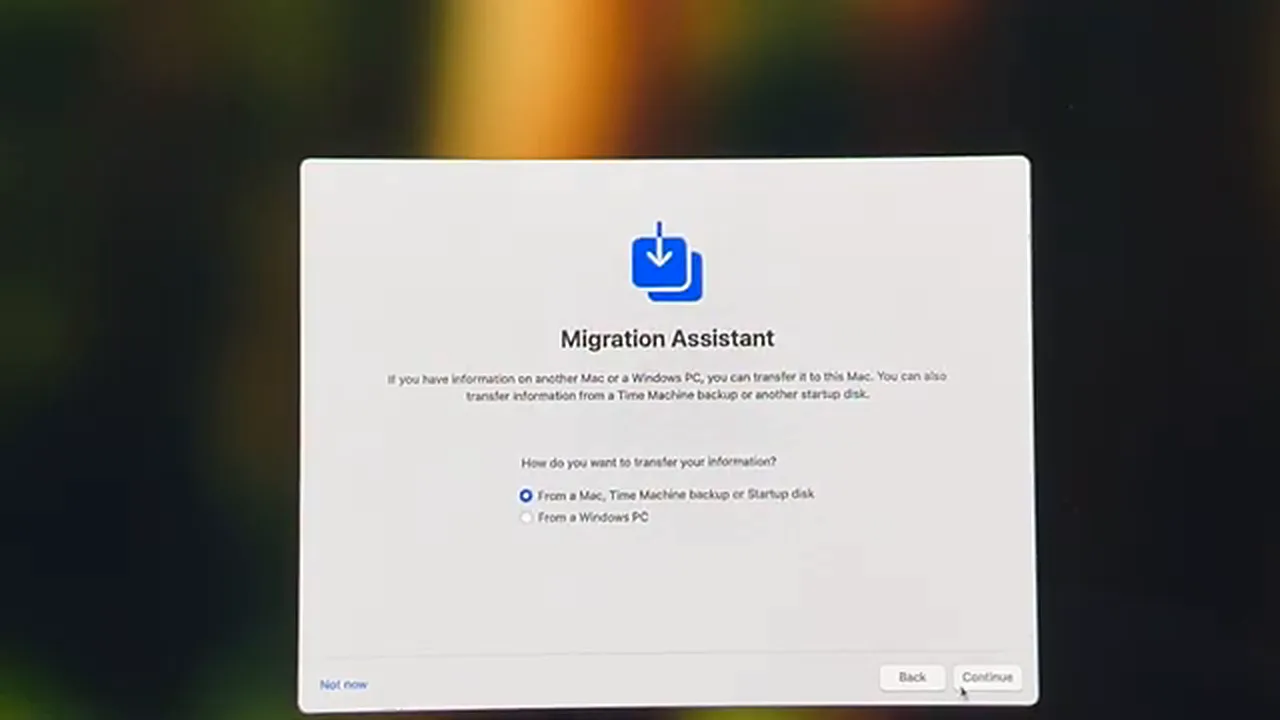
Now the Mac offers to move your life over — from an old Mac, from a Time Machine backup, or even from a Windows PC. If this is your first Mac and you want a clean start, this is a hard no: choose “Not Now” and Continue. Moving everything later, piece by piece, is always possible; starting life on a new machine buried under an old machine’s clutter is much harder to undo. Only stay on this screen if you are genuinely replacing an old Mac and want everything carried across in one go.
Right after this, the setup asks you to sign in with an Apple Account. Here is a small mercy: you don’t have to. Click “Set Up Later” and the setup happily continues — you can sign in afterwards from Settings, which is calmer than creating an account standing in front of a half-configured computer. (You will need that account very soon, though — more on that at the end.) Accept the terms and conditions, twice, and you arrive at the one screen that deserves your full attention.
Creating Your Computer Account
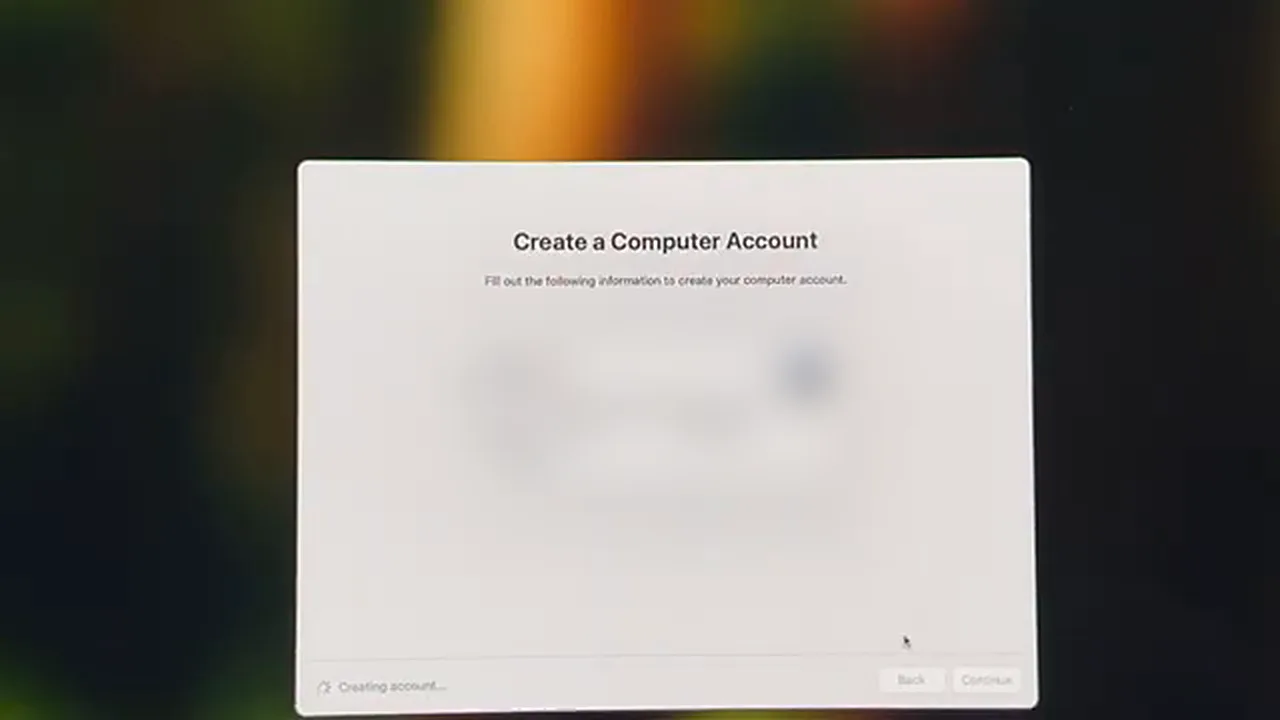
This account is your everyday login to this Mac — the password you create here is the one you will type when the Mac starts, when you install apps and when you approve updates. Type your full name, keep the account name it suggests (it becomes your home folder’s name, so short and simple is best), and choose a password you will actually remember. Add a hint that jogs your memory without giving the password away to anyone who reads it. Ours are blurred in the screenshot — yours should stay private too.
One honest, practical warning from doing this on a 34-inch ultrawide monitor: during setup, moving the mouse across a huge screen to reach each “Continue” button in the corner feels like surprisingly hard work. On a smaller display it is a non-issue. Either way, you only have to survive it once.
The “It’s Up to You” Screens
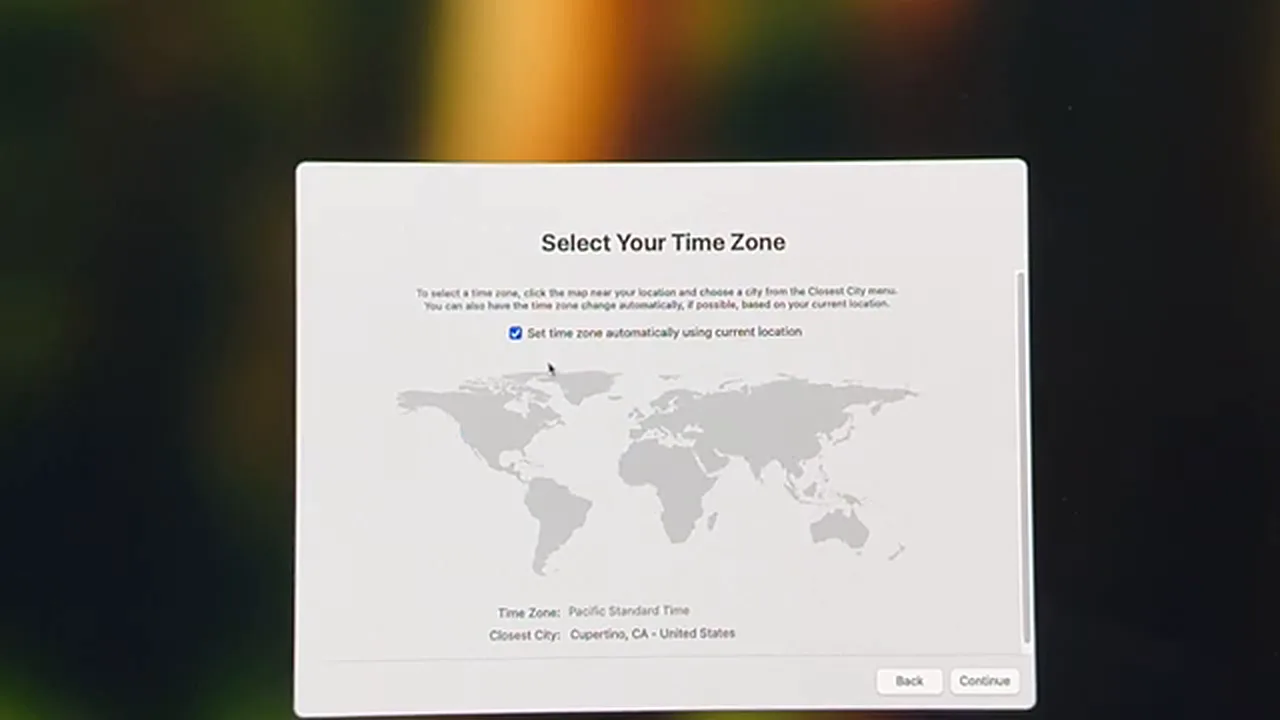
The next few screens are all judgement calls, and none of them can break anything. Location Services lets apps and the system know where you are; plenty of people leave it off on a desktop Mac that never moves, and turn it on only if an app truly needs it. The very next screen, Time Zone, shows why the choice matters: with location allowed, the Mac figures out “Dhaka, Bangladesh” by itself — with it off, you just pick your city manually from the map or the list, which works exactly as well.
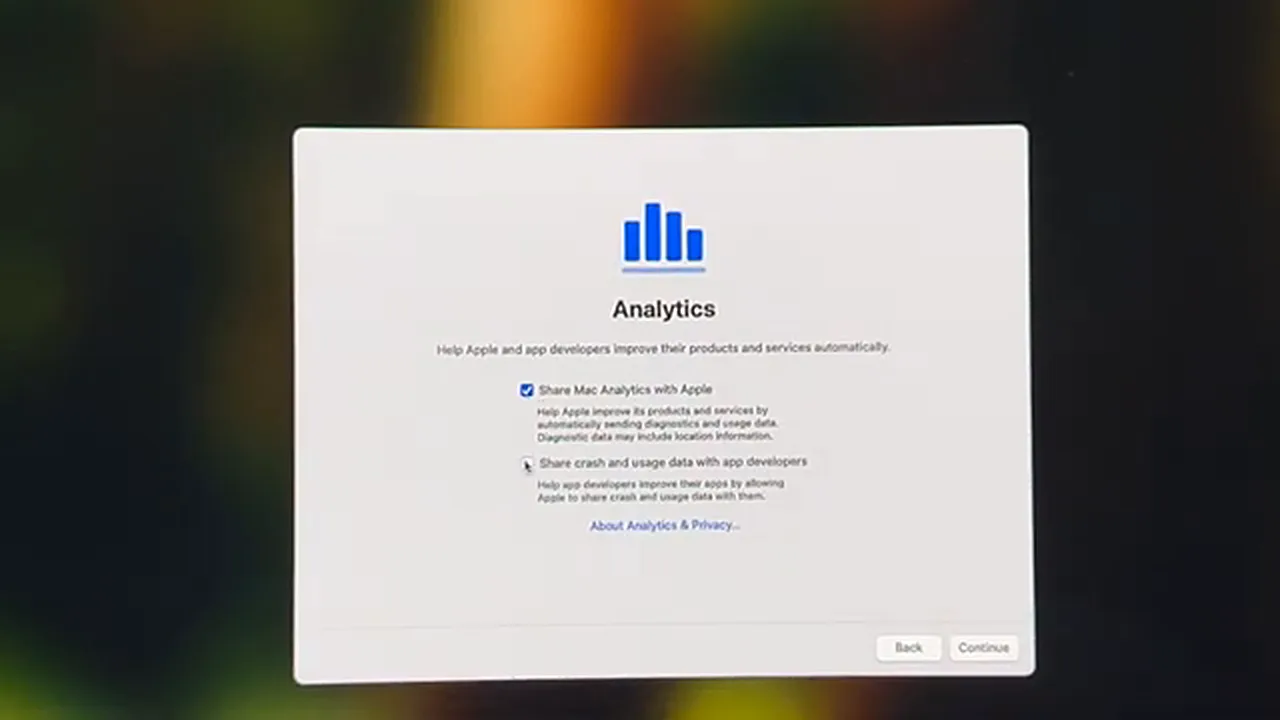
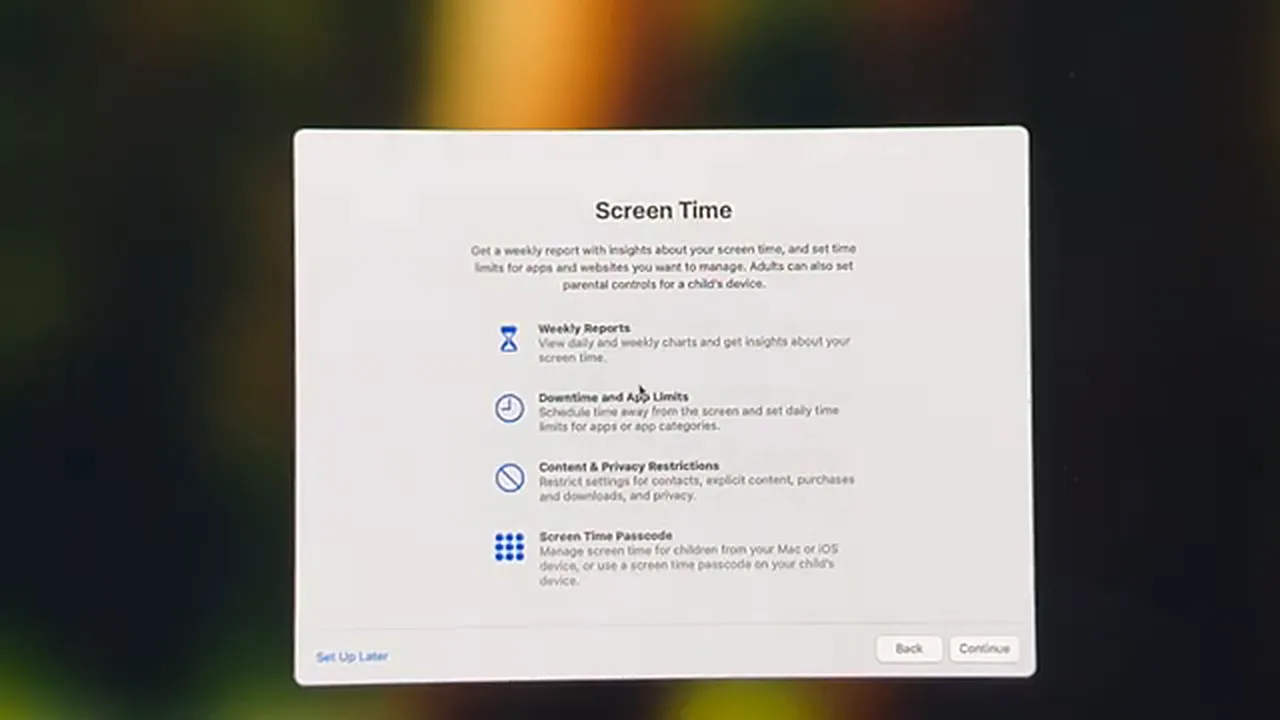
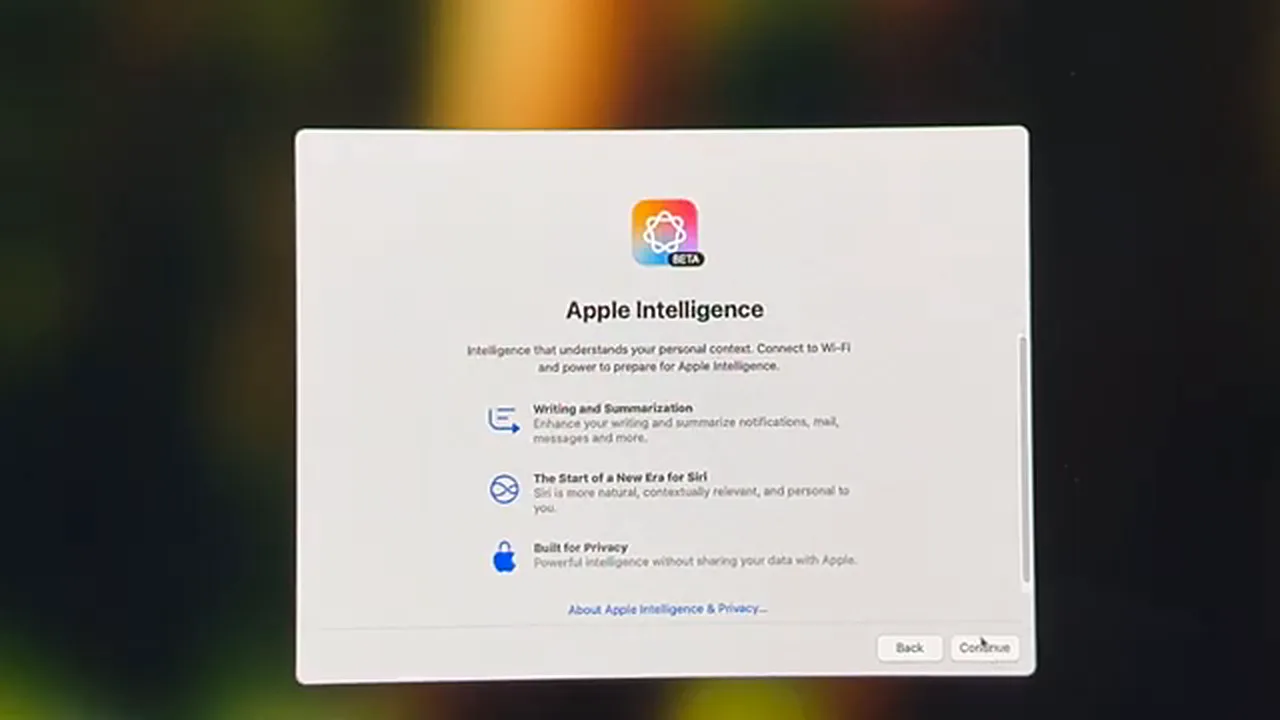
Then comes Analytics — would you like to share usage and problem reports with Apple, and with app developers, so they can improve their products? Sharing genuinely helps developers, and plenty of users say yes. If privacy matters more to you, untick everything and Continue; the Mac works identically either way. Screen Time follows, offering weekly reports about how the Mac is used — useful on a family machine, easy to skip past on your own. And on current macOS versions you will also meet an Apple Intelligence screen; leaving its defaults on is fine, you can explore the writing tools and other features once you are settled in.
Light, Dark, or Let the Mac Decide
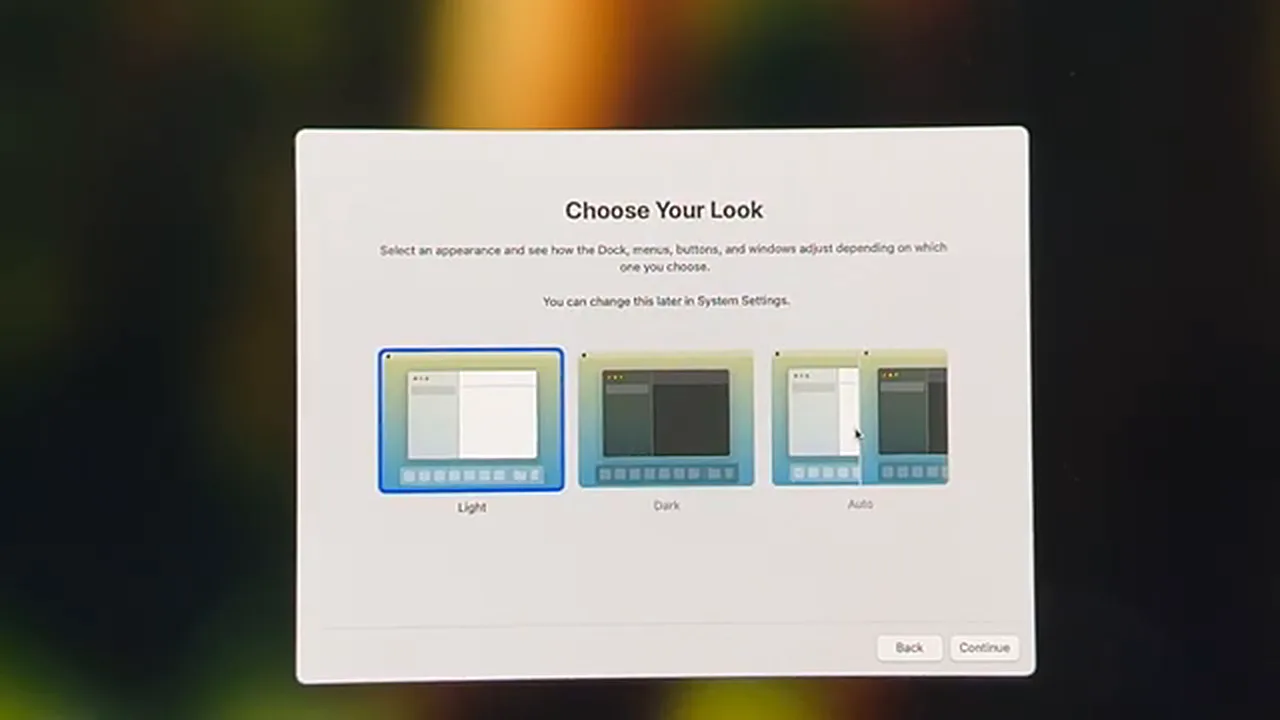
The last real choice is how macOS should look. Light keeps everything bright all day, Dark keeps it dark, and Auto switches between the two — light while you work, dark in the evening. It is pure taste: the setup in the video chose Light. Whatever you pick can be changed in ten seconds later in Settings, so don’t overthink it. Click Continue, and — “Welcome to Mac.” You are in.
The Desktop! Two Jobs Before You Relax
The Mac may greet you with a Keyboard Setup Assistant — just quit it; your existing keyboard will work perfectly well without the ceremony. Then do these two things before you start installing apps and making the machine yours.
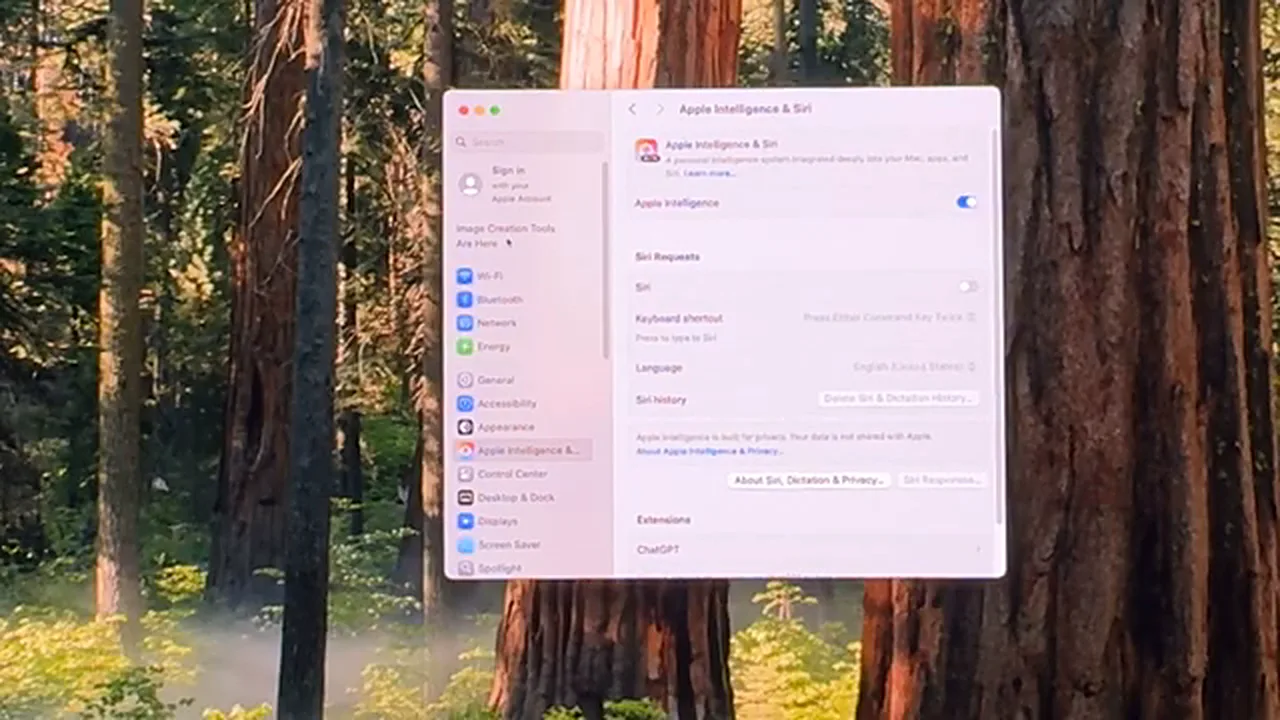
Job one: sign in with your Apple Account. You skipped it during setup, and that was fine — but a Mac without an Apple Account is only half a Mac. The App Store, iCloud, Messages and, most importantly, smooth updates all depend on it. If you don’t have one yet, create one first (a phone is the easiest way), then sign in from Settings. Skipping this is the single most common reason new Mac owners run into strange problems in their first week.
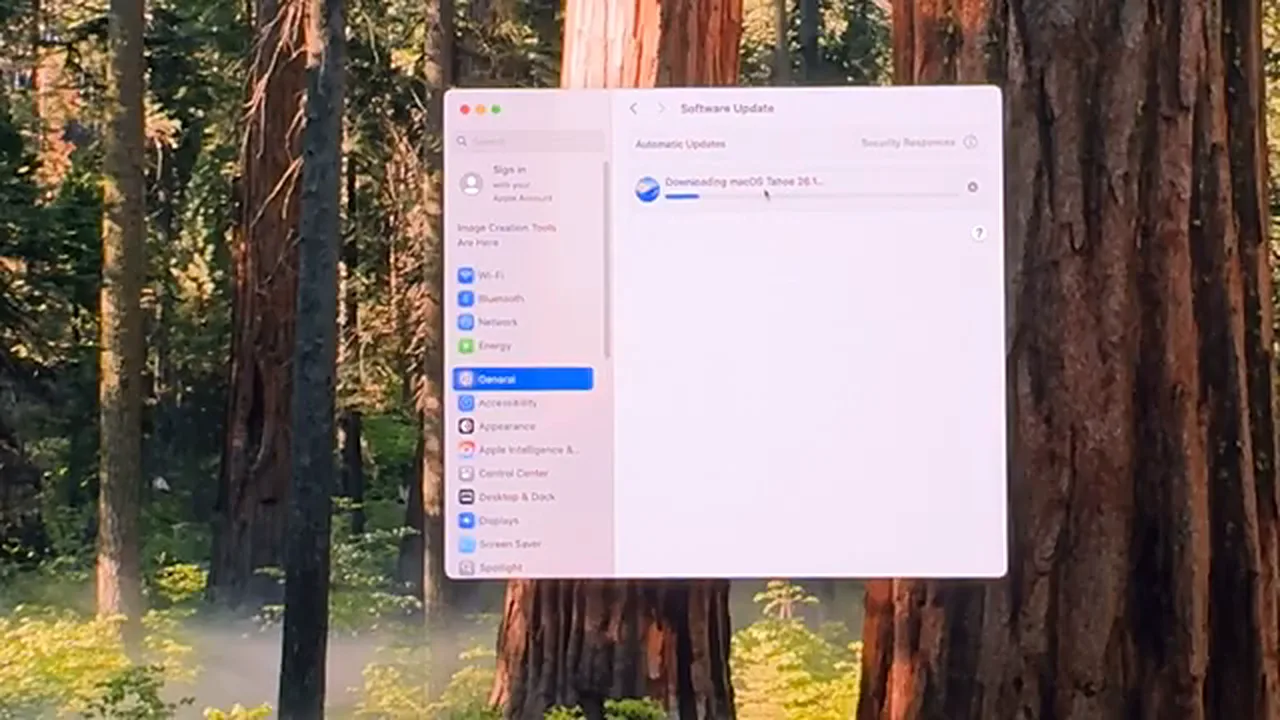
Job two: run the first update, and be patient with it. Open Settings, go to General, then Software Update. A factory-fresh Mac almost always has a big update waiting — in this setup it was over 9 GB, and between downloading and installing it took a long while. Agree, type the password you created earlier, and let it finish. Do this on day one rather than “sometime later”: the machine you use for the next few years should start life fully up to date.
Your First-Day Checklist
- Monitor, power and (if your accessories are USB-A) a USB-C hub connected
- Language and country set correctly — they shape formats and services
- Wi-Fi joined; Migration skipped for a clean start
- Computer account created with a password you will remember, plus a safe hint
- Analytics choices made deliberately, not by accident
- Apple Account signed in after reaching the desktop
- First software update started — and given the time it needs
Quick Answers
Does this setup work for other Mac models too? Yes. The setup assistant is the same on the Mac mini, Mac Studio and MacBook — connect a screen and keyboard to a desktop Mac, and the screens that follow are identical.
Can I really skip the Apple Account during setup? Yes — choose “Set Up Later”. Just don’t skip it forever: create one and sign in once you reach the desktop.
Why is the first update so large? Your Mac was manufactured weeks or months before you bought it, so a newer macOS has usually been released since. Updating on day one is normal — and worth the wait.
And that is the whole of it. Ten calm minutes of clicking Continue, two real decisions — a password you will remember and an Apple Account signed in — and your Mac mini is ready for years of work. After using this class of machine daily, the honest verdict from the video still stands: at this budget, a Mac mini gives you more than a similarly priced PC — said the man who just set one up. Your move.