Here is a strange problem: a 6000 MHz RAM kit that refused to run above 4000 MHz. Push it any higher and the PC would not boot at all. The RAM was fine. The settings were fine. The culprit was the motherboard’s BIOS — it was so old that it could not properly handle the memory it was supposed to support. One BIOS update later, the problem was gone. That is the unglamorous truth about BIOS updates: they quietly decide how well your hardware talks to itself, and when they fall years behind, you get lags, random errors, and performance you paid for but never receive.
This guide walks through updating the BIOS on an ASUS motherboard, step by step, exactly as it happens — using the ASUS EZ Flash tool built into the BIOS itself. The board in the video is a TUF Gaming B850 model, going from BIOS version 1021 to version 1683, but the process is the same across ASUS boards. Other brands work differently and deserve their own guides.
Read This Before You Start
BIOS updates are safe when done properly — and genuinely risky when done carelessly. There is exactly one rule that matters above all others: do not let the PC lose power while the update is running. If the power cuts out mid-flash, the PC may not boot at all, and recovering from that is a different, much harder process. So: if you have a UPS, use it. If this is a laptop, charge it fully first and keep it plugged in. On a desktop, make sure nobody is about to trip over the power cable. Once the flash starts, your only job is to wait.
Two more honest notes. First, if your PC is running perfectly and you have no specific reason to update, you do not need to — “if it ain’t broke” is respectable advice for BIOS. This guide is for people with a reason: a performance problem, a stability issue, or new hardware that needs newer firmware. Second, do not panic at the error screen that appears after the update. It looks alarming and it is normal — we will deal with it below.
Know Your Board First
Before downloading anything, you need two facts: your exact motherboard model and the BIOS version you are currently running. Get them wrong and you will download the wrong file. The free CPU-Z tool makes this painless — download it (there is even an ASUS-themed edition), install it, and open the Mainboard tab. There you will see the model name and the current BIOS version, side by side. In the video’s case: a TUF Gaming B850 board running BIOS 1021. Write both down.
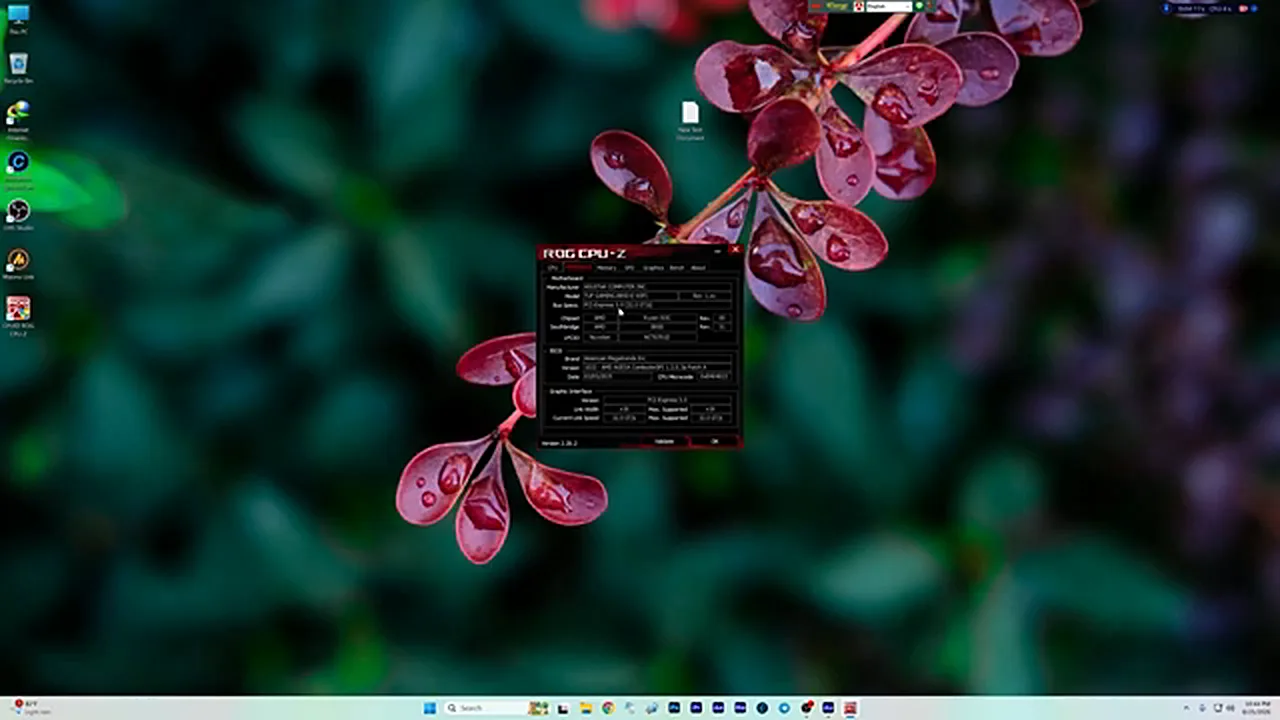
No CPU-Z? There is a built-in way. Press Windows + R, type msinfo32, and press Enter: System Information shows your baseboard product and the BIOS version/date right on the first page. The BIOS screen itself shows the same information, of course — but checking from inside Windows is quicker, and it lets you write the numbers down before you restart.
Download the Right File
Now search the web for your exact board model and open its official ASUS support page. Go to Driver & Tools, then BIOS & Firmware. You will see a list of versions. Here is the choice that matters: pick a stable release, not a beta. Beta BIOS versions can carry their own issues, and for a firmware update there is no reason to volunteer as a tester. The video’s pick is version 1683, a stable release whose notes promise improved system performance and stability.
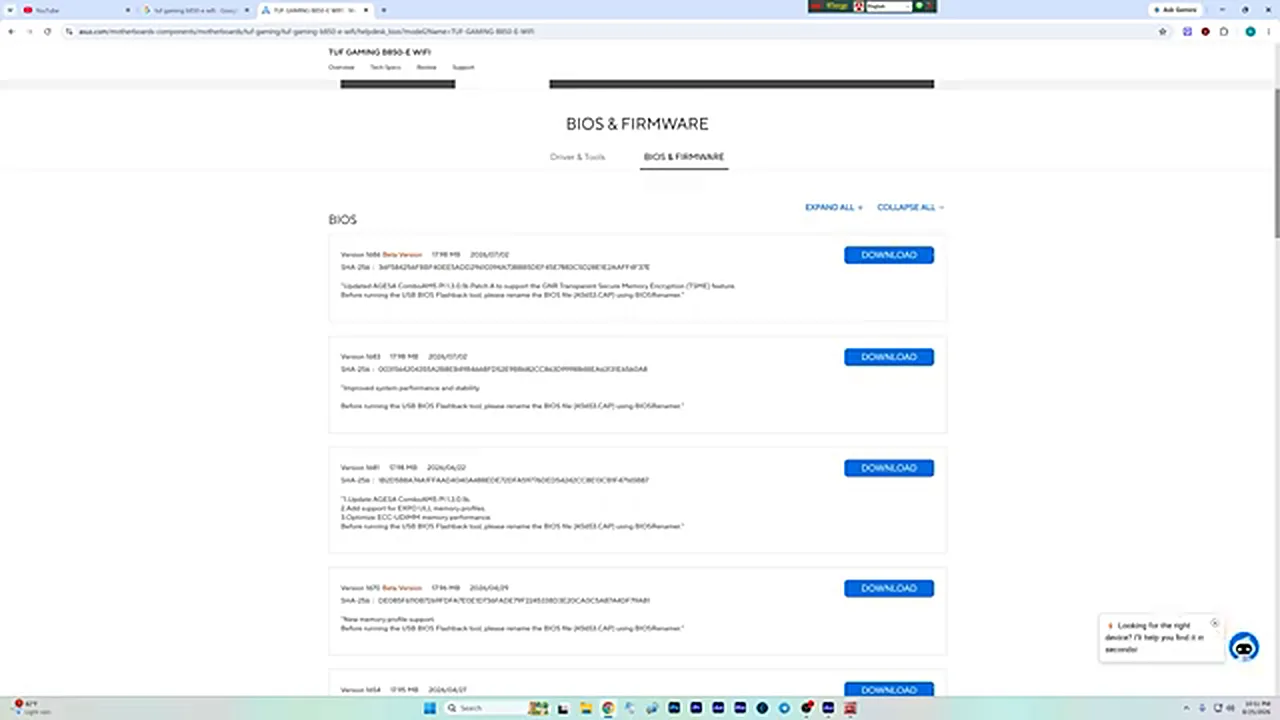
One reassuring detail: you do not need to install every version between yours and the latest. Updating straight to the newest stable release brings all the earlier fixes and features with it — the video’s board jumps from 1021 to 1683 in a single step. And if you somehow download the wrong board’s file, do not worry: the flash tool simply refuses to install it. That safety net exists, but it is no excuse for sloppiness — double-check the model name before you download.
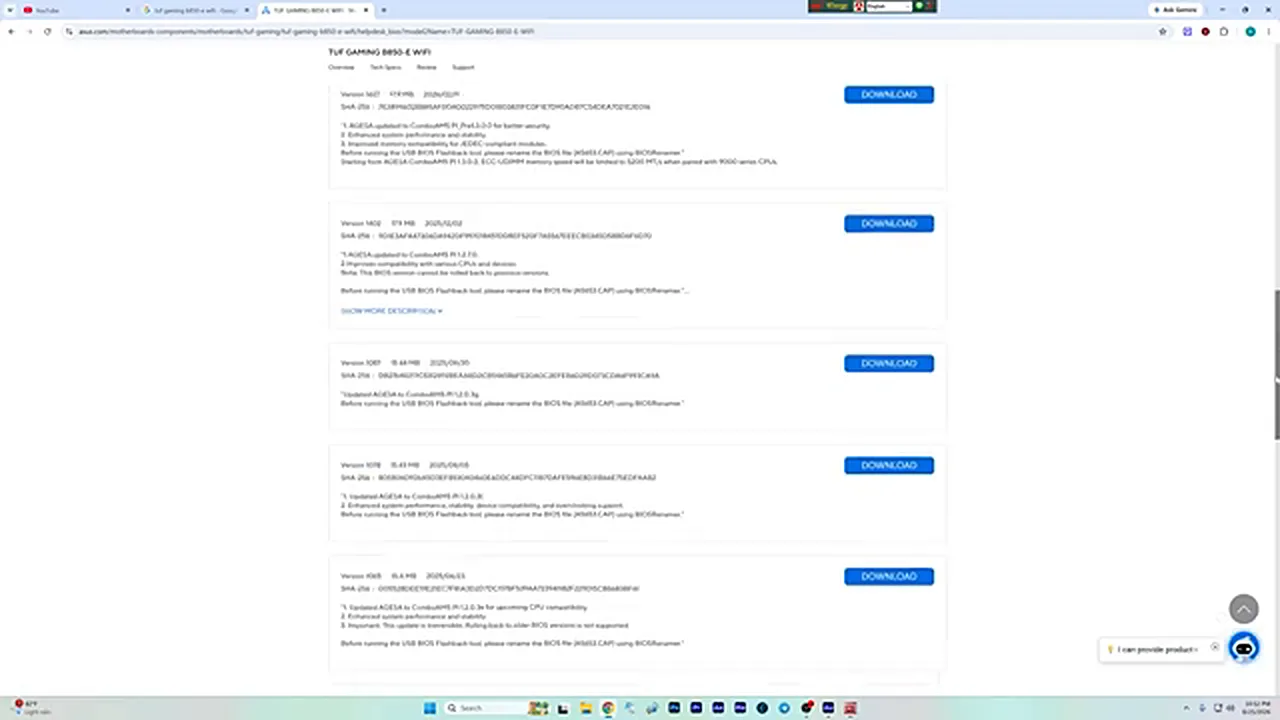
Before you click Download, read the short description under the version. It usually says what the release actually changes — new CPU support, memory compatibility improvements, stability fixes, security patches. Match it to your reason for updating: if your problem is RAM running below its rated speed, a release that mentions memory compatibility is exactly the one you want. If nothing in the notes relates to your problem and your system is stable, that is your cue to stop here and leave the BIOS alone.
Prepare the Pen Drive
Extract the downloaded ZIP. Inside is the actual BIOS file — in this case a roughly 32 MB file that the board will read. That file needs to go on a pen drive, and the pen drive has two requirements. First, size: use an 8, 16 or 32 GB drive — larger drives are less likely to be recognised by the BIOS flash tool. Second, format: the drive must be FAT32. Right-click the drive in Windows, choose Format, select FAT32, and start. Without FAT32, the BIOS simply cannot read the file, and you will be stuck at the next step wondering why.
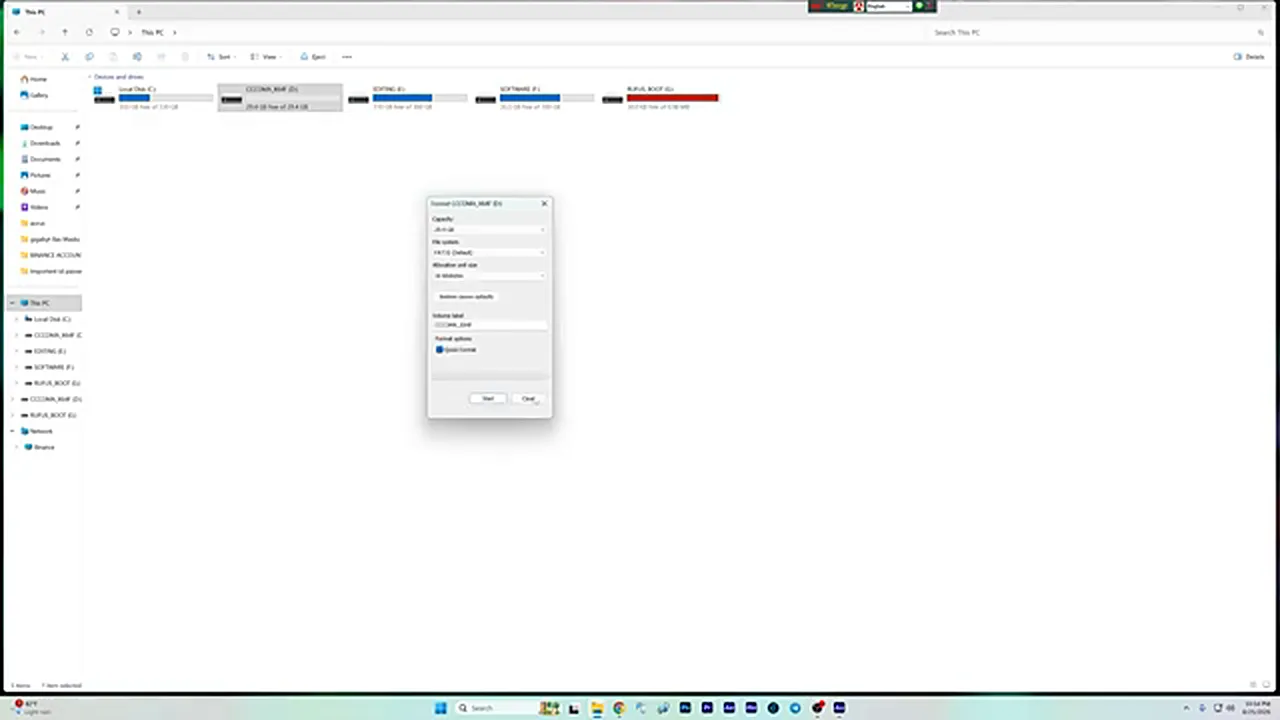
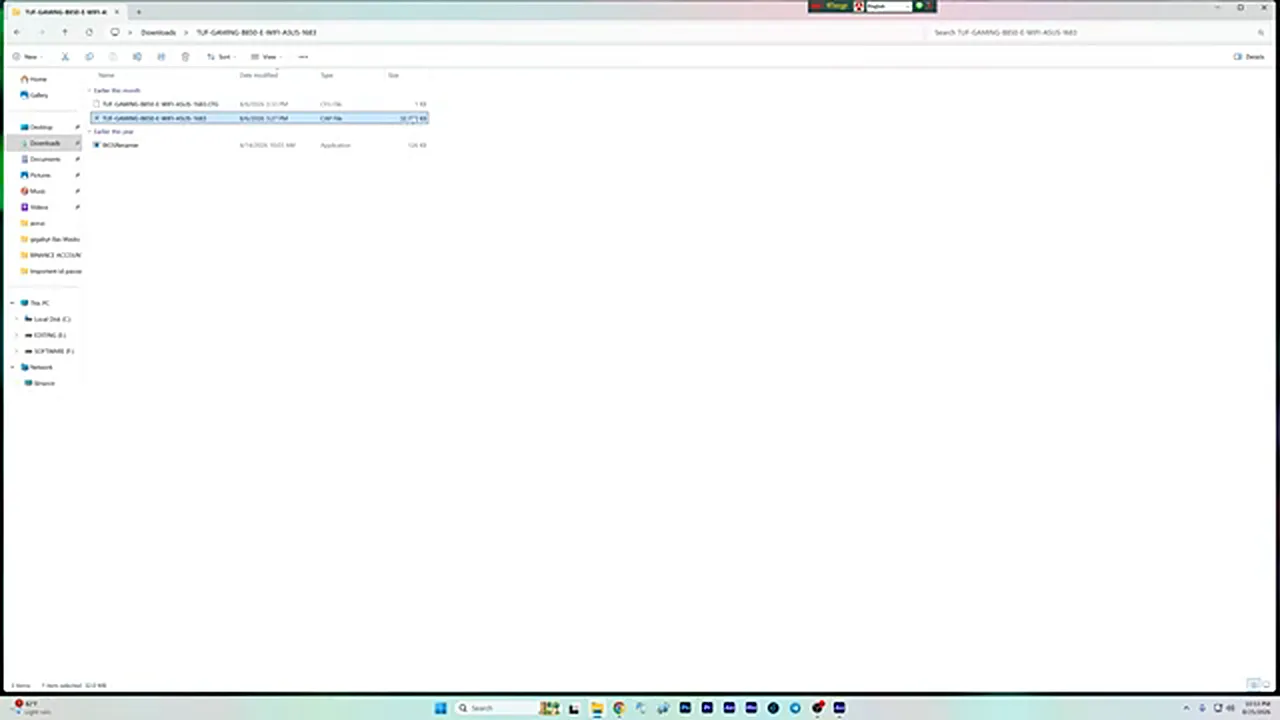
Then copy the BIOS file onto the pen drive’s root — not inside a folder, just on the drive itself. That is all the preparation there is.
Flash It With EZ Flash
Restart the PC and get into the BIOS. On ASUS boards the key is usually DEL (or F2) — press it repeatedly as the machine starts. If you are not sure of your board’s key, a quick web search for your model plus “BIOS key” will settle it. Once inside, switch to Advanced Mode (F7), go to the Tool tab, and open ASUS EZ Flash 3 Utility.

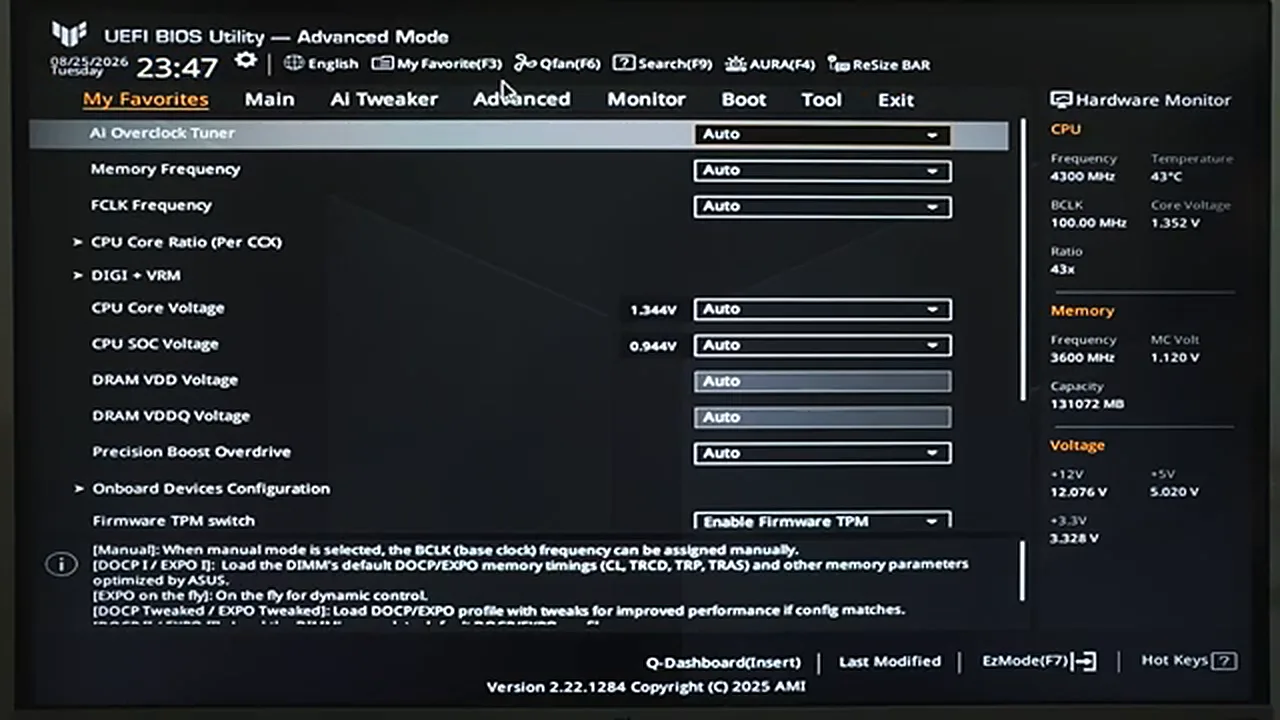
Your pen drive appears in the tool, with the BIOS file on it. Select it. If your drive is encrypted with BitLocker, you will see a notice about keeping the recovery key handy — take that seriously and make sure you know where the key is before continuing. Then come the confirmations: “Do you want to read this file?” — Yes. “Do you really want to update the BIOS?” — Yes.
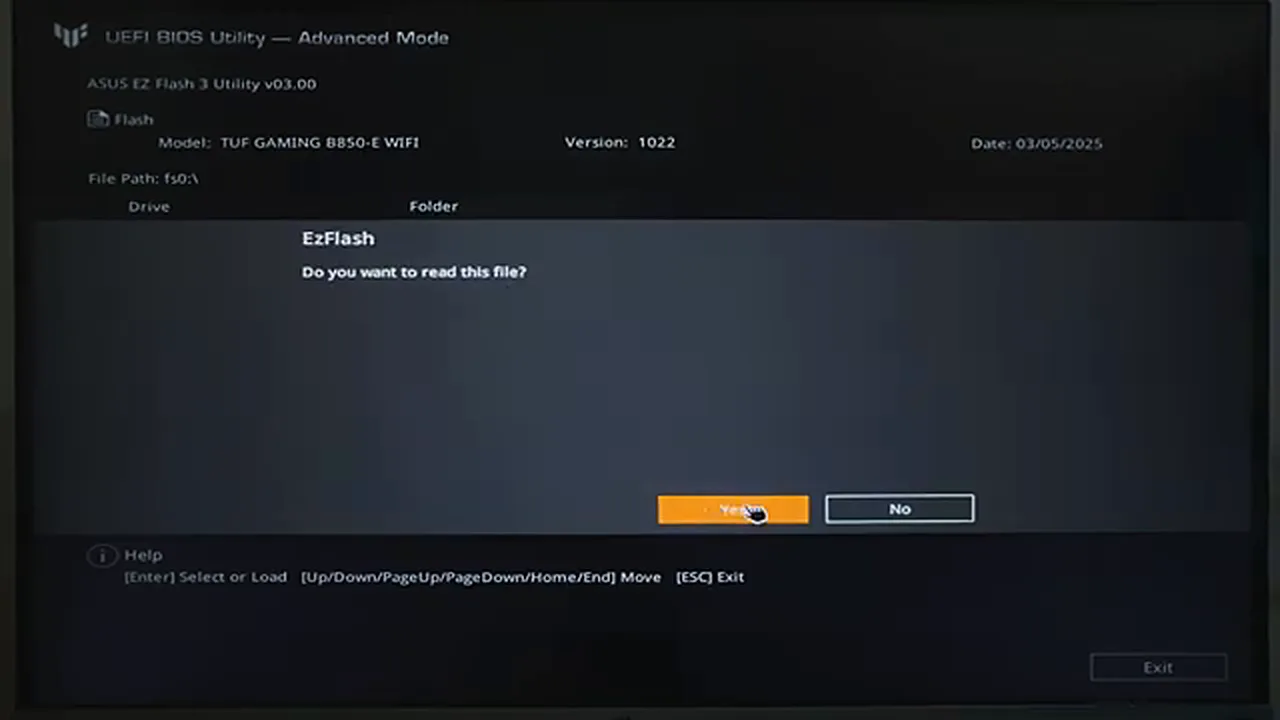
The PC will switch off, switch back on, and the update will run. This takes a few minutes, and during it the screen may go black for stretches, fans may spin up, and the machine may seem completely dead. All of that is part of the process. Do not press the reset button, do not hold the power button, and do not unplug anything. If the screen appears frozen, give it at least ten to fifteen minutes before even thinking about a problem — a BIOS flash that looks stuck is usually just a BIOS flash that is still working. Only if it is genuinely dead far beyond that should you contact ASUS support rather than improvising a recovery yourself.
The Restarts (and the Error That Isn’t)
After the flash completes, the PC will restart — several times. That is normal. Then, on the first boot, you may see an error-style screen asking you to press F1 to enter BIOS setup to recover BIOS settings. This is the moment people panic, and it is nothing to panic about. Press F1, enter the BIOS, and then simply choose Save & Exit without changing anything. In most cases — including the video’s — that alone clears it, and the PC boots into Windows cleanly from then on.

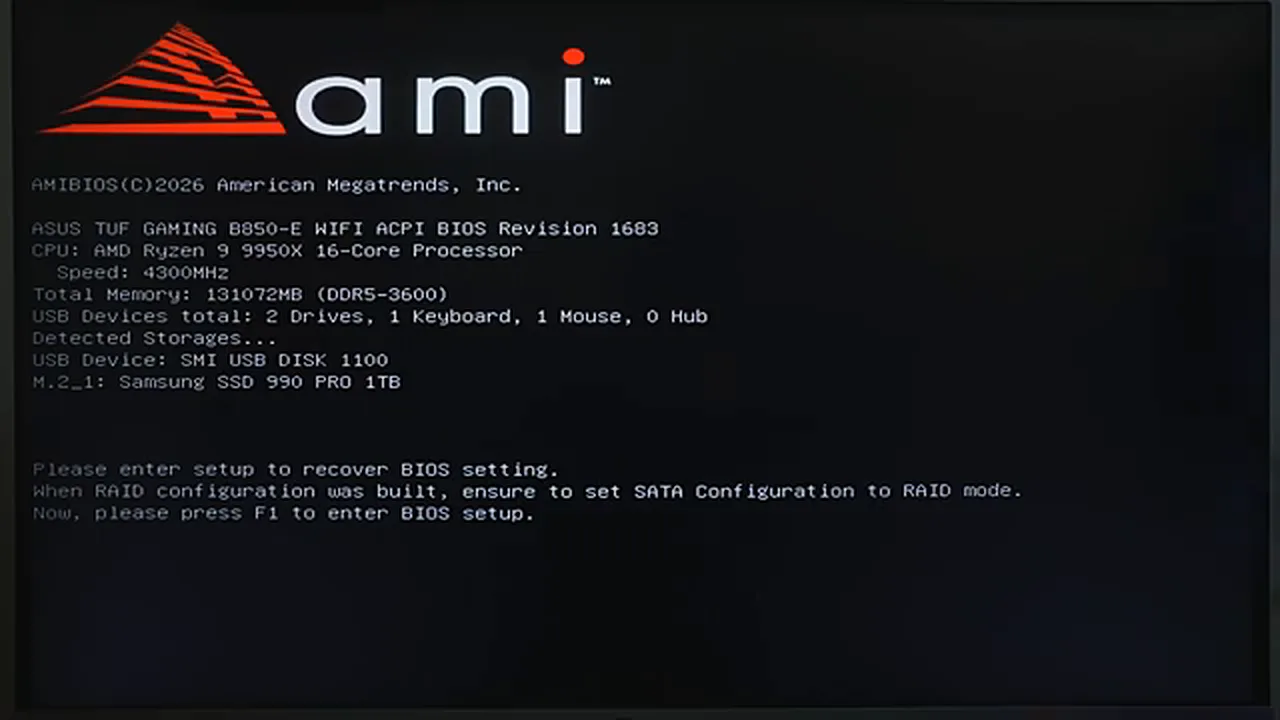
That POST screen is also your proof: it now shows the new BIOS revision, 1683, where 1021 used to be. The update is in.
After: Set Your PIN Again
One last housekeeping step that surprises people. A BIOS update resets the security chip’s state, so Windows will ask you to set up your PIN again and sign in to your Microsoft account. That is expected, not a sign that something went wrong. Set the PIN, sign in, and you are done — with a board running current firmware and, in the video’s case, RAM finally allowed to run at the speed it was sold at. One more detail if RAM speed was your reason for updating: a BIOS update also resets your memory settings to their slow defaults, so go back into the BIOS, re-enable EXPO on an AMD board or XMP on an Intel board, save, and only then check whether your kit is finally running at its rated speed.

BIOS updates have a scary reputation, and the power-loss warning is real — but with a stable file, the right board, a FAT32 pen drive and an uninterrupted few minutes, the whole thing is a calm, boring procedure. Which, for firmware, is exactly what you want. Going forward, there is no need to chase every release: check your board’s support page every few months, or when you add new hardware like a CPU or a faster RAM kit, and update only when a release note speaks to something you actually use.