Windows 11 26H2 is out — in the Insider Preview, at least — and its most interesting quality is a strange one: half of what’s new is hidden. Some features sit in Settings waiting to be switched on. Others are present in the code but switched off, and you have to unlock them yourself before they appear at all. This guide covers both kinds: the key that unlocks the hidden half first, then a tour of every feature worth your time, and finally an honest account of the ones that refused to switch on.
First, the Unlock Key: ViVeTool
Several 26H2 features are shipped disabled. Microsoft’s own tooling for this is a small open-source utility called ViVeTool, and the video walks through exactly how to use it. Download it from its GitHub page (it works on both Intel and AMD, and the file is only a few KB), extract the folder, and rename it to something short — ViVe is easier to type than the full name. Copy the folder to the root of your C: drive.
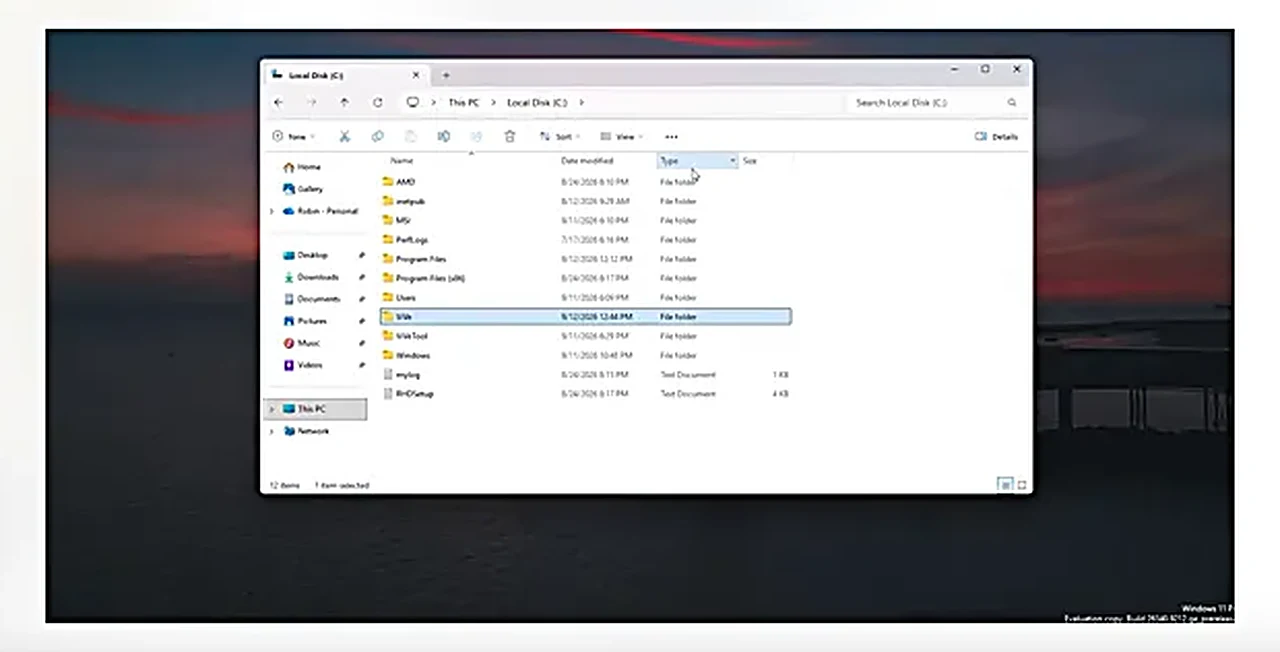
Then open Command Prompt as administrator, type cd C:\ViVe (or whatever you named the folder) to move into it, and enable a feature with a command shaped like vivetool /enable /id:00000000 — the number at the end is the feature’s ID. Each feature has its own ID, and the way to find one is to search for the feature’s name plus “not showing how to enable using ViVeTool”; the guides that come up publish the ID. After every enable command, restart the PC — the feature will not appear until you do.
Three warnings, all from experience rather than theory. First, this only makes sense on an Insider Preview build; on a stable release the features simply are not there to unlock. Second, enable one feature at a time and check it, so that if something misbehaves you know which one did it. Third, never enable IDs at random — hidden features can be unfinished, and Microsoft can change or remove them before the final release. With that understood, here is what the key opens.
The Taskbar Finally Moves
For years, the Windows 11 taskbar was pinned to the bottom and that was that. In 26H2, Settings → Personalization → Taskbar gains a Taskbar behaviors section with a position control: bottom (the default), top, left, or right. Every other desktop operating system has offered this forever; Windows finally caught up. The same page also adds a taskbar size control — default, or small, which shrinks the whole bar down to something far less greedy with screen space. If the new options do not show on your build, they are among the features that need the ViVeTool treatment first.
A Start Menu You Can Actually Control
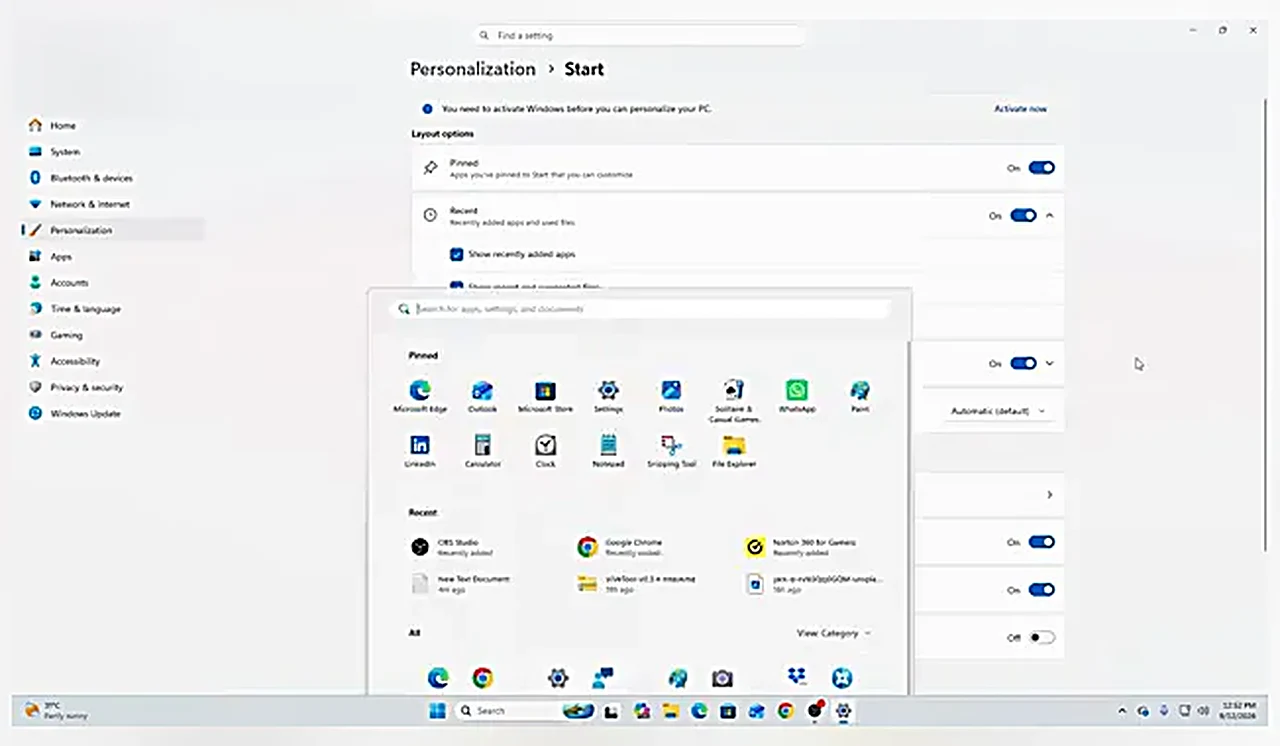
The Start menu gets two controls that should have existed from the start. In Settings → Personalization → Start, there is now a toggle for showing all installed apps and system components in Start. Leave it on and Start shows everything, as it always did; switch it off and the menu stays clean and fresh, with only what you pinned. Below it sits a Start menu size control — small, default, or large — so the menu itself can shrink to a compact panel or stretch out, instead of the one-size-fits-all box Windows 11 launched with.
The Run Dialog Grows Up
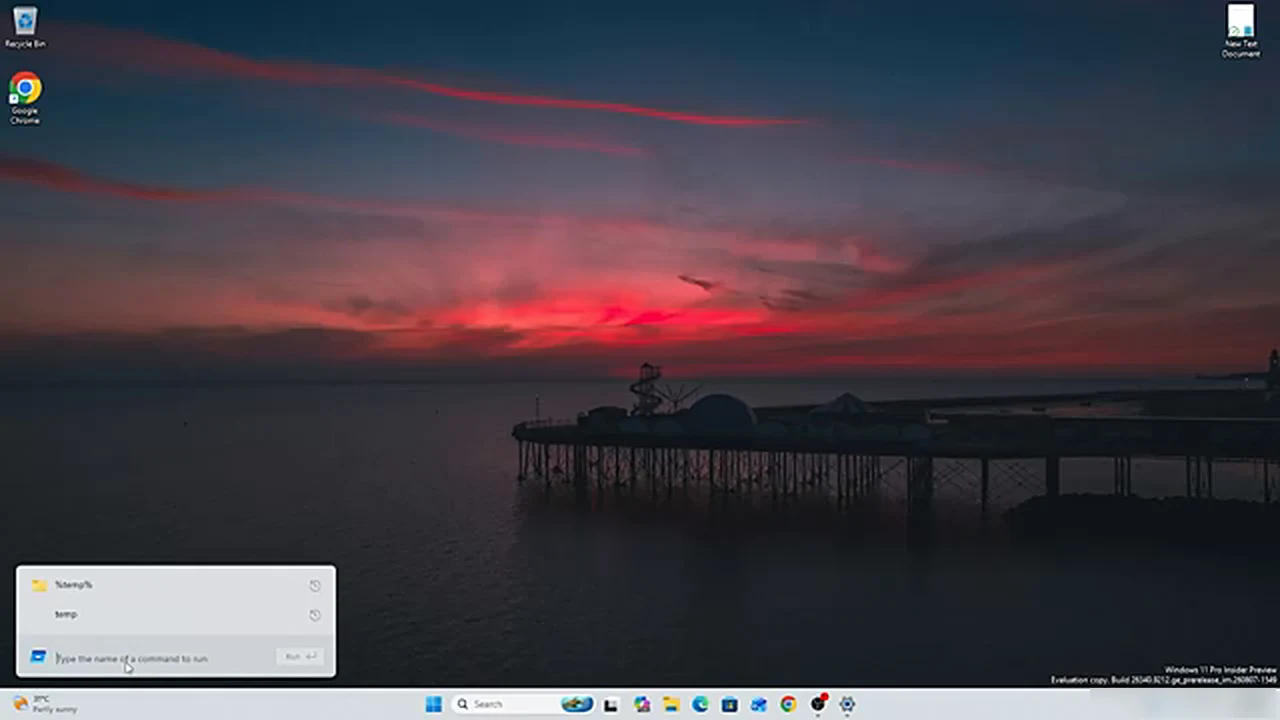
Press Win + R and you have used the same tiny Run box since Windows 7 (and, in spirit, since Windows 95). In 26H2 it is redesigned: the same box, but with a history of everything you have run before, so a command you use daily is one click away instead of another round of typing. To get it, first unlock it with ViVeTool, then switch it on in Settings → System → Advanced, where a Run dialog toggle appears. It is a small change that rewards anyone who lives on the keyboard.
Accessibility: Screen Tint and the Pointer
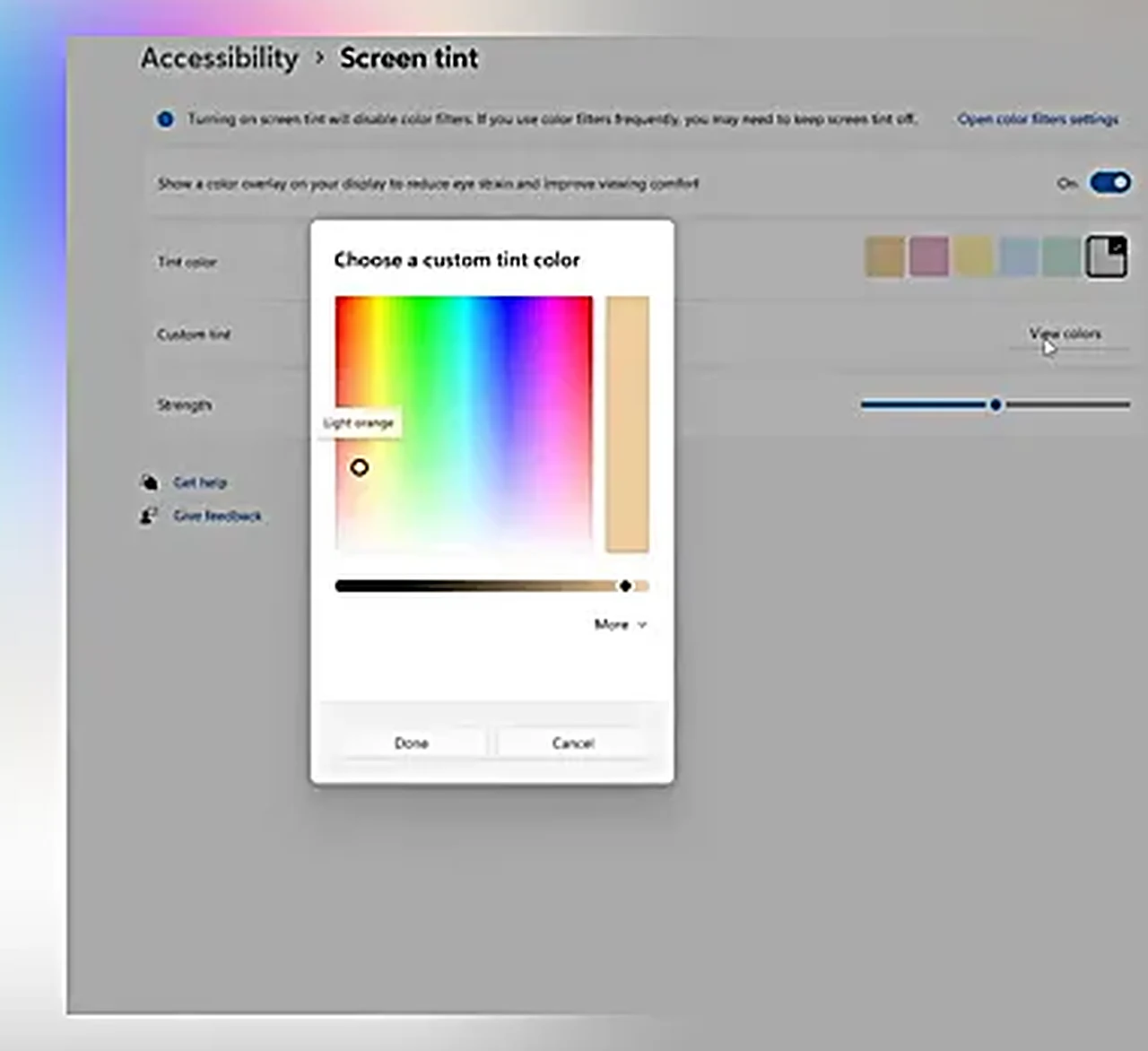
Under Settings → Accessibility comes Screen Tint: a color overlay across the whole display, with preset tints, a custom color picker, and a strength slider controlling how strongly it applies. It is the grown-up version of night mode — instead of only warming the screen, you choose the tint and the intensity yourself, which can take real pressure off your eyes during long sessions. One caution from the video’s own testing: if you do color-critical work — photo editing, design, video grading — leave it off while you work, because you will not be seeing true colors.
The same Accessibility area is also supposed to gain a mouse pointer indicator — crosshair lines that make the cursor’s exact position obvious at a glance. It is a genuinely useful feature for large or multi-monitor setups, but in the video’s testing it would not switch on even after repeated ViVeTool attempts that reported success. It stays in the “coming” column for now.
Small Touches: The Boot Animation
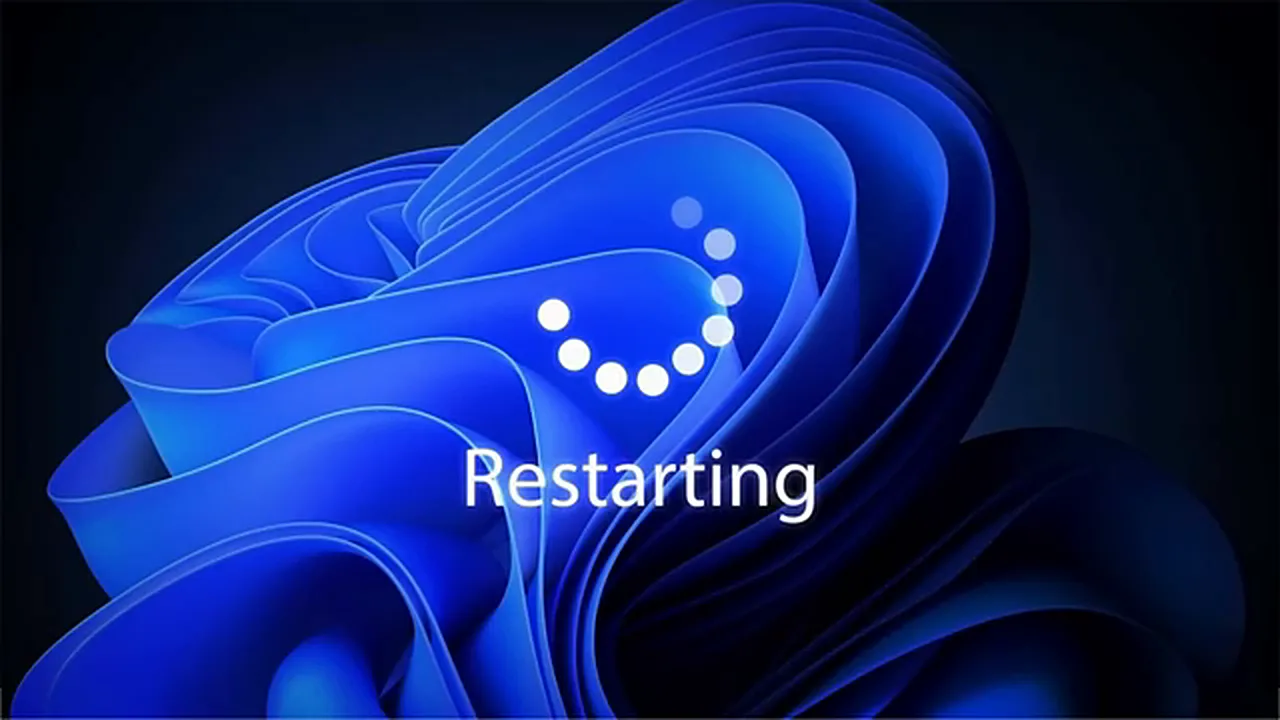
Not everything new is a feature. The restart and boot animation — the ring of dots that has spun since Windows 8 — is replaced by a single clean circle. It changes nothing about how the machine works, but it is the kind of quiet polish that signals how much of this release is about refinement rather than reinvention.
Cloud Rebuild: Reinstall Without a USB Drive
The most consequential addition is Cloud Rebuild. Until now, reinstalling Windows from scratch meant a bootable USB drive, or a recovery partition, or both. Cloud Rebuild downloads a fresh copy of Windows directly from Microsoft and reinstalls it — no USB drive, no ISO, no spare disk needed. The path is Settings → System → Recovery → Advanced startup → Restart, and the Cloud Rebuild option appears in the recovery environment.
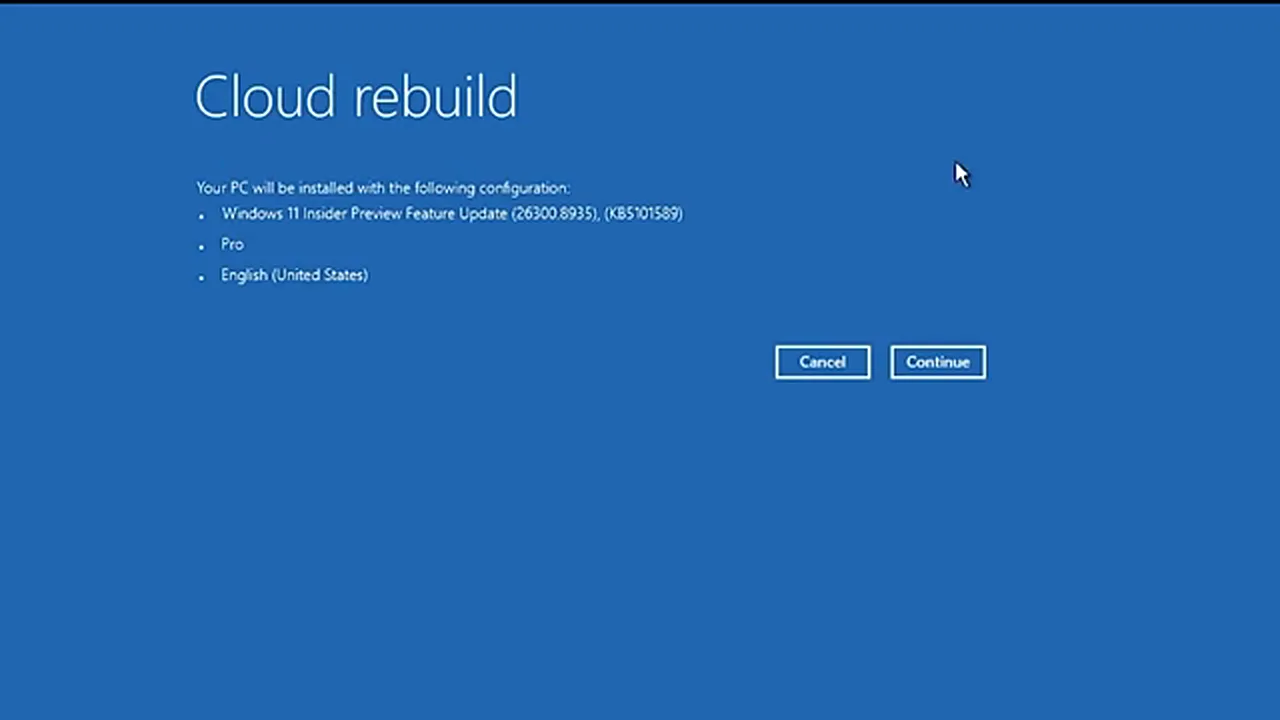
Two things to know before you ever use it. It needs an internet connection, since the whole point is downloading the system. And it wipes the system drive completely — apps, settings, everything on C: goes, while your other drives stay exactly as they are. Back up first, treat it as the nuclear option it is, and it is a superb safety net for the day a machine will not boot and there is no USB drive in the house. If you have not installed 26H2 yet, our step-by-step install guide covers the USB method from start to finish.
What Would Not Switch On
Honesty is part of the review. Two advertised improvements could not be enabled at all in testing: the reorganized Privacy & security page, which is supposed to group its options with icons at the top instead of a long list, and the Custom Dictionary, meant to learn your typing and fix your mistakes. No feature IDs for either could be found, so no ViVeTool command exists for them yet. They will presumably arrive with the official release — or a later Insider build — but right now they are names without a switch. The video’s own verdict matches: the release feels faster and more refined overall, with one recurring quirk of its own, a Start search that sometimes takes a second or two to respond.
How to Check You Are Actually on 26H2
Before you chase any of these features, confirm what you installed. Press Win + R, type winver, and press Enter: the About Windows box shows the version and the OS build number. On this release it should read Version 26H2 with OS build 26300. If it reads 25H2 instead, you are on the older branch and none of the features above will be present, unlocked or not — the version number is the first thing to check whenever a new option refuses to appear.
Should You Install It?
The video’s advice is the right advice, and it is worth repeating plainly: do not put an Insider Preview build on the PC you depend on for work. Preview builds can carry missing files and rough edges, and this one is no exception. If you are curious, try it in a virtual machine first, where it cannot touch your real system — the video’s original plan, before VirtualBox misbehaved and the install moved to a spare machine. One confusion to clear up before you download: the Insider download page still labels the build “25H2” (build 26300). It is the same servicing branch as 26H2, and once installed, winver reports version 26H2. The name on the download page is stale; the build is not.
Taken together, 26H2 is less a revolution than a release that finally listens: a taskbar that moves, a Start menu you can size, a Run box with a memory, and a reinstall option that needs nothing but the internet. Half of it is in Settings today; the other half needs the ViVeTool key. Either way, it is the most customizable Windows 11 has ever been — and the official release should only add the pieces that are still missing.