Open This PC and look at your drives. One of them probably reads 299.99 GB. Or 99.99 GB. Or 465 GB on a drive you bought as 500 GB. Nothing is broken — but it looks wrong, and it looks wrong because of a small piece of arithmetic that almost nobody does before partitioning a drive. This guide starts with that arithmetic, because once you understand it, every drive you ever create will come out showing the clean, round number you actually wanted — 300 GB, not 299.99 GB — and the rest of the job is just following the wizard.
Why a 1 TB Drive Is 931 GB
Drive makers and Windows count differently. Manufacturers count a gigabyte as 1,000 megabytes; Windows counts it as 1,024. The gap between those two definitions is why a brand-new 1 TB drive shows up as 931 GB before you have stored a single file, and why a 500 GB drive shows roughly 465 GB. On top of that, the system reserves a small slice of every volume for its own bookkeeping. None of this is lost space in any meaningful sense — it is the same disk, measured with two rulers — but it means that if you type a “round” number into the partition wizard without adjusting, the result lands just under it. Type 300 × 1,024 and you get a drive that reads 299.99 GB. Ugly, and entirely avoidable.
The Formula: GB × 1,024 + 100
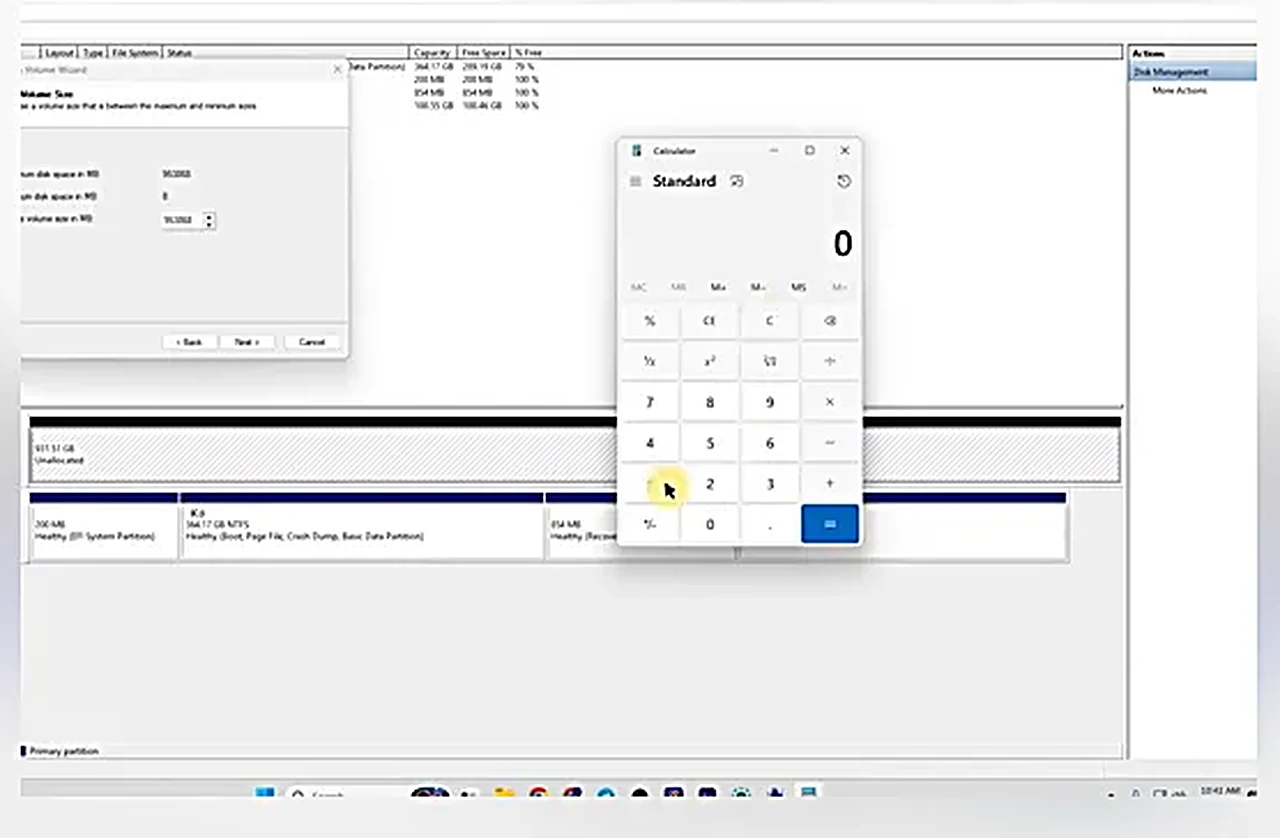
Here is the trick from the video, and it is the whole reason this guide exists. Open the Calculator app and compute:
Wanted size in GB × 1,024 + 100 = the number to type, in MB.
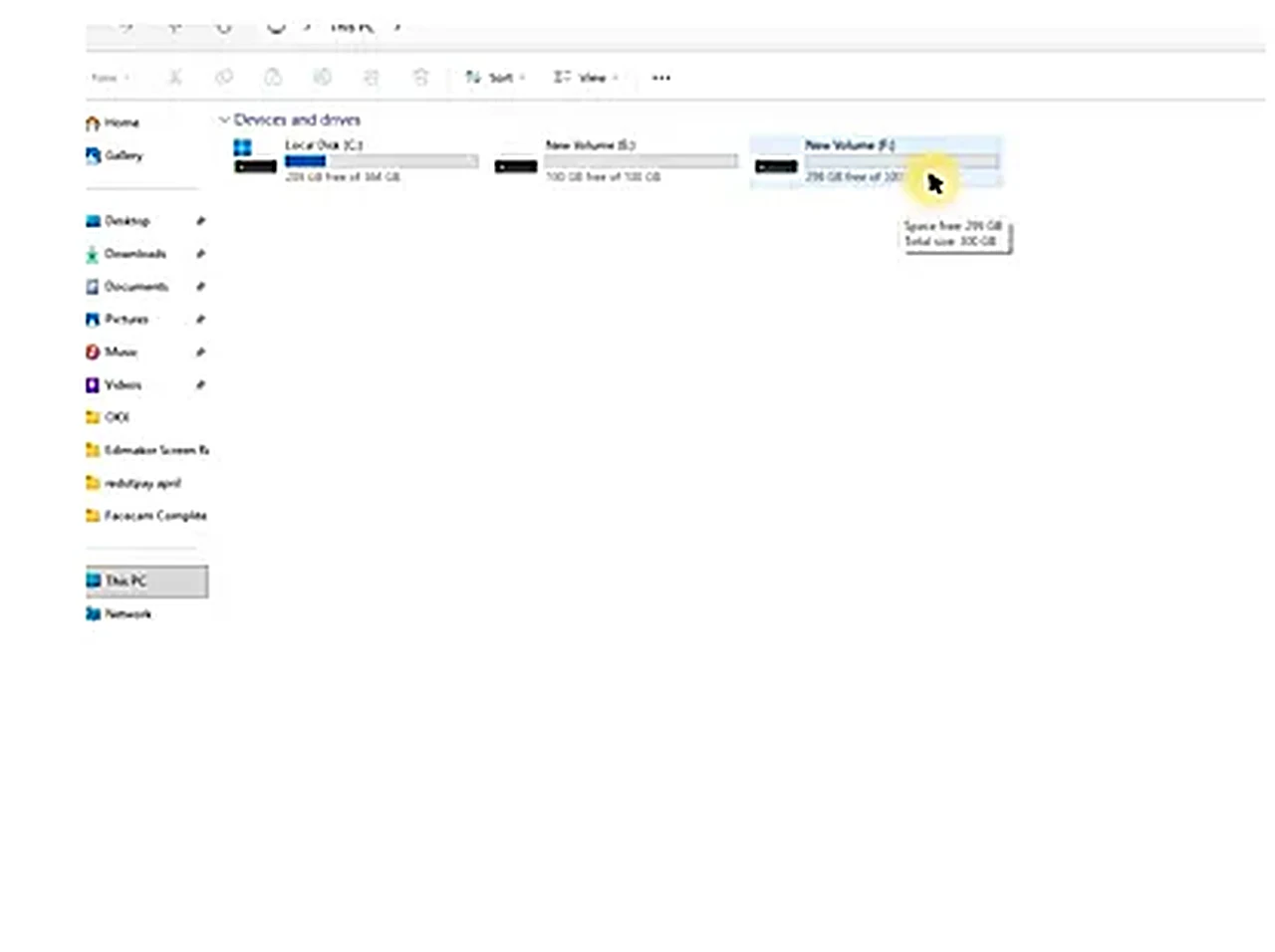
Want a 300 GB drive? 300 × 1,024 = 307,200, plus 100 = 307,300. Type 307,300 into the wizard and the finished drive reads exactly 300 GB in Explorer. Want 200 GB? 200 × 1,024 + 100 = 204,900. The extra 100 MB covers the system’s reserved slice, so the visible size lands on the round number instead of just under it. For a small 100 GB partition, +50 is enough — the reserved slice is proportionally smaller — but the +100 habit never hurts. The video proves it on screen: the 307,300 MB volume shows as a perfect 300 GB, while the unadjusted math would have shown 299.99 GB. Keep this formula open on the Calculator while you work; you will use it for every volume you create.
Plan the Split Before You Touch Anything
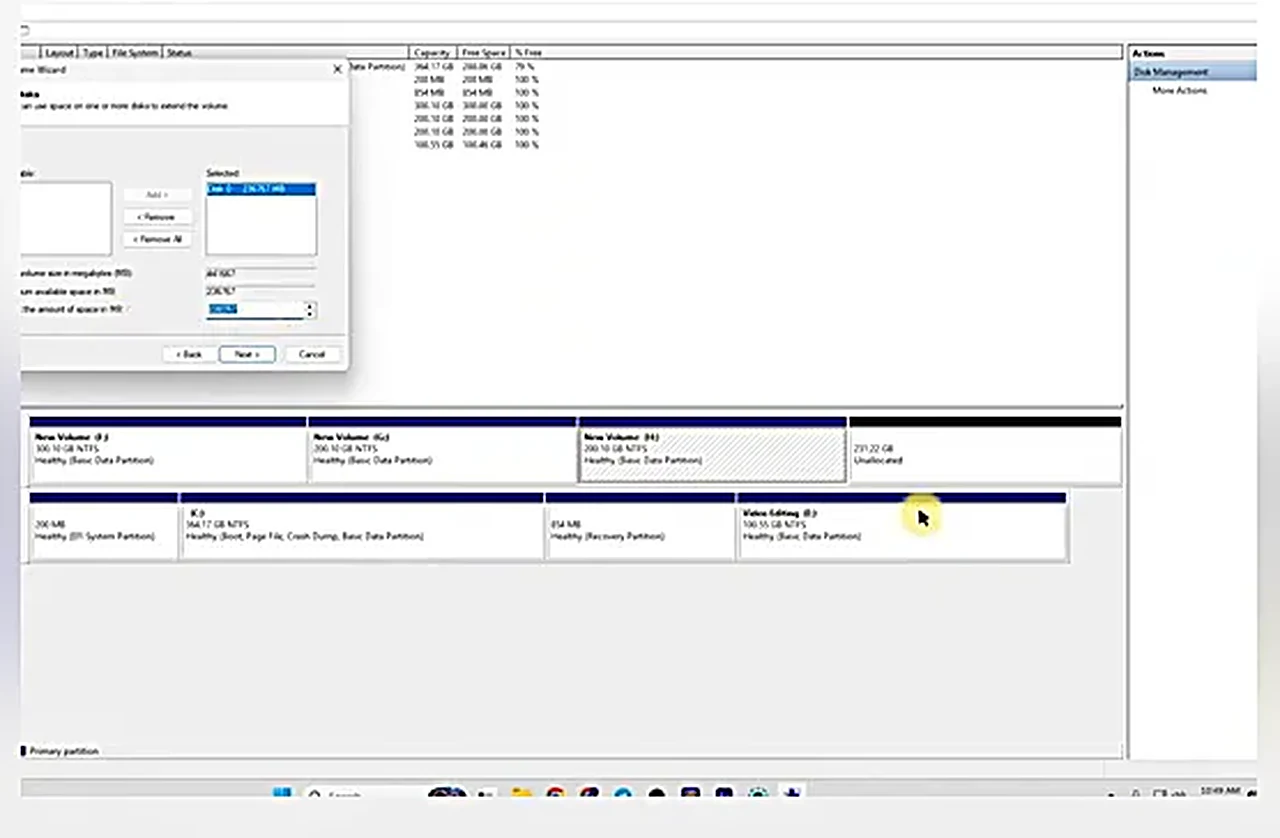
Decide the layout before you create anything, because re-splitting later is possible but fiddly (more on that below). The video’s plan for its 931 GB drive: one large 300 GB volume for the biggest files, then 200 GB volumes, with the remaining ~231 GB left as a final volume. Your plan should follow your own use — a video editor keeps a work drive on the fast SSD, since editing from the SSD is noticeably quicker than from a spinning hard disk, and bulk storage (software, videos, audio, resources) lives on the hard disk. Five or six partitions are possible, but there is no prize for the most drives: two or three well-sized ones beat a clutter of tiny ones. And one rule before you start: if you are re-partitioning an old drive rather than a new one, move your files somewhere safe first. Deleting a volume destroys everything on it.
There is one more planning decision that pays off for years: keep Windows and your files on separate volumes. If Windows ever needs a clean reinstall, a data drive that lives on its own partition survives untouched — you wipe the system volume and your documents, photos, and projects are still there afterwards. It is also the reason the video’s own machine keeps the SSD for Windows and active work while the hard disk holds the archive: the fast drive does the work, the big drive does the storage, and neither job interferes with the other. When you plan, ask first where Windows lives, then where the work lives, and only then where the archive goes.
Open Disk Management
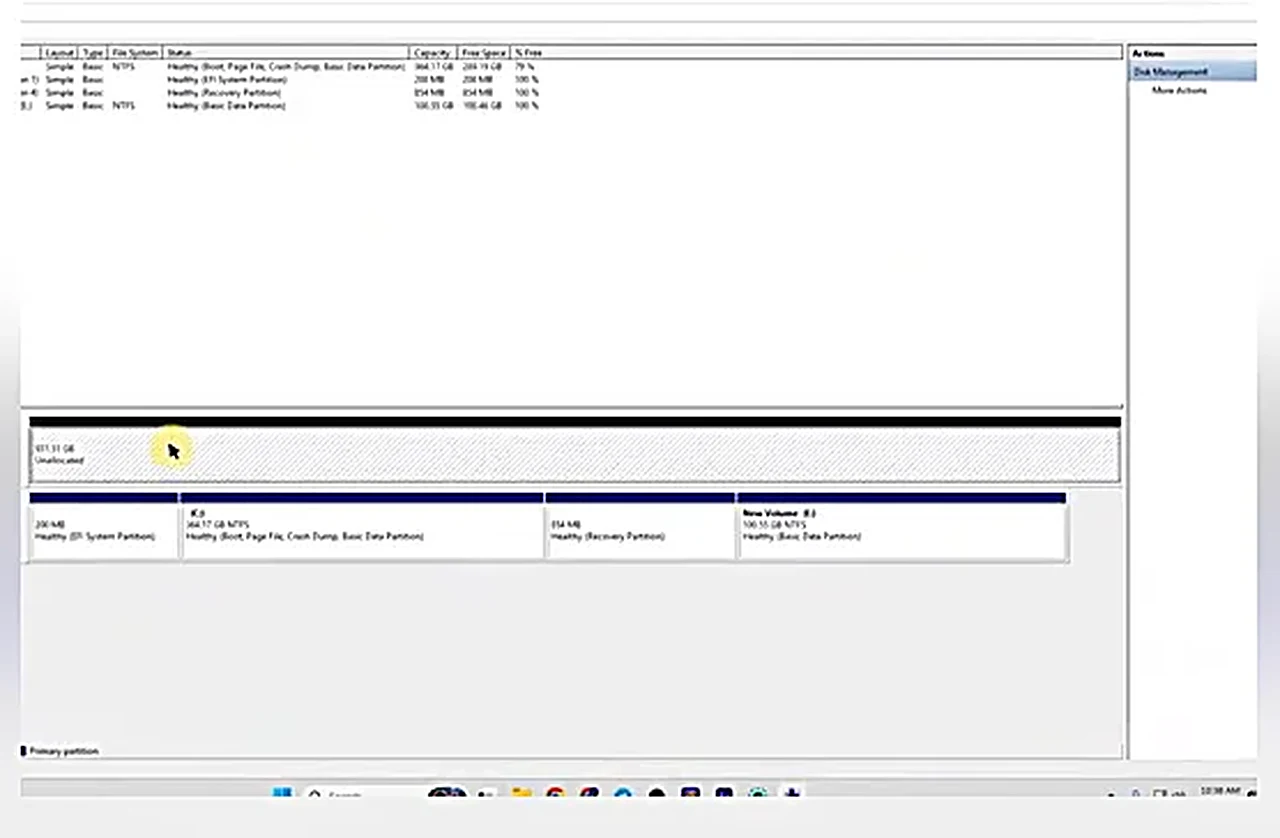
No software to install — Windows already has the tool. Click Start, type Computer Management, open it, and click Disk Management in the left pane. The lower half of the window shows your physical disks: Disk 0, Disk 1, and so on, each drawn as a bar divided into its volumes. A brand-new drive appears as one big block of Unallocated space. That unallocated space is your raw material. The upper half lists the same volumes with their letters, sizes, and file systems. Take a moment to identify which disk is which — by size, and by whether it already holds Windows — because everything you do next happens to the disk you click.
Create a Volume: The Wizard, Step by Step
Right-click the unallocated space and choose New Simple Volume. The wizard walks you through four screens. First, the size: type the number from the formula — 307,300 for a 300 GB drive — and click Next. Second, the drive letter: accept the suggested letter (F:, G:, whatever is next) and continue. Third, the format settings: leave the file system as NTFS, leave the volume label blank for now (you can rename later), keep Quick Format ticked, and click Next. Fourth, click Finish. The disk formats in seconds, and the new volume appears in the bar — and in This PC — at exactly the size you planned. Repeat the same steps on the remaining unallocated space for each further volume, reusing the formula each time: 204,900 for the next 200 GB one, and so on, until the drive is divided the way you planned it.
Two things you must not touch in this window. First, the small system partitions — the EFI partition and the recovery partition, usually a few hundred megabytes each, sitting at the front of the disk that holds Windows. They look like wasted space and they are not: deleting the EFI partition can leave the machine unable to boot at all. Second, never format or delete the volume Windows is currently running from; Disk Management will refuse some of this, but the attempt alone is a sign you are clicking on the wrong disk. Work only on the drive you identified at the start — the new one, or the old one you emptied on purpose.
Rename a Drive So You Can Find Things
A drive called “New Volume (F:)” tells you nothing six months later. Right-click the volume in This PC and choose Rename — or click its name slowly twice — and give it a job: “Video Editing” for the SSD work drive, “Software”, “Backup”, whatever matches what will live there. In the video, the SSD work drive gets the “Video Editing” name, so that whenever editing work starts, files go there first and the work stays on the fast disk. Names are free, and they are the difference between a tidy machine and a guessing game.
Change Your Mind Later: Shrink and Extend
Partitions are not permanent. If a volume has more space than it needs, right-click it in Disk Management and choose Shrink Volume: type how many megabytes to free (use the same × 1,024 calculation), and the freed space becomes unallocated, sitting right after that volume. To grow a volume, right-click it and choose Extend Volume, then type how much of the adjacent unallocated space to absorb. Extend only works when the unallocated space sits immediately to the volume’s right — if shrinking leaves the free space stranded in the middle, with another volume between it and the one you want to grow, the Extend option may refuse, and that is the point where a dedicated partition tool becomes necessary. The video flags exactly this case as a subject for a deeper, software-based follow-up. For the common case — shrink one, extend its neighbor — the built-in tools are all you need.
Starting Over on an Old Drive
Everything above also works on a drive that already has volumes, with one extra step: right-click each existing volume and choose Delete Volume, which merges it back into unallocated space. Deletion is instant and total — every file on that volume is gone — so this is the step where the “move your files first” warning earns its keep. Once the whole disk reads as unallocated, partition it exactly as if it were new. In the video, the demonstration volumes are deleted again at the end for exactly this reason: the technique is the point, and the drive ends the day as one clean volume, ready for its real layout.
That is the whole job, and it needs no software beyond what Windows ships: one formula, one wizard, and a plan made before you click. The next time you fit a new drive, you will know before you start how many volumes it becomes, how big each one reads in Explorer, and — most satisfyingly — that none of them will say 299.99 GB.