Recording a phone screen directly is more trouble than it looks. The recording controls get in the way, and plenty of apps deliberately black out their content the moment screen recording starts — a security feature that does its job a little too well when you are trying to make a tutorial. The workaround the video demonstrates is disarmingly simple: mirror the phone to a PC instead, and record the PC. The phone behaves normally, nothing blacks out, and you get a clean, large recording. No extra software is needed on either side, because both ends of this trick are already built in.
The One Requirement: Same Wi-Fi
Everything in this guide runs over your local Wi-Fi network, and that comes with exactly one hard rule: the phone and the PC must be on the same Wi-Fi network. Different networks — the phone on mobile data, the PC on the office network, or two different routers at home — and the phone simply will not find the PC. If you remember nothing else from this guide, remember that: same network, or nothing works. Beyond that, you need nothing else. No cable, no app, no account.
Part 1: Prepare the PC
Windows can receive a mirrored screen, but the receiving feature is not installed by default on every setup — on the freshly set-up machine in the video, it had to be added first. Open Settings → System, scroll down, and click Projecting to this PC.
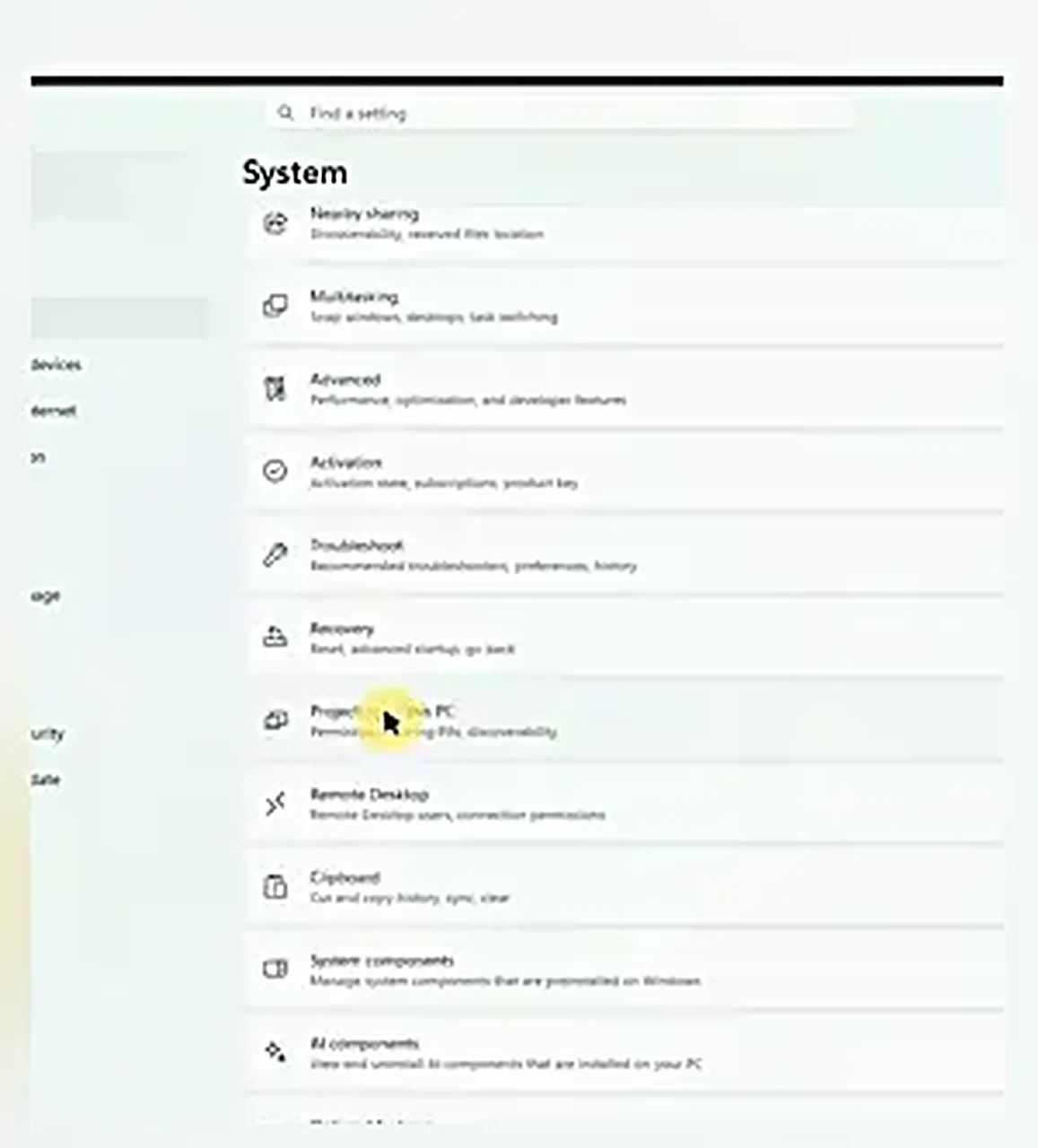
On that page, click Optional features, then View features (or “Add a feature”), and search for Wireless Display. Tick it, click Add, and wait while Windows downloads and installs the files — it takes a little while, and there is nothing to click until it finishes. When it shows as installed, go back to the Projecting to this PC page.
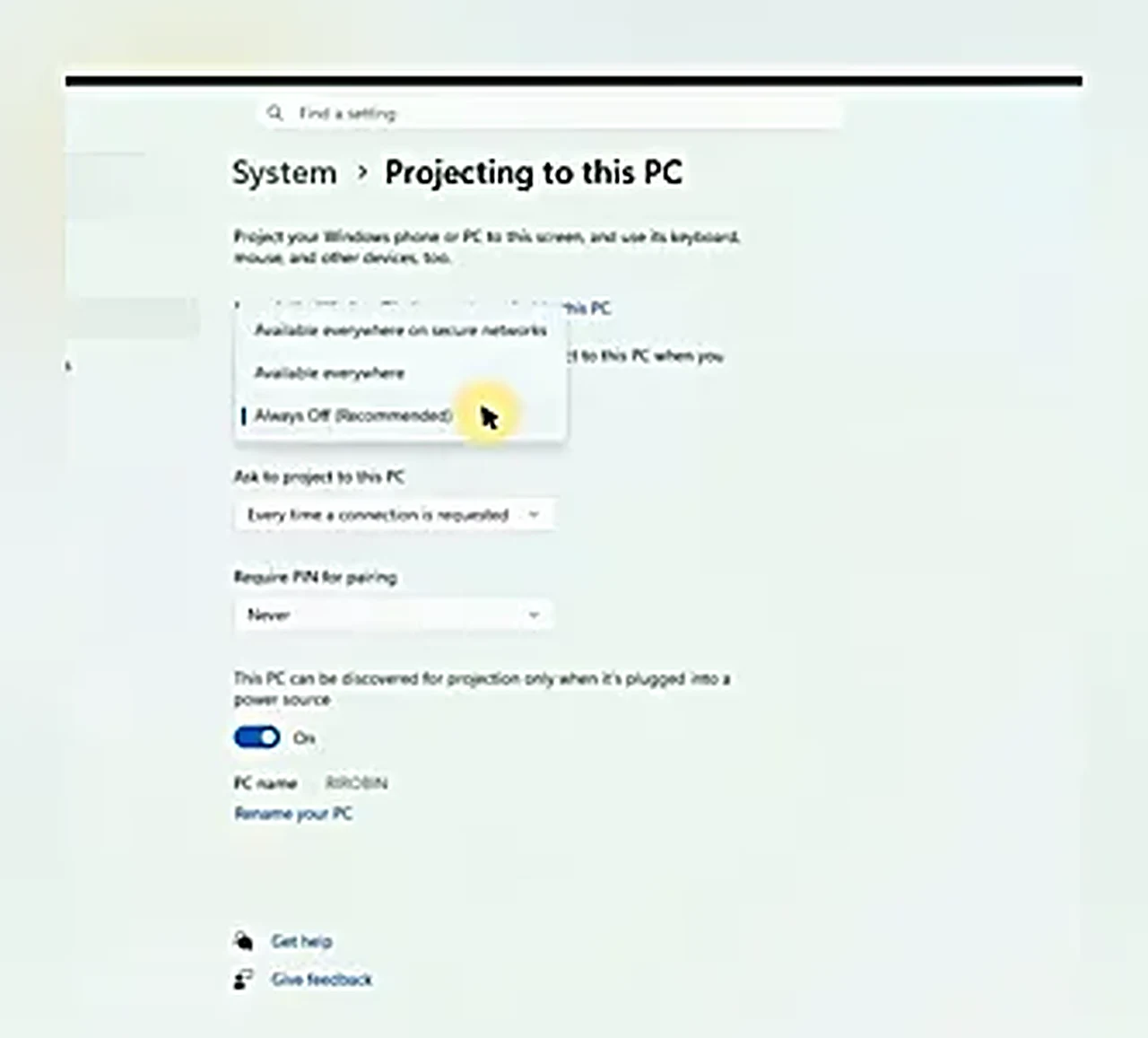
Now set the two dropdowns the way the video sets them. Change the first one — which devices may project to this PC — from its off state to Available Everywhere, so the phone is allowed to find it. Set the permission prompt to First time only, which means Windows asks you once the first time a device connects, and never bothers you again on later connections. That is the whole PC-side setup, done once and never repeated.
Part 2: Cast From the Phone
On the phone, the feature lives in the quick settings panel — swipe down from the top of the screen — but its name depends on the brand. It is the same feature wearing different labels, and the video’s Samsung shows it as Smart View. Here is what to look for on yours:
| Brand | Look for |
|---|---|
| Samsung | Smart View |
| Google Pixel | Cast |
| Xiaomi / Redmi / POCO | Cast |
| OnePlus | Cast / Screencast |
| Huawei | MirrorShare / Wireless Projection |
| Oppo / Vivo / Realme | Screencast / Smart Mirroring |
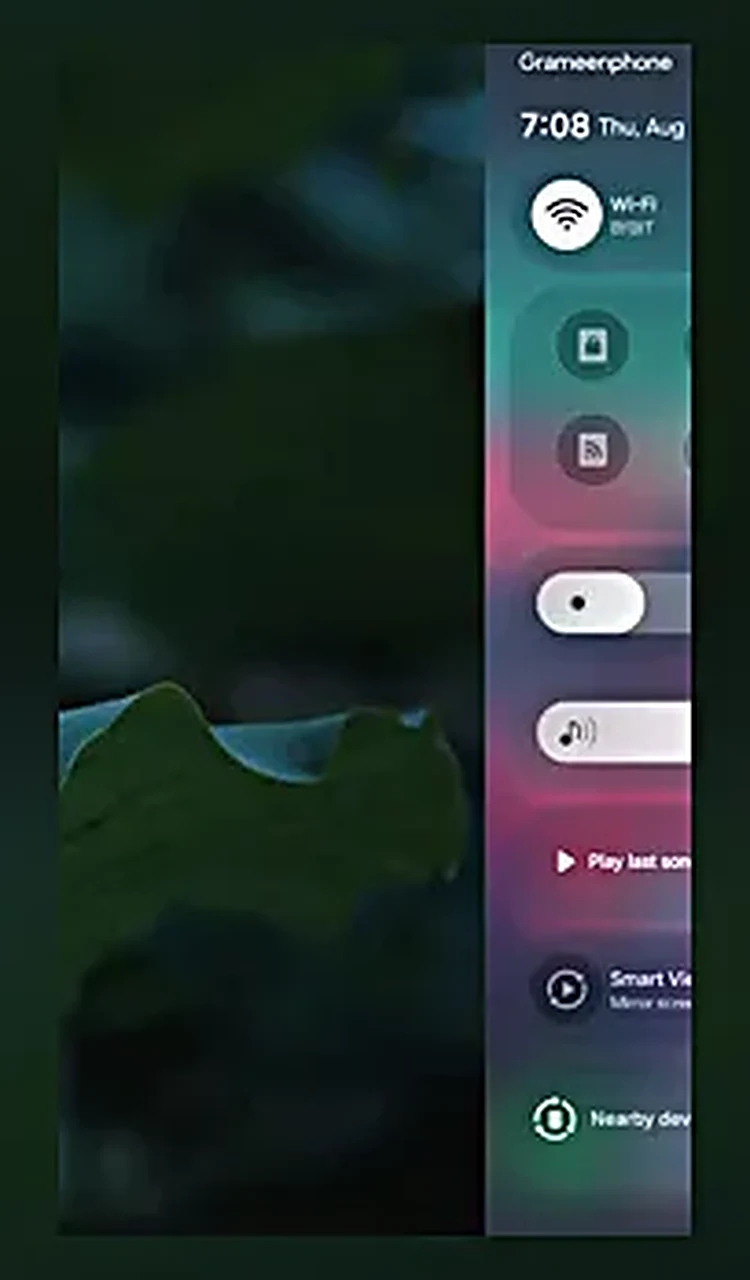
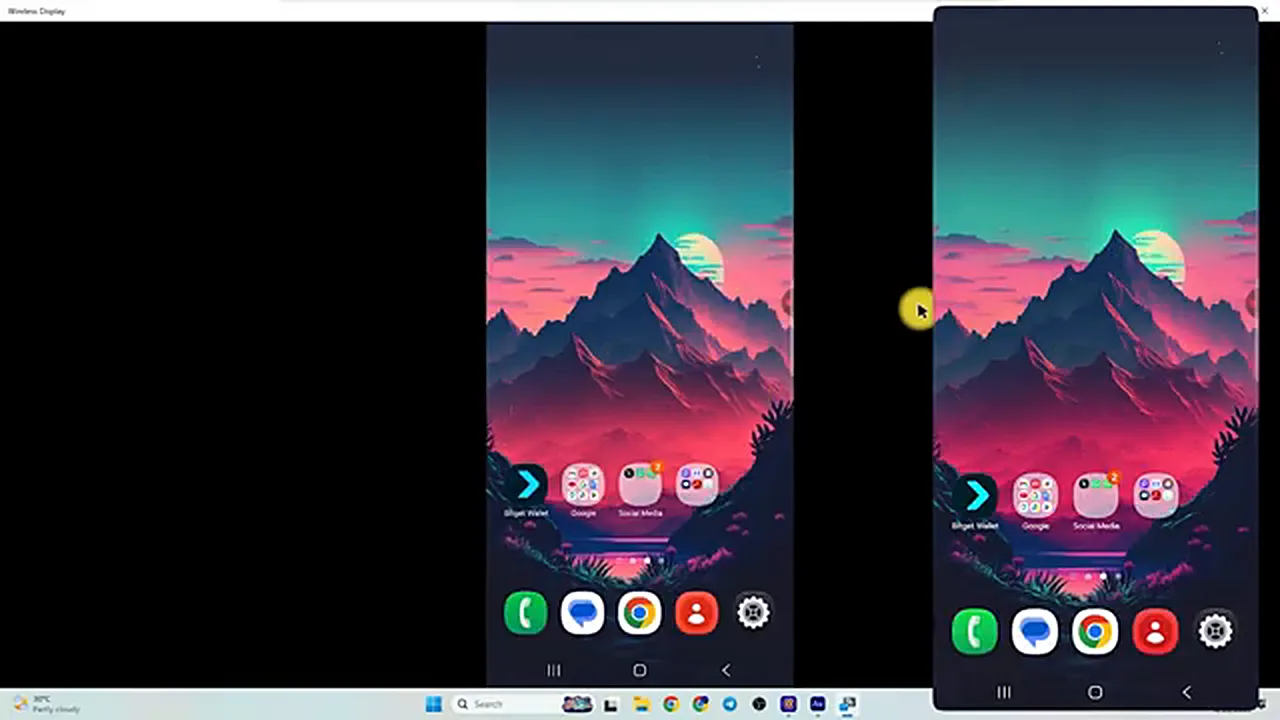
Tap it, and the phone scans for nearby receivers. Your PC’s name appears in the list — in the video it shows up as the machine’s name — tap it, then tap Start now on the confirmation. The phone shows “Connecting” for a few seconds, and then its screen appears on the PC, live. Everything you do on the phone now happens on the big screen at the same time: swipes, apps, typing, all of it.
What It Is Actually Good For
For the video’s own purpose — making content — the benefit is immediate: start a screen recording on the PC, do everything on the phone, and the recording captures a clean, full-size phone screen with none of the blackouts that direct phone recording runs into. But the same trick serves plenty of ordinary uses too: showing holiday photos to a room without everyone crowding around a phone, walking a parent through a phone setting while you both look at the same big screen, playing a mobile game on a monitor, or presenting an app in a meeting. And because the phone keeps working normally while it mirrors, you can still take calls and messages on it — they just appear on the PC too, so keep that in mind before you mirror in front of an audience.
One honest limitation: there is a slight delay. The picture travels over Wi-Fi, so fast movement — scrolling, games — arrives a fraction of a second behind your finger. For watching, presenting, and recording it is unnoticeable; for fast-paced gaming it is not the right tool. A wired connection or a dedicated capture device still wins on latency, if latency is the whole point.
One Boundary: You Can Watch, Not Control
Mirroring shows the phone’s screen on the PC, but it does not hand the PC control of the phone. Clicking on the mirrored picture does nothing; typing on the PC keyboard does nothing to the phone. Everything still has to be done with your finger on the phone itself, while the PC simply displays the result. If you need true control from the keyboard and mouse — answering messages, typing long texts, dragging files — that is a different tool: Microsoft’s Phone Link (for calls, messages, and photos), or the free scrcpy utility for full screen control over USB. This guide’s method is the view-only one, and for presenting, recording, and watching, view-only is exactly what you want: nothing to install, nothing to configure on the phone beyond one tile.
Where Does the Sound Go?
Sound travels with the picture. When the phone is mirroring, its media audio plays through the PC’s speakers, and the PC’s volume control governs it. If a video plays silently, check the two obvious places first: the PC’s volume and output device, and the phone’s media volume, which stays independent of the mirror. Notifications still sound on the phone as usual. One more honest caveat: a small number of DRM-protected video apps can refuse to play over a wireless display at all, showing a black screen even here. That is the app’s copy protection, not a fault in the connection — most apps, and everything you record yourself, mirror without any trouble.
If the PC Does Not Show Up
When the phone finds nothing, the cause is almost always one of three things. First, the networks: confirm both devices are on the same Wi-Fi, and that the phone is not on mobile data. Second, the feature itself: go back to Settings → System → Projecting to this PC on the PC and confirm Wireless Display is actually installed — if the optional feature install never completed, there is nothing to find. Third, the simple one: restart both devices and try again, which clears the stale discovery state more often than it has any right to. And one boundary worth knowing: this is Miracast, the Android-and-Windows standard. An iPhone cannot cast to a Windows PC this way — AirPlay is a different system — so iPhone owners need a third-party receiver app instead, which is outside this guide’s no-extra-software promise.
A note on the dropdown you set earlier: “Available Everywhere” is the convenient choice at home, but on a shared or public network it means any device nearby can see your PC as a target. The middle option — available on secure networks only — is the safer choice in an office or shared building, and if you want an extra layer, the same page offers a PIN requirement for pairing, so a stranger cannot project to your screen uninvited. At home, with your own Wi-Fi password guarding the network, the open setting is fine.
When You Are Done
Disconnecting is as easy as connecting: on the phone, open the same quick settings tile and tap it off, or just turn the phone’s Wi-Fi off and on. The PC returns to normal instantly, and because you chose “First time only” for the prompt, the next connection takes two taps and no questions. The Wireless Display feature stays installed on the PC, so the next time you need it, the PC side is already done — which is the real payoff of the five-minute setup: after the first time, mirroring your phone to your PC is a ten-second job.
Quick recap, for the next time you need it: install Wireless Display from Optional features; set Projecting to this PC to Available Everywhere and First time only; put both devices on the same Wi-Fi; tap Smart View (or your brand’s equivalent) on the phone and choose your PC. Watch on the big screen, record on the PC if you like, and remember it is view-only — the phone stays in your hand, where the controlling happens.
One last practical tip: while you mirror, keep the phone awake. If the phone’s screen times out and locks, the mirrored picture on the PC goes dark with it — so for a long session, either keep touching the screen or temporarily lengthen the screen timeout in the phone’s display settings. It is a small thing, but it is the one that interrupts recordings most often.