Windows 11 26H2 is the newest version of Windows 11 — but most people get stuck on the same questions. Is my PC even supported? Should I update or start fresh? What happens to my files? In this guide, you will learn exactly how to install Windows 11 26H2 the clean way, using a bootable USB made from Microsoft’s official ISO. The same method works on supported PC and on older, unsupported PC with low RAM, no TPM 2.0 or no Secure Boot.
What’s New in Windows 11 26H2?
When 26H2 first appeared in the Insider Preview, its new features needed special codes and tricks just to switch on. Not anymore — with the official release you simply download, install, and every feature is active from the first boot. The new version focuses on deeper customization and better overall performance. And if your current Windows has become slow and messy over the years, a clean 26H2 installation is the best refresh your PC can get.
What You Need Before You Start
- A USB flash drive of at least 16 GB (everything on it will be erased)
- About 9 GB of free space for the Windows 11 ISO file (the ISO is roughly 8.5 GB)
- A working internet connection — you will need it to download the ISO and to sign in during setup
- A backup of your important files, especially if you plan to format your system drive
- The boot menu key for your motherboard (for example, F11 on MSI boards — search your board’s name plus “boot menu key” if you are not sure)
- A little patience: the full process takes around 30–45 minutes
Update or Clean Install — Which One Should You Choose?
If your PC officially supports Windows 11 and your system is healthy, you can upgrade from Windows Update and keep your files and apps. But if your Windows is old and bloated, or your PC is unsupported, a clean install is the better choice — it removes years of junk and gives you a fresh, fast system. That is the method in this guide.
Step 1: Download the Official Windows 11 ISO
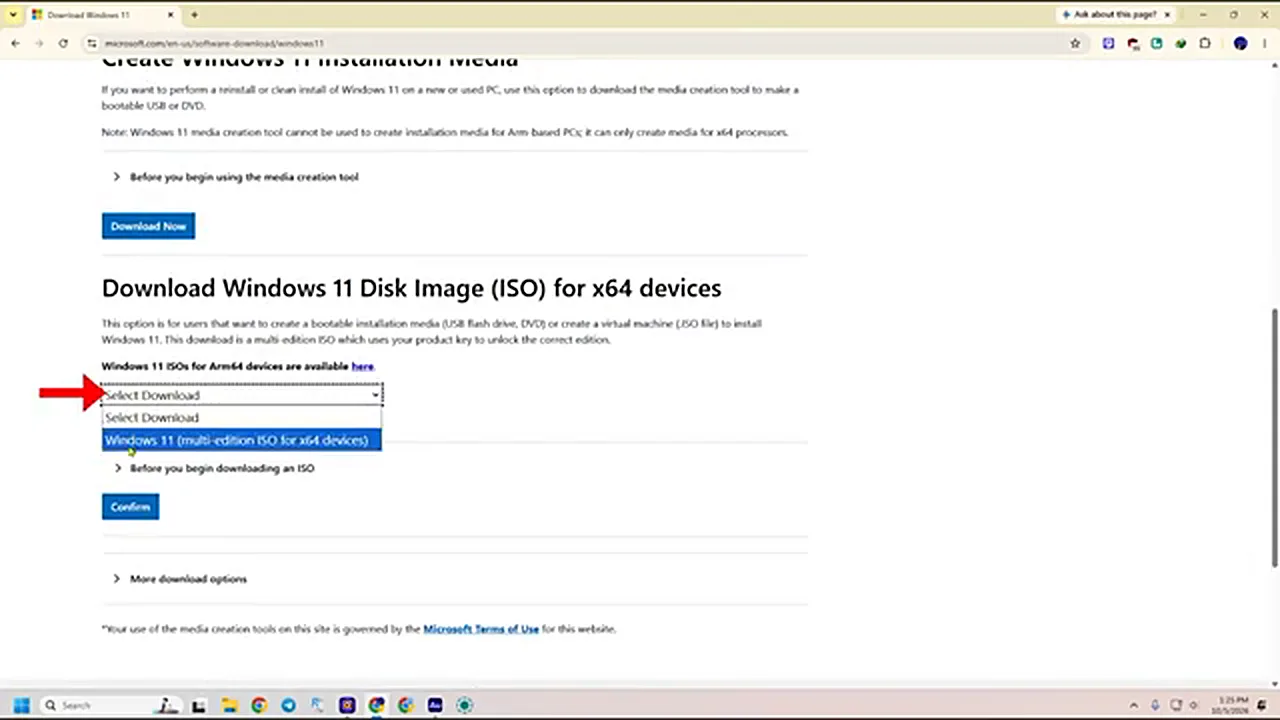
Open your browser and search for “Windows 11 ISO download”. Open the first result, which takes you to Microsoft’s official download page. Scroll down to the “Download Windows 11 Disk Image (ISO) for x64 devices” section, open the Select Download dropdown and choose Windows 11 (multi-edition ISO). Click Confirm, then choose your language — English (United States) is a safe choice — and Confirm again. Finally, click the 64-bit Download button and the ISO will start downloading.
One honest warning: the ISO is heavy (about 8.5 GB), and so is Windows 11 itself. If your PC is very old and weak, think twice — a lighter alternative is covered near the end of this guide.
Step 2: Create the Bootable USB With Rufus
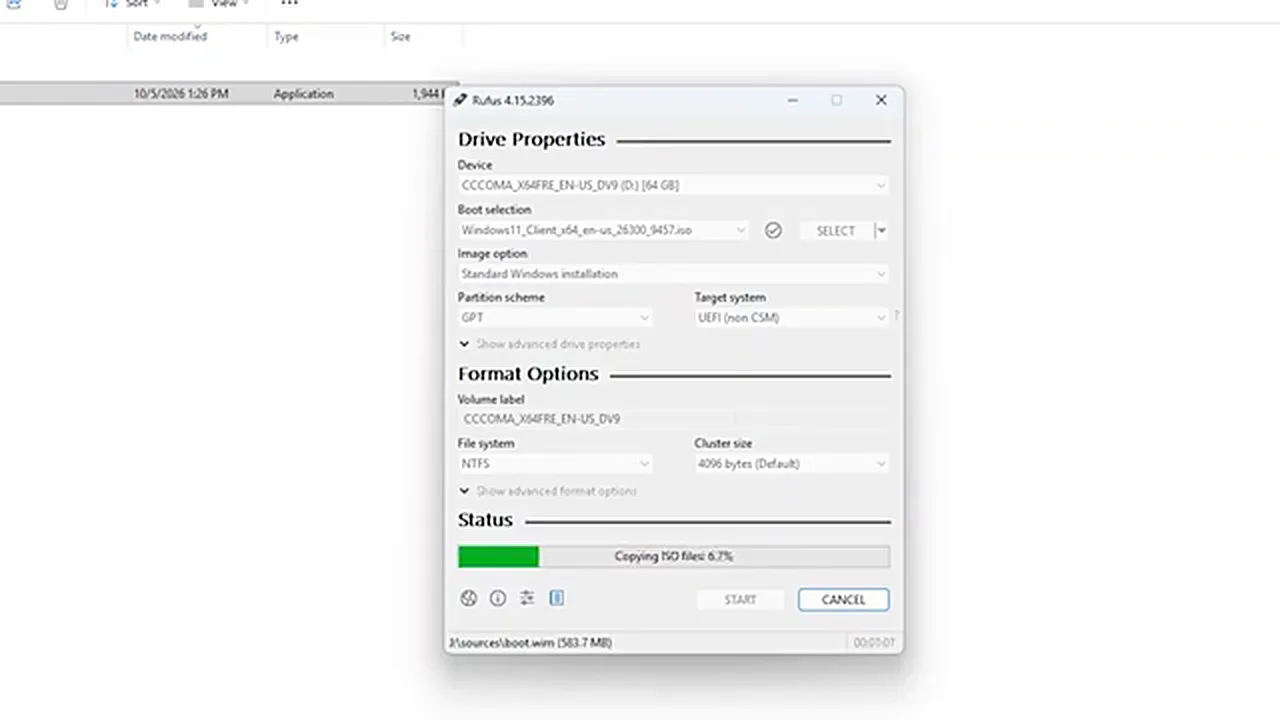
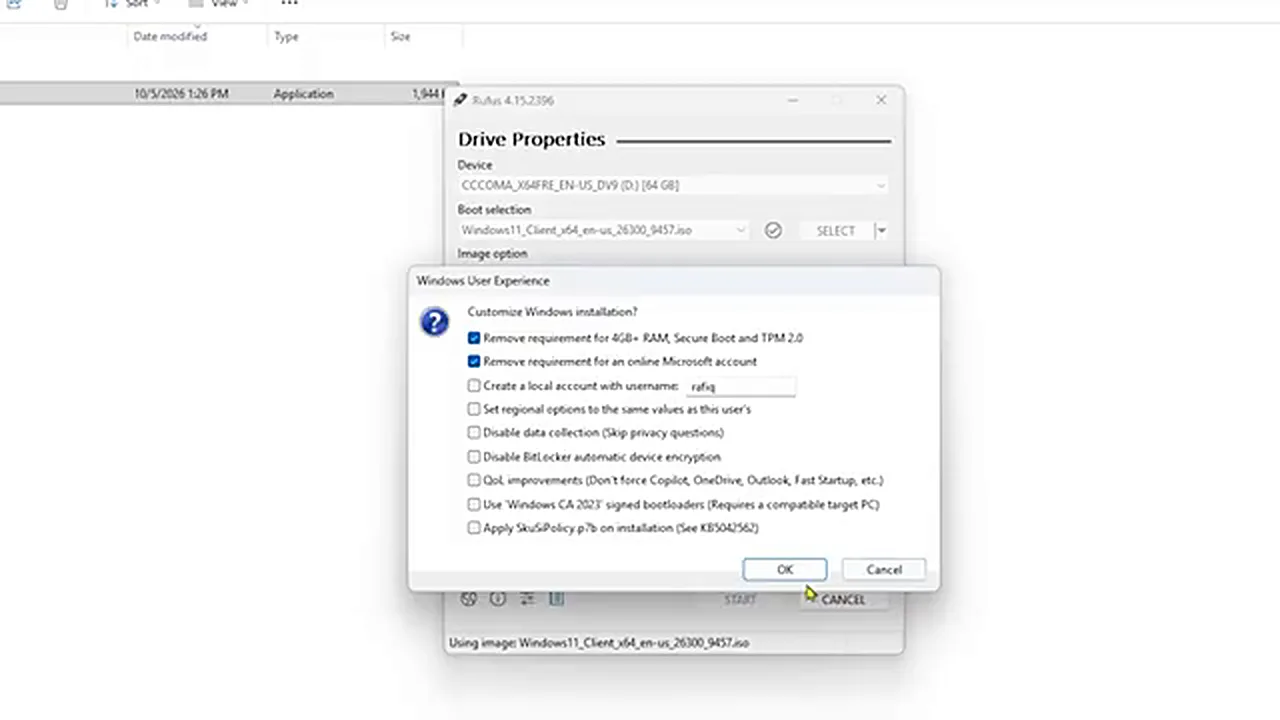
Next, download Rufus — the small free tool that turns your USB drive into a bootable Windows installer. Plug in your USB drive, open Rufus, click SELECT and pick the Windows 11 ISO you just downloaded. Before you press START, Rufus shows a “Windows User Experience” options window, and this is the most important part of the whole guide, so read it carefully.
If your PC supports Windows 11
If your PC meets the requirements, you do not need the requirement bypass at all. Untick the first option and keep only the option that removes the online Microsoft account requirement. Keeping that one ticked saves you trouble later, because setup will not force you to connect to the internet and sign in just to continue — you can always sign in afterwards.
If your PC does NOT support Windows 11
If your PC has low RAM (around 4 GB), no TPM 2.0 or no Secure Boot, keep both options ticked: the one that removes the 4 GB+ RAM, Secure Boot and TPM 2.0 requirements, and the one that removes the Microsoft account requirement. Then press OK. Now click START in Rufus. Your USB drive will be formatted and the Windows files will be written to it — when the status bar is finished, your bootable Windows 11 26H2 installer is ready.
Step 3: Save the .NET 3.5 Command File on the USB
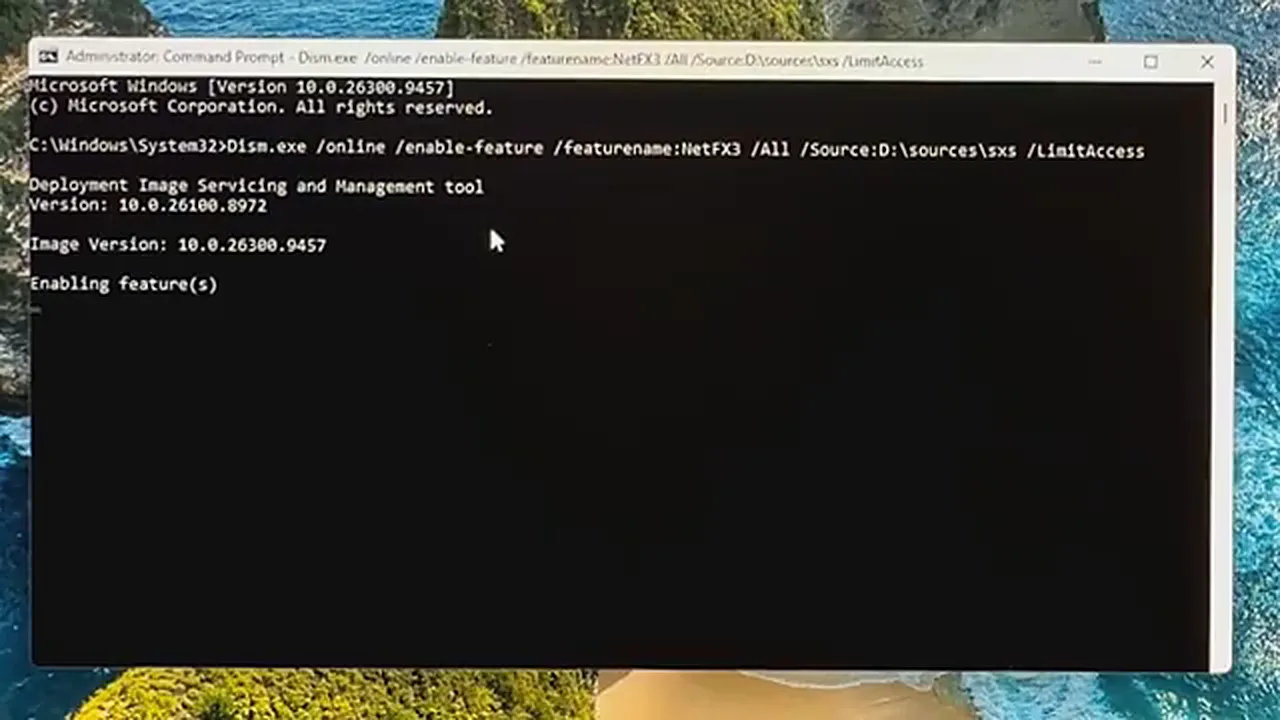
One small file to prepare now will save you time later: some apps and games need the .NET Framework 3.5, which Windows does not enable by default. A text file with a ready-made command is linked in the video description above — copy it onto your USB drive. The command looks like this:
Dism /online /enable-feature /featurename:NetFX3 /All /Source:D:\sources\sxs /LimitAccess
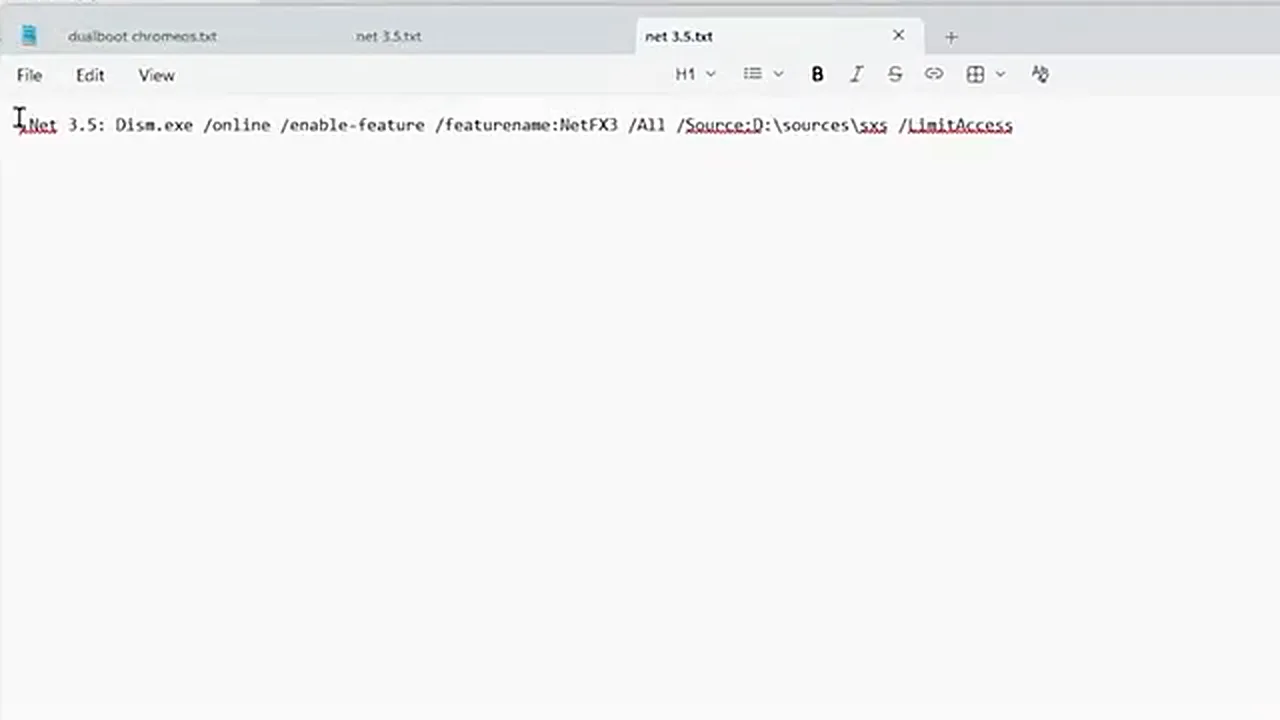
We will use this command in the last step. Note the drive letter D: in it — it must match your USB drive’s letter on the new system, which we will check when we get there.
Step 4: Boot From the USB Drive
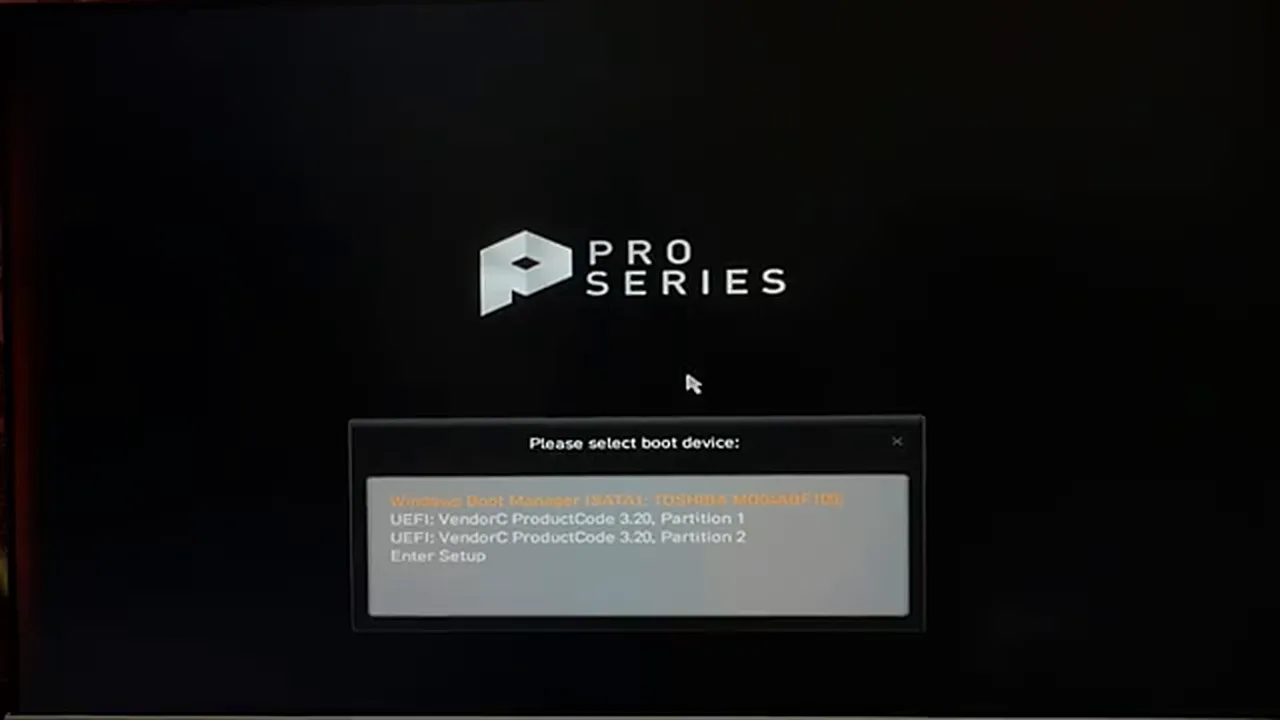
Keep the USB plugged in, restart the PC and start pressing the boot menu key right away (F11 on the MSI board used here). Select your USB drive and press Enter. If the same drive appears twice, the first entry is normally the bootable one — choose it; if the PC says the boot device was not found, restart and try the second entry.
Step 5: Start the Windows Setup
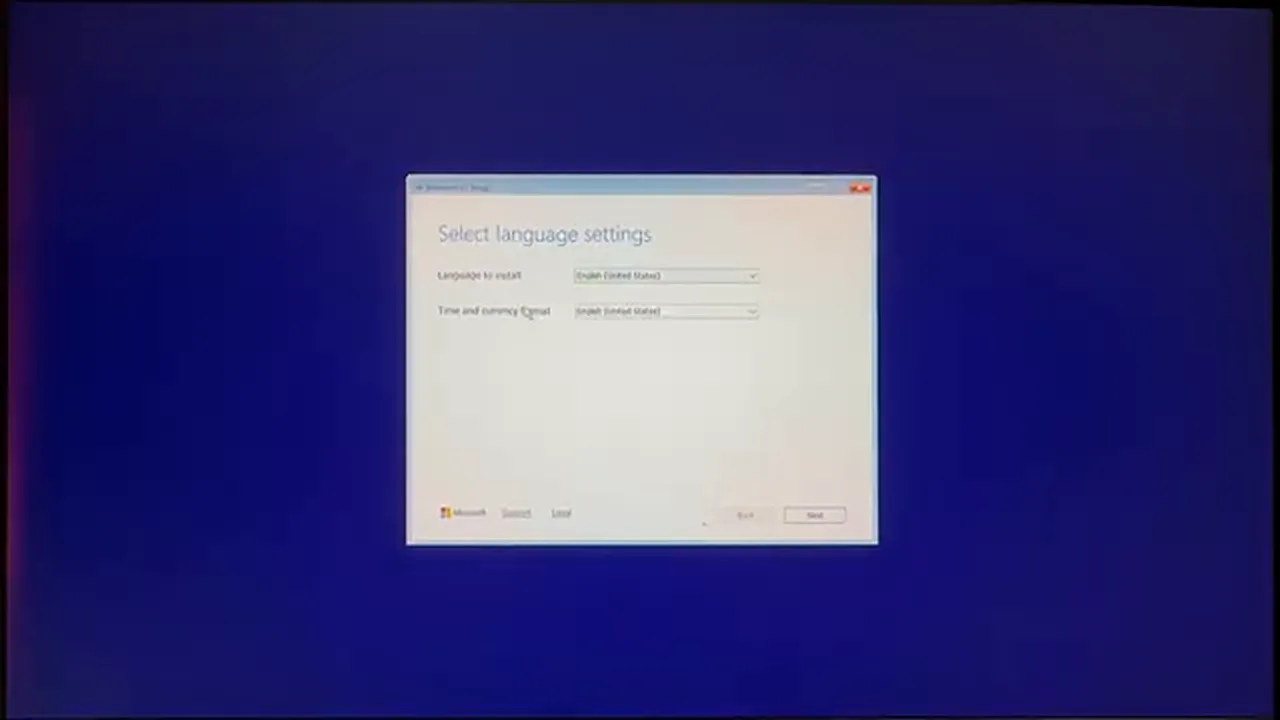
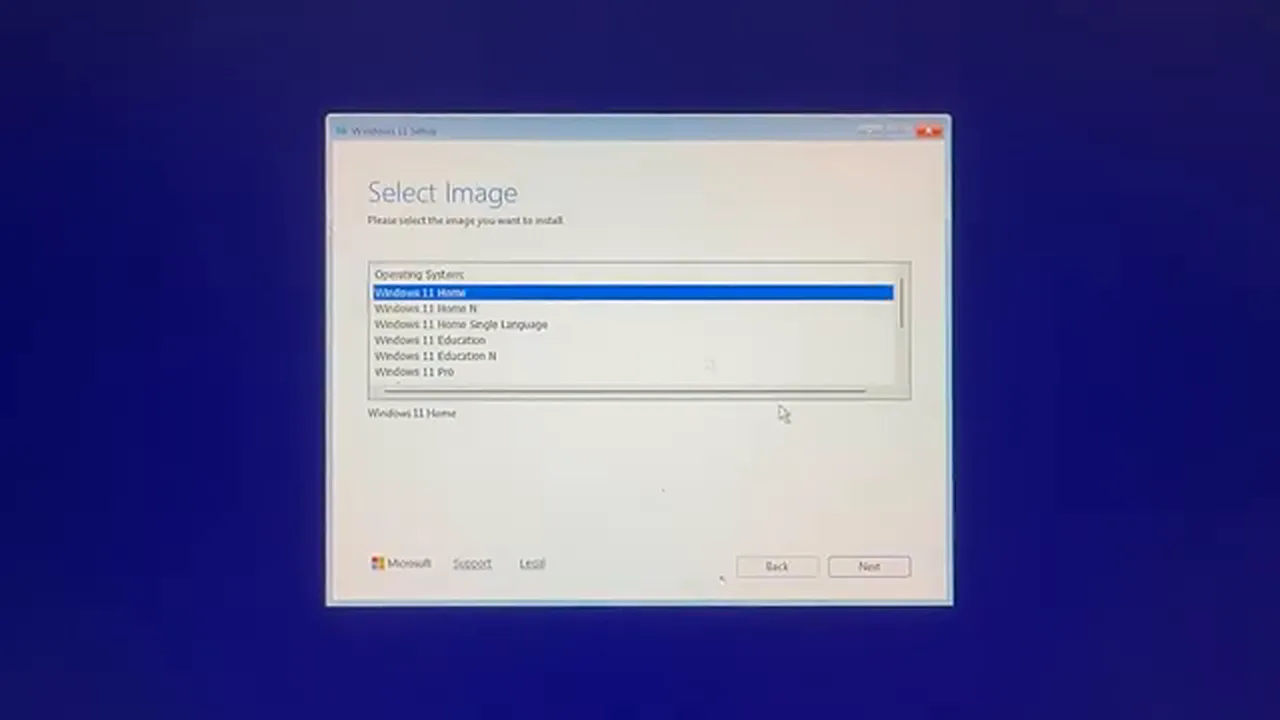
After a short loading time, the Windows Setup window appears. The language and format settings are usually correct already, so just click Next, tick the confirmation box and click Next again. When setup asks for a product key, click “I don’t have a product key” — you can activate Windows later with a genuine key. On the next screen, choose Windows 11 Pro from the list and click Next, then accept the license terms and continue.
Step 6: Choose the Right Disk (Read This Carefully)
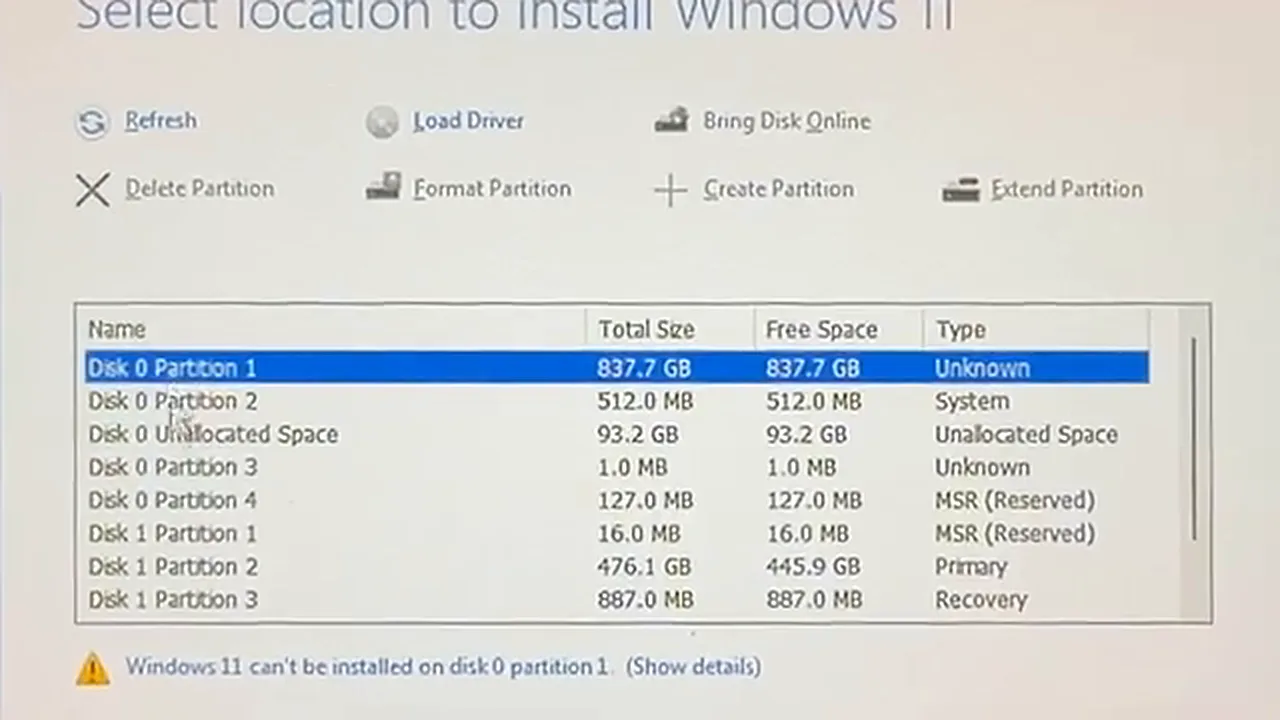
Now you will see all the drives inside your PC. In this example, Disk 0 is a hard disk used for storage and Disk 1 is the SSD — and Windows must go on the SSD. Take a moment to identify which disk is your SSD; installing on the wrong disk is the most common beginner mistake.
There are two situations. If your SSD is used only for Windows (like here, where it held only the old Windows partitions), you can delete those old partitions, select the unallocated space and click Next/Install. But if your SSD also has a separate drive where your personal data lives, do not delete everything. Select only your old C: partition, format just that one partition, then select it and click Next. Do not touch any other drive or partition — that is how people lose their files.
Step 7: Let the Installation Finish
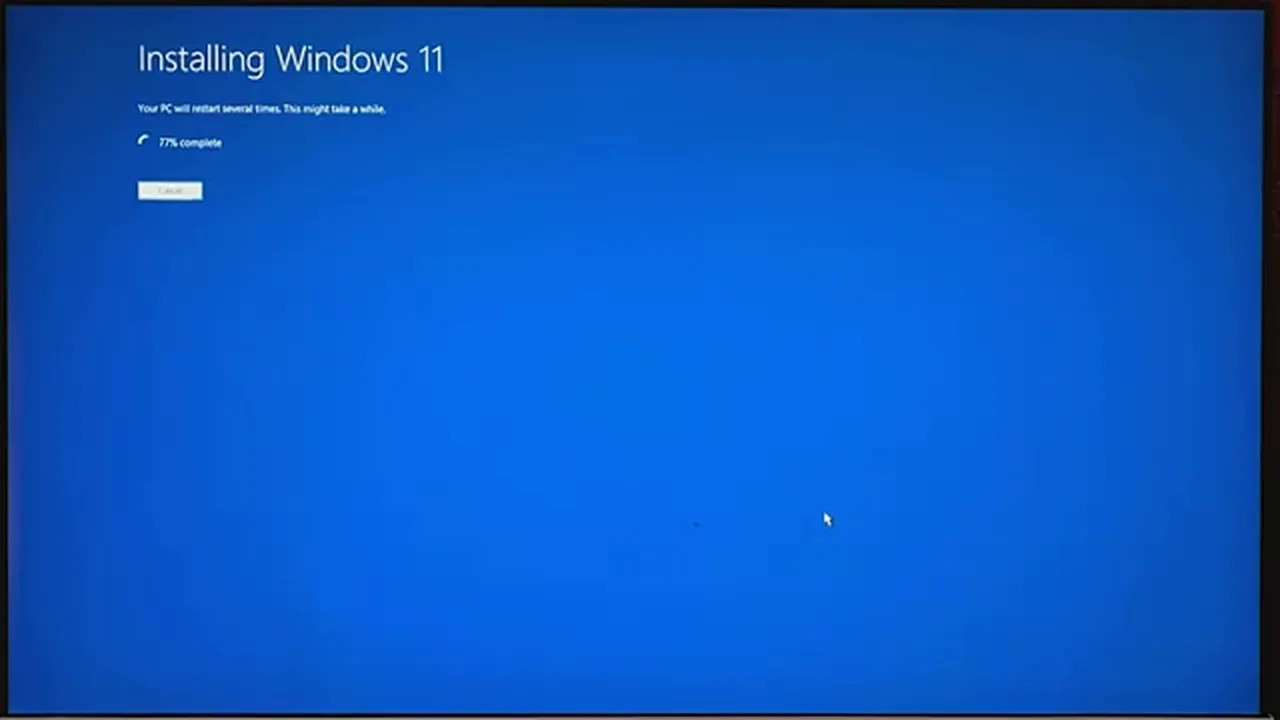
Click Install and wait. Here is the part that worries beginners: the PC restarts three to four times during installation — usually once around 77%, and a few more times after. This is completely normal. Don’t touch anything; just make sure the power does not go out. After the copying stage, you can even remove the USB drive — setup continues from your SSD.
Step 8: Finish the First-Time Setup
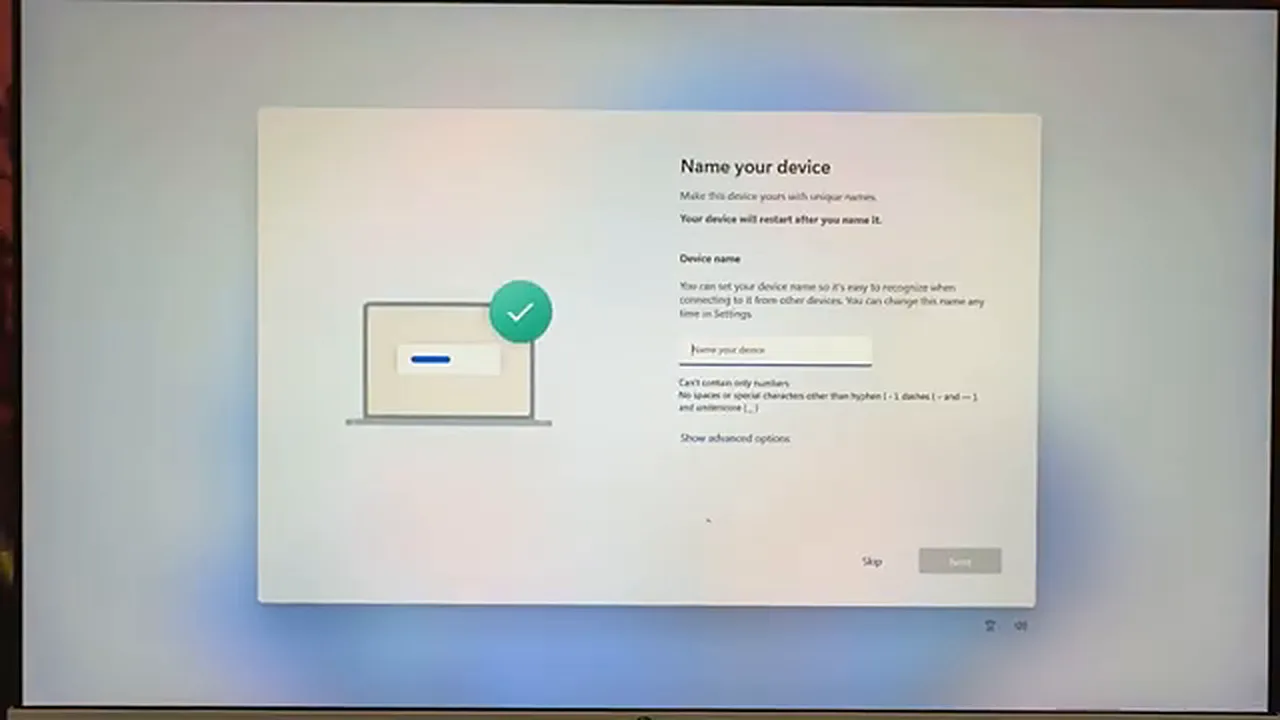
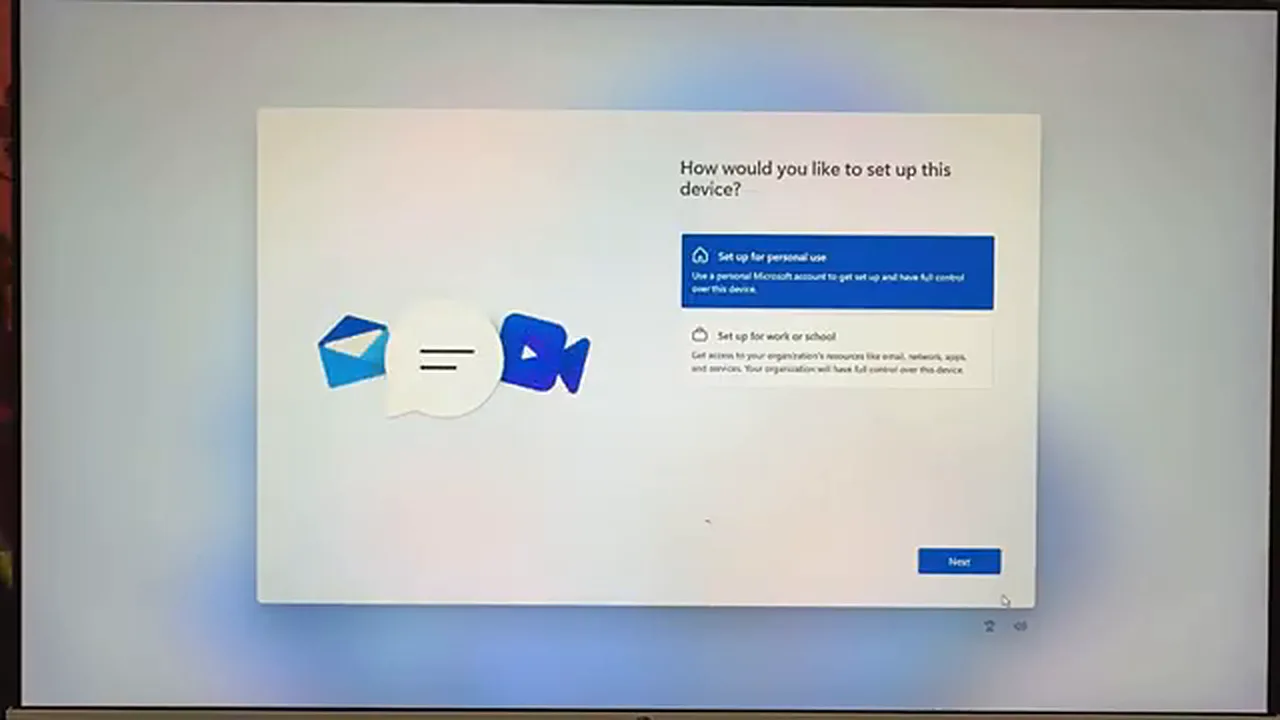
After the restarts, the welcome setup begins. Choose your region (Bangladesh in this example) and click Yes, keep the keyboard layout as US and click Yes, then Skip the second keyboard layout. The PC restarts once more — again, normal. Next, type a name for your device and press Enter, and choose Set up for personal use.
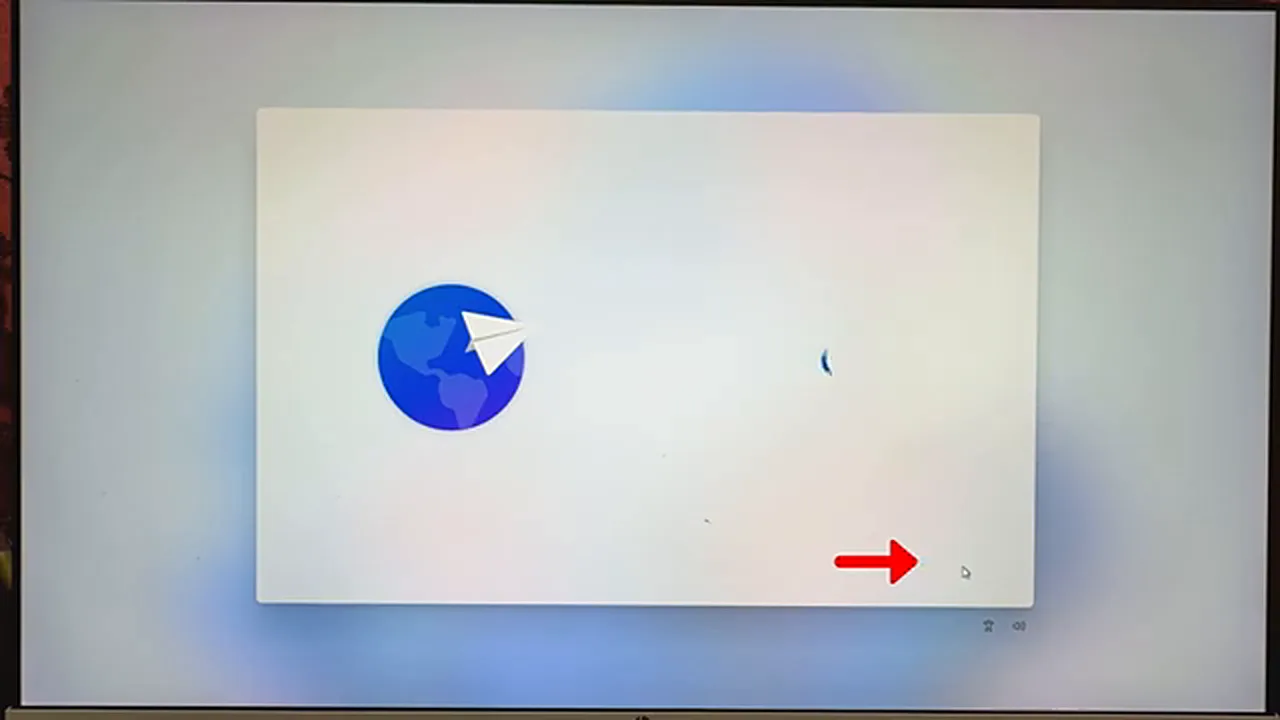
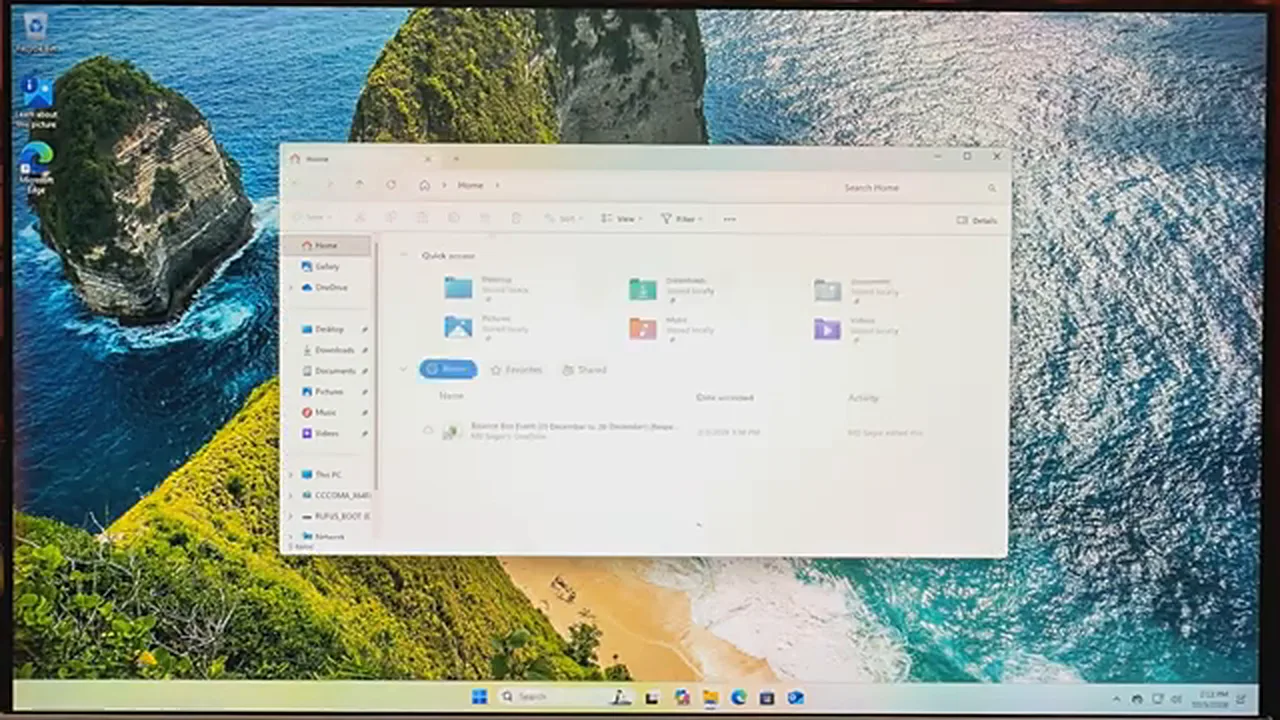
On this version there is no skip option for the account step, so sign in with your Microsoft account (a Gmail address works too), using your password or a sign-in code. Then create a PIN — the same PIN twice; numbers only is fine, no need to tick the letters-and-symbols box. Click Next and Accept through the remaining screens, and keep the extras simple: Skip the phone connection, choose “Not now” for browsing data, and Decline offers like the Microsoft 365 trial. Moments later, the Windows 11 26H2 desktop appears. Installation complete!
Step 9: Enable .NET Framework 3.5
One last job: switch on .NET Framework 3.5 so older apps and games don’t fail later. Open File Explorer, go to This PC and open your USB drive. Open the command file you saved in Step 3 and look at the drive letter in the command. In this PC the USB drive is D:, so the command works as it is — but if your USB drive shows a different letter (E:, F:, G: and so on), you must replace the letter in the command with yours, in capital letters, without changing anything else.
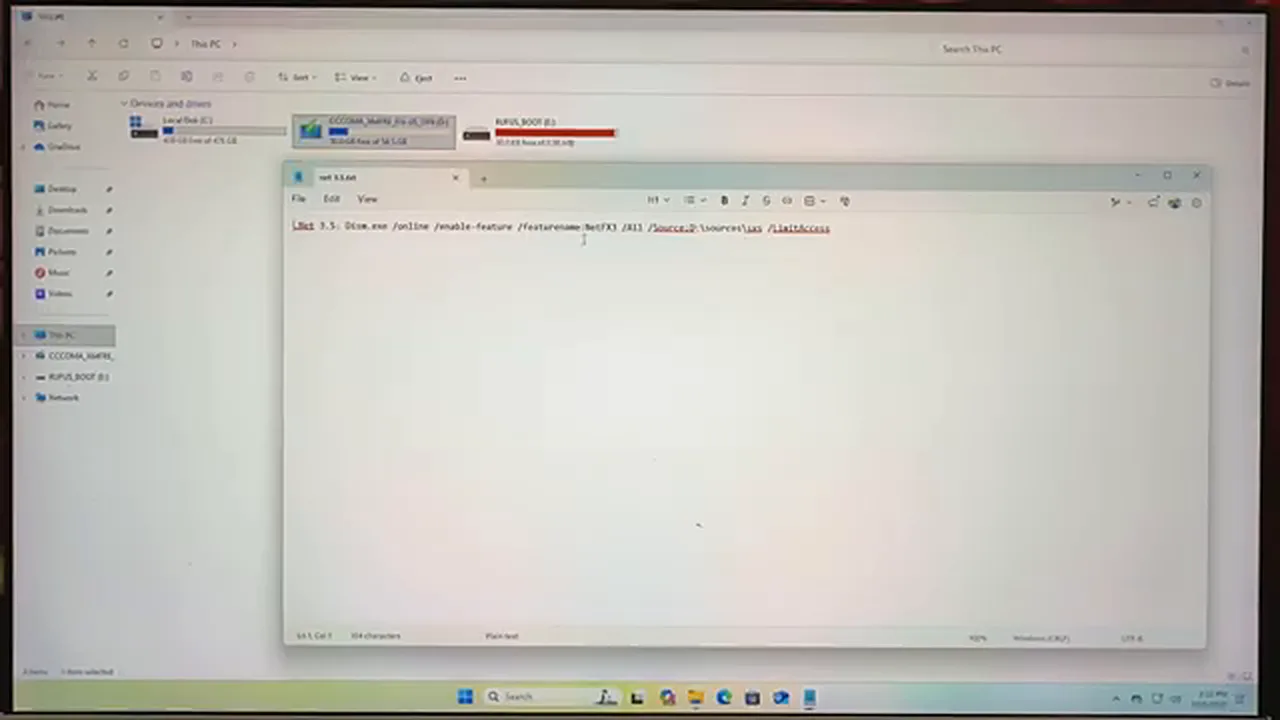
Copy the full command, open the Start menu, search for CMD, right-click Command Prompt and choose Run as administrator, then click Yes. Paste the command with Ctrl+V, press Enter, and .NET Framework 3.5 will be enabled automatically from the USB’s installation files. Done — your PC is fully ready to use.
Tips for Older and Unsupported PC
Let’s be realistic: on a very old PC with 2–4 GB of RAM, the full Windows 11 26H2 will feel heavy, and on the weakest machines setup may not complete at all. Two practical paths exist: after installing, optimize the system with a tool such as AtlasOS to make it lighter — or, for truly old hardware, use a lightweight custom edition of Windows 11 like Optimum 11 (mentioned in the video), whose installation size is only about 2.5 GB. Match the system to your hardware instead of forcing a heavy one onto a weak machine.
Common Mistakes to Avoid
- Downloading the ISO from random websites instead of Microsoft’s official page
- Forgetting to tick the requirement-bypass options in Rufus on an unsupported PC — setup then refuses to install
- Deleting every partition on a disk that also holds your personal data (see Step 6 again)
- Panicking and switching the PC off during the automatic restarts
- Running the .NET 3.5 command with the wrong USB drive letter
- Installing a heavy full edition of Windows on a PC with only 2 GB of RAM
Frequently Asked Questions
Can I install Windows 11 26H2 on an unsupported PC?
Yes. Create the bootable USB with Rufus and keep both Windows User Experience options ticked (the requirement removal and the account requirement removal). The installation then works on PC with low RAM, no TPM 2.0 or no Secure Boot — although very old PC will still feel slow afterwards.
Will a clean install delete my files?
It deletes everything on the partition you install Windows on. Files on other partitions and drives stay untouched — as long as you don’t format or delete them in Step 6. Back up anything important before you begin, just in case.
Do I need a product key to install Windows 11 26H2?
No. On the key screen, choose “I don’t have a product key” and the setup continues. You can activate Windows later with a genuine license key.
Why does my PC restart so many times during installation?
That is the normal Windows setup process — after copying files, during configuration and before the first welcome screen. Don’t touch anything and keep the power connected.
Why do I need .NET Framework 3.5?
Many older programs and games are built on .NET Framework 3.5 and refuse to run without it. Enabling it once with the DISM command in Step 9 (using the files on your USB) means those apps will work without surprises later.
Conclusion
That’s the complete process: download the official ISO, build the bootable USB with Rufus (with the right options for your PC), install carefully onto the correct disk, finish the first-time setup, and enable .NET 3.5 at the end. The best part about the official Windows 11 26H2 release is that all the new features work right away — no Insider tricks or activation codes needed like before. Take it step by step, don’t rush the disk selection screen, and your PC will feel like new again.