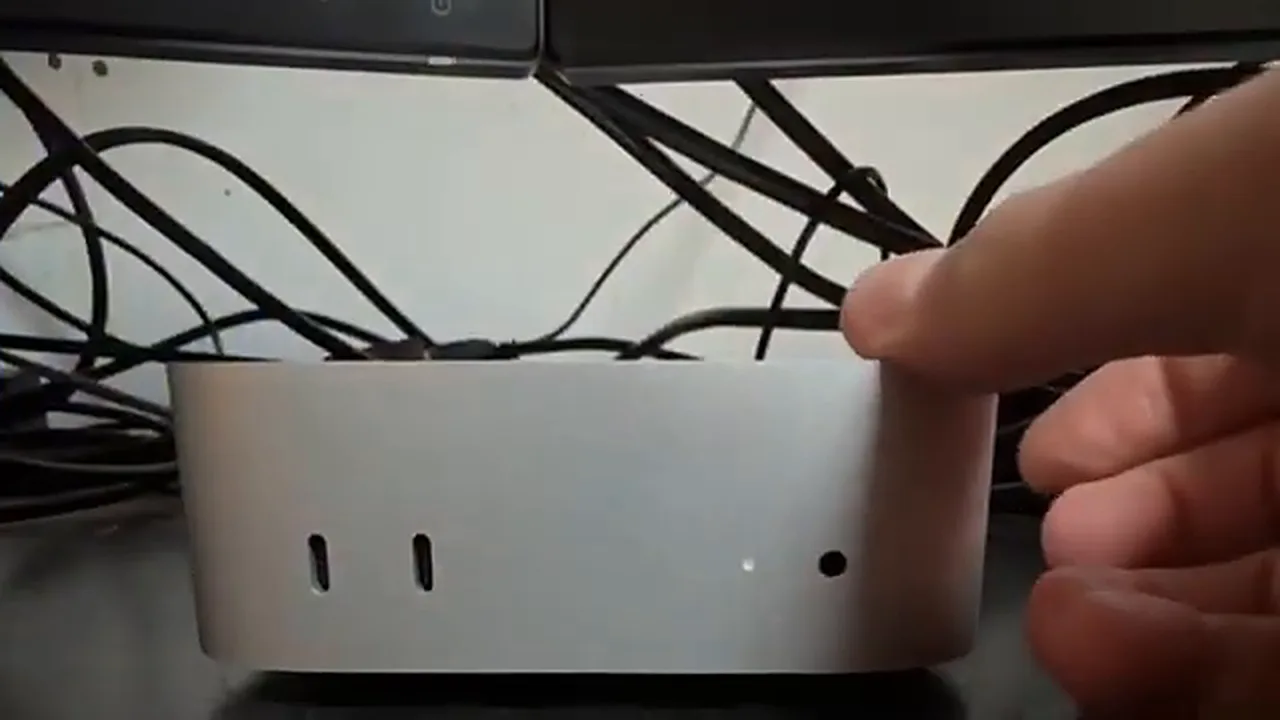
Of all the design decisions in the Mac mini M4, one became an instant internet joke: the power button lives on the underside of the machine. To switch the computer on, you lift the whole thing up, fumble underneath, and set it back down. Reviewers mocked it, users memed it, and every Mac mini owner quietly learned the little lift-and-press dance. Now Apple has fixed it — not by moving the button, but with a software update. One setting, changed once, and your Mac mini starts itself the moment power reaches it. No lifting. No fumbling. No button at all.
This is one of those rare updates where a hardware complaint gets solved in software, and the whole procedure takes about a minute. If you set up your Mac mini recently, our first-time Mac mini setup guide covers everything up to this point — this setting is the finishing touch that makes the machine feel properly thought through.
Why Is the Button Underneath At All?
It helps to understand what Apple was thinking, because the placement was not an accident. The M4 mini redesign shrank the machine dramatically and kept its top and front faces completely clean — no visible button, no seam, just a slab of aluminium. Putting the button underneath preserved that look, and Apple presumably reasoned that most people press it once a day at most. What they underestimated was how annoying that once-a-day press would feel in practice: the mini is small and light, so lifting it to reach underneath means disturbing cables, and if the machine sits under a monitor stand, you have to pull the whole setup apart. The joke wrote itself, and it stuck — which is exactly why a software fix, years of complaining later, feels so satisfying.
First: Update macOS
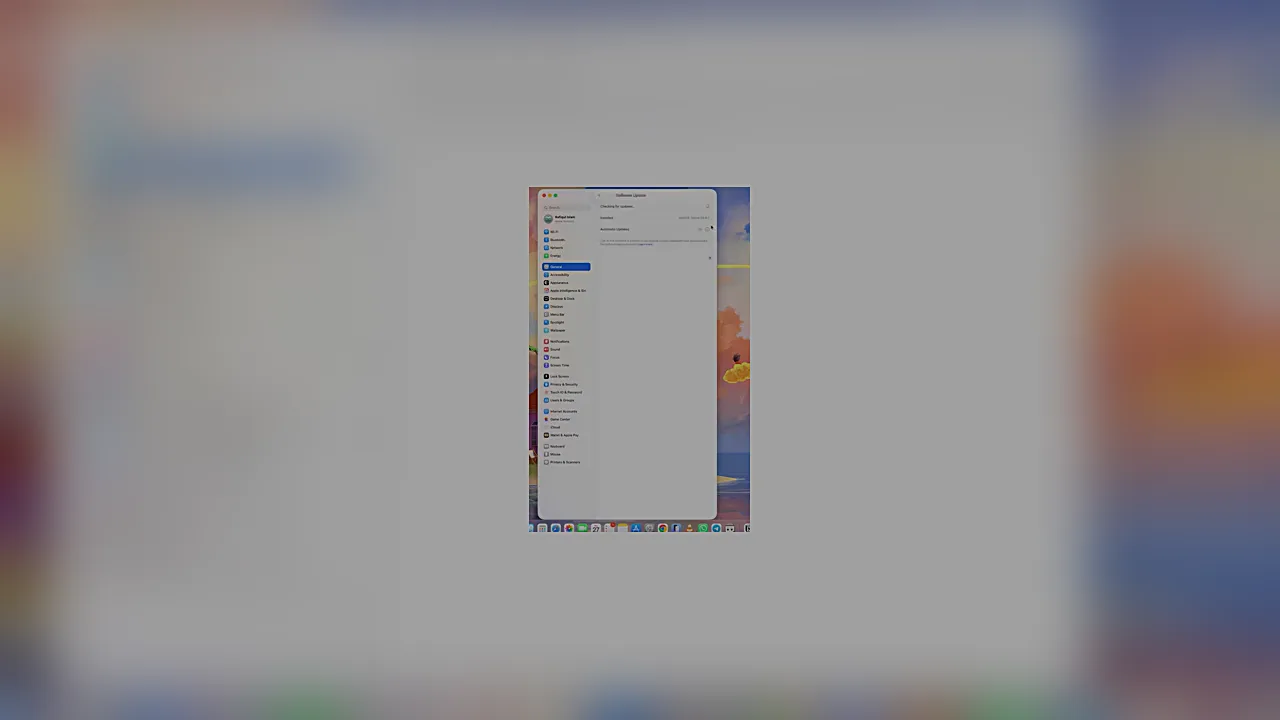
The auto-start option arrives with a recent macOS update — the video notes that macOS 26 is more than enough. So before hunting for the setting, make sure your Mac is up to date: open System Settings → General → Software Update and install anything pending. The machine will restart during the update, which is normal. Only once you are on the current version will the option below actually be there.
The Setting: Energy → Start Up When Power Is Connected
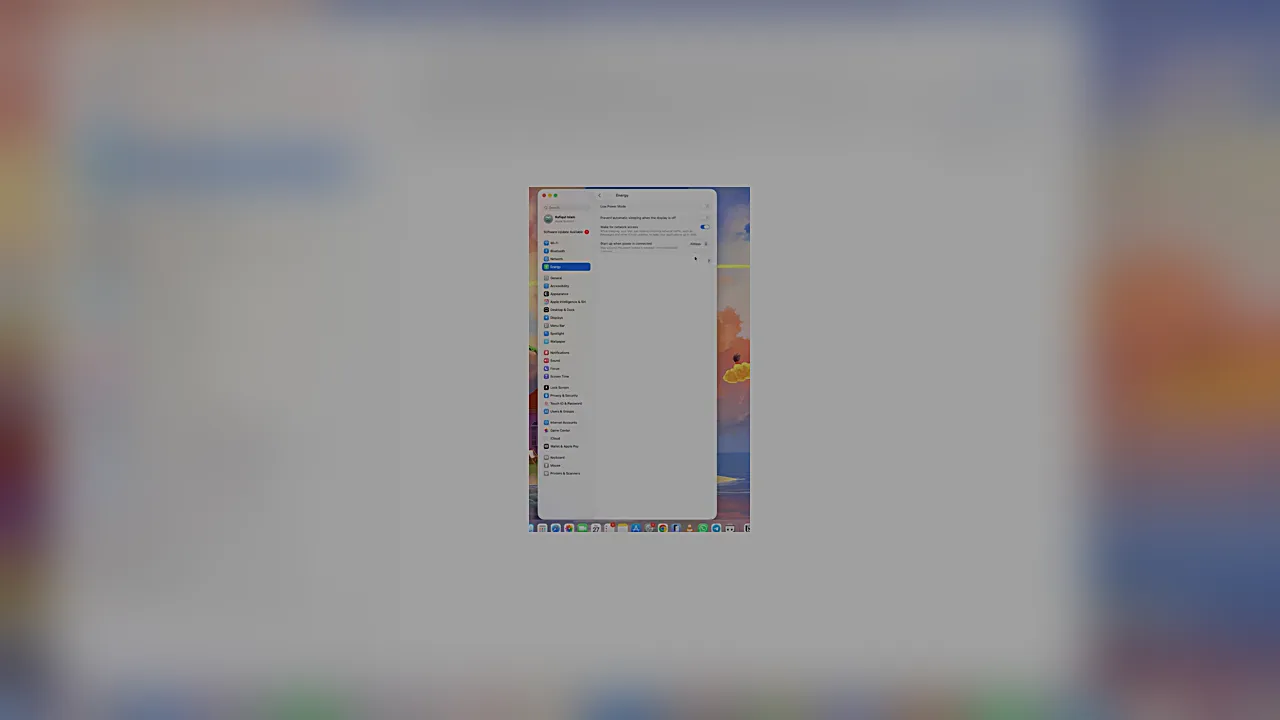
With the update installed, open System Settings and click Energy in the sidebar. There you will find the option called “Start up when power is connected” — a small dropdown that controls what the Mac does the moment electricity reaches it. Click the dropdown and choose Always. That is the entire procedure. There is nothing to save and nothing to confirm; the choice takes effect immediately, and from the next boot onward it just works.
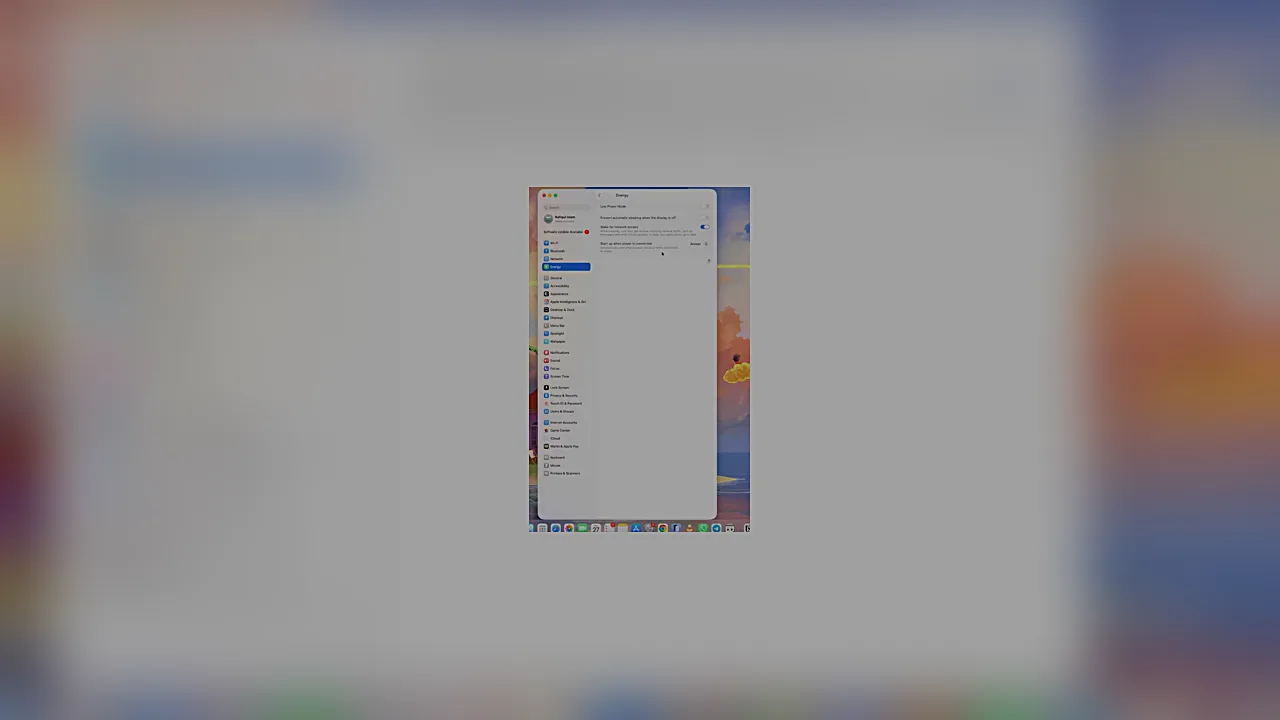
Test it the way the video suggests. First, shut the Mac down normally from the Apple menu and wait until it is fully off — no light, no fan. Then switch your power strip off, count to ten, and switch it back on. The Mac mini should boot by itself, straight to the login screen, while the power button underneath stays untouched. If it does not boot, check three things in order: that the dropdown really says Always (it is easy to open the menu and close it without selecting), that your power strip actually cuts power when switched off (some strips have always-on outlets), and that macOS is fully up to date. The underside button still works, by the way — this setting does not disable it. It simply makes it optional.
What Each Option Actually Means
The dropdown is not just on and off — it has three behaviours, and picking the right one matters. Older Macs had a simpler version of this idea, a checkbox called “Start up automatically after a power failure”, and the new setting is its smarter descendant.
| Option | What happens | Best for |
|---|---|---|
| Never | The Mac stays off until you press the power button, no matter what the power does | The original behaviour; total control |
| After power failure | The Mac restarts only if power was cut unexpectedly while it was running | Servers and always-on machines that must recover from outages |
| Always | The Mac boots whenever power reaches it, for any reason | Mac mini M4 owners who never want to lift the machine again |
“Always” is the one the video selects, and it is the right pick for the underside-button problem: it covers every case — first plug-in of the day, power strip switched on, power returning after an outage — without you ever touching the machine.
The Fine Print: Read This Part
There is one consequence to understand before you enable this, and the video is explicit about it. Shutdown still works normally — choosing Shut Down from the Apple menu switches the Mac off, and it stays off. But the moment power is interrupted and restored, the Mac will boot itself. That means a nighttime power cut followed by power returning at 3 a.m. will wake your Mac mini on its own, fans, lights and all.
The practical fix is simple: when you are done for the day, switch the power off at the strip or the wall switch, not just from the Apple menu. With no power reaching the machine at all, there is nothing to trigger a boot. This is worth building into a habit if you keep the mini in a bedroom, or if your area gets flickery power during storms — every flicker would otherwise mean another boot cycle.
Two more small things. First, this does not change Sleep behaviour: a sleeping Mac still wakes the way it always did, and the setting only matters from a fully-off state. Second, if you ever want the old behaviour back, the same dropdown is the off-ramp — set it back to Never and the button underneath becomes mandatory again. And a security note for the cautious: auto-boot does not bypass your login. Anyone who flips the power switch still lands on your locked login screen, and with FileVault turned on, your data stays encrypted until you sign in. The setting changes how the machine starts, not who can use it.
Who Benefits Most
Everyone with an M4 mini gains something, but some setups gain a lot. If your mini lives tucked under a monitor riser, inside a desk cabinet, wall-mounted behind a display, or in a closet acting as a home server, the underside button was never just an annoyance — it was a genuine obstacle. For those machines, “Always” turns an awkward reach into a non-event: flip the strip switch and the computer is simply on.
It is also a quiet accessibility win. Anyone who struggles with lifting a computer or feeling for a small button underneath it no longer has to. A single switch on a power strip replaces the whole ritual — which, for a machine Apple sells on the promise that it just works, feels like how it should have behaved from the start. And for the growing number of people running a Mac mini as a home server — media library, file sharing, home automation — this setting is arguably more important than convenience: after a power outage, the server simply comes back by itself instead of sitting dead until someone goes and lifts it. Pair it with a UPS and you get the best of both worlds: the UPS rides out short flickers without a shutdown, and if a long outage does drain everything, the Mac still recovers on its own when power returns.
What About Other Macs?
The video is about the Mac mini M4, but the same Energy pane exists on other desktop Macs running recent macOS versions, so if you have a Mac Studio or an iMac, it is worth a look in the same place — the option may be waiting there too. On a MacBook the question is mostly moot: with a battery inside, “power connected” is true almost all the time anyway, and the lid and power button behave differently by design. The mini is where this setting changes daily life, because it is the one Mac where the button itself was the problem.
If the Option Is Missing
If you open Energy and do not see “Start up when power is connected”, the usual cause is the macOS version: the option comes with a recent update, so go back to Software Update and install everything available, then check again. If it is still absent after a full update, your Mac may not support the feature — it is tied to newer Apple silicon machines like the M4 mini. And if the dropdown is there but greyed out, check whether a configuration profile from an employer or school is managing the machine’s energy settings.
Apple took a hardware punchline and answered it with a one-line setting that costs nothing and takes seconds to enable. Update the Mac, open Energy, choose Always, and the most mocked button in recent Apple history becomes a button you never need to press again.