Here is the mistake that teaches this whole guide: the presenter once downloaded a BIOS file, copied it to a USB drive, opened M-Flash — and the file was not there. The drive was fine. The file was fine. It simply did not exist as far as M-Flash was concerned, because it belonged to a different motherboard. That is the thing about BIOS updates on MSI boards: the system will not warn you that you grabbed the wrong file. It will just show you an empty drive and leave you confused. So this guide is built around checkpoints — four moments where you stop and prove you have the right file for the right board — and only then do you flash.
Why Bother: The Combination Problem
A BIOS update matters for the same reason on every brand: the motherboard, processor, and RAM have to work as one combination, and the BIOS is what teaches them to. When the BIOS is old, performance drops, work stutters, the machine hangs, and sometimes a black screen ends your session without warning. On top of that, some newer BIOS settings — the ones that unlock the RAM’s full speed — simply do not appear until the firmware is current. The machine in this video, an MSI B550M PRO-VDH WIFI used as a software-testing rig, was last updated in 2024. It was well past due.
There is a second reason people update, and it is the most practical one of all: new hardware. A BIOS release often adds support for processors that did not exist when the board shipped, so a CPU upgrade that looks incompatible on paper may only need a firmware update to work. If you are planning a processor swap, check the board’s CPU support list on the same MSI page — and update the BIOS before you fit the new chip, while the old one still boots. Updating after the swap, with a processor the old BIOS cannot even start, is a much harder problem.
Checkpoint 1: Know Your Board and Version
Download the free CPU-Z utility, install it, open it, and go to the Mainboard tab. Note the board’s brand, its exact model, and the BIOS version and date. This is checkpoint one: from here on, everything you download must match that model string character for character. MSI makes many boards with similar names — the video’s search turned up the PRO-VDH WIFI alongside near-identical siblings — and picking a sibling’s file is exactly the mistake from the opening paragraph. If you are unsure of your model, the Mainboard tab is the authority, not the box the board came in.
Checkpoint 2: Download Only the Top File
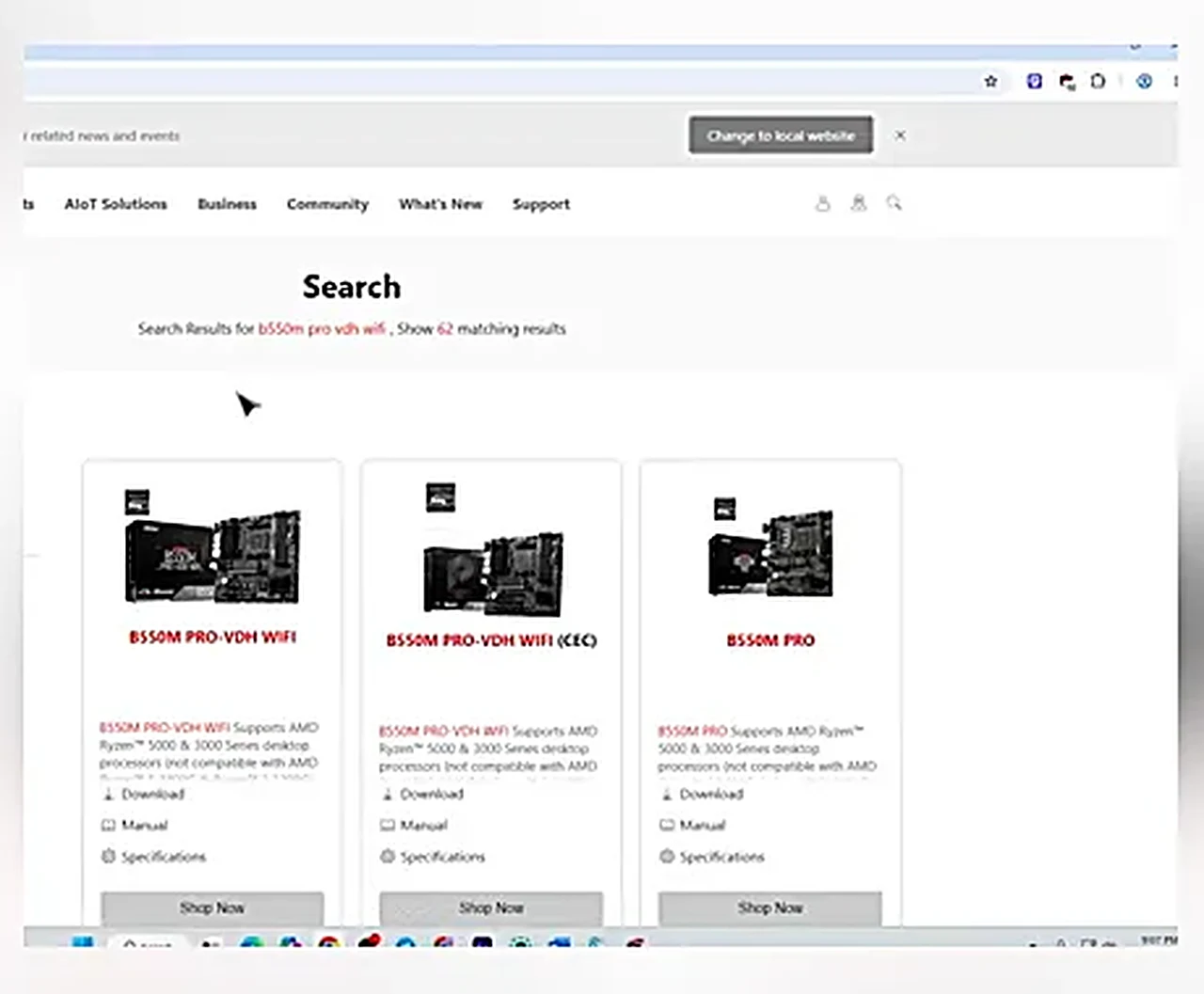
Search for your model plus “BIOS update” and open MSI’s official site. Type the model into MSI’s search, pick your exact board from the results, and go to Support → BIOS. You will see a list of releases. Download the topmost, latest one and ignore the rest — the newest release already contains every fix from all the older ones, so there is no ladder to climb. That is checkpoint two: the newest file, for the exact model, from the official site, and nowhere else.
Checkpoint 3: The Text File Tells the Truth
Extract the downloaded ZIP. Alongside the BIOS file you will find a small text file — open it. It names the board model the file is built for, and an internal model code. Checkpoint three is comparing those two lines against your own board: model and code must both match. In the video, the text file matched the B550M PRO-VDH WIFI and its code, which settled it — the right file had been downloaded, and the rest of the job could proceed with confidence. If the text file names a different board, delete the download and start over at checkpoint two. Ten seconds here saves the empty-drive mystery later.
Prepare the USB Drive
Copy the BIOS file to a USB drive formatted FAT32. If the drive is not FAT32 yet, right-click it in File Explorer, choose Format, select FAT32, and start — but note the size limit the video stresses: Windows offers FAT32 natively only on drives of 32 GB and smaller (8 GB, 16 GB, and 32 GB drives are the safe picks). A 64 GB or 128 GB drive will not show FAT32 in the format dialog; for those you would need a third-party tool such as Rufus, which the video believes would work but cannot guarantee. Use a small drive and the problem never arises. Copy the file to the drive’s root, and the drive is ready.
The Power Rule
Before you restart, secure the power. A BIOS flash that loses electricity mid-write can brick the board beyond home repair. A desktop belongs on a UPS or IPS for this job; a laptop must be fully charged and plugged in. Read the rest of the guide once before you begin, so that nothing inside the BIOS is a surprise. This is the last checkpoint of the calm kind — everything after it happens in firmware.
Checkpoint 4: M-Flash Shows You Both Versions
Restart the PC and keep pressing DEL as it boots — the MSI BIOS key (a few MSI models use F2 instead; if DEL gets you nowhere, try F2). Inside the BIOS, look along the bottom for M-Flash and click it, then confirm with Yes. The PC restarts again, this time straight into M-Flash mode — that second restart is expected, not a problem.
If DEL (or F2) never gets you into the BIOS because the machine boots too fast, there is a second door: in Windows, go to Settings → System → Recovery → Advanced startup → Restart now, then choose Troubleshoot → Advanced options → UEFI Firmware Settings → Restart. The machine reboots straight into the BIOS, no key-mashing required. It is the reliable route on fast-booting machines, and worth knowing even if the key works — it removes the timing guesswork entirely.
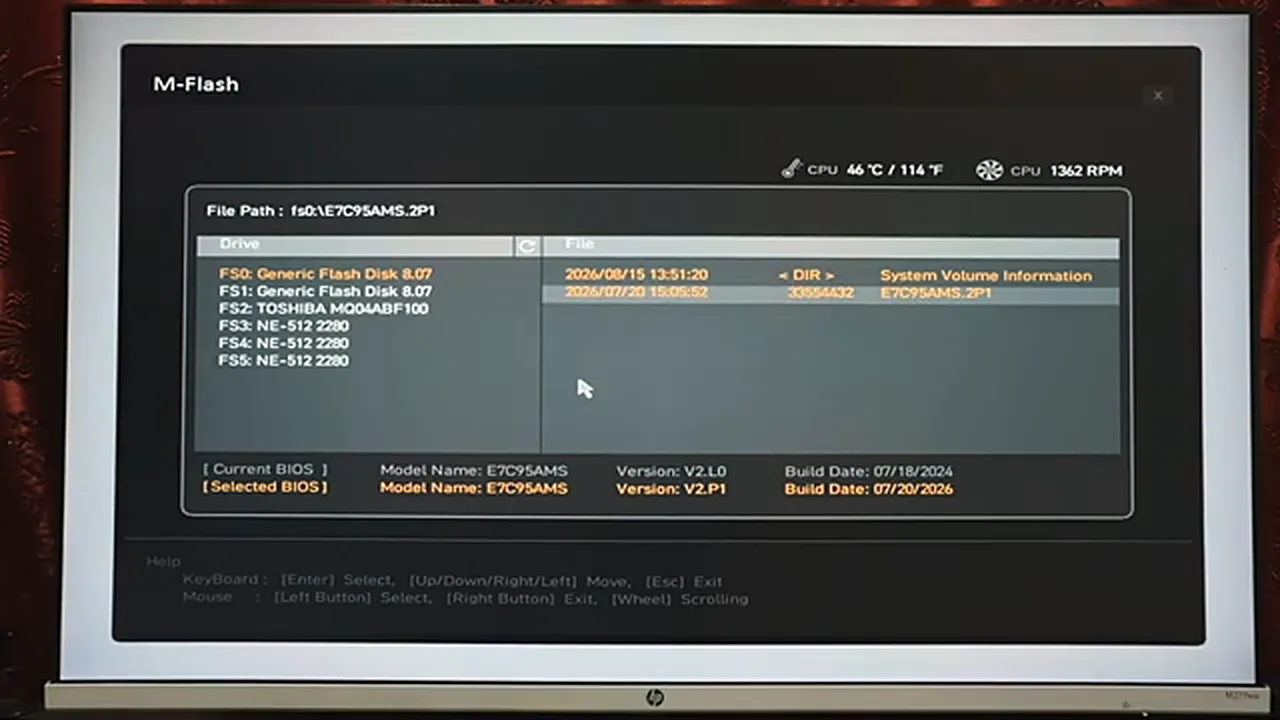
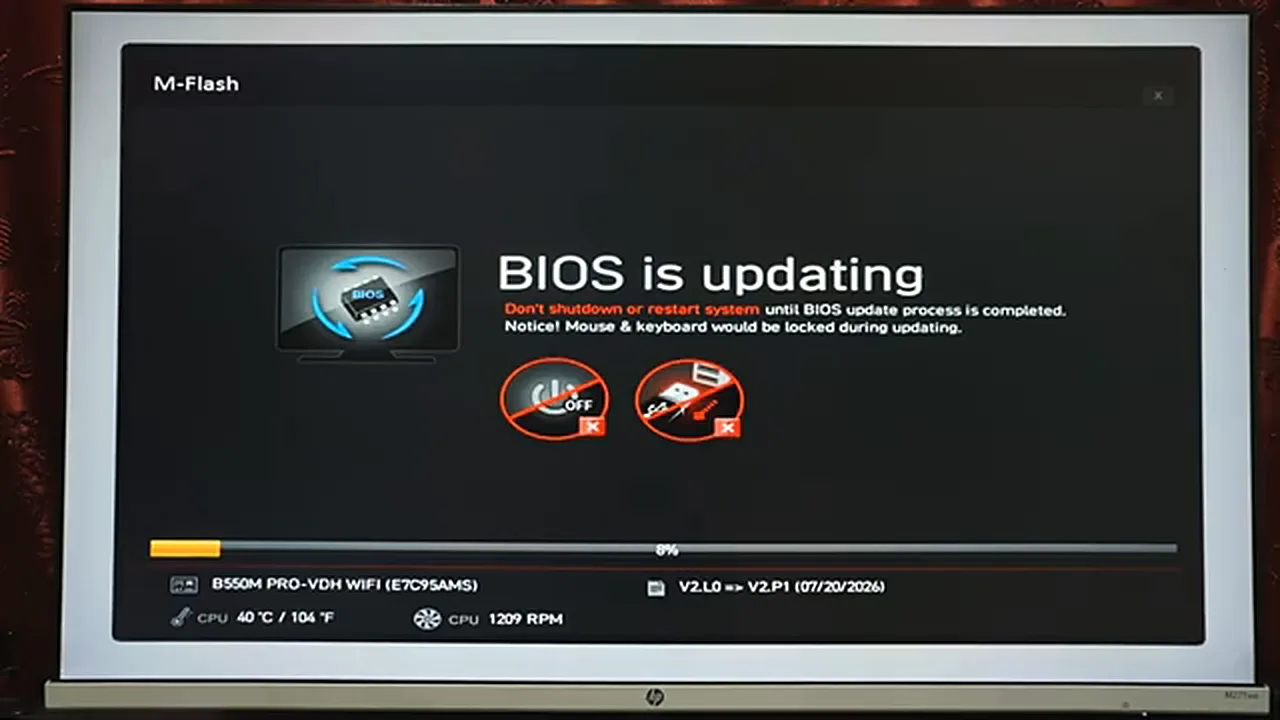
Now comes the checkpoint that makes this guide’s method worth it. M-Flash shows your USB drive and the file on it; select the file, and the screen displays the current BIOS and the selected BIOS side by side. In the video: current BIOS, model E7C95AMS, version V2.L0, built July 2024; selected BIOS, the same model code, version V2.P1, built July 2026. Same model, newer version — that comparison is checkpoint four, and it is the last chance to catch a wrong file before anything is written. If the model codes differ, or the selected version is older than the current one, back out and recheck. If they match, confirm with Yes.
The Flash: Hands Off
M-Flash warns you once more: do not power off, and do not remove the USB drive. Then the flash begins, with a “BIOS is updating” screen and a progress bar, and a note that the mouse and keyboard will be locked while it runs. That lock is normal. From here until the machine restarts itself, your only job is to wait. The flash takes a few minutes; the PC will power off and on several times afterwards as the new firmware retrains the hardware. None of that is a fault. Do not panic, do not intervene, do not press anything until Windows asks you to.
The Honest Ending: The PIN Belongs to the Owner
When Windows finally appears, it will ask for a fresh PIN and a Microsoft account sign-in, because the firmware change invalidated the old one. Here the video is refreshingly honest about its own limits: the machine in question belongs to an admin, whose account credentials the presenter does not have, so the sign-in could not be completed on camera. The BIOS work itself was done — the flash succeeded, the restarts settled, Windows setup completed — and the final sign-in was left for the machine’s owner, who needs only their Microsoft account password and a new PIN to finish. If the machine is yours, that last step takes two minutes. If it is someone else’s, say so before you start, and have them nearby for this part. A BIOS update ends with an identity check, and no guide can sign in for you.
Verify afterwards with CPU-Z: the Mainboard tab should now read the new version — V2.P1 on the video’s board. Then re-enable anything the update reset, such as your RAM’s XMP/EXPO profile, and get back to work. Done once, done right, and — if you respected the checkpoints — done without ever meeting the empty drive that started this guide. For Gigabyte boards the tool is different but the discipline is the same; our Gigabyte AORUS BIOS update guide covers Q-Flash, and for ASUS boards, EZ Flash 3.
One last habit worth keeping: before every future flash, read the release notes on the download page. They list exactly what changed, and occasionally they carry a warning that matters — a version that should not be used with a particular processor, or a setting that will be removed. Two minutes of reading is the cheapest insurance a BIOS update has.