Your RAM is fine. Your processor is fine. Yet the machine stutters, hangs, and sometimes throws you out to a black screen for no reason you can see. Before you blame Windows, blame the drivers, or start shopping for new parts, consider the one component you almost never look at: the BIOS. On the Gigabyte machine in this guide, the BIOS was three years out of date — version F25 from 2023, in a machine whose RAM had been upgraded since — and the motherboard, processor, and RAM were no longer speaking the same language. A BIOS update fixed it. This is that update, done the Gigabyte way, with the one tool Gigabyte built for the job: Q-Flash.
One honest caveat before anything else: a BIOS update is not a performance upgrade. It will not make a healthy machine faster, and flashing a new BIOS “just because one exists” is how working machines get broken. Update for a reason — new RAM or a new processor that needs newer firmware, a specific problem the release notes say is fixed, or a board whose BIOS is years behind the hardware it is running. If your machine is stable and nothing has changed, the correct BIOS decision is to leave it alone. The machine in this guide had all three reasons at once, which is why the update was worth its risk.
The Diagnosis: Check What You Are Running
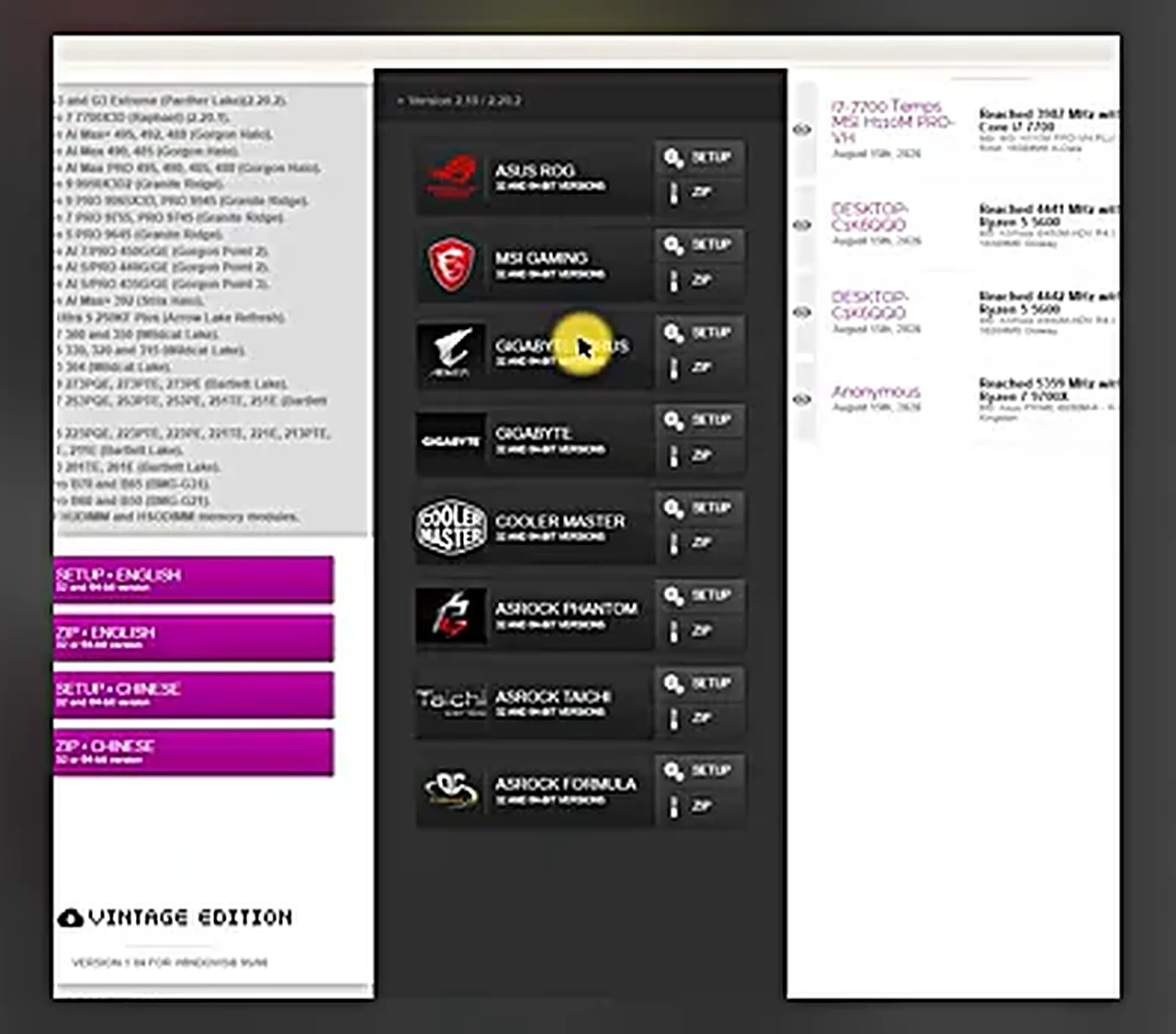
Never update blind. The first step costs two minutes and prevents the single most common BIOS disaster — flashing the wrong board’s file. Download a small free utility called CPU-Z (search for it, take the official site, install it the usual way), open it, and click the Mainboard tab. There you will see the board’s manufacturer, its exact model, and the BIOS brand, version, and date. On the machine in the video, that read: Gigabyte Z690 AORUS Pro, BIOS version F32, dated January 2025. An earlier update had already taken it from F25 to F32 — and a newer file, F34a, was waiting on Gigabyte’s site. Write down your model and version exactly as shown; every step after this depends on those two lines being right.
The Prescription: The Exact File, From the Exact Page
Search the web for your model plus “BIOS update” — in this case, Z690 AORUS Pro BIOS update — and open the official Gigabyte support page for your board. Ignore the driver sections (audio, chipset, graphics, LAN): you want the BIOS section, which lists every release, newest first. The rule here is simple and absolute: download the topmost, latest version. It contains every fix from all the versions below it, so there is no need to install the intermediate releases one by one. The video’s file was the F34a release — note the letter suffix, which marks it as an early/beta revision of the F34 line; if you would rather stay on fully final releases, the newest non-lettered version on the list is the conservative choice.
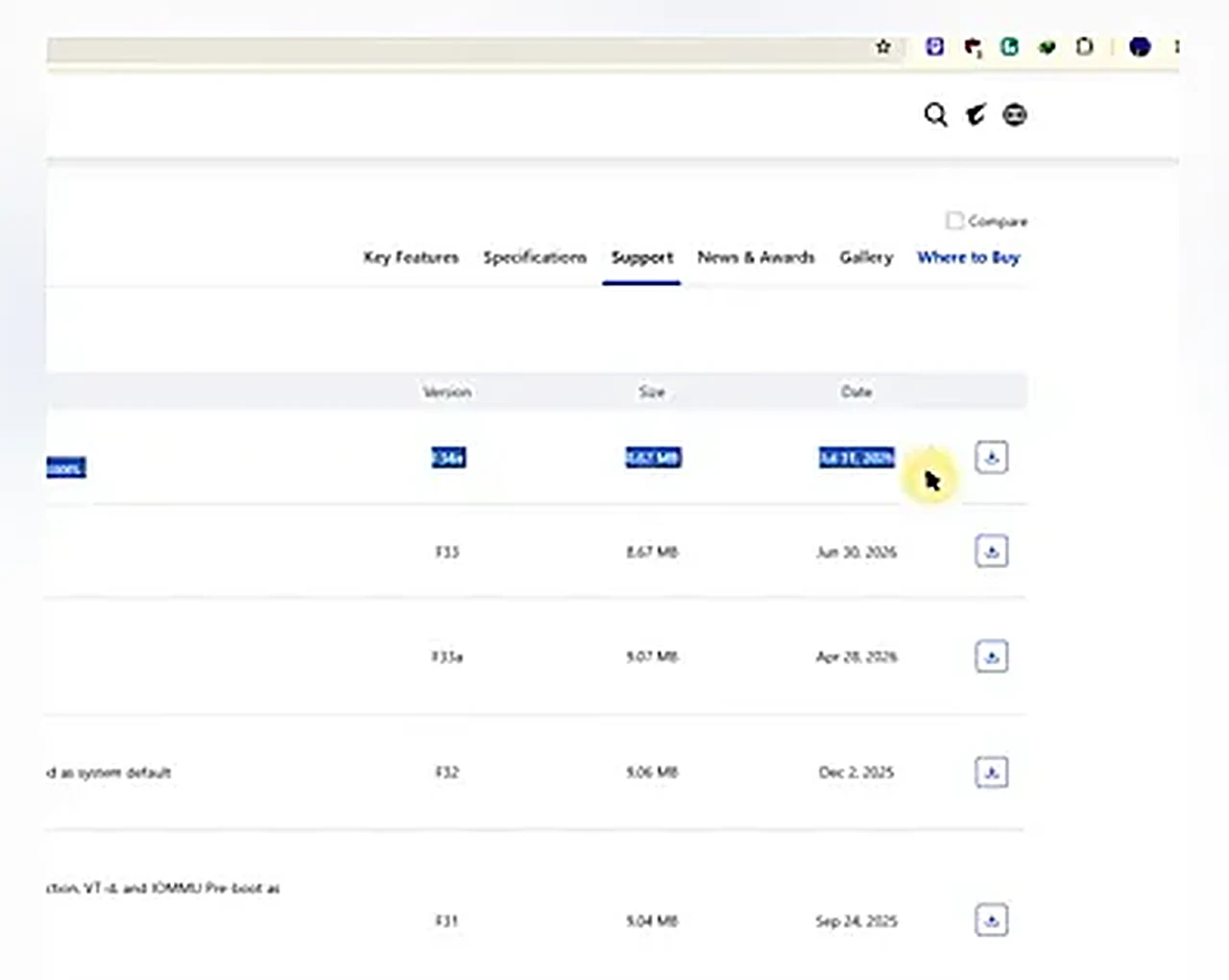
Download the ZIP, then extract it (the video uses WinRAR; Windows’ built-in Extract All works the same). Inside is the BIOS file itself — one file, with a name matching your board. That single file is the whole update. Keep it somewhere you can find it in thirty seconds, because the next step moves it to a USB drive.
Prepare the USB Drive: Small, FAT32, and Nothing Else
Q-Flash reads its update from a USB drive, and it is picky about the drive in one specific way: it must be formatted FAT32. Plug in a USB drive of 8 GB, 16 GB, or 32 GB, right-click it in File Explorer, choose Format, select FAT32 (it is usually the default at these sizes), and start. Here is the catch the video is careful to spell out: drives of 64 GB and larger do not offer FAT32 in Windows’ own format dialog at all. If all you own is a 64 GB drive, you would need a third-party formatter such as Rufus to force FAT32 — and even then, the video cannot promise it will behave — so a small, cheap drive is the right tool here. Once formatted, copy the BIOS file onto the drive’s root — not inside a folder — and the drive is ready.
The Warning You Must Not Skip
A BIOS update rewrites the firmware that starts your machine. If the power dies halfway through, the board can be left with a half-written BIOS — a bricked board that you cannot fix from home. So before you restart: a desktop goes on a UPS or IPS, a laptop goes on a full charge plus its charger. Then read the rest of this guide once through, so nothing in the BIOS surprises you, and only then begin. A BIOS update is not a job to improvise.
Two more preparations, both quick. First, a BIOS update resets the board’s settings to defaults — if you run your RAM with XMP or EXPO enabled, or you changed any other setting from stock, note it down now (a phone photo of each changed screen works fine) so you can put it back afterwards; the video’s own machine needed its PIN redone for the same reason, and memory profiles are the setting people forget most often. Second, back up anything on the machine you cannot afford to lose. A BIOS flash should not touch your drives, but it is surgery on the machine’s lowest layer, and surgery deserves a backup.
The Surgery: Q-Flash
Restart the PC, and as it powers back on, keep pressing DEL — the Gigabyte BIOS key — until the BIOS screen appears. (Some Gigabyte boards also accept F8 as a shortcut straight into Q-Flash; DEL always gets you there.) Inside the BIOS, look at the bottom of the screen for Q-Flash, or press F8. Q-Flash opens its own small interface: select your USB drive, and the BIOS file on it appears. Select the file.
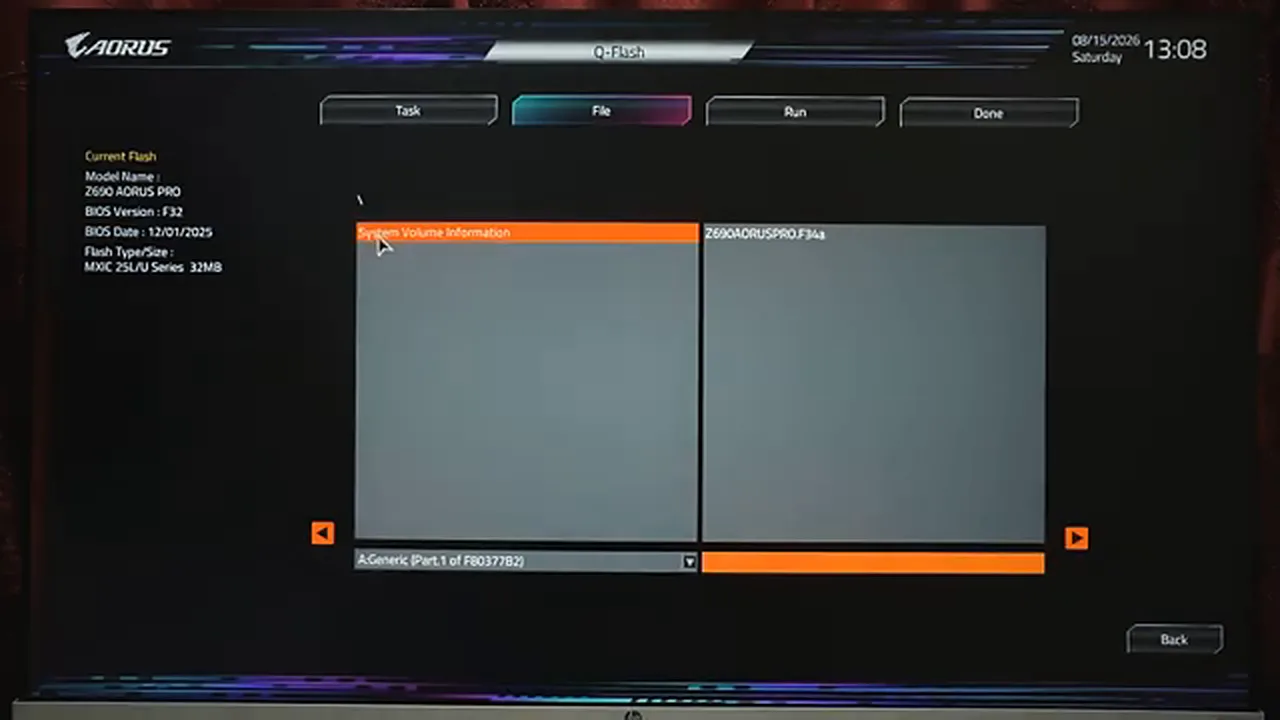
Q-Flash asks, “Are you sure to update BIOS?” — say Yes. Then press Start, confirm once more with OK, and the machine takes over: it powers off, powers back on, and the flash begins. The screen shows “Updating BIOS Now” with a percentage, and the current and new versions side by side — F32 on the way out, F34a on the way in. During the flash the mouse does not work; nothing you press matters. Do not touch the power button, do not pull the USB drive, do not do anything at all. Just wait.
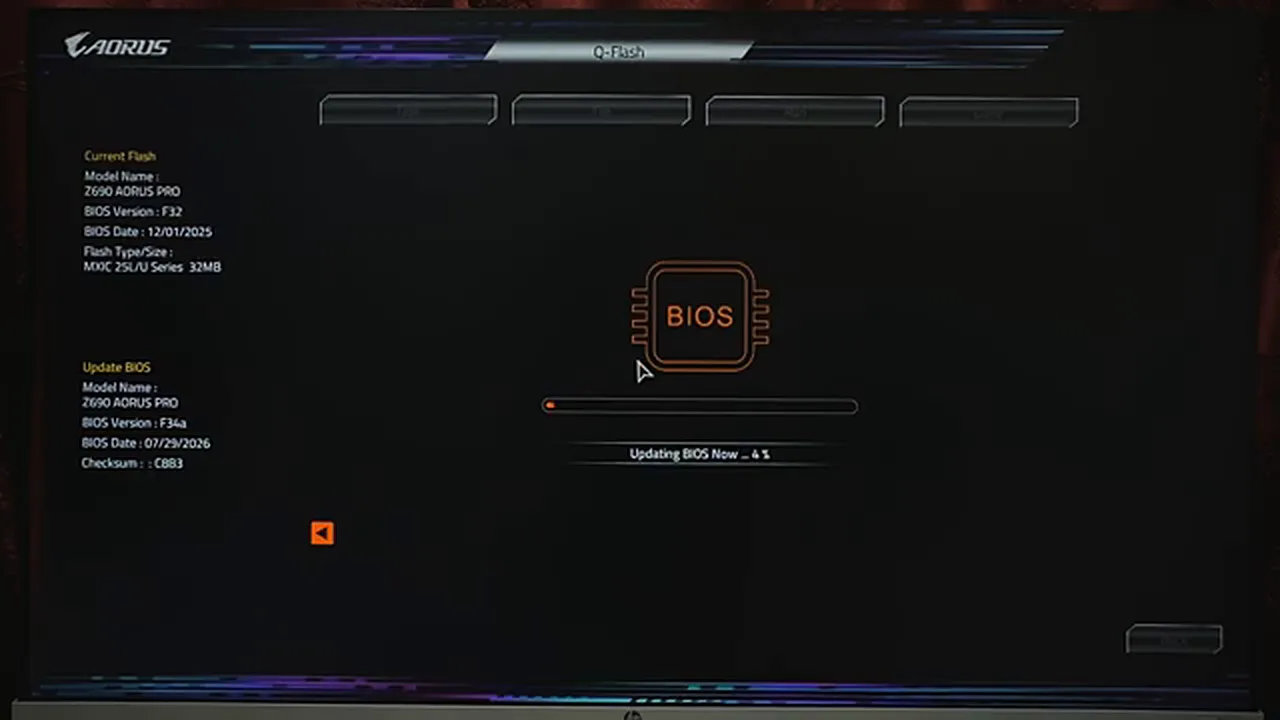
If Q-Flash shows the USB drive but no file, stop and check three things before you retry: the file must sit in the drive’s root, not inside a folder; the drive must actually be FAT32 (recheck in its Properties if you are unsure); and the file must belong to your exact board model — a file for a different Gigabyte board, even a close sibling, will not appear at all. Try a different USB port if it still refuses, and a different drive if that fails. A file that Q-Flash cannot see is Q-Flash protecting you from flashing the wrong thing.
The Recovery: Restarts, Restarts, and a PIN
When the flash finishes, the PC restarts — and then restarts again, and again. In the video it power-cycled three or four times before settling. This is normal: the board is retraining memory and re-initializing hardware against the new firmware. Panicking here and cutting the power is the one way to turn a finished update into a broken board, so let it cycle until Windows appears on its own.
Windows will likely greet you with “Set up my PIN”: because the firmware changed, Windows no longer trusts the old PIN and asks you to sign in to your Microsoft account — password, then a verification code — and create a fresh PIN. Keep your account password handy before you start the update, because you will need it here, and keep your phone nearby for the code. Once the PIN is set, the desktop appears and everything looks exactly as you left it — except the firmware underneath is new.
The Discharge Note: Verify, Then Leave It Alone
Open CPU-Z again, Mainboard tab, and confirm the BIOS version now reads the new one — F34a in the video’s case. If it does, the job is done, and the symptoms that started all of this — the RAM underperforming, the hangs, the black screens — should be gone, because the board, processor, and RAM are finally running the combination the manufacturer intended.
How often should you do this? Not monthly. BIOS releases for a given board slow to a trickle after its first couple of years, and each flash carries the same small risk. Once or twice a year is plenty, or whenever a specific problem — new RAM, a new processor, a named fix in the release notes — gives you a reason. The update you just did will likely be the last one this board needs for a long while, and that is exactly how BIOS maintenance should feel: rare, deliberate, and boring. If you have an ASUS board instead, the same caution applies but the tool is different — our ASUS BIOS update guide covers EZ Flash 3 step by step.