You want to try Zorin OS on your PC, but there is one small problem: you do not have a USB pendrive at home. I faced the exact same situation. The pendrive was missing, the shops were closed, and I still wanted to test Linux beside Windows that same evening. The good news is that you can install Zorin OS without USB and set up a clean dual boot with Windows 11 using only your own hard disk.
The trick is simple. Instead of a bootable pendrive, we create a tiny 4 GB FAT32 partition on the PC, copy the Zorin OS setup files into it, and boot from that partition. Windows stays untouched, your files stay safe, and at the end you choose between Windows and Zorin OS every time the computer starts. The full process takes about 30 to 45 minutes.
What You Need Before You Start
- A PC or laptop running Windows 10 or Windows 11 (UEFI system)
- The Zorin OS ISO file (about 3.5 GB, free download)
- At least 40 GB of free disk space for Zorin OS (we will give it around 100 GB in this guide)
- Minimum system: 2 GHz dual-core 64-bit processor, 4 GB RAM (8 GB recommended)
- An internet connection for the ISO download and updates during installation
Important: back up your important files to another drive or the cloud before touching partitions. The “install alongside” method used here keeps your documents, music and other personal files, but one wrong click during any OS installation can delete data, and a deleted file can never be recovered 100 percent. Work slowly and read every screen before pressing Continue.
Step 1: Download the Zorin OS ISO File
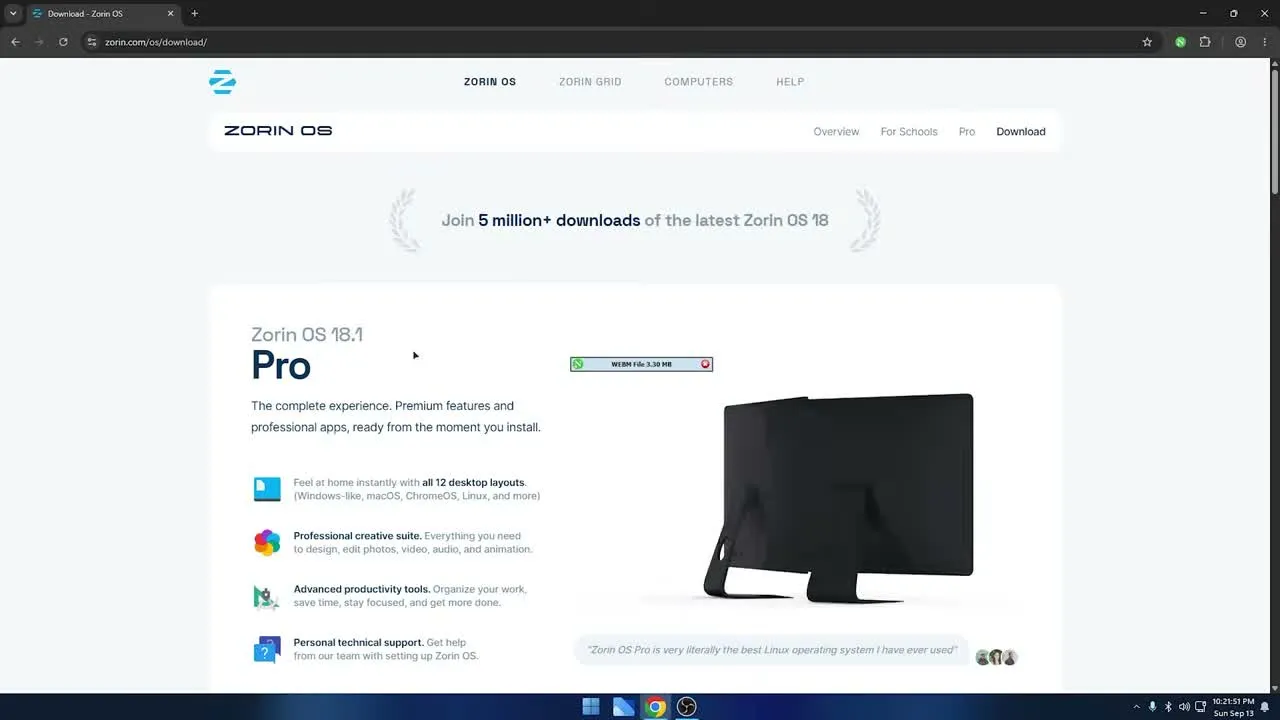
Open your browser, search for Zorin OS and open the official website. On the download page you will see Zorin OS Pro first. Pro is the paid edition, so skip it. We need the free Core edition, which is perfect for everyday use.
Click Download on the Core edition. The site may show a form asking for your email address. You do not need to fill it in; click Skip to download and the ISO download will start.
Step 2: Create a Small FAT32 Partition (Your USB Replacement)
For a dual boot setup, Zorin OS needs its own space, and we cannot just keep the setup file on a regular drive. We will build a small separate partition that works exactly like a bootable pendrive.
Open the Start menu, search for Computer Management and open it. From the left panel, go to Disk Management. You will see all your disks and partitions.
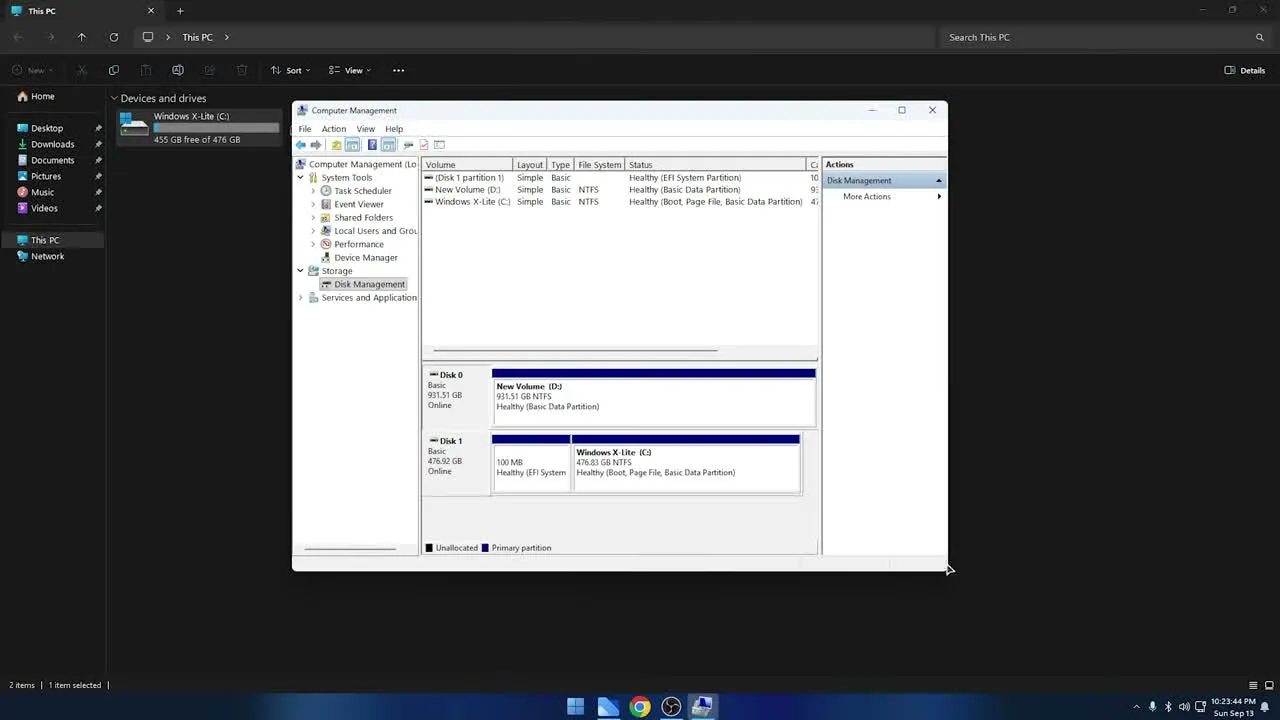
Now follow these actions in order:
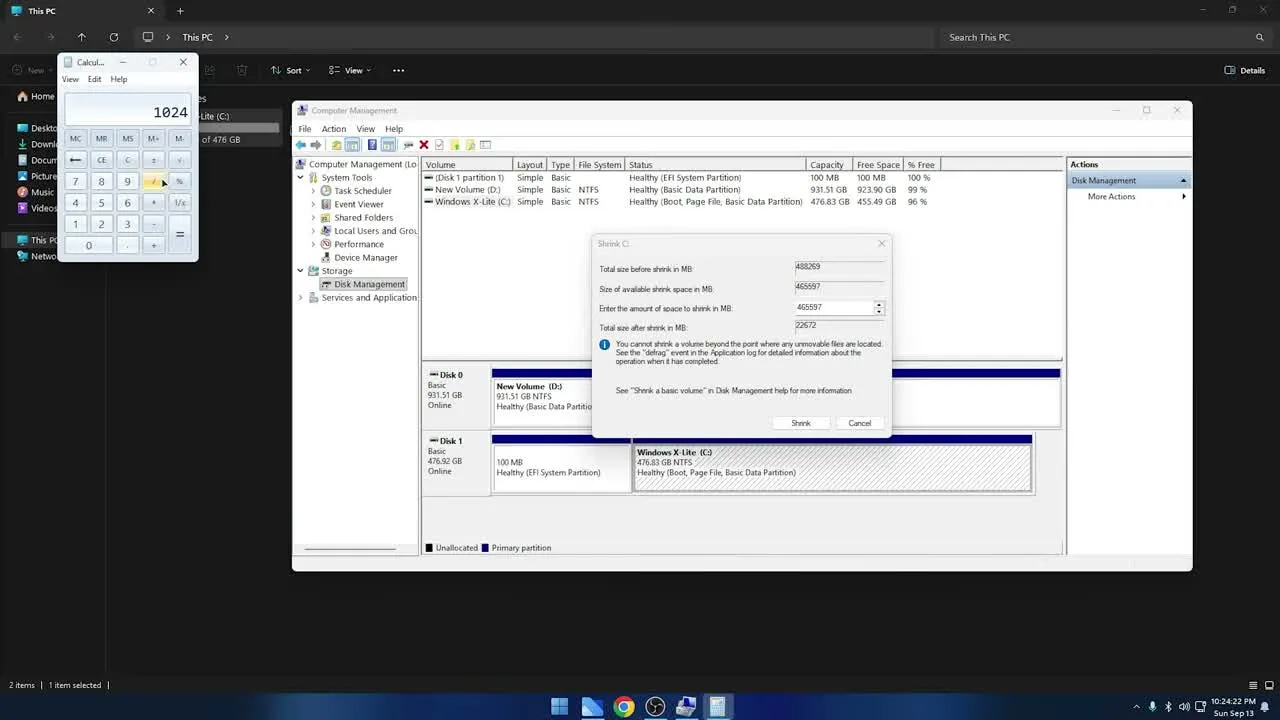
- Right-click on a partition that has plenty of free space and choose Shrink Volume.
- In “Enter the amount of space to shrink in MB”, type 4096 (that is 1024 x 4, meaning 4 GB) and click Shrink. This 4 GB is only for holding the setup files, so 4 GB is more than enough.
- You now have 4 GB of unallocated space. Right-click on it and choose New Simple Volume, then click Next.
- Keep the size as it is, assign any drive letter, and click Next.
- On the Format Partition screen, change the file system from NTFS to FAT32. Type a volume label, for example OS, keep “Perform a quick format” ticked and click Next, then Finish.
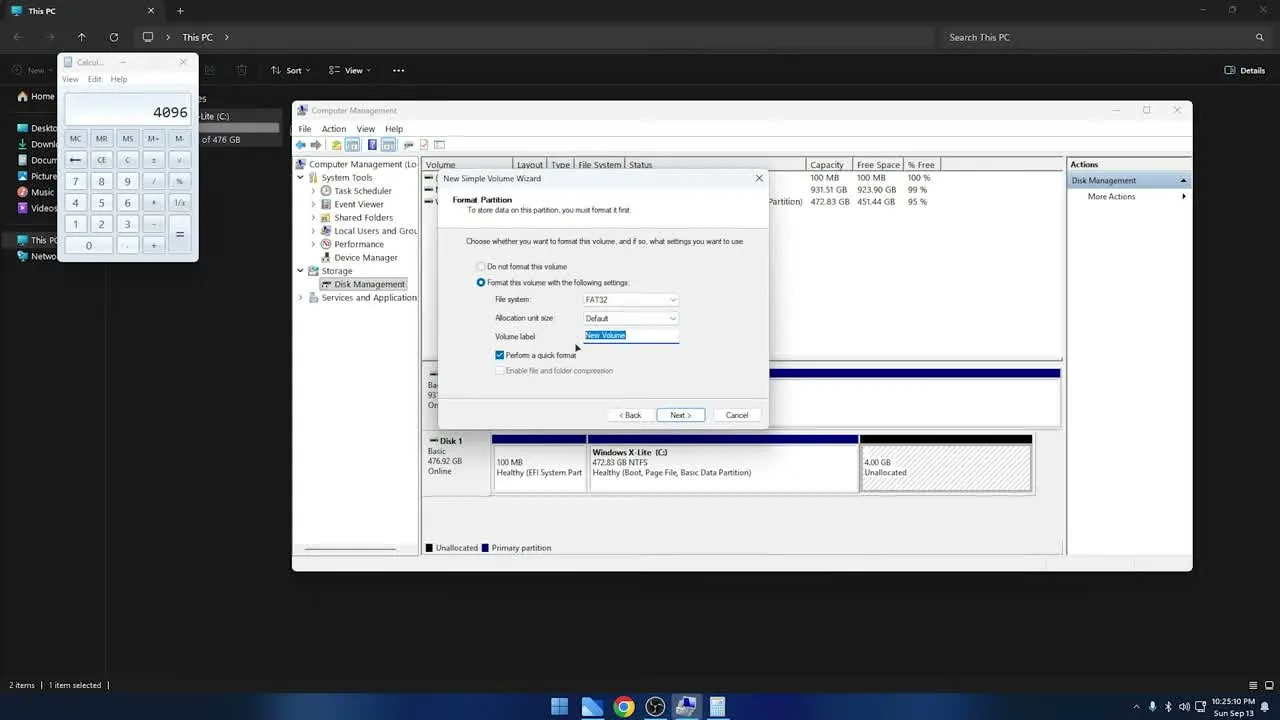
Why FAT32 and not NTFS? Your PC’s UEFI firmware can only boot from a FAT32 partition. If you format it as NTFS, the partition will never appear in the boot menu and the whole trick fails. This is the most common mistake in this method.
Step 3: Copy the Zorin OS Setup Files to the New Partition
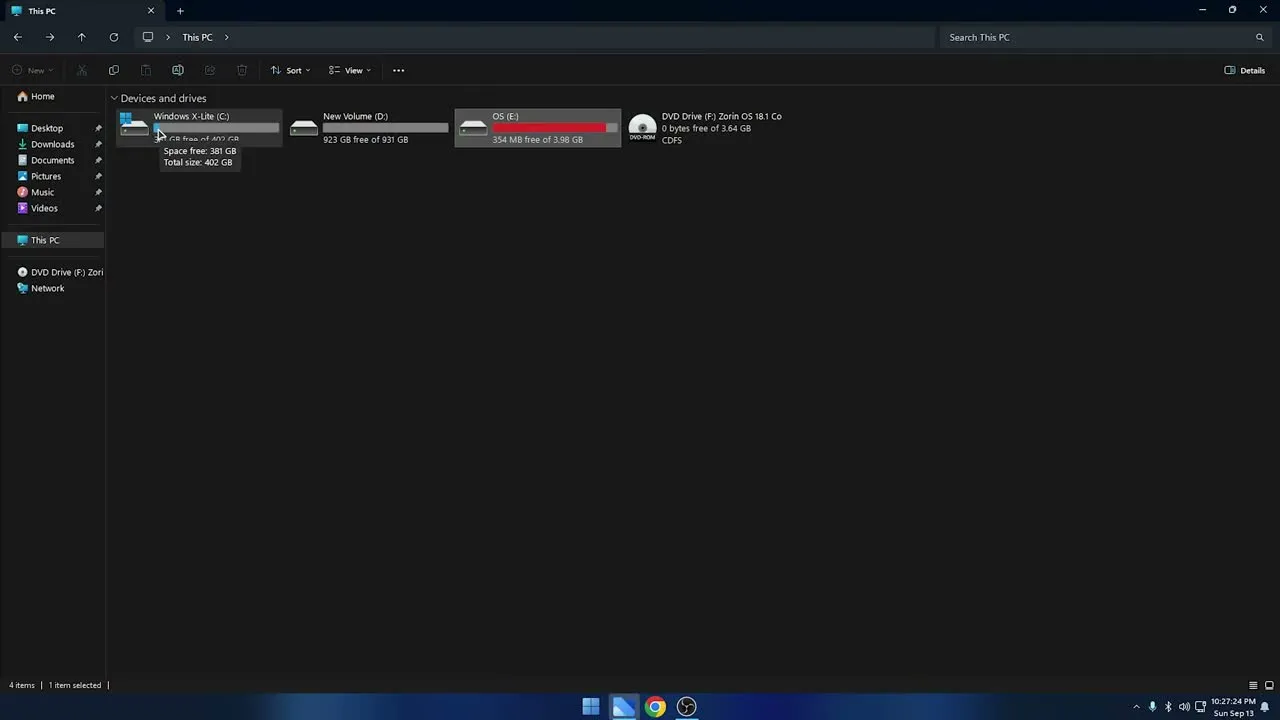
Go to your Downloads folder and double-click the Zorin OS ISO file. Windows will mount it as a virtual DVD drive. Select all the files inside it (Ctrl + A), copy them (Ctrl + C), then open the new OS drive you just created and paste everything there (Ctrl + V).
Make sure you copy the contents of the ISO, not the ISO file itself, and that the files sit directly in the root of the OS drive, not inside another folder. Your partition is now a bootable Zorin OS installer.
Step 4: Make Sure Secure Boot Is Turned Off
Before restarting, check one setting. Open the Start menu, search for System Information and open it. Find the Secure Boot State row. In our case it already shows Off.
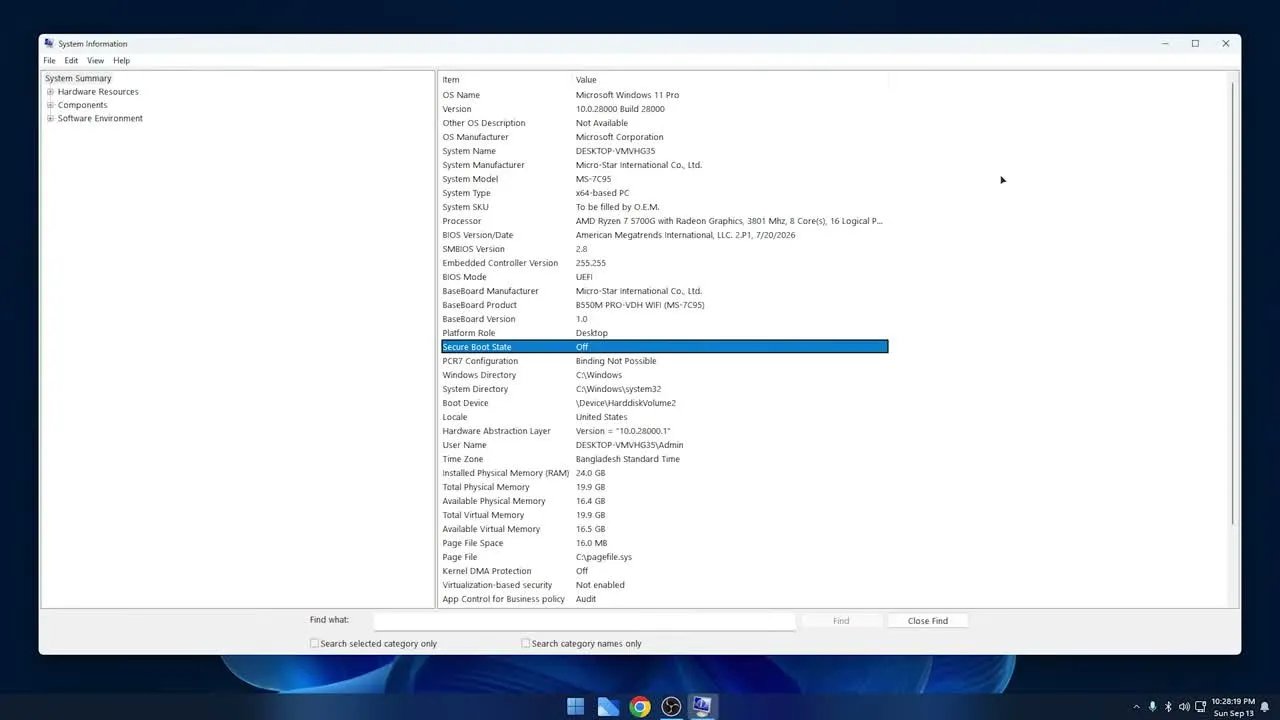
If yours shows On, disable Secure Boot from your BIOS or UEFI settings first, otherwise the PC may refuse to boot the Zorin installer. The exact menu differs by motherboard brand, so check your model’s support page if needed.
Step 5: Restart and Open the Boot Menu
Every motherboard has a boot menu key, and you need to know yours before restarting. On the MSI board used in this guide the key is F11. Other brands use F12, F8, Esc or F2. If you are not sure, Google your model plus “boot menu key”.
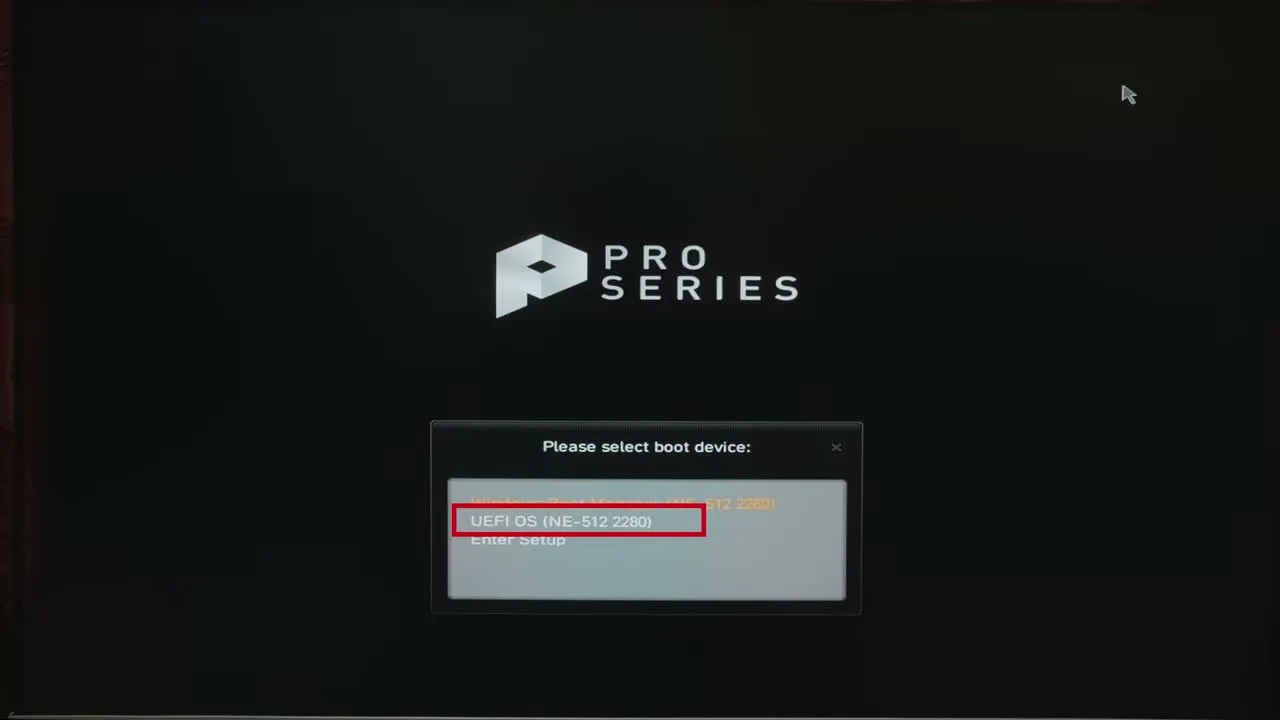
Now restart the PC and keep tapping your boot menu key as soon as the screen turns on. A small menu appears. Alongside Windows Boot Manager you will see a new entry called UEFI OS. That is your FAT32 partition. Select it and press Enter.
Step 6: Boot Into the Zorin OS Installer
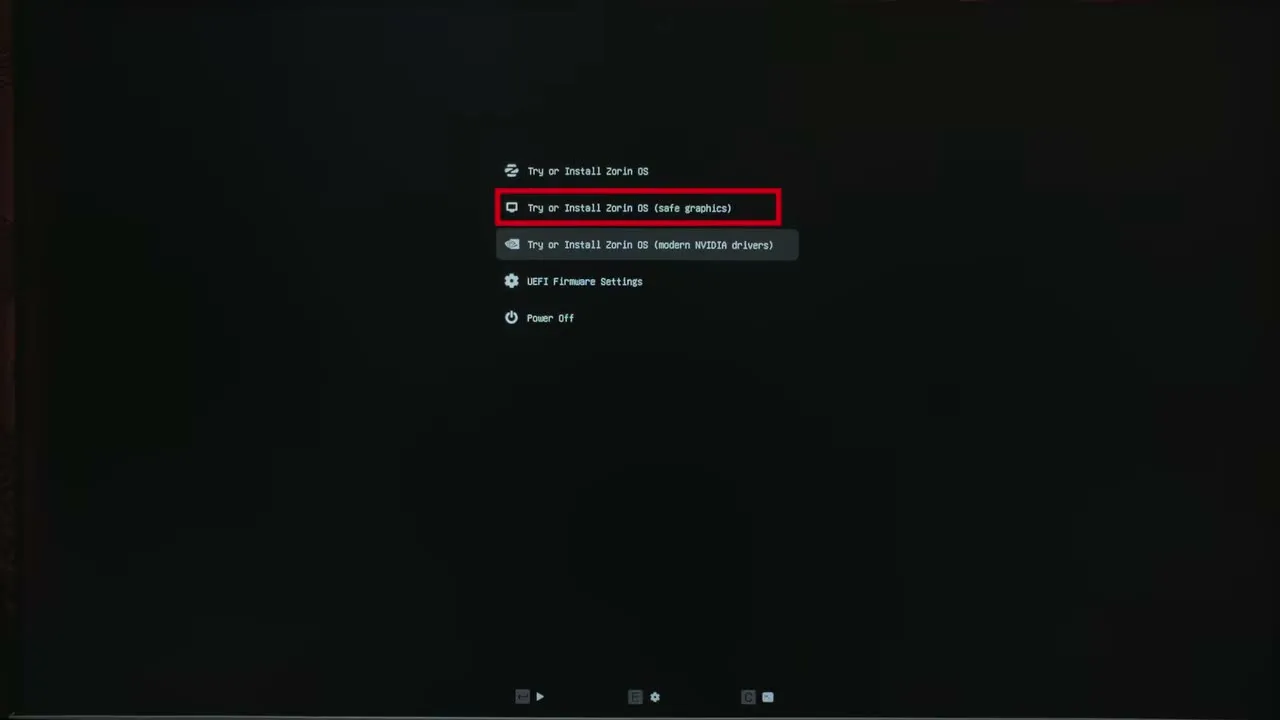
The Zorin boot menu now appears with a few options: “Try or Install Zorin OS”, a safe graphics mode, and an option for modern NVIDIA drivers. Select the first option, Try or Install Zorin OS, and press Enter. Give it a little time to load.
Zorin OS loads into a live desktop. The installer opens in a Welcome window. Keep the language as English and click Install Zorin OS. On the next screens, keep the keyboard layout as English (US), then tick both boxes: Download updates while installing Zorin and Install third-party software for graphics and Wi-Fi hardware. Click Continue.
Step 7: Install Zorin OS Alongside Windows Boot Manager
This is the most important screen of the whole guide. You get three choices:
- Install Zorin OS alongside Windows Boot Manager – this is the dual boot option. Choose this one.
- Erase disk and install Zorin OS – this deletes Windows and everything on the disk. Do not choose this unless you want Zorin only.
- Something else – manual partitioning for advanced users. We do not need it.
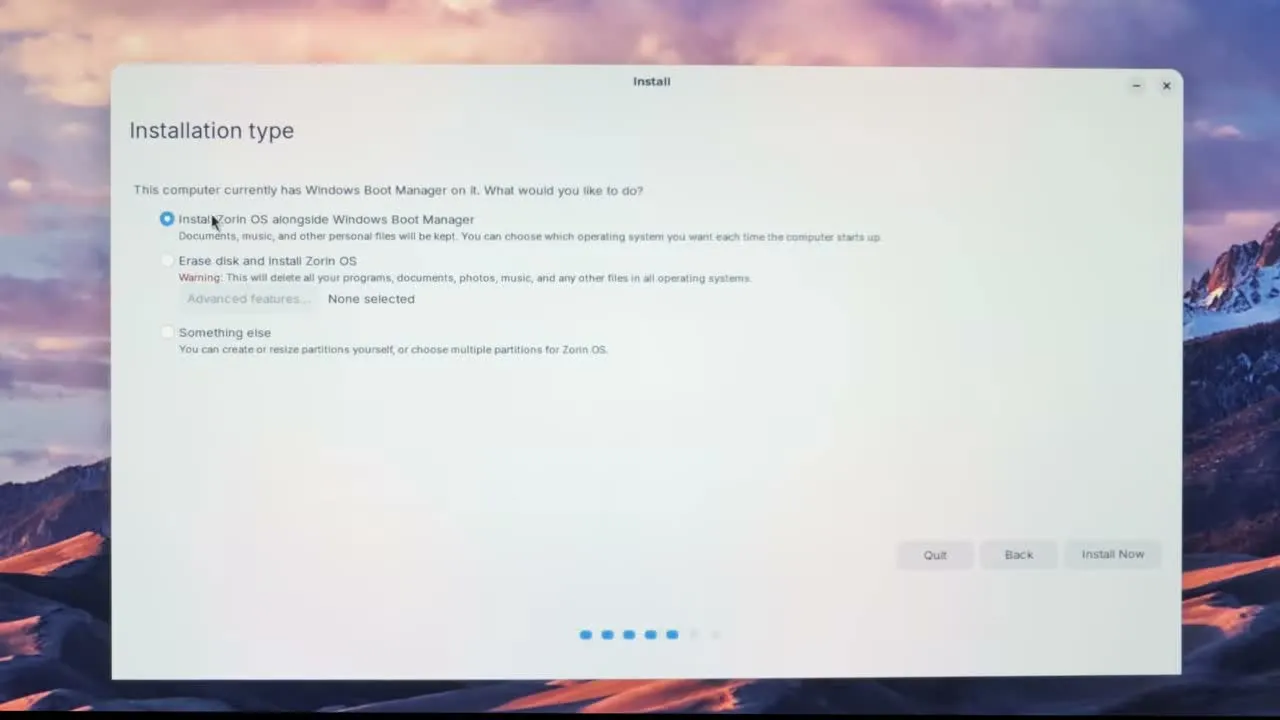
Select the alongside option and click Continue. Next, choose the drive where Zorin should go and drag the divider to set how much space Zorin gets. We kept about 100 GB for Zorin OS, which is comfortable for apps and files. The installer clearly says that documents, music and other personal files will be kept, and that you can choose which operating system to use each time the computer starts.
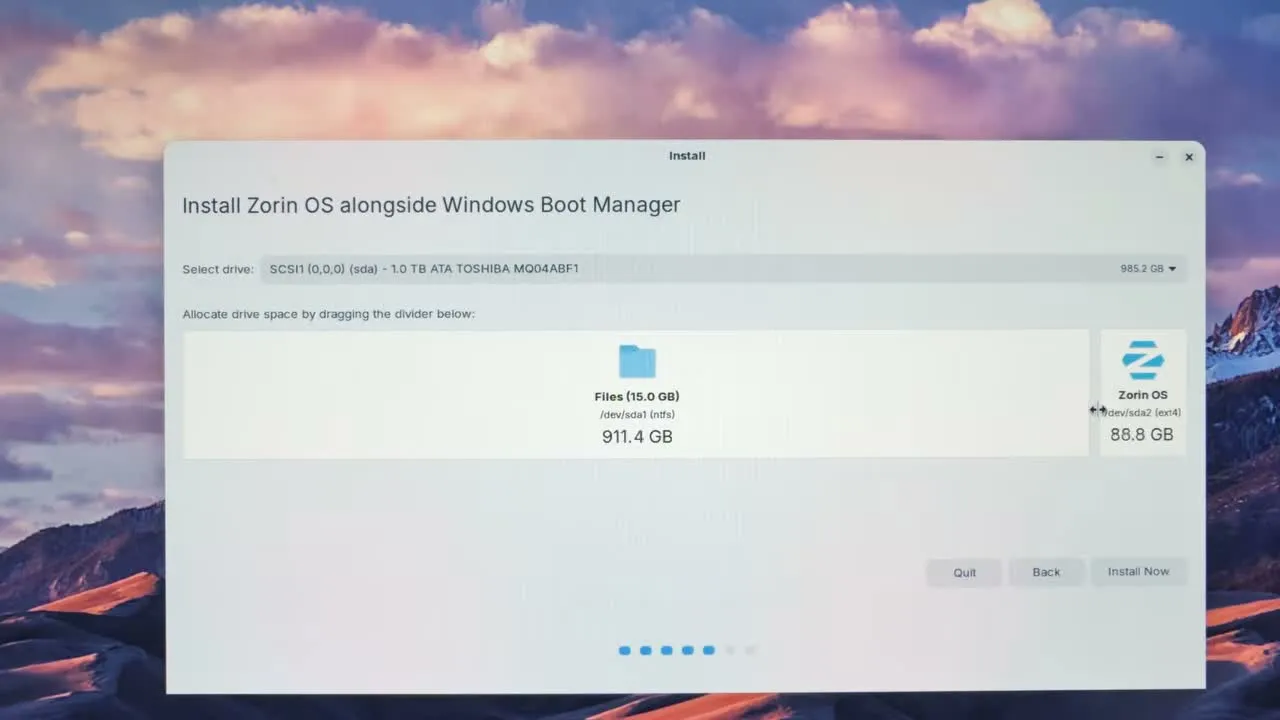
If your PC has only one SSD or hard disk, only that drive will appear here, and that is completely normal. Click Install Now, then Continue to confirm the partition changes.
Step 8: Set Your Time Zone and Create Your Account
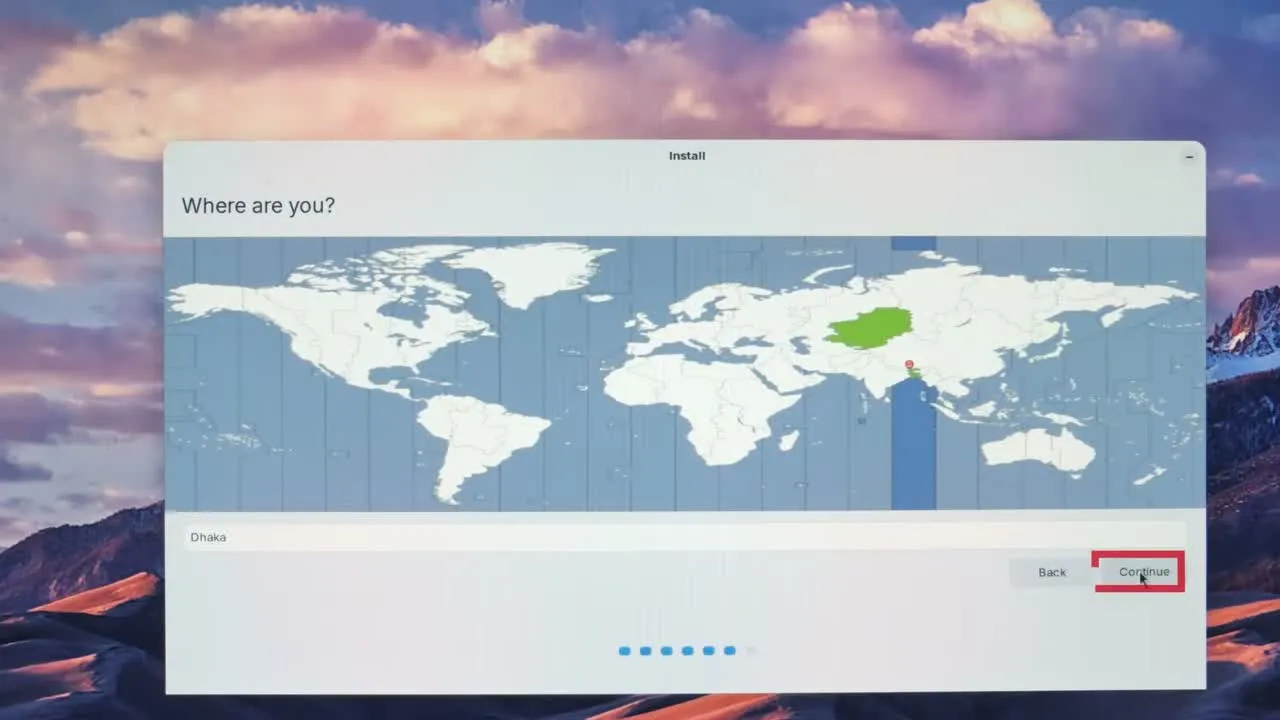
On the “Where are you?” screen, select your time zone (Dhaka in this guide) and click Continue.
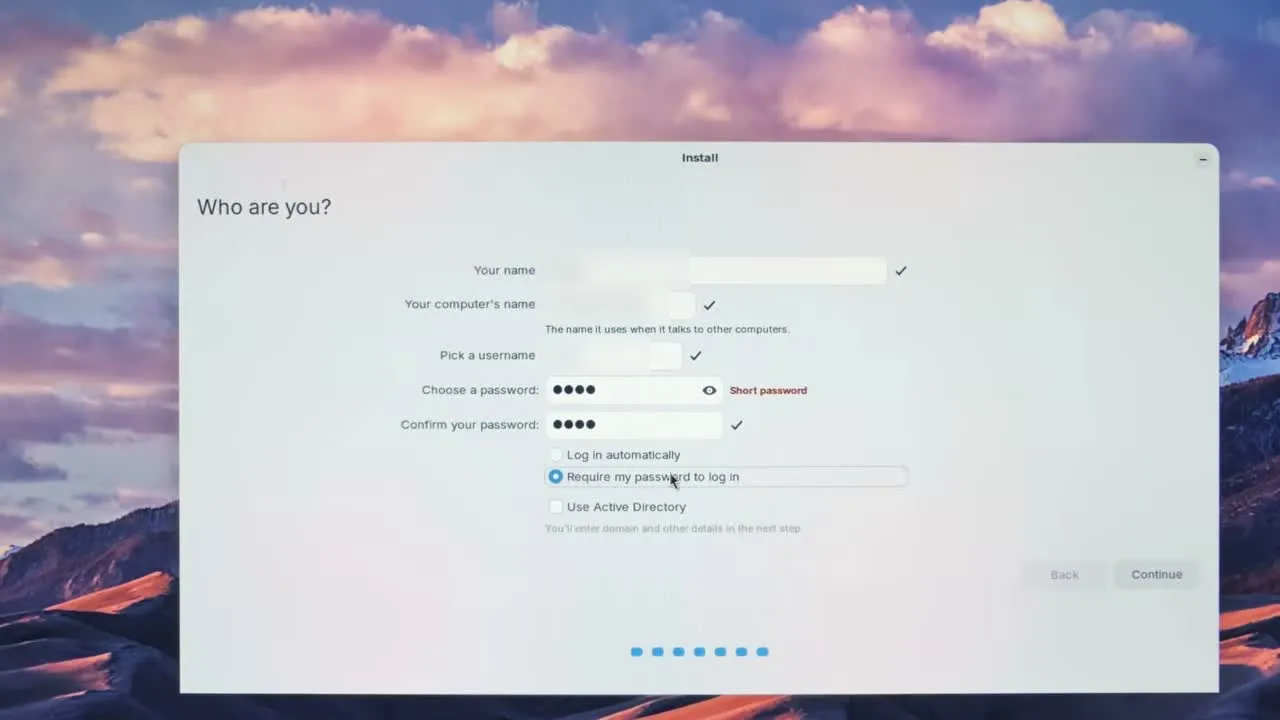
On the “Who are you?” screen, type your name, pick a username and set a password. Choose Require my password to log in; it keeps your PC secure, because anyone starting the computer will need the password to enter your account. Click Continue and the real installation begins.
Step 9: Finish the Installation and Boot Into Zorin OS
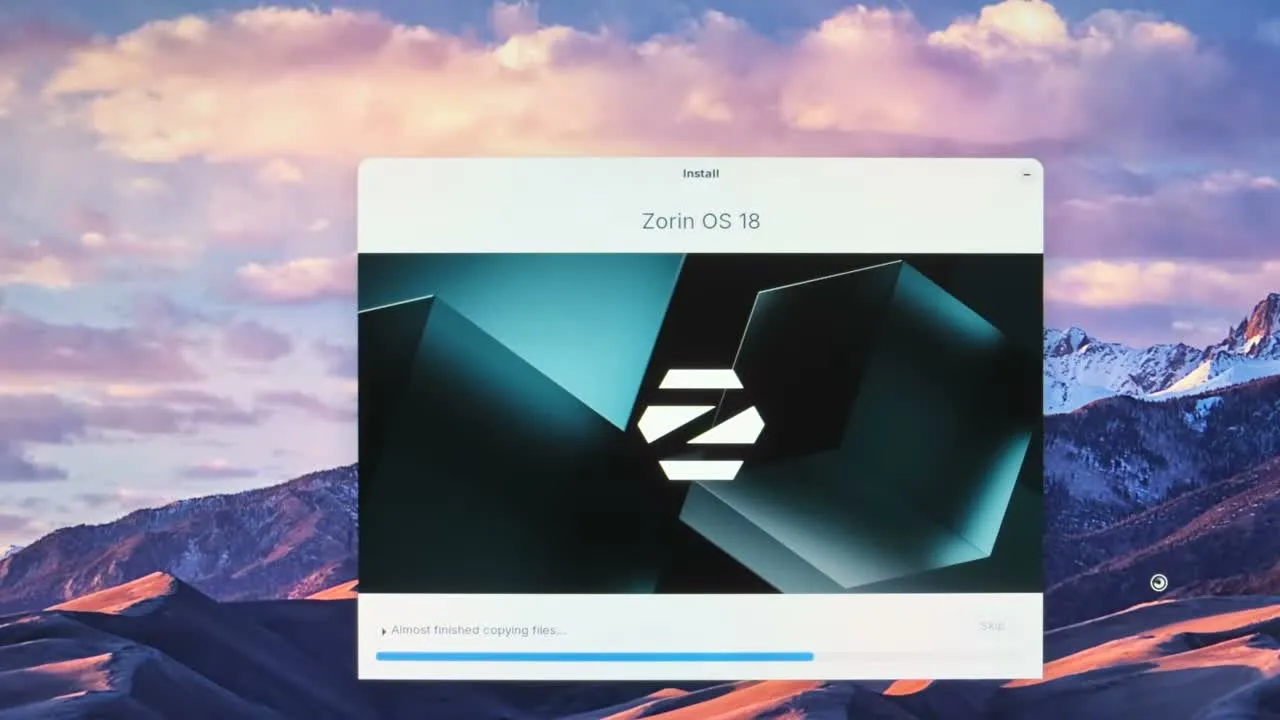
Now Zorin OS copies its files and installs the system. This takes some time depending on your disk speed, so wait patiently until it finishes and asks you to restart.
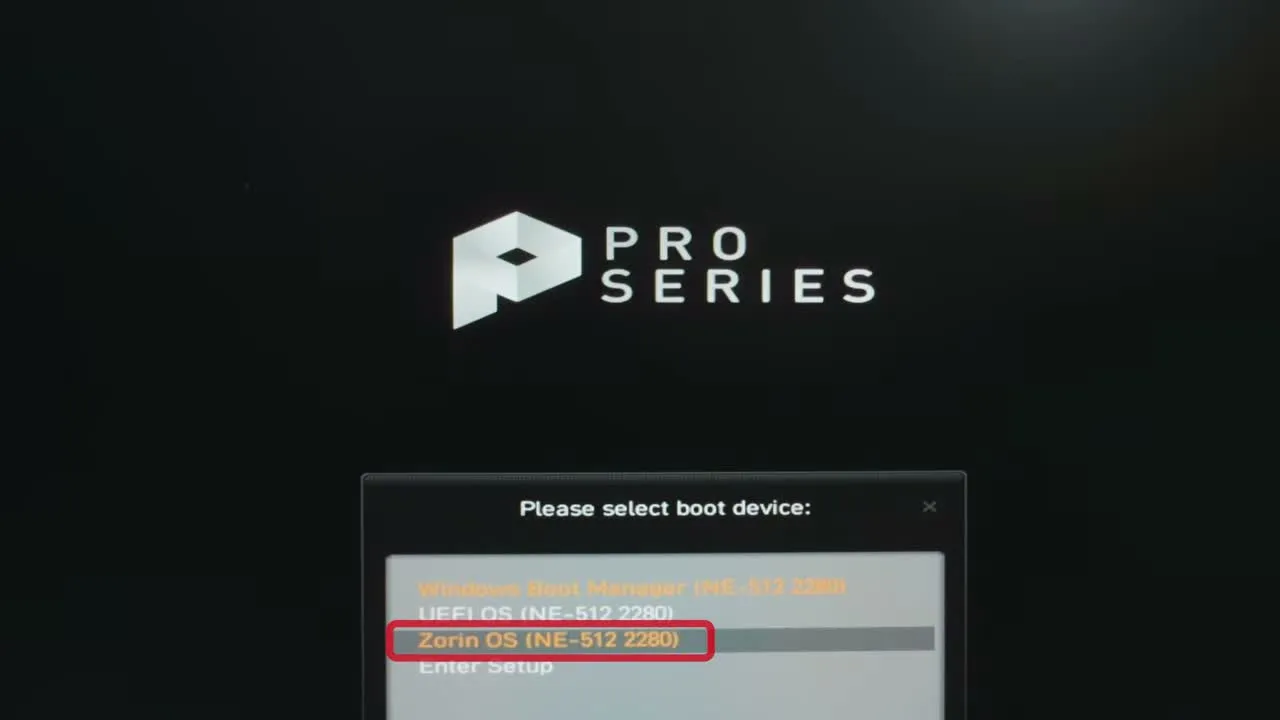
Here is something many people get wrong: after the restart, the PC may boot straight into Windows by default. That does not mean the installation failed. Restart once more, open the boot menu with your key (F11 here), and you will now see a Zorin OS entry. Select it and press Enter.
Zorin OS starts, you click your username, type your password, and the fresh Zorin desktop opens. Open the Files app and you will see your Windows drives listed there too, with every file still in place, completely untouched.
Step 10: Install Updates After the First Boot
The first time you reach the Zorin desktop, open the Software Updater when it appears and install the available updates; they bring better performance, new features and security fixes. Then adjust the appearance and personal settings the way you like.
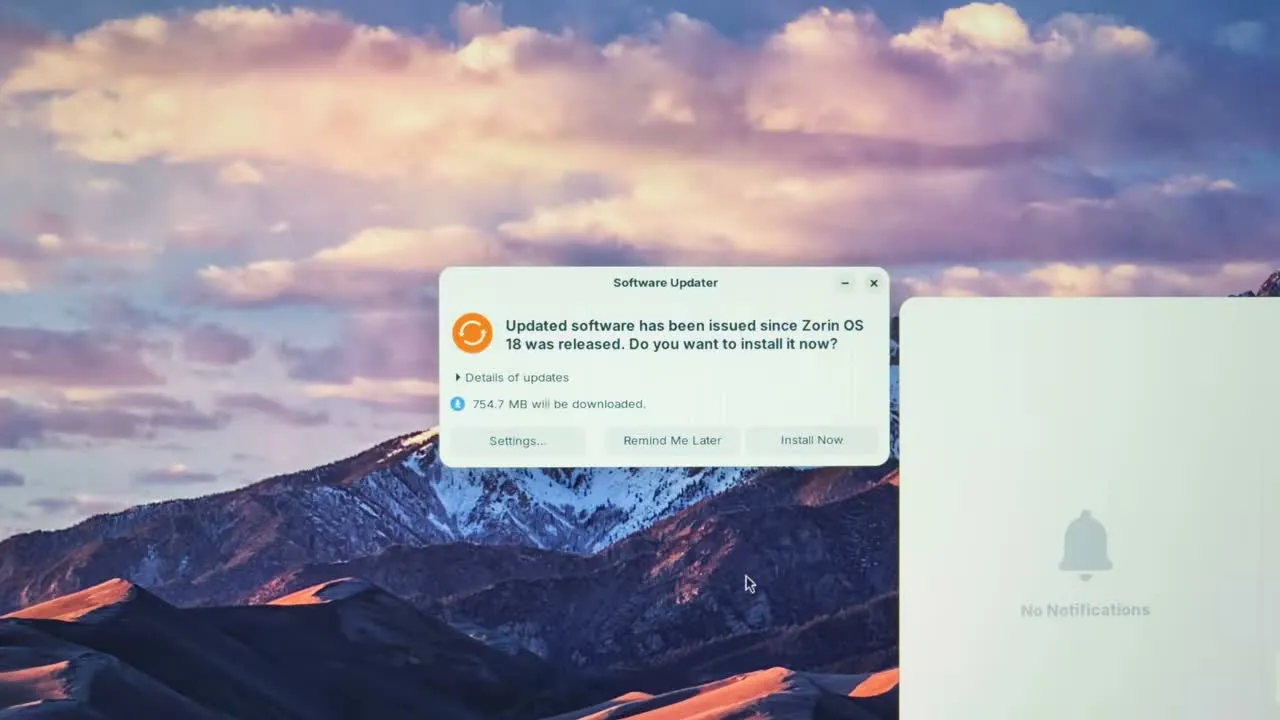
Zorin is built on Ubuntu but designed to feel familiar to Windows users. It is lightweight and fast, even on modest hardware.
Clean Up: Delete the Temporary OS Partition
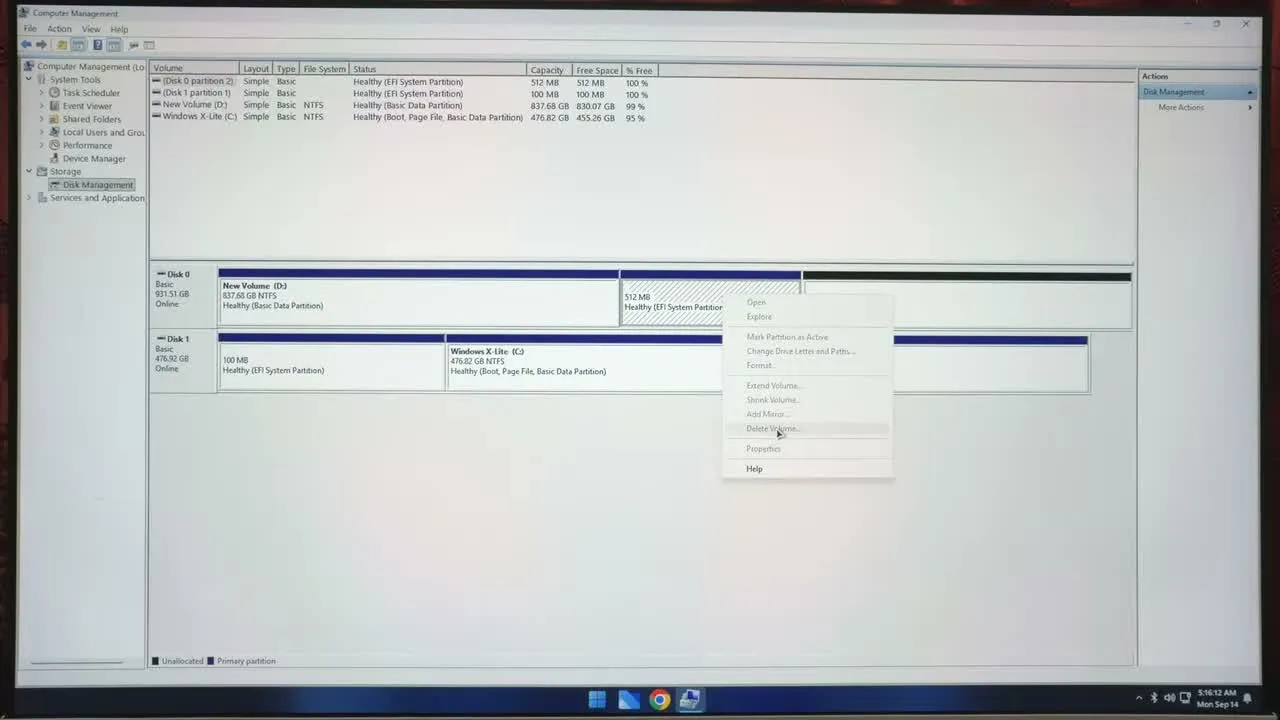
The small 4 GB “OS” partition did its job, so you do not need it anymore. Boot into Windows, open Computer Management > Disk Management, right-click the OS volume and choose Delete Volume. Then right-click your main drive, choose Extend Volume, and click Next, Next, Finish. The 4 GB merges back into your main drive.
Bonus: How to Remove Zorin OS Completely Later
If one day you decide Zorin is not for you, removing it is just as easy. Boot into Windows, open Disk Management and delete the Zorin OS partitions plus the small EFI partitions the installer created with it. The space becomes unallocated; right-click your main drive and use Extend Volume to take the space back. Your PC returns to a Windows-only machine.
One honest note: one small FAT partition sometimes cannot be deleted from inside Windows. You can remove it later during a future OS installation setup, or with a partition manager tool.
Common Mistakes to Avoid
- Formatting the 4 GB partition as NTFS. UEFI cannot boot from it. It must be FAT32.
- Copying the ISO file itself instead of its contents, or pasting the files inside a folder. The files must be in the root of the partition.
- Leaving Secure Boot on. Check System Information before you restart.
- Not knowing your boot menu key. Find it before restarting, not while the PC is booting.
- Choosing “Erase disk”. For dual boot, always pick “Install Zorin OS alongside Windows Boot Manager”.
- Giving Zorin too little space. 40 GB is the minimum; 80 to 100 GB is comfortable.
Frequently Asked Questions
Can I really install Zorin OS without a USB pendrive?
Yes. A small FAT32 partition on your own disk holds the installer files and boots exactly like a pendrive. No USB drive, memory card or DVD is needed.
Will my Windows and personal files be deleted?
No, as long as you choose “Install Zorin OS alongside Windows Boot Manager”. Your documents, music and other files are kept. Still, take a backup before you start, because a wrong click during partitioning can delete data.
How much space does Zorin OS need?
Zorin OS Core needs at least 40 GB. For a smooth experience with apps and updates, 80 to 100 GB is a better choice, which is what we used in this guide.
Does this method work on a PC with only one SSD?
Yes. If your PC has a single drive, that drive is simply the one that appears in Disk Management and in the installer. Shrink it, create the FAT32 partition, and continue exactly the same way.
After installing, my PC boots into Windows directly. Is something wrong?
No. Many PCs keep Windows as the default. Open the boot menu at startup with your boot key and select the Zorin OS entry whenever you want to use Zorin.
Conclusion
That is how to install Zorin OS without USB and dual boot it alongside Windows 11. A 4 GB FAT32 partition replaces the pendrive, the installer handles the dual boot safely, and your Windows files remain exactly where they were. Try Zorin at your own pace; whenever you need Windows, it is one restart away.