Every few months the same promise turns up in a search result: Office 2024, free, legal, activated in minutes, no catch. The download is often a repacked installer from a stranger, and the activation is often a program that does far more than unlock Word. This guide shows how to install Office 2024 the official way, using the two tools Microsoft itself publishes. What it will not do is invent a licence you do not have. Settle that first, before you download anything.
The licence question comes first, not last
Office LTSC Professional Plus 2024 is a volume-licence edition: the version Microsoft sells to organisations and schools that install Office on many computers at once, usually with a Key Management Service host or a Multiple Activation Key from IT. It is perpetual, so you buy it once for that version, and it gets security updates without the new features in Microsoft 365. You get a stable Word, Excel and PowerPoint, without the newest cloud features.
Installing Office with the official tools does not create a licence. On some computers Word shows as activated straight away, because the computer already has a volume licence arrangement or a work or school account. On others, it asks for a product key or shows as unlicensed, and that is not an error. It means you need a genuine key or a licensed account, or one of the free alternatives near the end of this guide. Shared keys, key generators and activator programs are not a shortcut. They are the most common way a clean installation turns into a compromised computer.
Clear the ground: remove the old Office first
Two versions of Office on one computer cause real trouble: files open in the old program, and the new installation may refuse to finish. If your computer has any version of Office, remove it first, from Settings, then Apps, then Installed apps, or with a dedicated uninstaller for a cleaner removal, as the video does. Restart and check the Start menu. You also need Windows 10 or Windows 11, an administrator account, a steady internet connection, and several gigabytes of free disk space. Close every Office program and save any open document first.
Get the two official pieces
There is no single Office 2024 installer. The first piece is the Office Deployment Tool, a small program from the Microsoft Download Center that fetches and installs Office. The second is a small XML file you create with the Office Customization Tool: your order form, telling the tool which edition, apps and language to use. Search for Office Deployment Tool, open the Microsoft Download Center result, keep the language set to English, and download it. Do not get it from a file-sharing site, even if the file name looks identical.
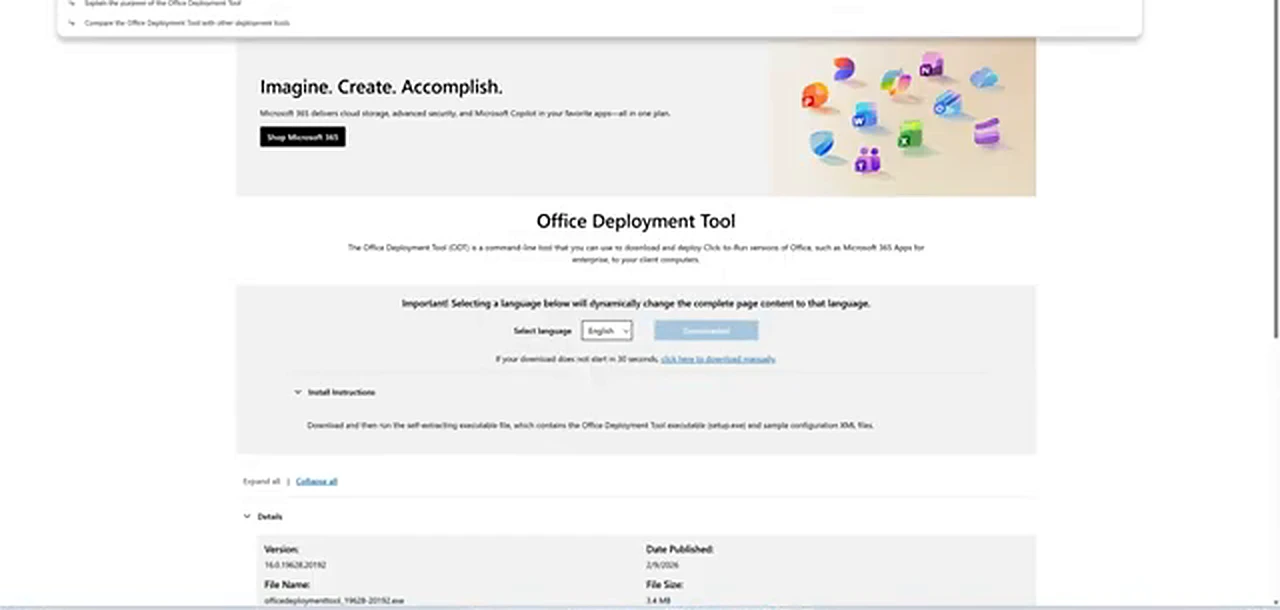
Then search for Office Customization Tool and open the Microsoft 365 Apps admin center result. It is a web page, not a download. You only need four settings: which computer, which Office, which apps, and which language. Answer those and leave the rest alone.
Build your own installer: the configuration
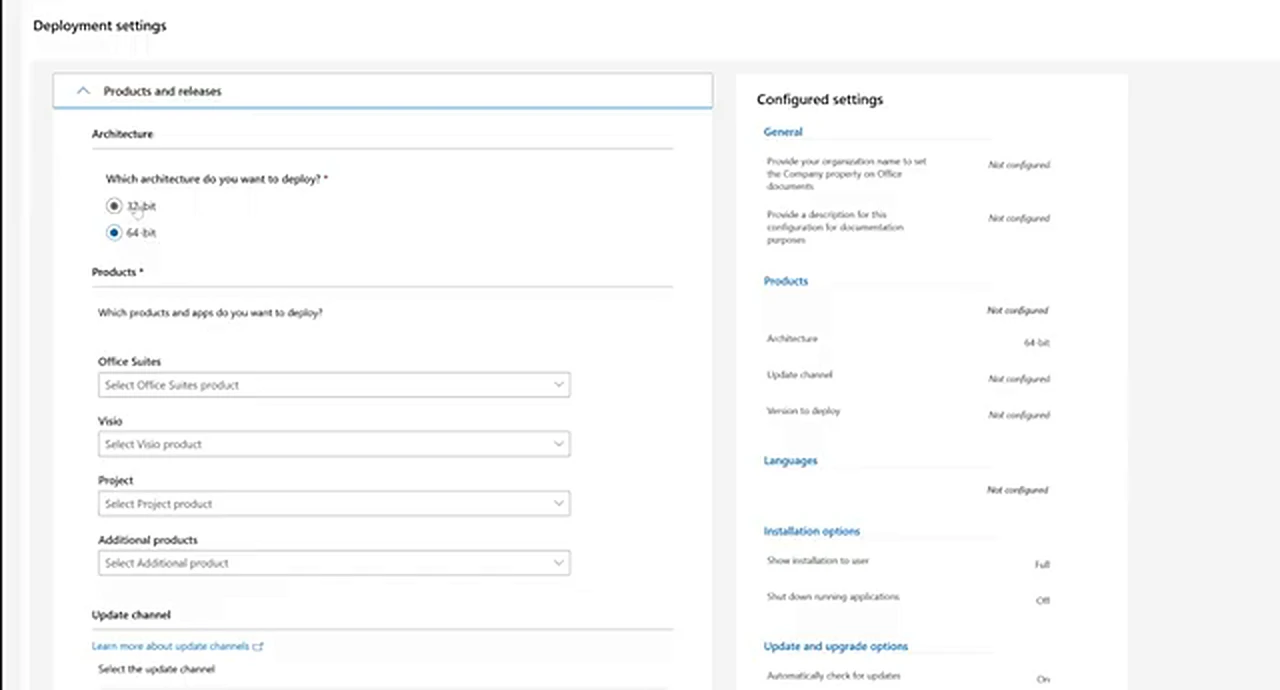
Under Products and releases, choose 64-bit for Architecture, and Office LTSC Professional Plus 2024, Volume License, for Office Suites. The update channel should read Office LTSC 2024 Perpetual Enterprise, and the version should be Latest. The 64-bit edition is the default on a modern computer. The 32-bit edition exists for very old add-ins. If you do not know what a COM add-in is, you do not need it.
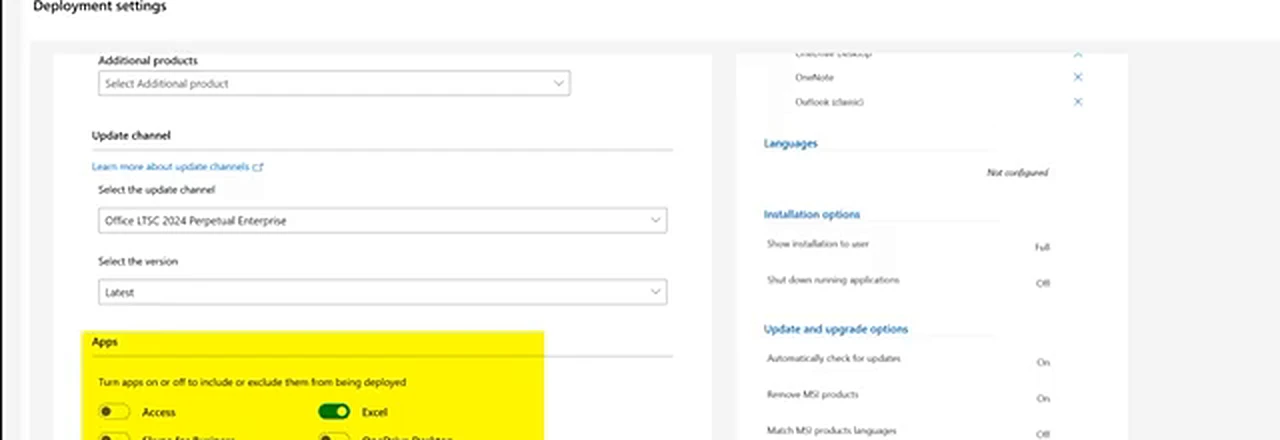
Next, choose your apps, and turn on only the ones you will actually open. In the video, Word, Excel and PowerPoint stay on, while OneNote, Outlook (classic) and Publisher are switched off, and Access and OneDrive Desktop are left as shown. If you live in Outlook, keep it on. The rule is simple: if you cannot name the last time you opened an app, switch it off. You can add an app later with a new configuration.
Under Language, choose English (United States), or the language you work in. Move through the rest with Next, leaving the installation display at Full. Under Update and upgrade, switch off Uninstall any MSI versions of Office, including Visio and Project, as the video does, because you already removed the old Office by hand. Under Licensing and activation, leave the defaults unless your organisation gave you specific instructions. Click Finish. Nothing has been downloaded yet.
Export without the space trap
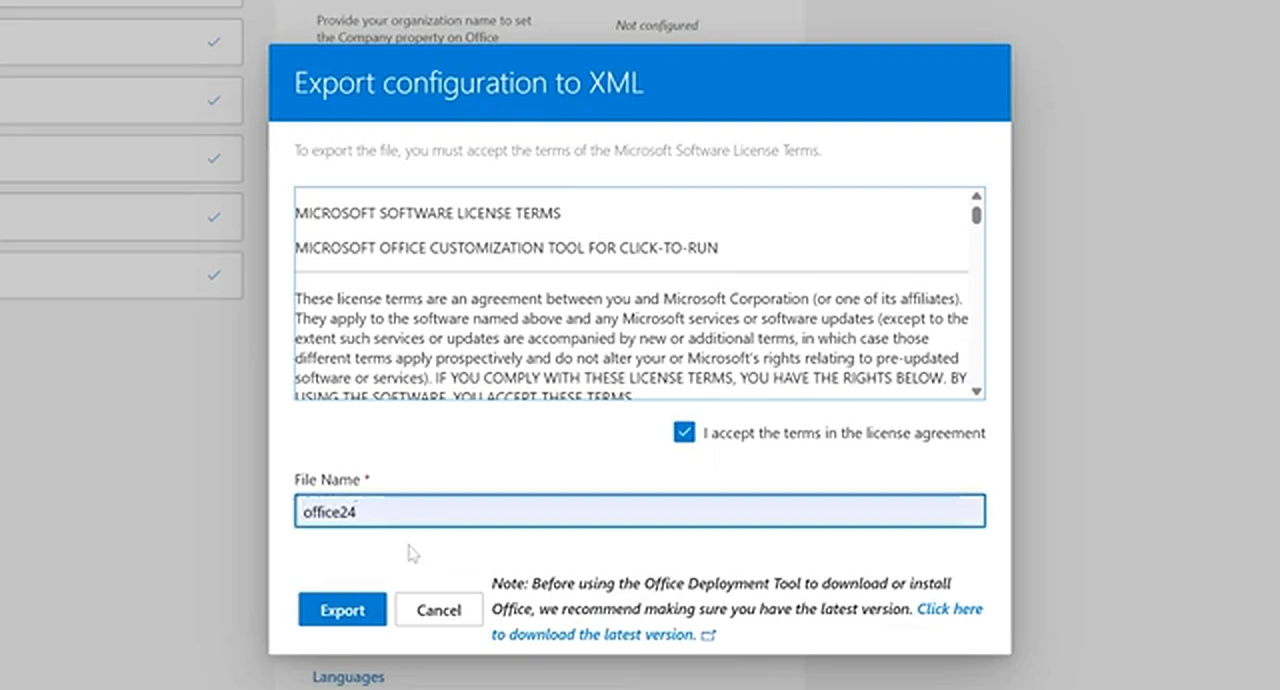
Click Export at the top right. Choose Office Open XML formats, the middle option, so Word saves as .docx, Excel as .xlsx and PowerPoint as .pptx by default. Click OK, tick the box to accept the licence terms, and look at the File Name field. Name the file office24, with no space and no extension; the tool adds .xml, so the downloaded file is office24.xml. That is the name you will type in the Command Prompt later, and the two must match character for character. A space would mean quotes around the name in the command, and one forgotten quote is enough to make the installer say it cannot find the file. Click Export.
One folder, one drive letter, no guessing
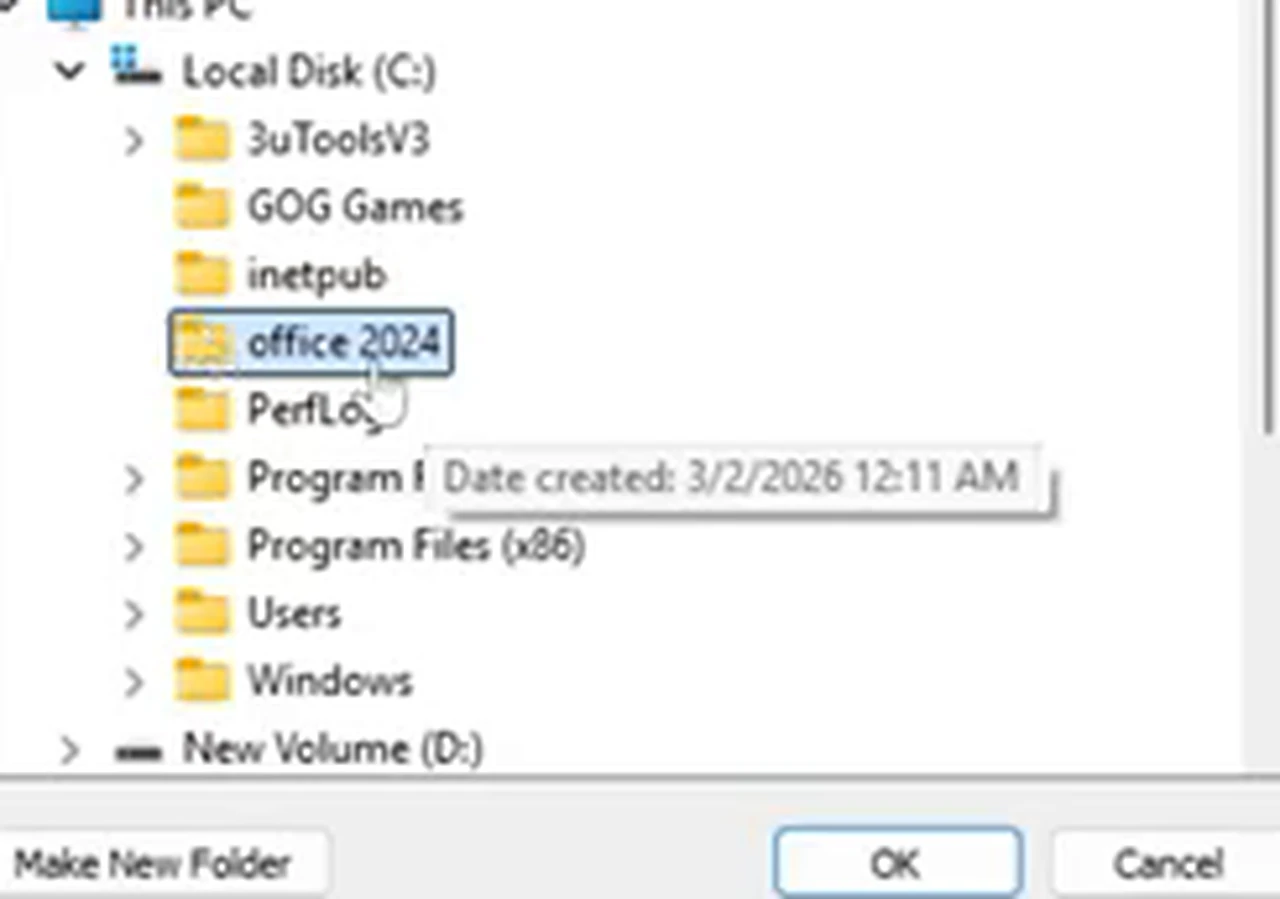
Create a folder on the C drive named office 2024, with a space, in lowercase, exactly as shown in the video. Move both files into it: the Office Deployment Tool and office24.xml. The folder can have a space because you type its path once, carefully. The file name has no space because you type it in a longer command, where a space is easier to get wrong. Run the Deployment Tool inside the folder, accept the licence terms, and when it asks where to extract the files, choose Browse for Folder, then This PC, then Local Disk (C:), then office 2024, and click OK. It extracts setup.exe beside office24.xml. Do not run setup.exe on its own: it does not know which Office you want until you call it with the command below.
Two commands, typed exactly
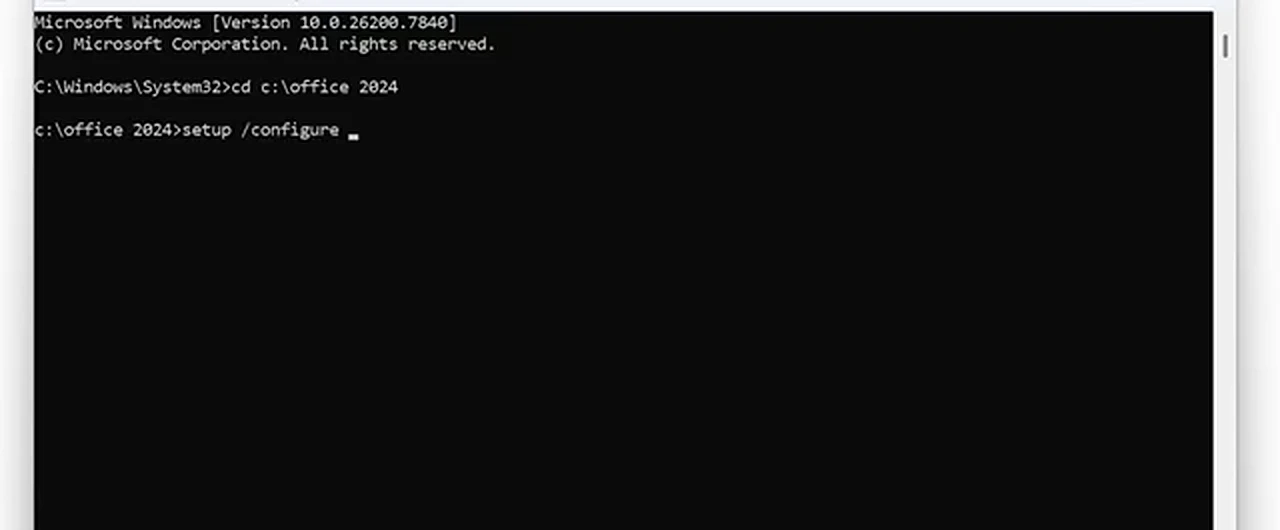
Open Start, search for cmd, right-click Command Prompt, and choose Run as administrator. An ordinary Command Prompt cannot install software for the whole computer. The title bar should say Administrator: Command Prompt. Type the first command:
cd c:\office 2024Read it back first: cd, a space, c, a colon, a backslash, office, a space, 2024. The colon is not a comma, the backslash leans the other way from an ordinary slash, and the space must be there because that is the folder name. If you used a different name or drive, type yours instead. The prompt should change to show you are inside the folder. If it says the path cannot be found, check the name letter by letter. Do not proceed until this command has worked. Now type the second command:
setup /configure office24.xmlRead it back too: setup, a space, a forward slash, configure, a space, office24.xml, with no space inside the file name. The forward slash leans the other way from the backslash in the first command. If you named your file something else, type that name exactly, including .xml. A Microsoft window will ask you to stay online while Office downloads. Leave it alone until the installation finishes. A slow connection is not a failure. A closed installer window is.
In File Explorer, open View, then Show, and tick File name extensions, so what you see is what you type.
When setup refuses: the Windows Installer fix
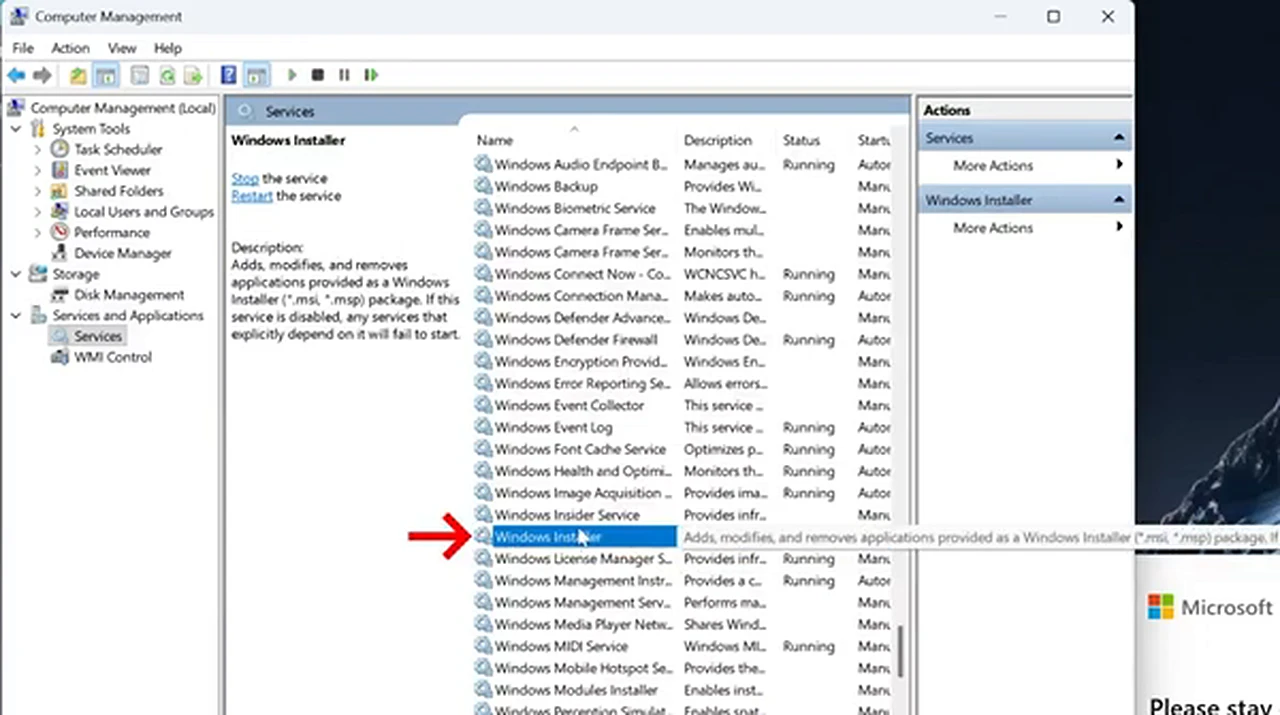
If the second command fails before downloading, check one Windows service first. Search for Computer Management, expand Services and Applications, click Services, and scroll to Windows Installer. If its status is blank or stopped, right-click it and choose Start. That service installs programs in this format, and if it is not running, Office setup cannot proceed however correct your commands are. The video shows it already running. After starting it, restart the computer and run the two commands again.
If setup still fails, check the obvious things: an administrator Command Prompt, the right folder, both files present, and a working connection. Nine times out of ten, the answer is one of those four. Only then rebuild the configuration file.
First launch: what activated should look like
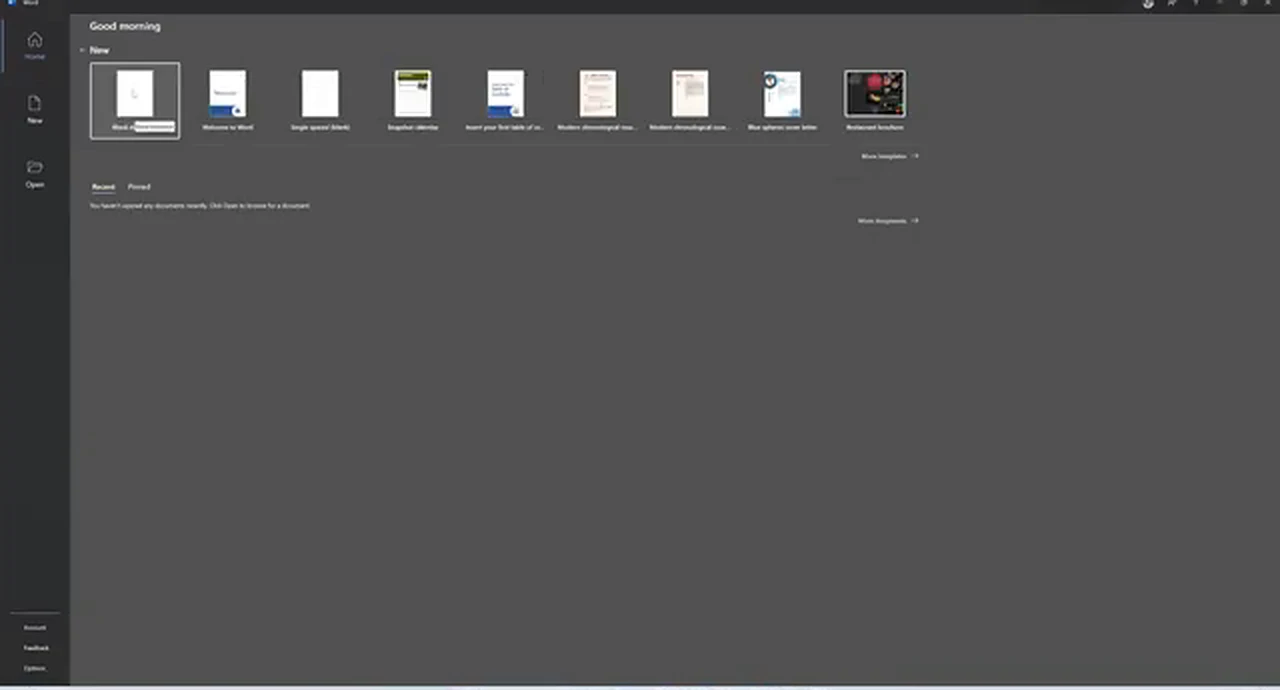
When the installer finishes, open Word from the Start menu, accept the licence agreement if it asks, and choose Blank document. Type a sentence and save it as a .docx file. If Word opens, saves and closes without complaint, the installation succeeded. Activation is a separate question.
To check activation, go to File, then Account, in Word. The panel should name Microsoft Office LTSC Professional Plus 2024 and show the activation state; in the video it shows as activated. If yours matches, you are done. When it asks you to sign in, use the work or school account that carries the licence. When it asks for a key, enter the genuine key you were given. A screen showing unlicensed with no key to offer means the installation is correct and the licence is missing: a purchasing or IT question, not a settings question.
Living with LTSC, and the free routes if you have no licence
Office LTSC is deliberately boring, and boring is a compliment. It gets security updates and will not suddenly gain a redesigned ribbon mid-week. New features arrive with the next major edition. Keep office24.xml somewhere safe: to reinstall or add an app, run the same two commands with the same file. To remove Office, uninstall it from Settings first, then remove the folder.
If you have no licence, the honest free options are worth taking seriously. Microsoft 365 for the web gives you browser versions of Word, Excel and PowerPoint with a free Microsoft account: no installation, the same formats, internet required. LibreOffice is the offline free option, a complete suite that opens and saves Office formats. Google Docs, Sheets and Slides are free with a Google account and strong for collaboration. None pretends to be a licensed copy of Office, and none will surprise you with a licence banner a month later.
Questions that come up every time
Is Office 2024 free?
No. The tools are free to download from Microsoft, but Office LTSC Professional Plus 2024 needs a licence. The web versions and LibreOffice are the free routes.
Should I choose 32-bit or 64-bit?
Choose 64-bit unless you have a specific old add-in that only works in 32-bit. It is the default on a modern computer, and it is what the video uses.
Can I keep my old Office beside 2024?
Do not try. Remove the old version first and restart. Two versions side by side cause file association conflicts that are hard to untangle.
Why does setup say it cannot find office24.xml?
Usually the file is not beside setup.exe, the name has a space or a double extension such as office24.xml.xml, or the Command Prompt is not in the office 2024 folder. Check all three.
Setup fails before downloading. What now?
Start the Windows Installer service in Computer Management, restart, and run the two commands again. Then check the administrator prompt, the folder path, and the connection.
Will Office update itself afterwards?
Security updates arrive through the channel you selected. Feature updates do not. That is the nature of LTSC, and it is a feature, not a fault.
Does this work on a Mac?
No. This method is for Windows. On a Mac, install Office from the Microsoft website or the App Store with a licence for Mac, or use the web versions.
Done carefully, this is a ten-minute job plus a download: remove the old Office, fetch the official tool, describe the Office you want, export one small file, and run two commands you have read back first. The reward is an installation you can trust.