Rafi had an assignment due at nine in the morning, and his laptop had other plans. It was a seven-year-old HP machine with a spinning hard drive, the kind that groans every time it wakes up. He pressed the power button, went to make tea, and came back to a login screen that was still loading. Six minutes later Windows finally appeared, the fan sounded like a hair dryer, and three Chrome tabs were enough to freeze the whole thing. A new laptop was out of reach, so he asked his phone a different question instead.
The answer he found that night was ChromeOS Flex, Google’s free, lightweight operating system for old computers. A week later the same laptop boots in seconds and handles Docs, email, YouTube, and classes without complaint. This is the story of how he got there — every step, the one scary moment in the middle, and the honest limits nobody told him about first.
The laptop that refused to die
Rafi is a second-year college student. His laptop is not a gaming rig and never was — it is the machine he writes assignments on, watches lectures on, and keeps his notes in. It ran Windows for years, and that was fine, until Windows updates got heavier and the old hard drive got slower. The laptop was not broken — it was being asked to run a system that had outgrown it.
That distinction matters, because it decides whether ChromeOS Flex is right for you. Flex is built by Google on a Linux base, for exactly this situation: older hardware that still works but struggles under a heavy system. It is cloud-first, so most of what you do happens in the browser. It boots fast, updates itself quietly, and asks very little of the processor and memory.
Before he committed, Rafi had to settle one question: Flex, or full ChromeOS? The full ChromeOS on real Chromebooks comes with the Play Store, so you can install Android apps. Flex does not include the Play Store — that is the single biggest difference. Recent updates have softened the gap with a built-in App Store, but if Android apps are the whole point for you, Flex will disappoint. Rafi’s days are browser, YouTube, Docs, email, and video calls. Flex it was.
The rule Rafi almost broke
There is exactly one rule in this whole story: back up everything first. Installing ChromeOS Flex erases the drive it installs on — all of it. Your files, your old system, everything on that drive is gone, and the installer does not let you pick which drive it uses. On a machine with a single drive, the entire computer gets formatted.
Rafi’s laptop had two drives, an SSD with Windows and a separate hard disk, and even so he copied his documents, photos, and assignment files to a second USB stick before starting. In his case the installer wrote to the hard disk while Windows stayed untouched on the SSD — but that was luck of the layout, not a choice he made. Do not gamble on which drive gets picked.
An evening, a USB stick, and a browser extension
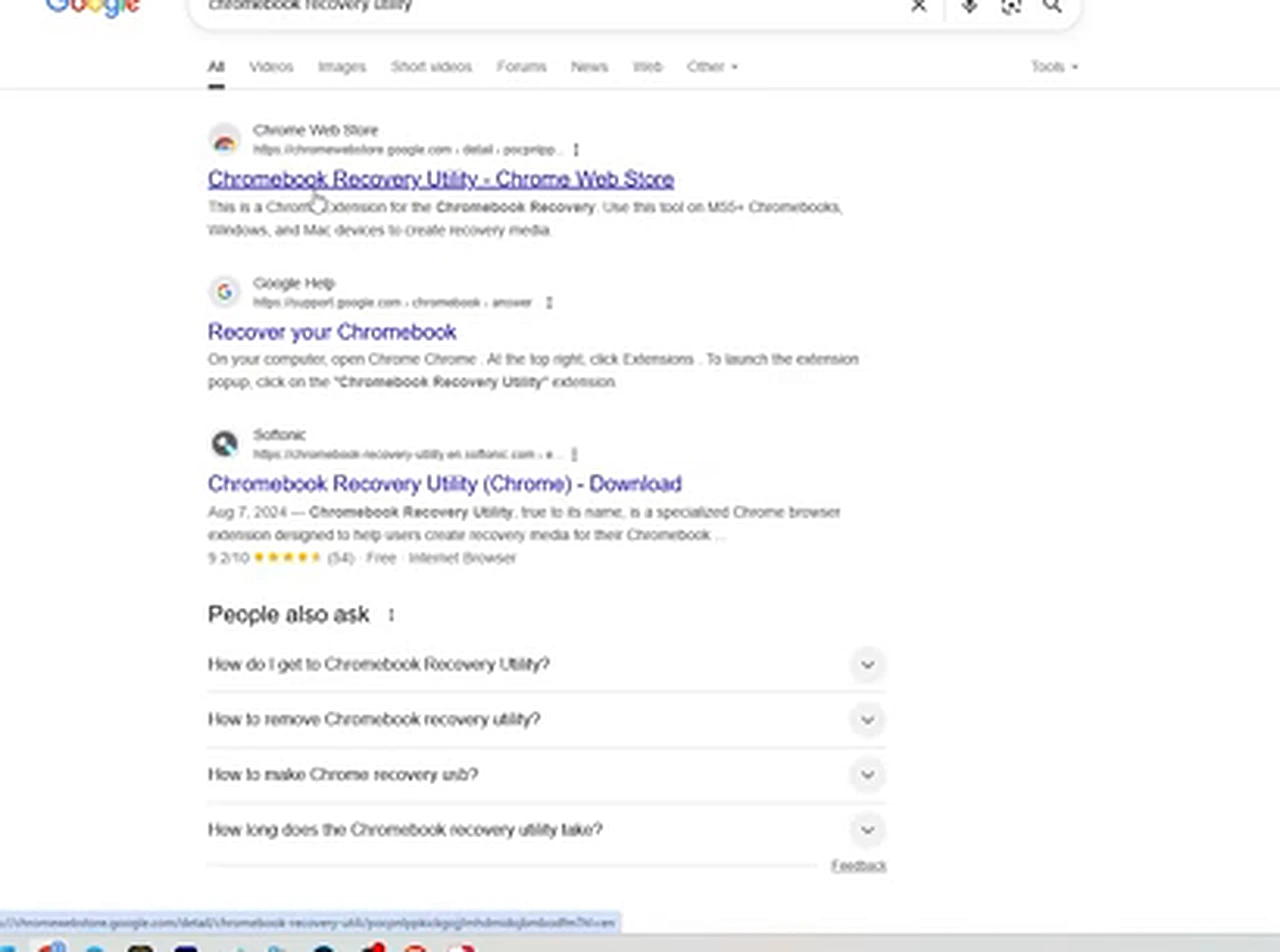
With his files safe, Rafi sat down at the same tired laptop, plugged in an empty 16 GB USB stick, and opened Chrome. Google’s official way to build a Flex installer is a small free tool called the Chromebook Recovery Utility, in the Chrome Web Store. He searched for it and added it to Chrome.
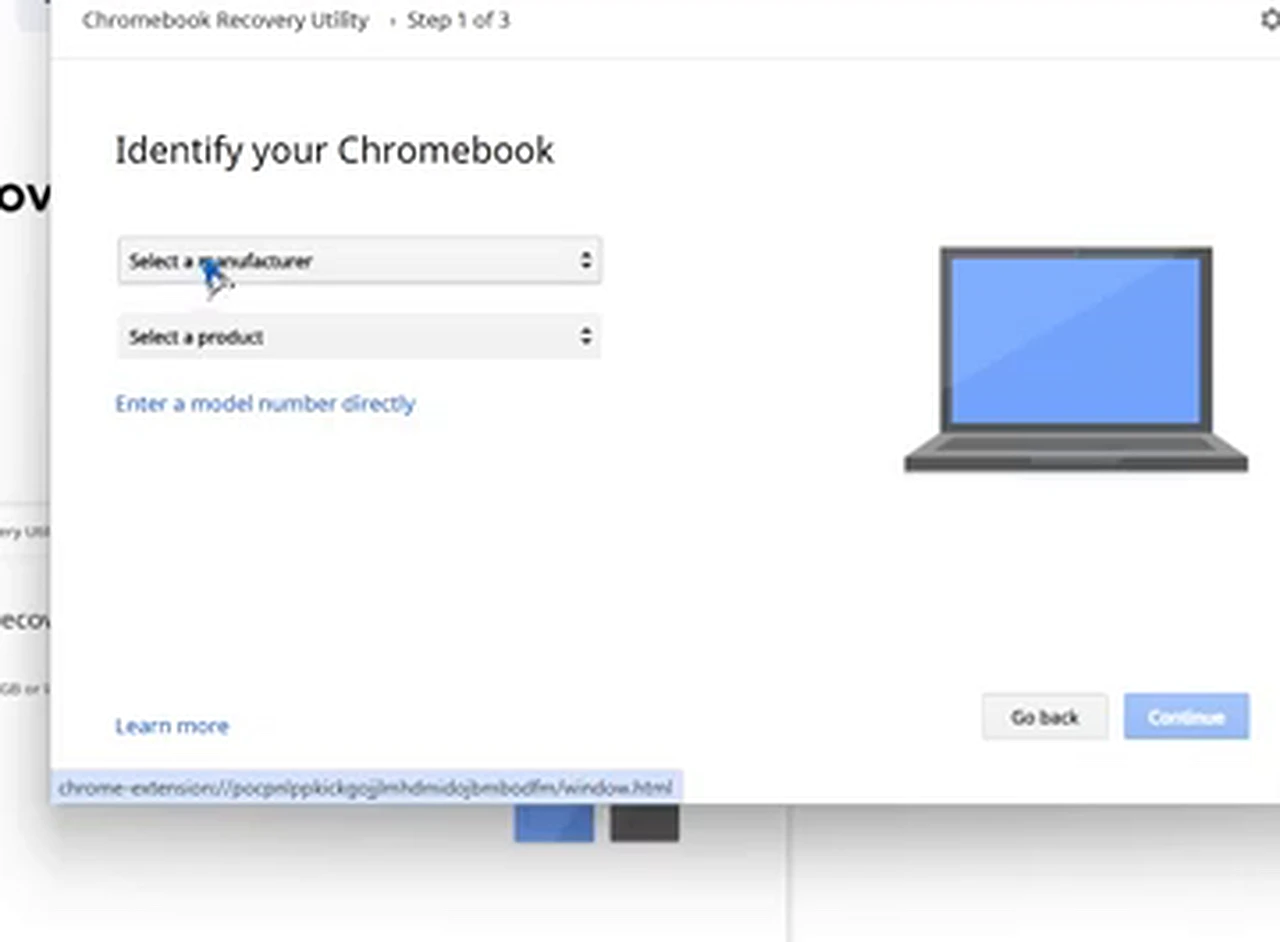
Clicking the extension opens a small setup window. The first screen asks you to identify your Chromebook — which sounds odd when you do not own one, but the trick is the option underneath: “Select a model from a list.” Rafi clicked that, and two dropdowns appeared. For the manufacturer he chose Google ChromeOS Flex, and for the product he chose ChromeOS Flex.
Next the tool asks which USB stick to use. Rafi picked his empty stick, pressed Continue, and then Create Now. From here there is nothing to do but wait: the utility downloads the Flex files and writes them to the stick automatically. Do not pull the stick out, do not close the laptop lid, and do not panic when the progress bar seems stuck at the unpacking stage. It is still working.
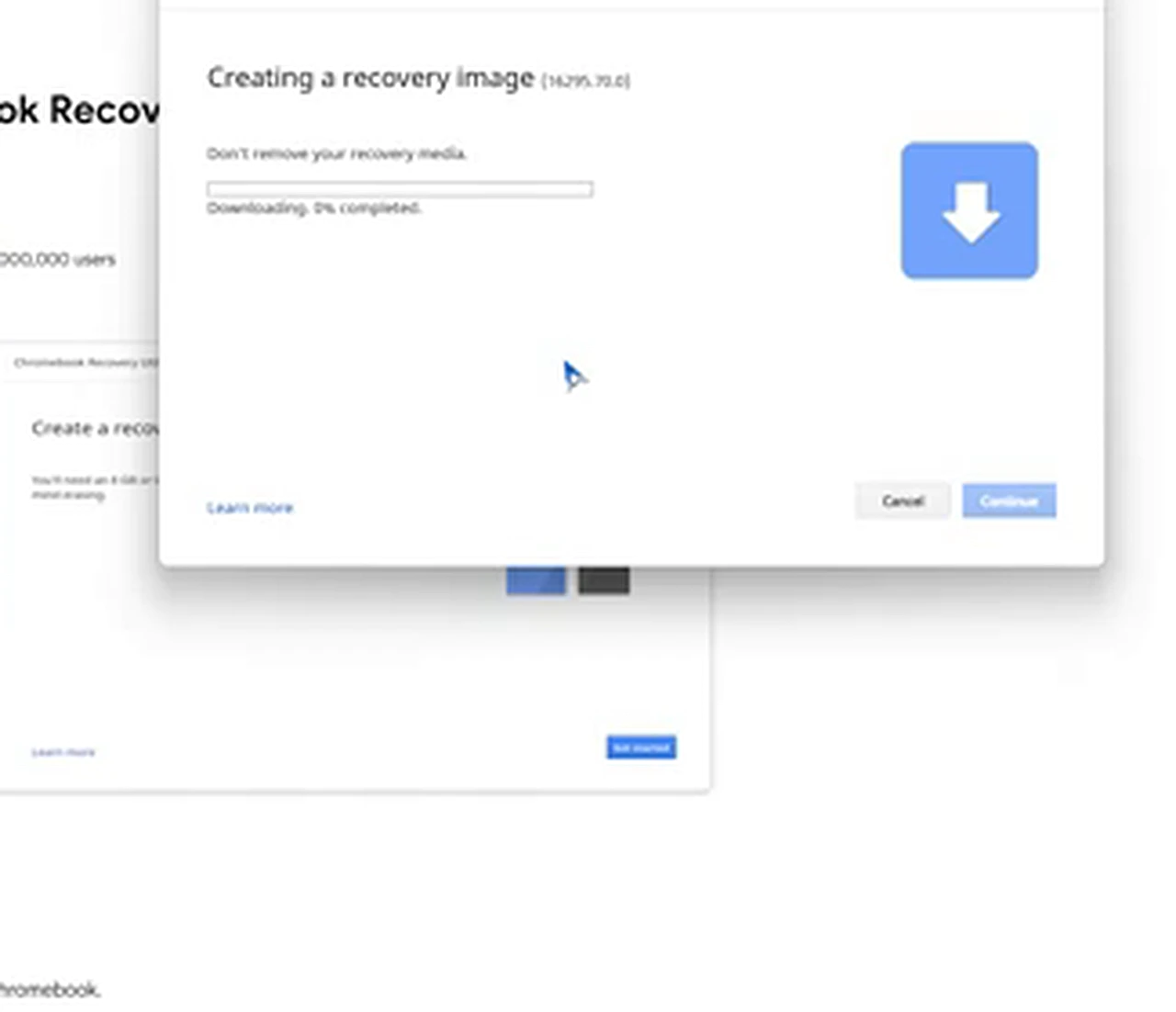
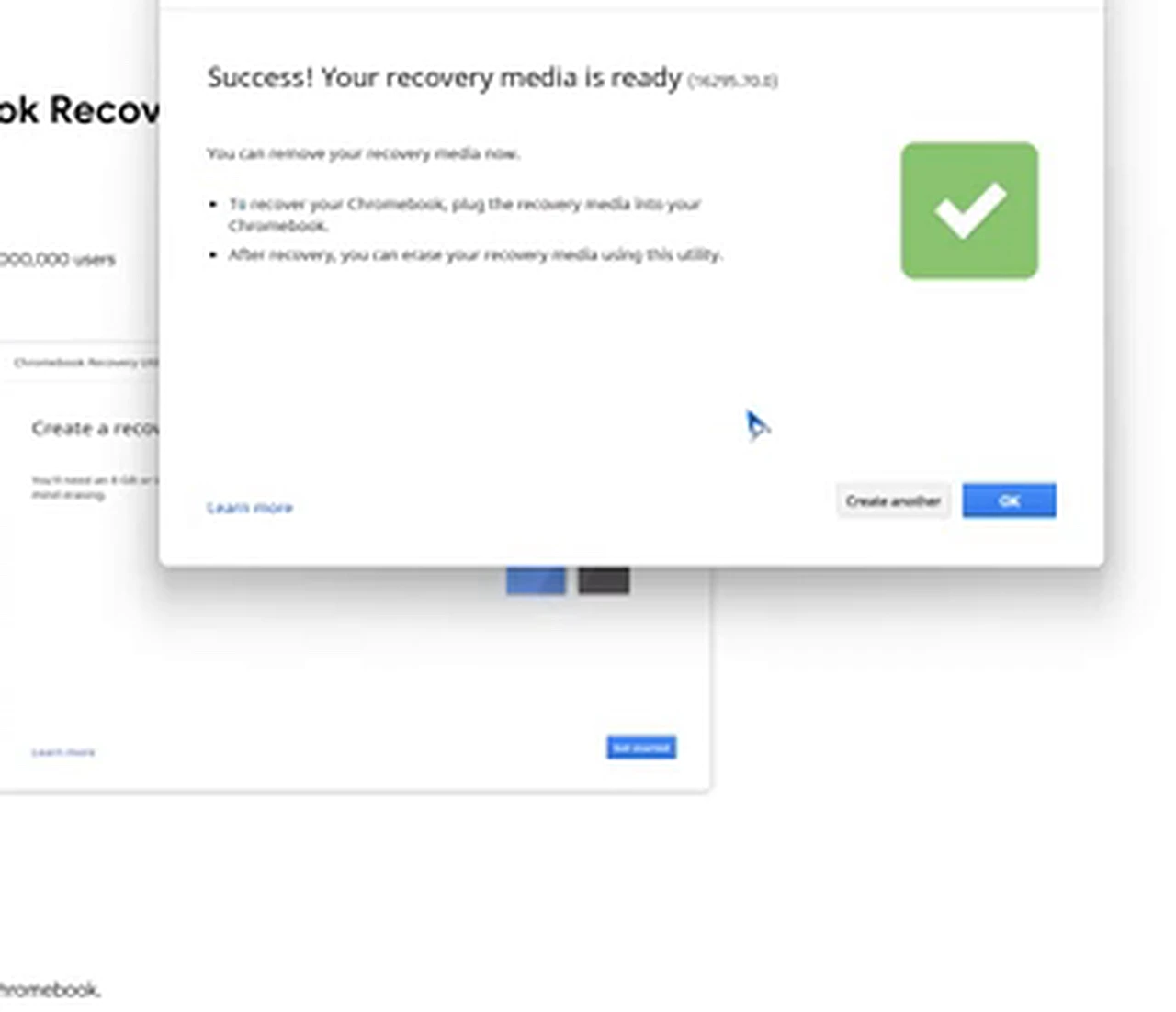
When the download finished, the tool unpacked the files and wrote them to the USB. Then a green tick appeared: “Success! Your recovery media is ready.” One click on OK, and the bootable USB stick was done.
The boot menu scare
This is the part of the story where Rafi’s confidence wobbled. He plugged the USB stick into the laptop, pressed the power button, and immediately started tapping the boot menu key. Every brand uses a different key — on his HP it is F9 — and if you do not know yours, search for your brand name plus “boot key” before you start.
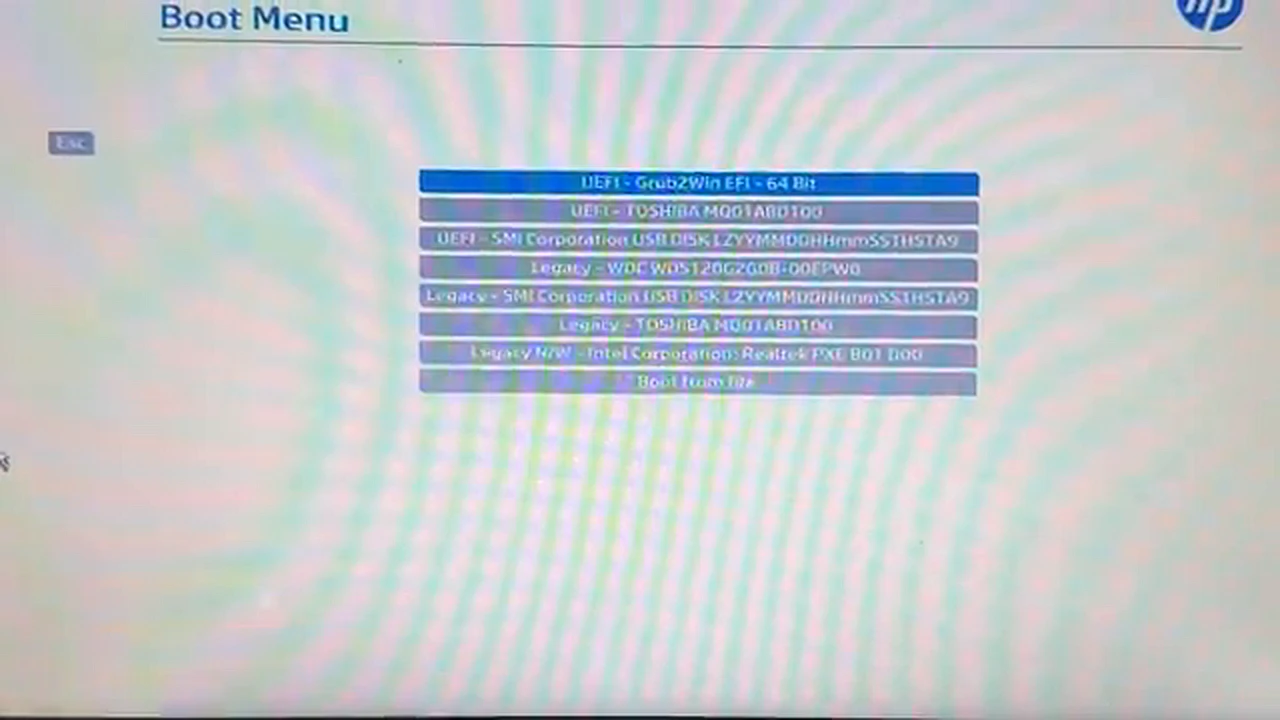
Then came the error. His laptop was set to UEFI boot mode with the drive in GPT mode, and the Flex USB simply refused to start that way. For a few seconds Rafi was sure he had broken something. He had not. He switched the machine off, started it again, opened the boot menu a second time, and this time chose the Legacy option for the same USB stick.
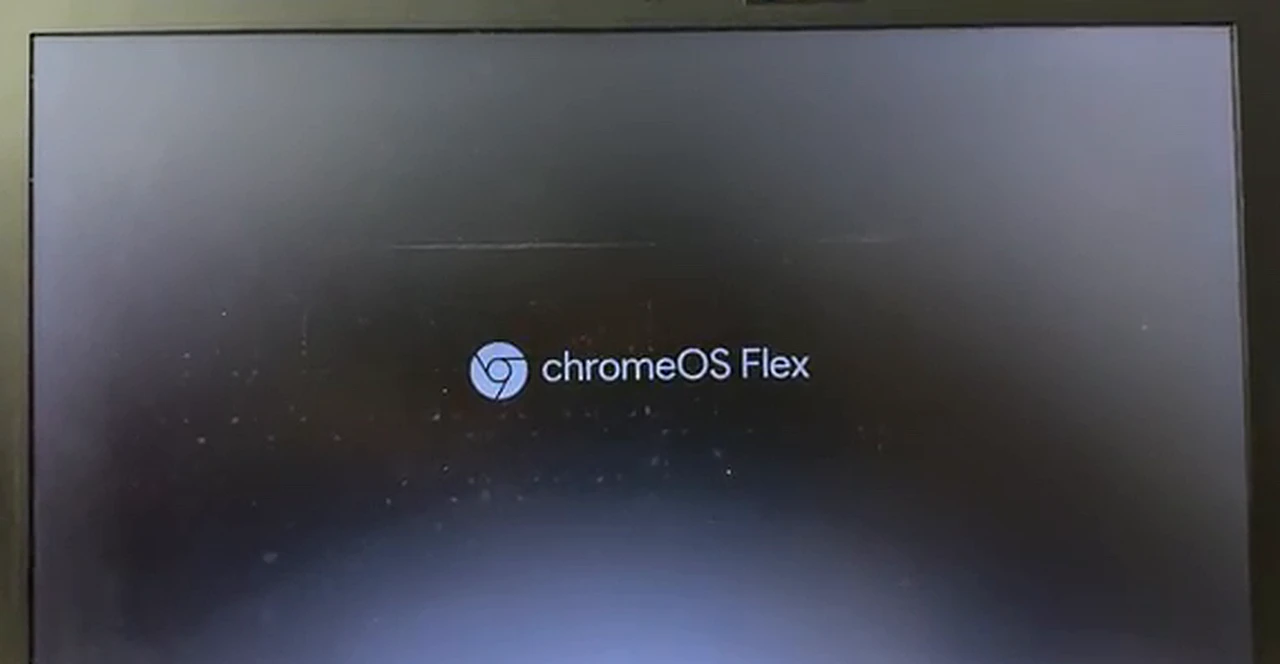
This time there was no error. The screen went dark, and then the ChromeOS Flex logo appeared, and the system began to load. If the same thing happens to you, do not assume the USB is broken. Try the other boot mode first. If neither works, open your BIOS settings, switch off UEFI mode, so Legacy is active, and try again.
Install, or just try it first?
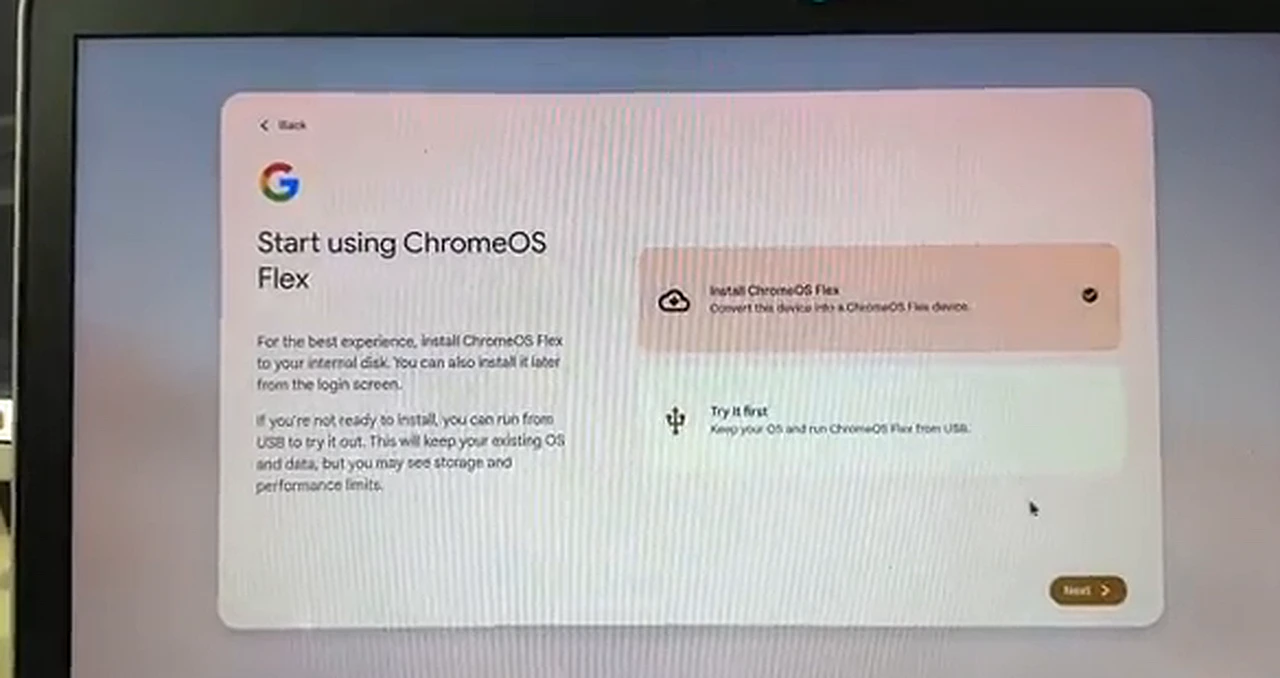
A minute later Rafi was looking at a pale, friendly screen that said “Welcome to ChromeOS Flex.” He clicked Get Started and reached the one screen that deserves a pause. It offers two choices: Install ChromeOS Flex, which converts the machine and erases the drive, or Try it first, which runs Flex from the USB stick and keeps your existing system exactly as it is.
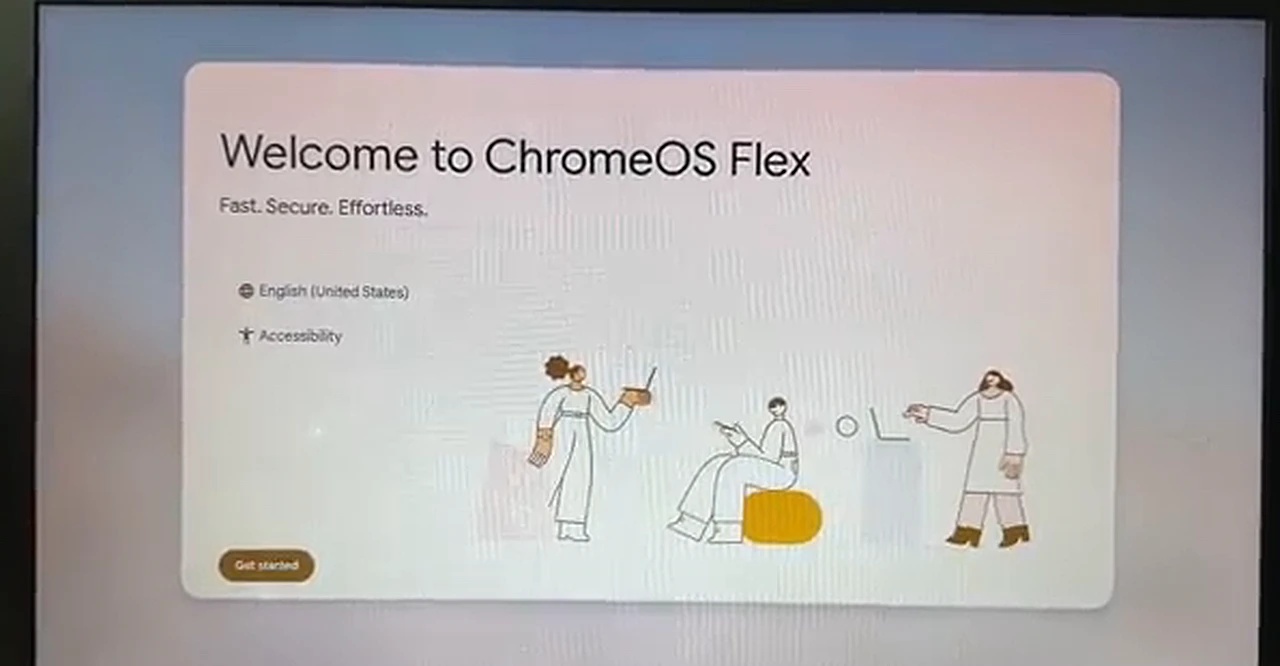
Trying first is the clever move if you are unsure. It is slower, because a USB stick is slower than an internal drive, and it has storage limits — but it shows you the real system on your real hardware with zero risk. Rafi had already made up his mind, so he kept Install ChromeOS Flex selected and clicked Next, then Install on the confirmation screen.
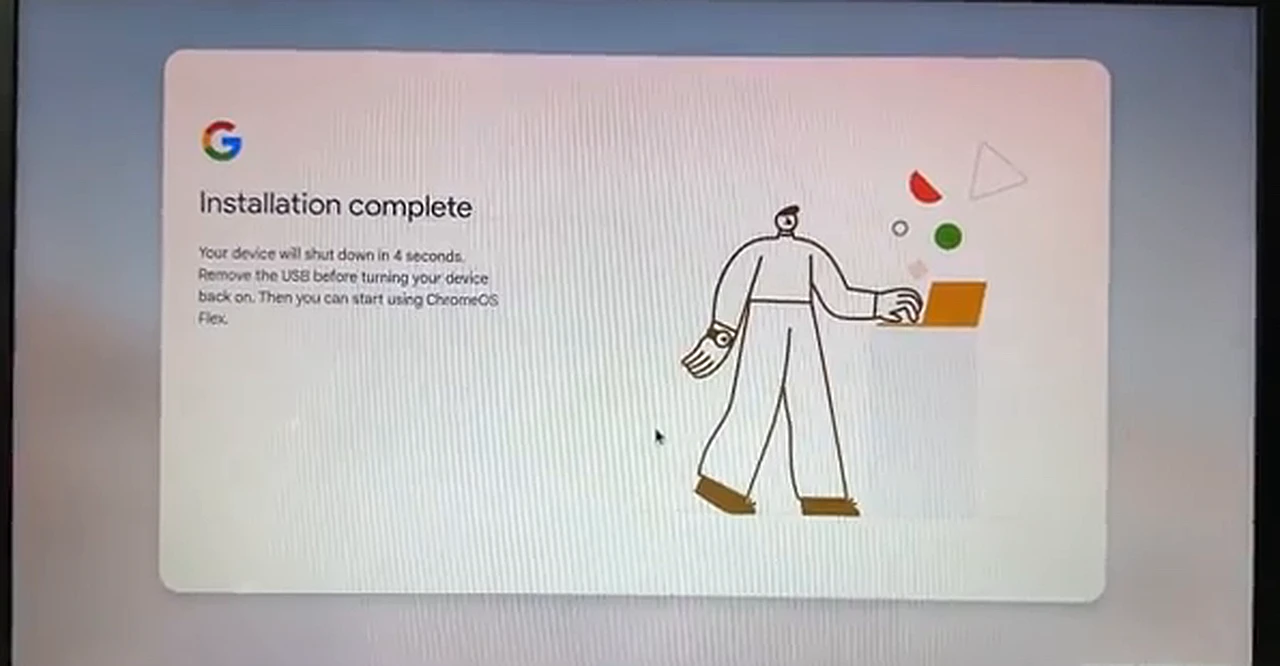
The installation itself is quick — far quicker than a Windows install — and then the screen says “Installation complete” and the device will shut down in a few seconds. Remove the USB stick before the machine starts again, or it will boot back into the installer. Rafi pulled the stick out, and the laptop switched itself off.
Here the story took one more twist. When Rafi switched the laptop on again, Windows booted instead of Flex. His Windows lived on the SSD, the installer had written Flex to the hard disk, and the machine simply started the system it already knew. The fix was the same Legacy setting: he went into the BIOS, kept Legacy active and switched UEFI off, and from then on ChromeOS Flex was the system that started.
The morning after
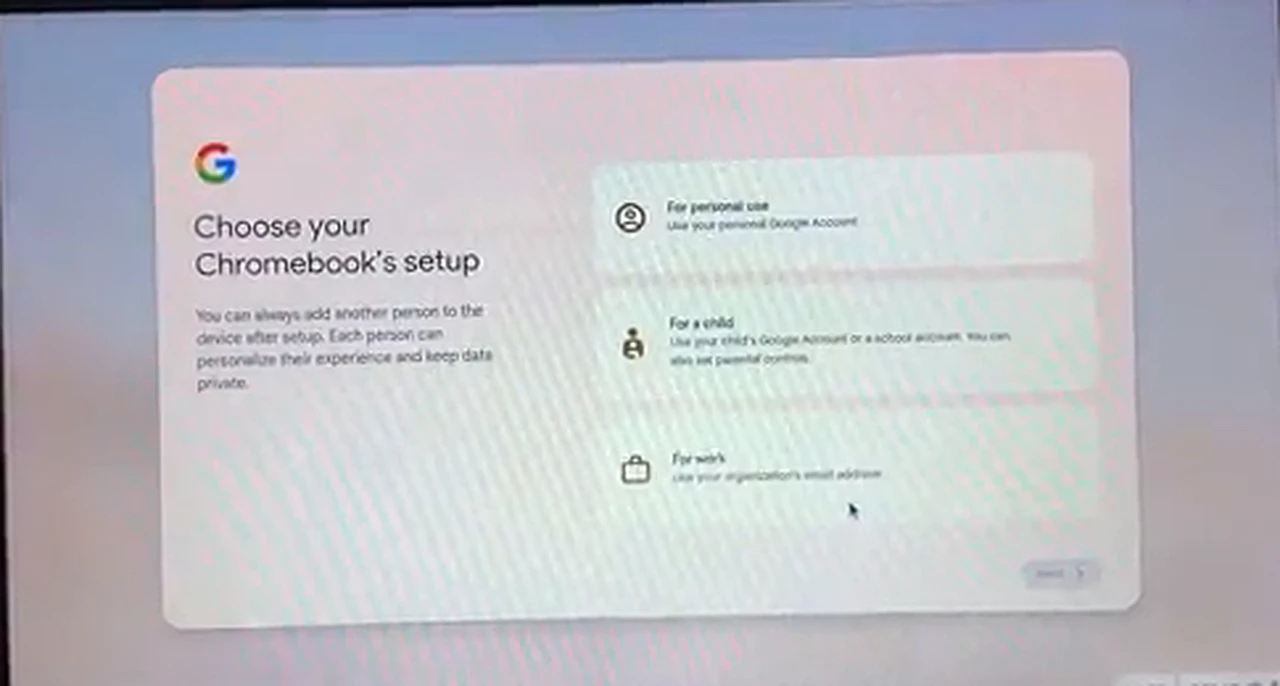
The next morning Rafi pressed the power button and braced for the wait. There was no wait. The Welcome screen appeared, he clicked Get Started, and the first thing Flex asked for was Wi-Fi. He picked his home network, typed the password, and the machine connected. Then it asked who the machine is for — personal use, a child, or work — and he chose personal use.
Flex then offered a system update, warning it could take around sixteen minutes. Rafi was in a hurry, so he chose “Skip and remind me later” and moved on. The final step is signing in with a Google account. Rafi signed in properly, because that is what unlocks the full system: your bookmarks, Drive files, and settings follow you. The setup screens also offer “Browse as guest” — but a guest session saves nothing.
And then, suddenly, it was just a computer again. A clean desktop, a shelf of apps along the bottom, the Chrome browser front and center. Rafi opened YouTube and a lecture played without a stutter. He opened Docs and his assignment was there, exactly where he had left it in Drive. The fan, for the first time in years, was silent.
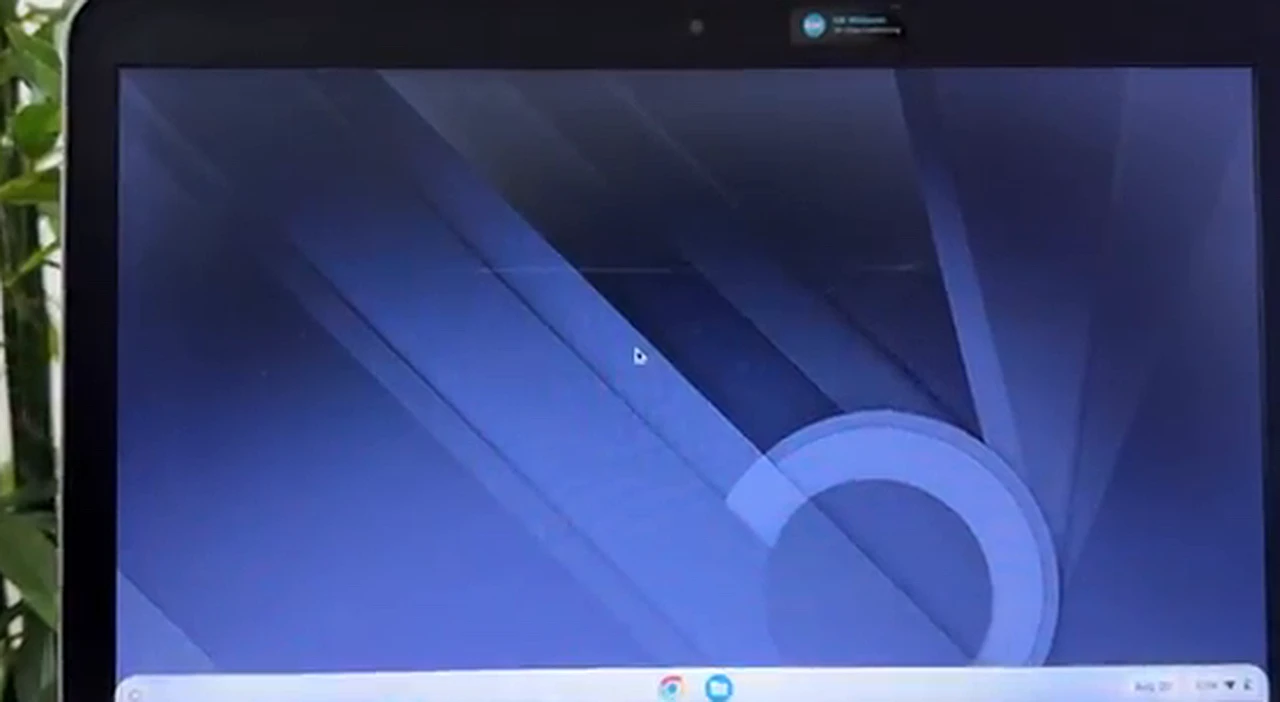
What Rafi can — and cannot — do now
A week in, the honest scorecard looks like this. Browsing is fast. YouTube, video calls, email, Docs, Sheets, and Slides all work exactly as they do in Chrome on any other system, because that is mostly what they are. The built-in App Store covers everyday apps and some games. Battery life improved too, because the system does far less work in the background than Windows did.
What he cannot do is just as clear. There is no Play Store, so Android apps are off the table unless you follow the separate, harder full-ChromeOS method. There are no Windows programs — no heavy desktop software, no Windows-only tools — and the apps that come with Flex are a deliberately small set. If your daily life depends on a specific Windows application, Flex is the wrong answer.
So who is this for? The student whose laptop only needs a browser and Docs. A parent’s old machine that just needs email and video calls. A spare laptop that spends its life on the web. It is not for gamers, video editors, or anyone tied to Windows-only software.
Would he do it again?
Asked a week later, Rafi’s answer is yes. He would do it again on this laptop, with the same preparation: files backed up, the whole process watched once before starting, and the Legacy boot fix in his back pocket before the error ever appeared.
If you are standing where Rafi stood, here is his short checklist. One: an empty USB stick of 8 GB or more. Two: your files backed up somewhere else. Three: the Chromebook Recovery Utility installed in Chrome. Four: your boot menu key looked up in advance. Five: ten unhurried minutes and stable internet.
Frequently asked questions
Does ChromeOS Flex have the Play Store?
No. Flex does not include the Google Play Store, and you cannot install Android apps on it the way you can on a real Chromebook. If the Play Store is essential for you, look at the full ChromeOS installation method instead.
Will installing ChromeOS Flex delete my files?
Yes. The installation erases the drive it writes to, and you cannot choose which drive that is. Back up every file you care about before you start, and remember the USB stick itself is wiped when the installer is created.
Can I try ChromeOS Flex without installing it?
Yes. After booting from the USB stick, choose “Try it first” instead of “Install ChromeOS Flex.” The system runs from the stick, your existing system and data stay untouched, and you can install it later from the login screen if you like it.
What do I do if the USB stick will not boot?
Try the other boot mode first — if UEFI fails, try Legacy, or the other way round. If neither works, open your BIOS settings and switch UEFI off, so Legacy mode is active, then boot from the USB again.
Can I go back to Windows afterward?
Yes, but only by reinstalling Windows from scratch with a Windows USB installer, because Flex erases the old system. Going back is possible, but your old files will not come back with it.
Rafi’s old HP laptop is still on his desk, still seven years old. The only thing that changed is the operating system — and that turned out to be enough.