The belief that deletes your files a second time
Most people do exactly the wrong thing in the first ten minutes after losing a file. A folder vanishes from a pendrive, a memory card asks to be formatted, a partition disappears, and panic sets in. They search for a free recovery program, run a scan, get disappointed, try a second tool, then a third. Each attempt feels like progress. It is not. Every attempt can push the very files they want further out of reach.
That is the belief this guide has to demolish first: that recovering deleted data means trying enough tools until one works. It is the opposite. Recovery rewards patience and one careful attempt far more than speed and repetition. The files you lost are probably still on the drive. Whether they stay there depends on what you do next, and what you refuse to do. A card formatted by mistake, then reused for new photos while two recovery programs ran, is a classic example: by the time a proper scan was done, half the pictures were fragments. The card had not failed. The rescue had overwritten it.
Deleted does not mean gone — until you write over it
When you delete a file, or format a drive in the usual quick way, Windows does not usually wipe the data straight away. It removes the entry that says where the file lives and marks that space as free. The photos, documents, and videos stay in place, invisible but intact, until something new is saved on top of them. That gap is the whole window recovery software works in. It scans for those orphaned pieces and rebuilds them.
That is why the rescue instinct is so destructive. Installing a recovery program on the same drive you are rescuing, saving new files to a formatted pendrive, or reinstalling Windows across a whole disk all write new data into exactly the space your lost files occupy. The presenter puts it bluntly, from years of recovering data: the more tools you try, the more damage you do. No program can promise everything back. Expect most of your data, not all of it, depending on how long ago the loss happened and whether anything new was written since.
The myth of the perfect free tool
Search for recovery software and you will find two camps. Free tools promise everything and deliver a little: a few files recovered, others corrupted, some missing. Paid tools do the job properly but charge beyond a small preview. People bounce between the camps, hoping for a third option that is both free and flawless. It does not exist.
Tenorshare 4DDiG, the program in the video, sits in a useful middle ground. The 2026 version shown includes AI-assisted scanning and works noticeably better than older versions, according to the demonstration. Its free allowance covers up to 2 GB of recovered data: enough for office documents, a card full of photos, or a handful of short videos. If you lost a whole formatted hard disk, 2 GB will not cover it, and you must decide whether to pay for a licence. Photos, videos, and audio recover best, followed by documents such as PDF and Word files, which recover well if you act quickly. Compressed archives such as RAR and ZIP files are least predictable, especially when small.
The formatted pendrive test
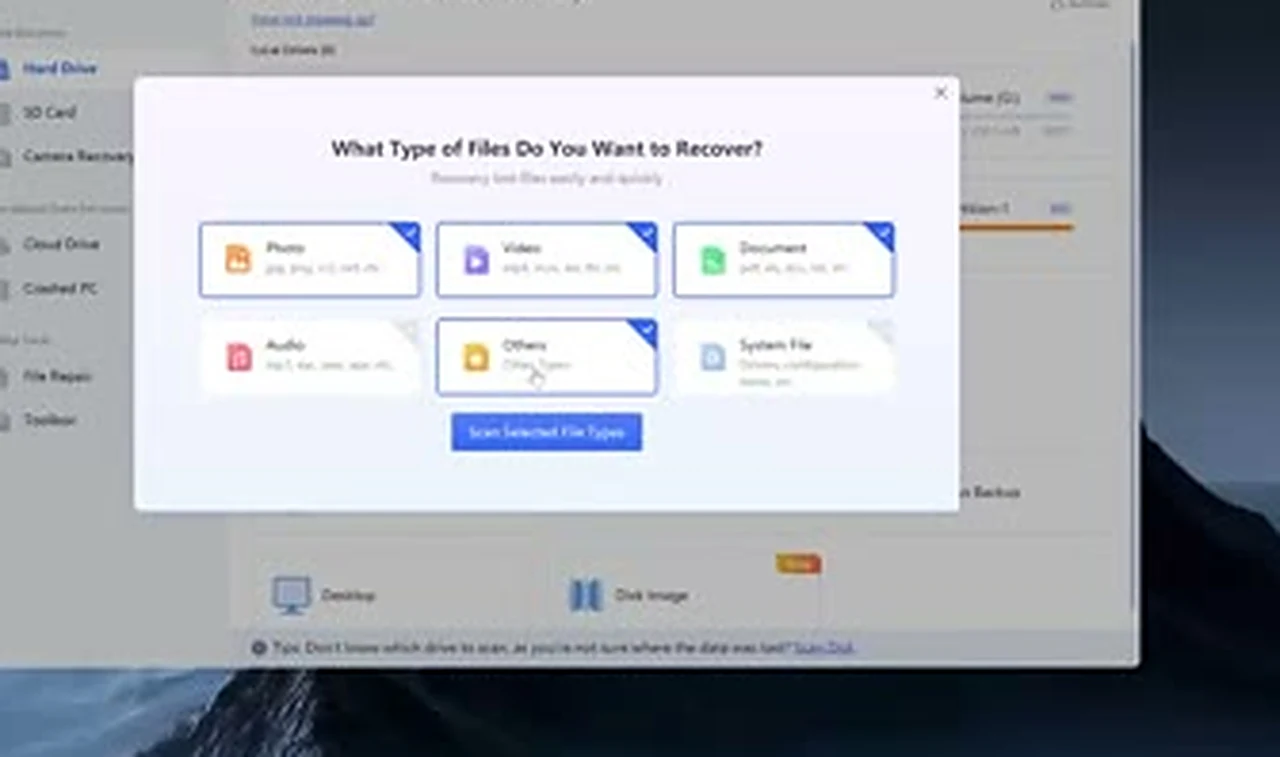
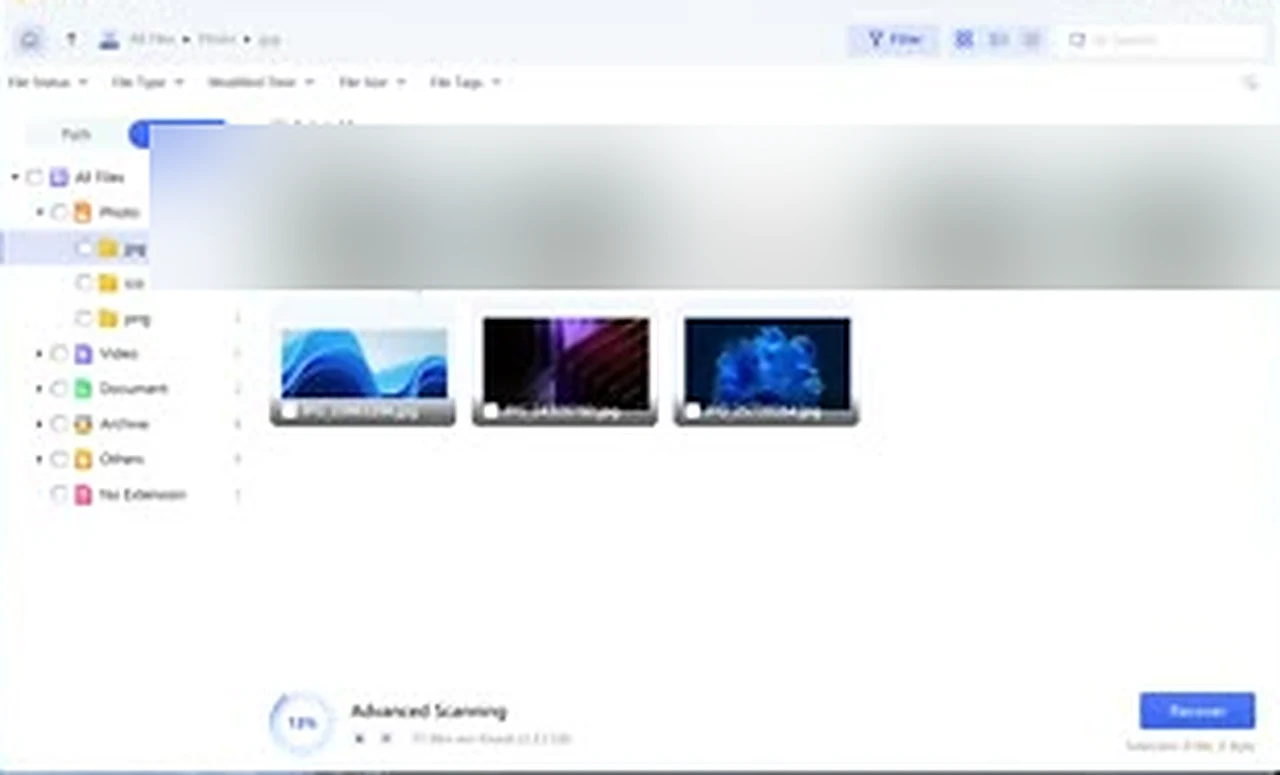
Claims are cheap, so the most useful part of the video is a deliberate test. The presenter prepared a pendrive with four pictures, a PDF file, a Word document, a text file, a small RAR archive, and two videos. Then he formatted it, so, as far as Windows was concerned, it looked empty. Nothing was copied onto it afterwards. He opened 4DDiG, selected the pendrive, and chose the file types to look for: photos, videos, documents, and other files including archives. Audio was switched off, as the test drive had none. The scan found files almost immediately in the lost-files view. Once the important files were visible, he stopped the scan, selected them, and recovered them to the Desktop, a different location from the pendrive. Checked file by file, the documents opened correctly, and the videos played with no visible damage, though the files had lost their original names, which is normal after a format. One photo did not come back, and the tiny RAR archive, only a few kilobytes, was damaged and would not open. Everything else survived. A second scan would not have fixed the RAR file. It would only have risked the rest.
Stop first: the rules before you touch any software
First, stop using the affected drive. Do not save, copy, download, or install anything onto it. If a pendrive or memory card was formatted, take it out until you are ready to scan it. If a drive on your PC was formatted, do not keep using that PC for everyday work. Every new file gambles with the space your lost files still occupy. Second, do not try tool after tool. Pick one good program, prepare properly, and scan once.
Third, if a whole hard disk was formatted and Windows must be reinstalled, do not reinstall across the full disk. Use a different drive for Windows if you have one, and keep the formatted drive connected separately, for example over USB, so it is scanned but never written to. If you have only one disk, keep the new Windows partition smaller than the old system drive, for example 90 or 95 GB where it was 100 GB, then scan the remaining space. If you have already repartitioned the whole disk, expect less back. Fourth, recover to a different drive from the one you scanned. In the test, the Desktop was safe because it lives on the PC, not the pendrive. If the lost files were on the PC itself, the Desktop is the wrong destination: use an external drive or a different partition.
The one-scan method, step by step
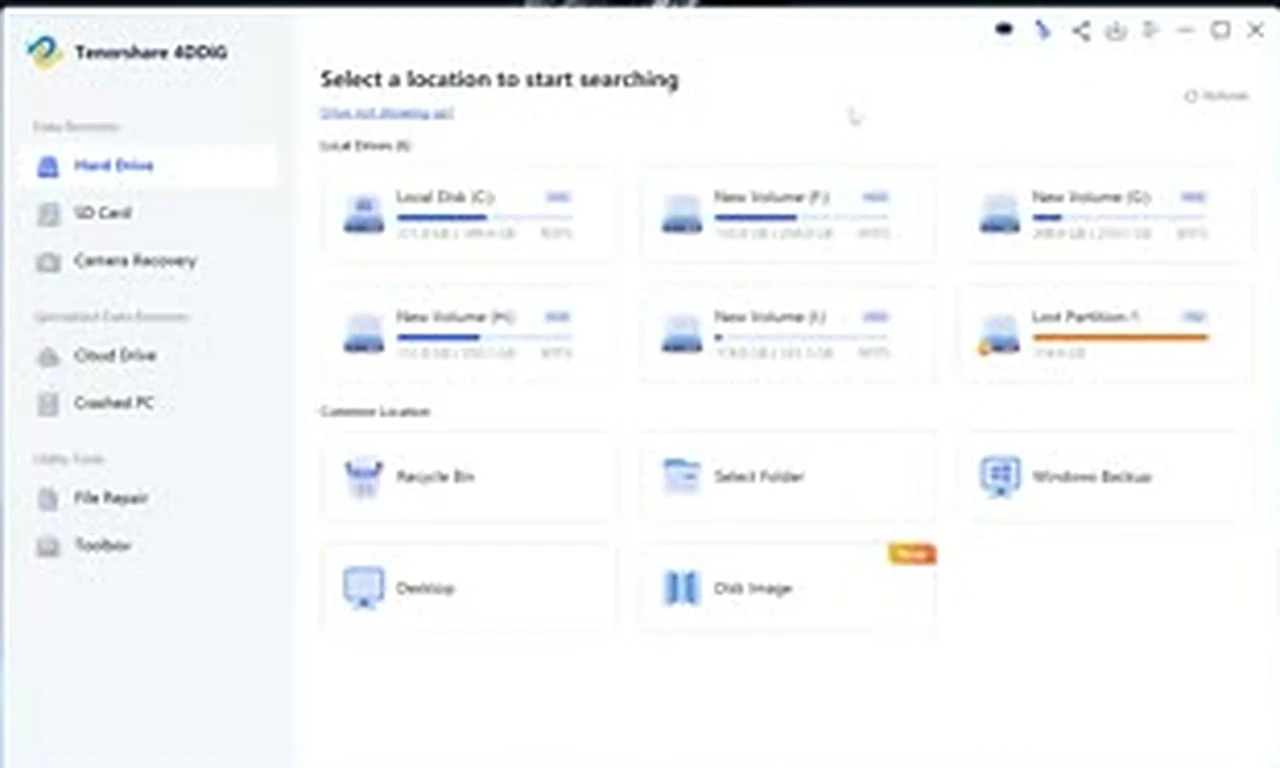
Download Tenorshare 4DDiG from its official page, using the link in the video description, and install it elsewhere if possible. The installer is a simple sequence: run the downloaded file, confirm, click through the Next steps, and finish. Open 4DDiG. Your drives should be listed on the home screen, including the pendrive, memory card, or partition you need. If a drive does not appear, check the connection and try another USB port before assuming it has failed.
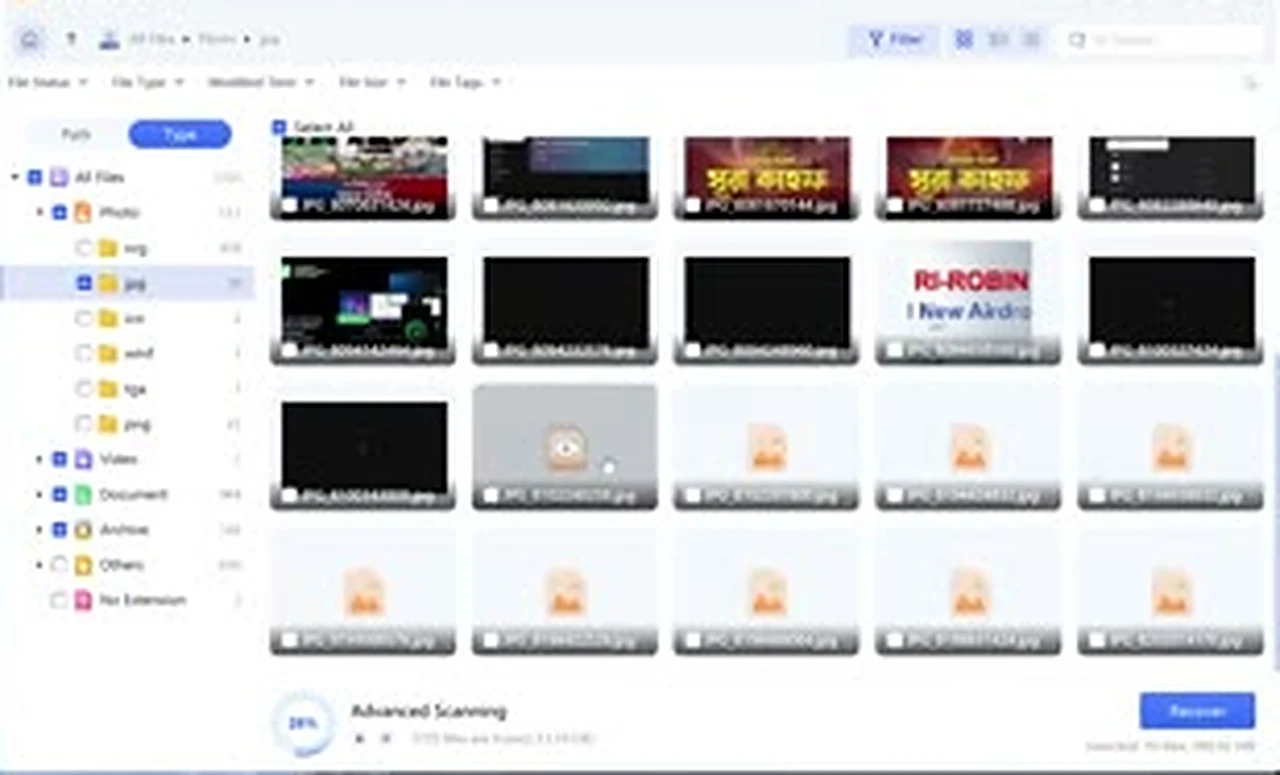
Select the affected drive, then choose only the file types you actually lost. Click Scan. The program starts with a quick pass and moves into a deeper scan, sorting results into photos, videos, documents, and other files. In the demonstration, results appeared in the lost-files view while the scan was still running. Open each category and use the previews, not the file names, to judge survival, because recovered names are often changed or generic. You do not have to wait for 100 percent. Once the files that matter are visible and their previews look right, stop the scan, select them, and click Recover. Choose a recovery location on a different drive. The program also offers a repair-and-recover option for damaged files, such as a photo showing only half an image. In the test a straight recovery was enough, and success was reported within moments. Check the recovered folder immediately: open the documents, play the videos, and view the photos at full size.
What comes back well, and what comes back broken
Photos, videos, and audio are the strongest candidates. They are usually stored as continuous blocks, so the scanner can recognise and rebuild them even after the directory entry is gone. In the test, both videos and most photos returned in good condition. Documents come next. A PDF or Word file recovered quickly, before the drive is reused, has a good chance of opening cleanly, as both test documents did. Leave it for days, or save new files to the same drive, and the odds fall sharply.
Small archives are the weak spot. The RAR file in the test was only a few kilobytes and came back damaged. A tiny file has very little margin: overwrite a small part of it and the whole archive can fail, while a large video can lose a fragment and still play. If a recovered file will not open, check its size. A file returning at or near its original size has a far better chance than one returning suspiciously small, and a file that previews correctly is a much safer bet than one recovered blind. Rename the good files as you verify them, since recovered names are often meaningless.
The other doors in 4DDiG, and one claim to treat with care
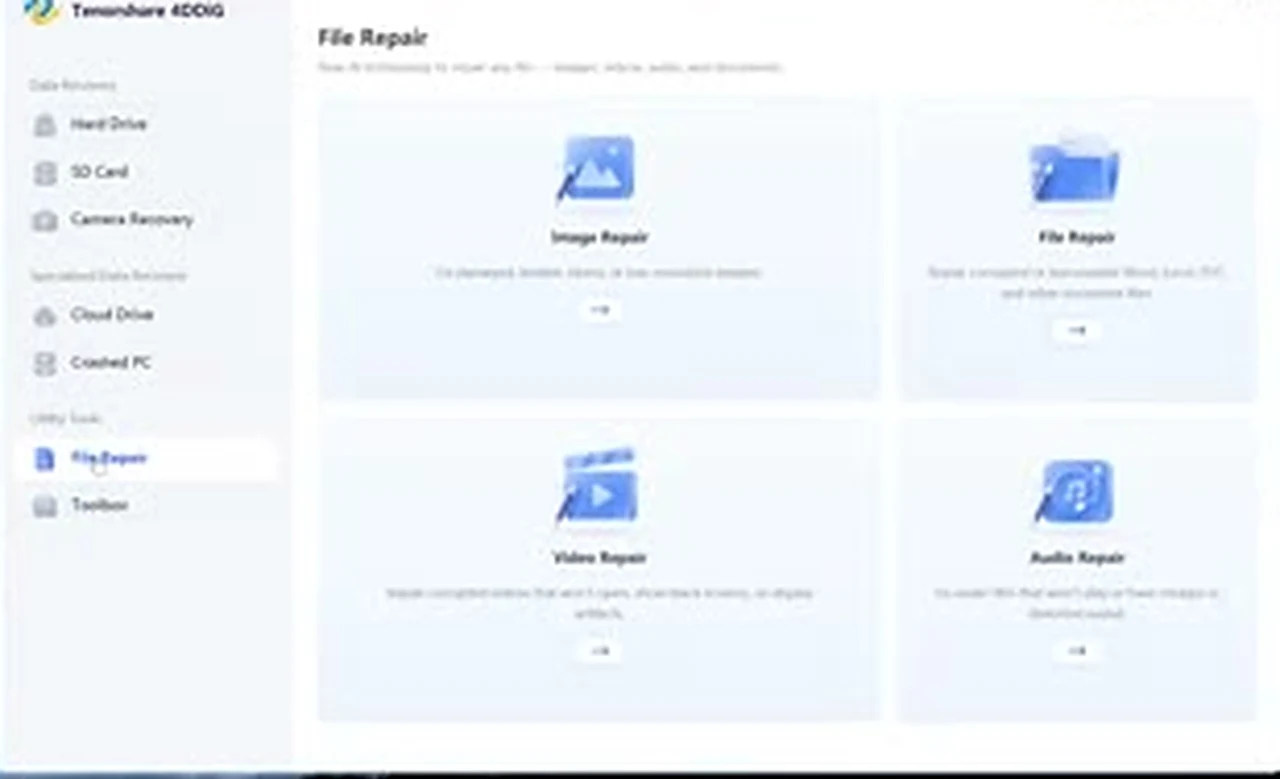
The home screen offers more than a single-drive scan. A lost-partition scan looks for a partition that has vanished from Windows altogether, rather than files deleted from a visible partition. That was relevant in the video, where an old partition from a previous dual-boot experiment was showing as unallocated space. SD card and camera options work like the pendrive scan, with the same stop-first rule. There is also a crashed-PC option, where a PC that will not start is connected over USB to another computer, and a file-repair section for photos and videos that recovered only partly.
Cloud recovery is the one claim to treat with care. The program lists services such as Dropbox and OneDrive, where signing in is supposed to let it recover files from those accounts. The presenter is candid that he has never tested this in practice, and you should not assume it works until you have seen it with your own files. If your files were only ever in the cloud, check that service’s own trash and version history first. Those built-in options are free, immediate, and far more reliable than handing login details to a third-party scan.
If you have already broken the rules
Maybe you are reading this after the damage is done: you tried three free tools, saved new files to the formatted card, or reinstalled Windows across the whole disk. Do not give up, but change your expectations and stop digging. From this moment, follow the stop-first rules exactly. Do not install another tool onto the affected drive. Run one scan with a single capable program, study the previews, and recover whatever is intact to a different drive. You may still get back a useful portion, particularly large photos and videos stored in one piece. Chasing the remainder with more scans is more likely to destroy the survivors than to rescue the rest.
If the data is irreplaceable and the drive makes strange noises or is not detected at all, stop and consider a professional recovery service before running any software. A clicking or undetected drive is a hardware problem. Software cannot fix it, and it can make it worse.
The verdict: one chance, used well
The myth says deleted data is either gone forever or easy to get back if you keep trying tools until one works. Both halves are wrong. Deleted data lingers, fragile and recoverable, until your own next actions overwrite it. The correct method is simple: stop writing to the drive, pick one capable program, scan once with the right file types selected, preview what it finds, and recover to somewhere else. The 4DDiG demonstration shows that method working on a formatted pendrive, recovering documents and videos cleanly, losing one photo and one tiny archive, and that uneven result is the honest picture.
If your loss is under the 2 GB free allowance, you may not need to pay anything. If it is larger, decide the value of the data before spending money: no licence can recover space already overwritten. Either way, the most valuable step costs nothing. Leave the drive alone, and do the recovery properly once. Your files survived being deleted. Do not let the rescue finish them off.