A phone fell from a height. The back glass shattered and the microphone stopped working properly. The owner still sold it for around 28,000 taka, to someone he knew. That buyer spent about 8,000 taka more, replaced the body and the microphone, and planned to sell the same phone for 45,000 to 50,000 taka. From the outside, the repaired phone looked new. Nobody holding it in a shop would have guessed what had been changed inside.
That is the problem with buying a used iPhone. The outside tells you almost nothing about the inside. Battery health and a quick look at the body are a start, but they cannot tell you whether the screen, battery, or camera was ever replaced. This used iPhone buying guide follows the checks in the order you would do them in a shop.
Before You Touch a Phone, Set One Rule
Decide before you leave home that you will not pay first and check later. These checks take about fifteen minutes, and most need nothing but the phone and your eyes. The last one needs a computer, so ask the seller before you travel: will they let you run a verification report before you pay? If the answer is no, or they rush you, that is useful information. If you can, take your own laptop, a good cable, and your own SIM card.
1. The First Minute: Body, Screws, and Gaps
Hold the phone at an angle under a bright light and turn it slowly. Look for dents, bends, and uneven gaps where the screen meets the body. A small dent on a corner is honest wear. A gap on one side, a screen that sits slightly proud of the frame, or a back panel that flexes when pressed gently can mean the phone was opened and not put back together perfectly.
Look at the two small screws beside the charging port. They should look clean and undamaged. Stripped or mismatched screws are a quiet sign that someone has been inside the phone. Pull out the SIM tray and compare the number on it with the number in the phone’s settings later. Press every button and flip the silent switch; each one should click firmly and spring back at once. Check the charging port with a torch, and look at the camera lenses.
2. Screen On: Display, Touch, and True Tone
Turn the brightness all the way up and open a plain white image or a blank notes page. A healthy display looks even from edge to edge. Look for yellow or pink patches, dark spots, and faint ghost images.
Touch is the check most buyers skip. Press and hold an app icon until it wiggles, then drag it slowly across the whole screen, corner to corner. If the icon drops or refuses to follow your finger in one area, that part of the touch layer is not responding properly. Then open Settings, then Display and Brightness, and look for True Tone. On a phone that should have it, a missing True Tone switch is a warning sign, because a replacement display that was not calibrated properly often loses that feature.
3. Two Minutes of Talking, Listening, and Shooting
Open Voice Memos and record yourself for ten seconds, first close to the phone and then at arm’s length. Play it back through the loudspeaker, then through the earpiece. A microphone can work for calls but distort on video, and a loudspeaker can rattle at full volume.
Test both cameras. Take a photo with the rear and front cameras, then record video while walking a few steps. Watch for focus hunting, where the camera keeps pulsing in and out of focus, and listen for crackling. On a phone with more than one rear lens, check that each one works. Finally, unlock the phone with Face ID several times: straight on, at an angle, and in dim light. If it often fails, stop and ask why.
4. Inside Settings: Battery, Storage, and Lock Status
Open Settings, then Battery, then Battery Health and Charging, and read Maximum Capacity. It shows the size of the fuel tank compared with when the phone was new. A figure of 85 percent or higher is comfortable for daily use. Between 80 and 85 percent, expect shorter days and plan for a battery replacement. Below 80 percent, treat a new battery as a cost you will pay soon, and let that shape your offer.
Next, open Settings, then General, then About. Check the model name, storage size, and serial number, and compare the serial number with the SIM tray and the box, if the seller has it. A phone advertised as 256 GB should show 256 GB here. On newer versions of iOS, this screen can also show a parts and service history, recording whether the display, battery, or camera was replaced.
The most expensive mistake here is buying a phone still tied to someone else’s account. Ask the seller to sign out of their Apple ID in front of you, turn off Find My, and erase the phone: Settings, then General, then Transfer or Reset iPhone, then Erase All Content and Settings. Watch it restart to the Hello screen. If it asks for a previous owner’s Apple ID during setup, do not pay until that is resolved.
5. The Decisive Check: A 3uTools Verification Report
Everything so far can be done with your hands, your eyes, and the phone itself. None of it can see inside the phone. The most important check happens on a computer, with a free program called 3uTools. It reads the serial numbers stored in each part and compares them with the numbers recorded when the phone left the factory. If a part was replaced, the numbers no longer match, and the report says so.
Get 3uTools on a Computer
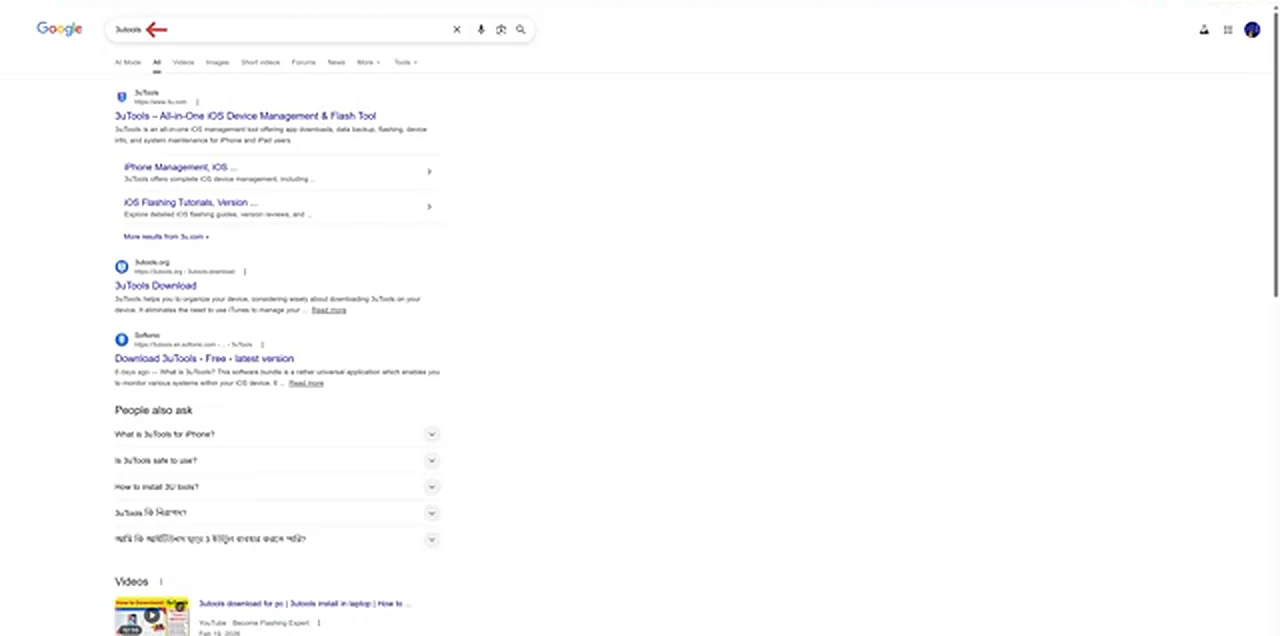
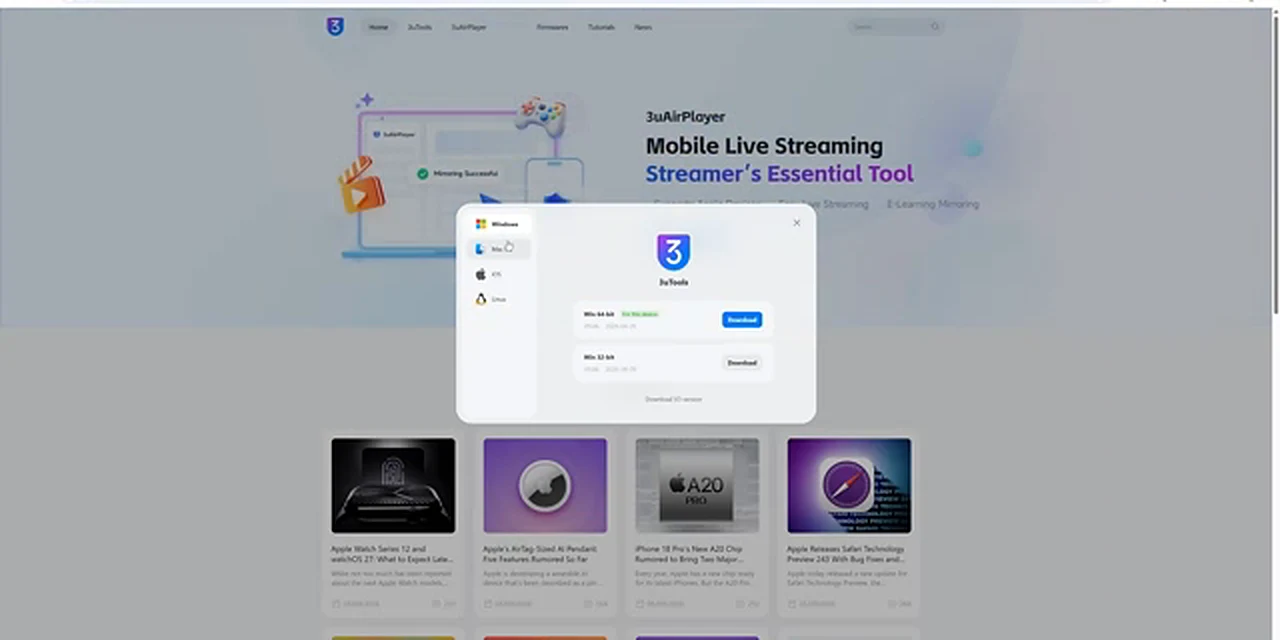
On a Windows computer or a Mac, search for 3uTools and use the official website, 3u.com, ignoring look-alike download pages. Download the version for your computer; on Windows, most modern computers need the 64-bit build. The program is free, so there is no payment step. Open the installer, double-click the setup file, accept the permission prompt, agree to the terms, click Install, and start the program. It takes a couple of minutes, and there is nothing to configure.
Plug In, Trust, and Open the Report
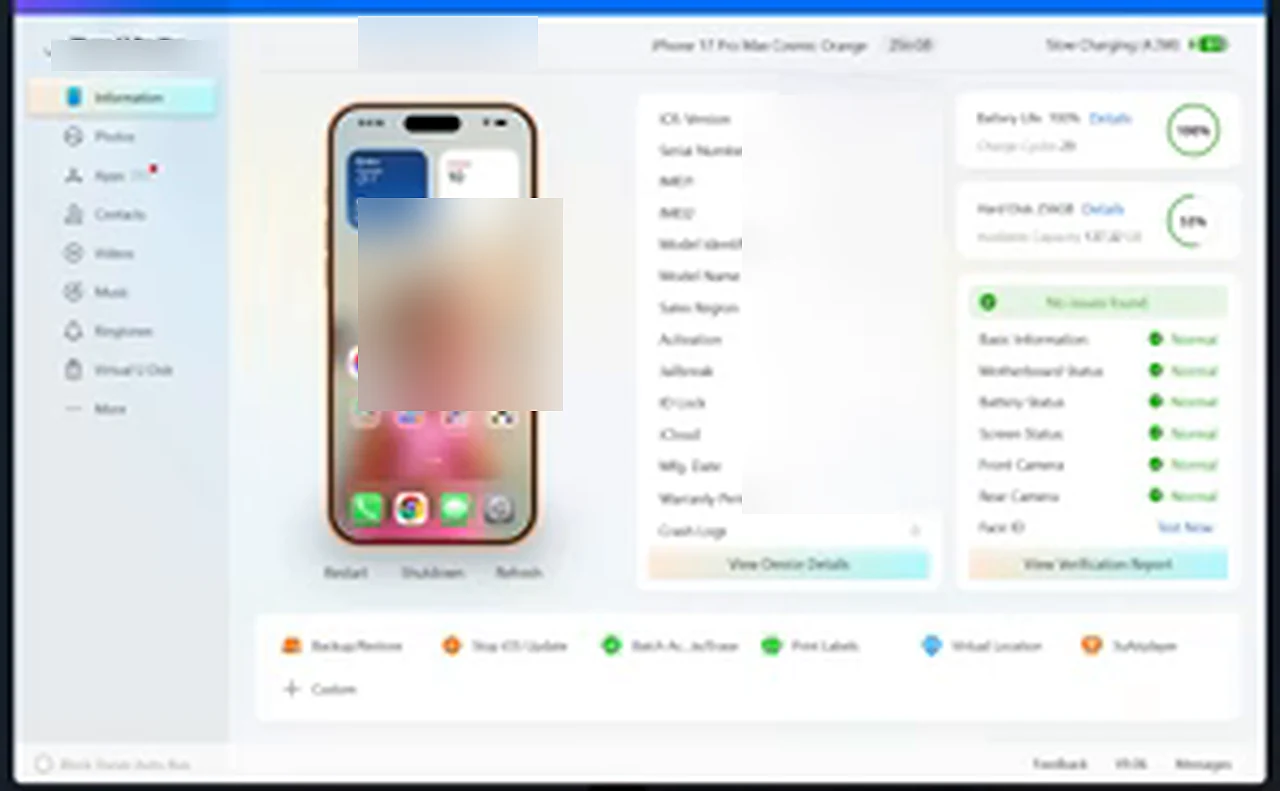
Connect the iPhone with a good cable, ideally the phone’s own cable, into a USB-C port on the computer. A frayed or very cheap cable can make the data unreliable, so change the cable if the phone keeps disconnecting. The phone will ask whether to trust the computer. Tap Trust, and confirm with Face ID if asked. Once connected, 3uTools shows the model, color, sales region, storage, battery life, and charge cycles. Click View Verification Report for the decision.
Read the Score Like a Buyer, Not a Technician
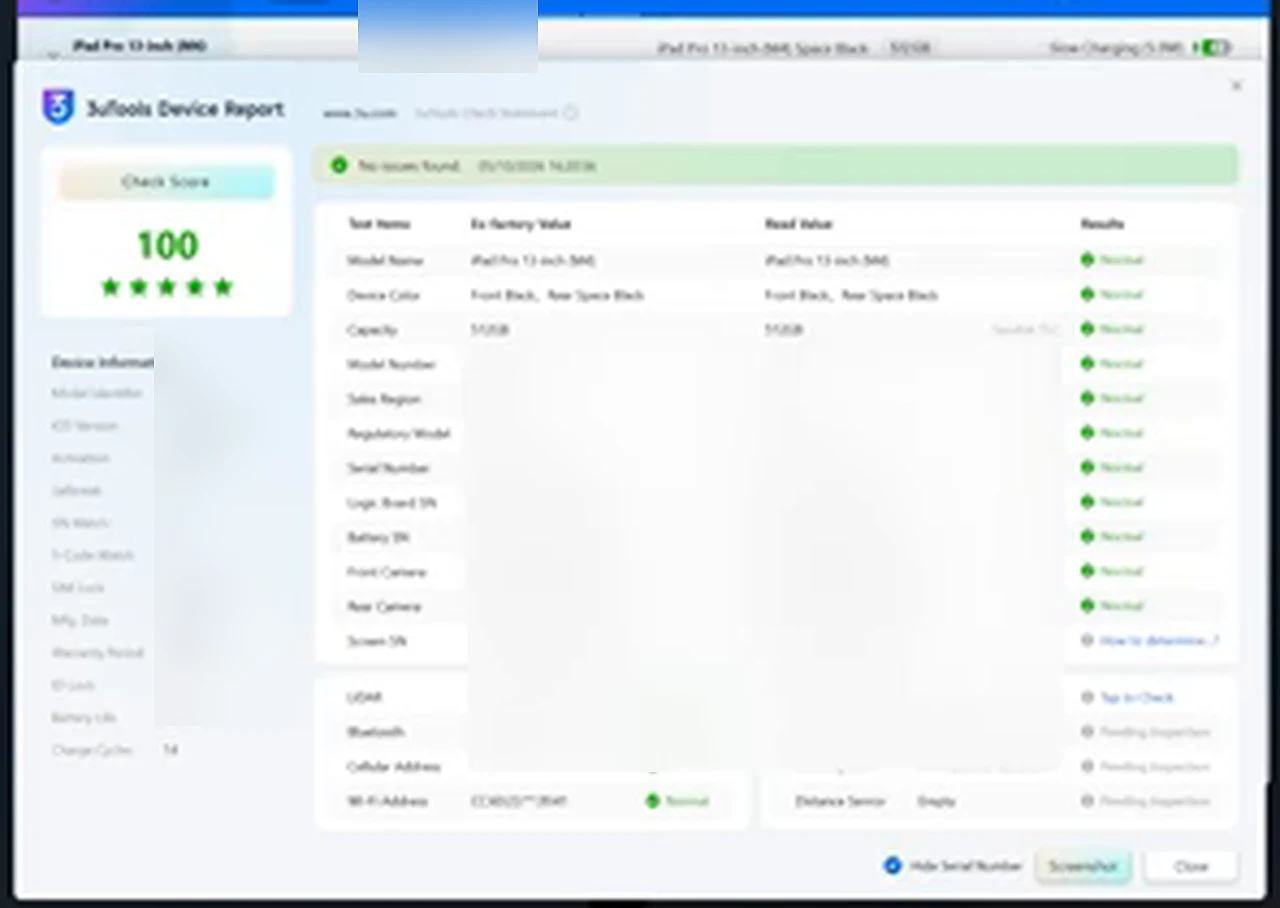
The report gives a check score out of 100, with stars underneath, and a line reading No Issues Found when everything matches. A table compares the factory value of each part with the value read from the phone, and the result column reads Normal for each row that matches. On a clean phone the score is 100, every row reads Normal, and the screen, cameras, battery, and motherboard all pass. It takes only a few seconds to recognize once you have seen it. The same report works for an iPad: a clean iPad report also scores 100, with every row Normal.
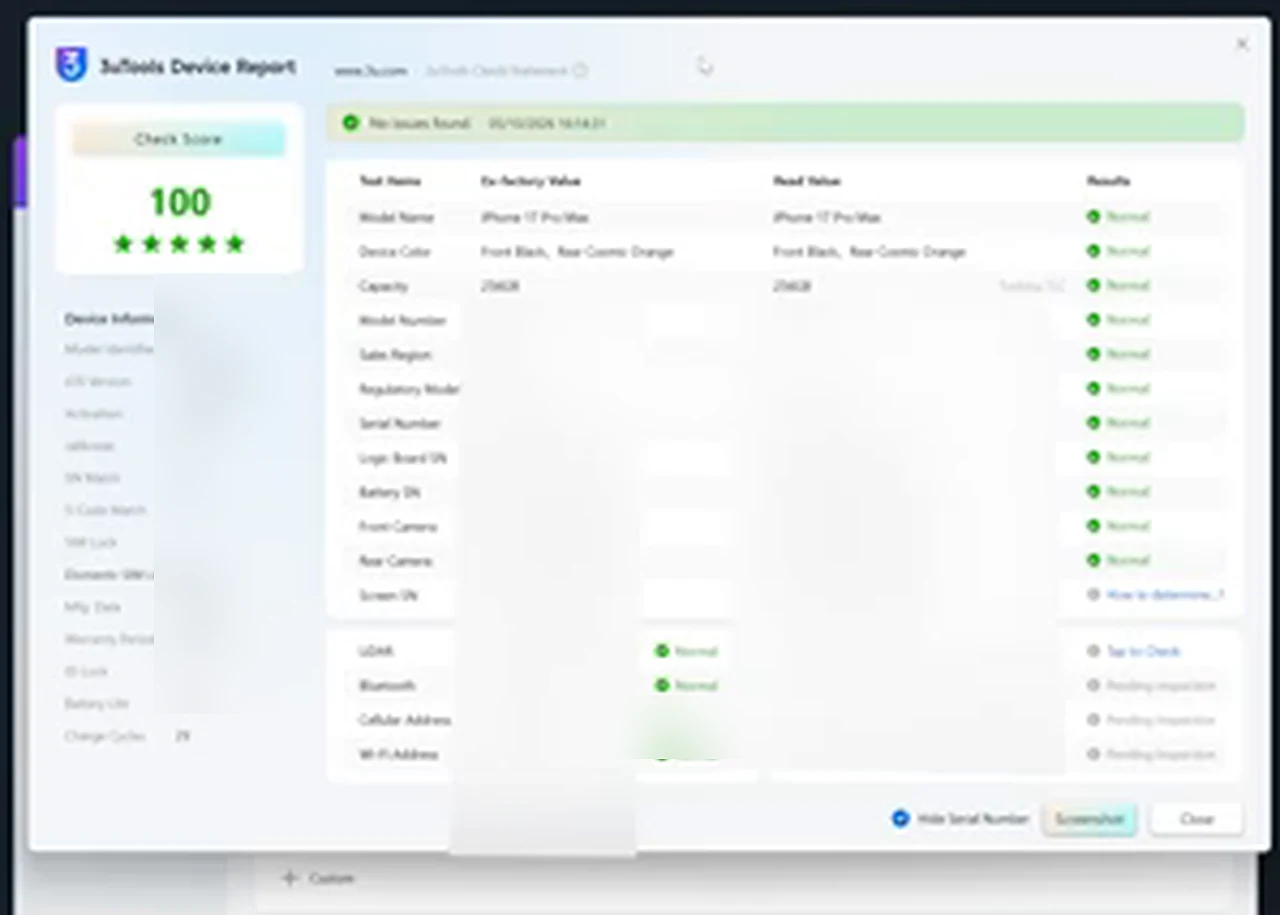
Two numbers deserve a closer look. The charge cycle count counts full charges, not every time the cable was plugged in. Small top-ups add up: charging from 50 percent to 100 percent twice counts as roughly one full cycle, not two. Many people also unplug before 100 percent, often around 92 to 95 percent, so the count usually reads lower than the number of plug-ins. A very low count on a phone used daily for years should prompt a question about a replaced battery.
What a Changed Phone Looks Like in the Report
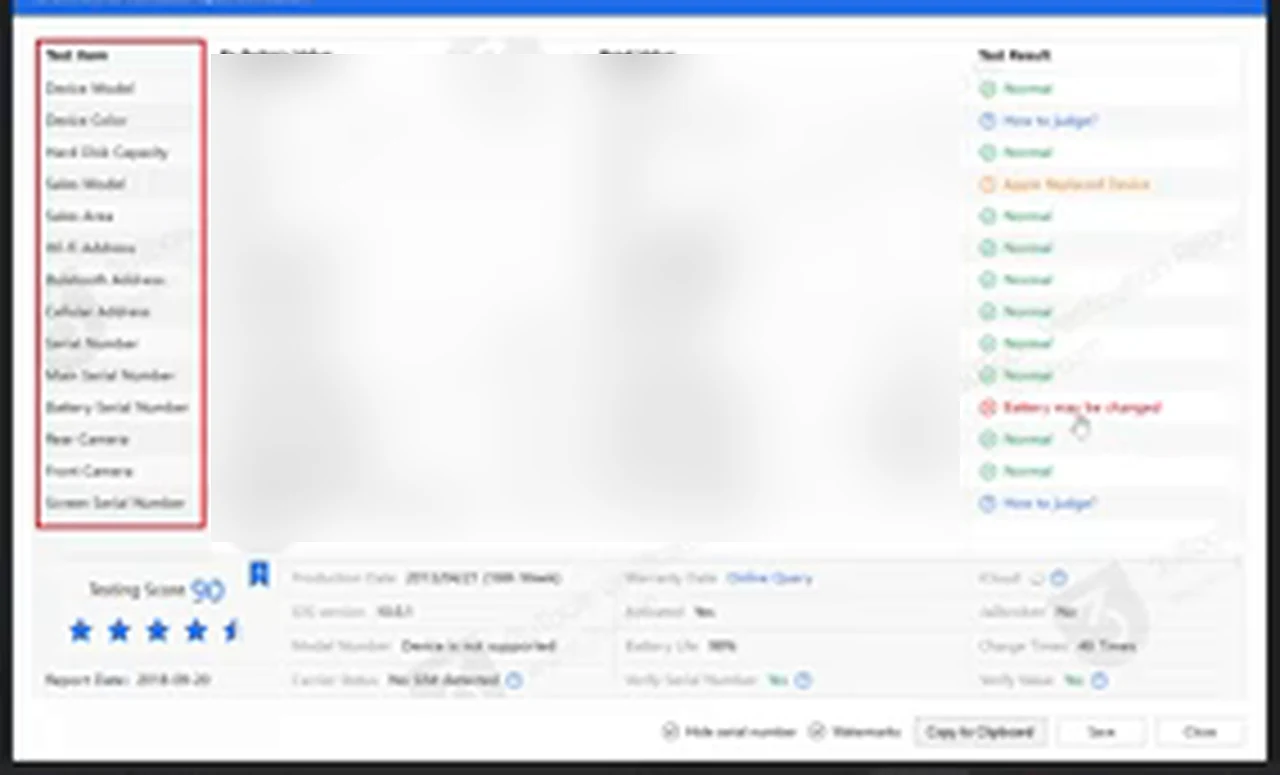
A phone with replaced parts does not look like a clean report with a small footnote. The score drops, and the result column marks changed rows in red, naming what was changed. One example report shows a score of 90 with a warning that the battery may be changed, and another row noting an Apple replaced device. Red marks are not automatically a reason to run away. What matters is whether the seller told you before the report did, and whether the price reflects the repair. Use 90 as your floor. Above 90, with the repair disclosed, it can still be a fair buy. At 90 or below, walk away unless the full history is disclosed and the price covers the risk. Never accept a report you did not watch being made.
The Price Talk: Bargain, or Walk Away?
Once the checks are done, the price talk is simple, because you are no longer guessing. A clean report, a battery at 85 percent or higher, and a body with only light wear is a phone you can pay a fair asking price for. A battery below 80 percent, a replaced screen that works well, or a score just above 90 with one disclosed repair are reasons to offer less, by roughly the cost of fixing the weak point. A cracked body, failing Face ID, an account lock the seller cannot clear, or a seller who will not allow the verification check are reasons to leave the phone where it is.
Your Pocket Checklist
Work through this list in the shop, in order. Body: no uneven gaps, no stripped screws, SIM tray number matches the phone, buttons click firmly, charging port clean, lenses clear. Screen: even brightness on white and black, touch works in every corner, True Tone present where expected. Sound and cameras: voice memo clear on speaker and earpiece, both cameras focus and record, Face ID fast and reliable. Settings: battery at 85 percent or higher, storage as advertised, Apple ID signed out and Find My off, phone erased to the Hello screen. Report: 3uTools verification watched live, score above 90, no undisclosed red rows.
Watch the Check Done in Real Life
The video below shows the whole process: downloading 3uTools, connecting a phone, opening the verification report, and comparing a clean report with one that shows changed parts.
Questions Buyers Always Ask
Is a 3uTools check enough on its own? No. It is the strongest check for replaced parts, but it does not test the speaker, touch screen, or Face ID. Do the hands-on checks first, then let the report confirm what you found.
What battery health should I accept? Aim for 85 percent or higher. From 80 to 85 percent, plan for a battery replacement. Below 80 percent, budget for a new battery in your offer, or choose another phone.
What verification score should I accept? A score of 100 with No Issues Found is ideal. Above 90 with a disclosed repair can be fine at the right price. At 90 or below, walk away unless the history is disclosed and the price reflects it.
Can a seller fake a verification report? A screenshot can show any phone, so watch the phone being connected and the report being opened in front of you. Check that the model and color match the phone in your hand.
Should I buy if the seller will not allow a 3uTools check? Only if you will pay a price that assumes the worst. A refusal does not prove the phone is bad, but it removes the check that can prove it is good.
Buy slowly, check in order, and let the report have the last word before your money does. The phone that passes every check here is not guaranteed to be perfect, but it is a phone you chose with your eyes open.