I did not install anything for this one. That part was already done, on another day, in another video, and the full install walkthrough is already on this site. This session had a narrower job: check the installed system and decide whether it is safe to live with. One sitting, one machine, and a short list of things to check. The laptop is a 7th-generation Core i7 machine from around 2017, with 8 GB of RAM. It is stronger than the 2 GB and 4 GB machines this build is really aimed at. Times below are rounded.
00:00 — The warning before anything else
Before the desktop got a proper look, the first thing on the table was trust, and it stayed there all session. Optimum 11 is not an official Microsoft product. The team behind it takes a Microsoft Windows file, rebuilds it with some functions kept, some cut, and a few of their own added, and releases the result. You get a lighter system.
Nothing inside the ISO looked like a file built to steal data or take over the machine, and nothing of the sort showed up during the session. But absence of evidence is not proof, and a normal check cannot see everything that might be tucked away. So the rule for the session, and the rule I would keep afterward, was simple: no banking, no exchange accounts, no wallet apps, no copy-and-paste of secrets, and nothing truly private stored on this system. Browsing, media, news, films, everyday work — fine. Anything where a leak would actually hurt — keep it off this machine. If that rule feels like too much, this build is probably not for your main computer, and official Windows 11 is the better call.
00:35 — First sight: an ordinary desktop
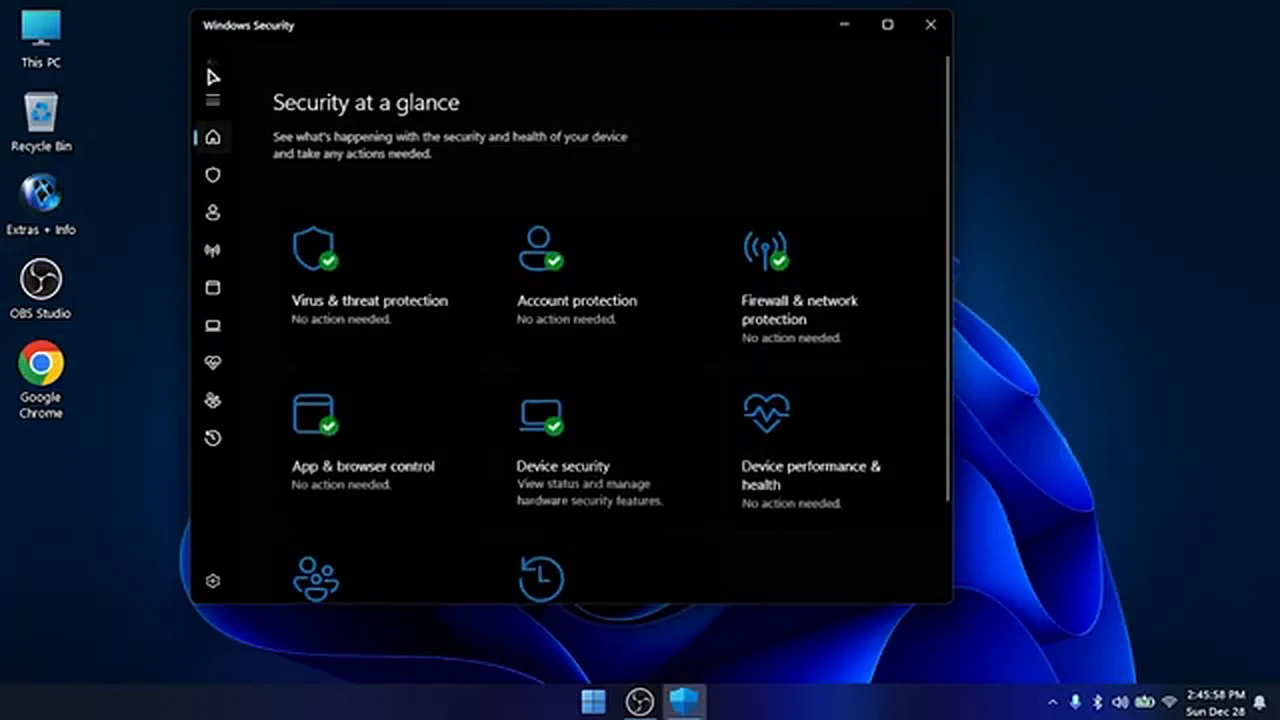
The desktop itself gave nothing away. A deep blue wallpaper, a short row of icons on the left — This PC, Recycle Bin, Chrome, OBS Studio, and a folder called Extras + Info — and a centered taskbar at the bottom. If someone had sat me down in front of it without telling me what it was, I would have called it Windows 11 and moved on.
The Start menu told a slightly different story. It was shorter than usual. Much of the normal clutter was gone, and only the functions the builders judged essential were left: File Explorer, Chrome, the accessibility tools, Windows Tools, and a folder of their own additions. I did not miss anything in the first few minutes — but I had not yet tried to do anything unusual, which is exactly when missing pieces tend to announce themselves.
01:25 — The disk check that sold the idea
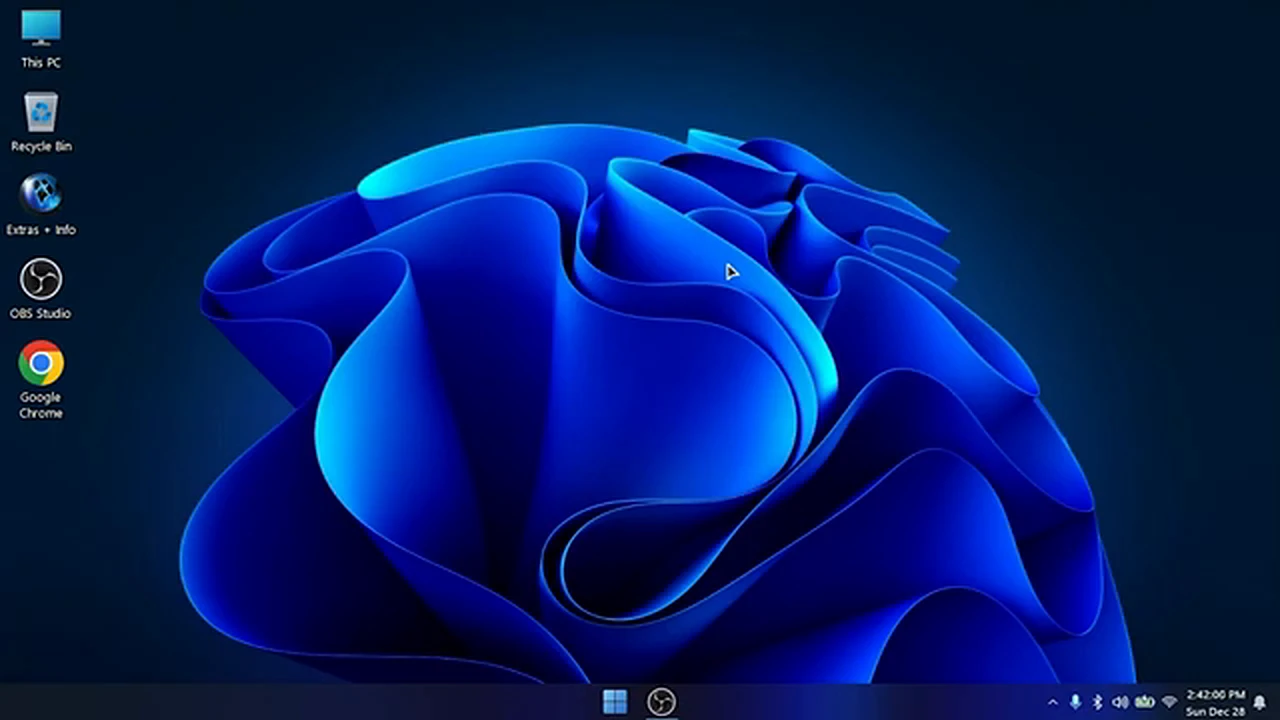
The first real number of the session came from This PC. Official Windows 11, freshly installed, typically takes 20 to 25 GB, and after updates it can push past 30 GB. This installation took about 6 GB at first, and even after extra software and updates it was still only around 11 GB. The C: volume showed plenty of room left, a real difference on a machine with a small, old drive.
I wrote the number down, and then I wrote the caveat next to it. A small footprint is a consequence of removal. Something had to go to save that space, and the rest of the session was really about finding out what. Light and complete are not the same thing.
02:50 — Defender: the choice you cannot undo
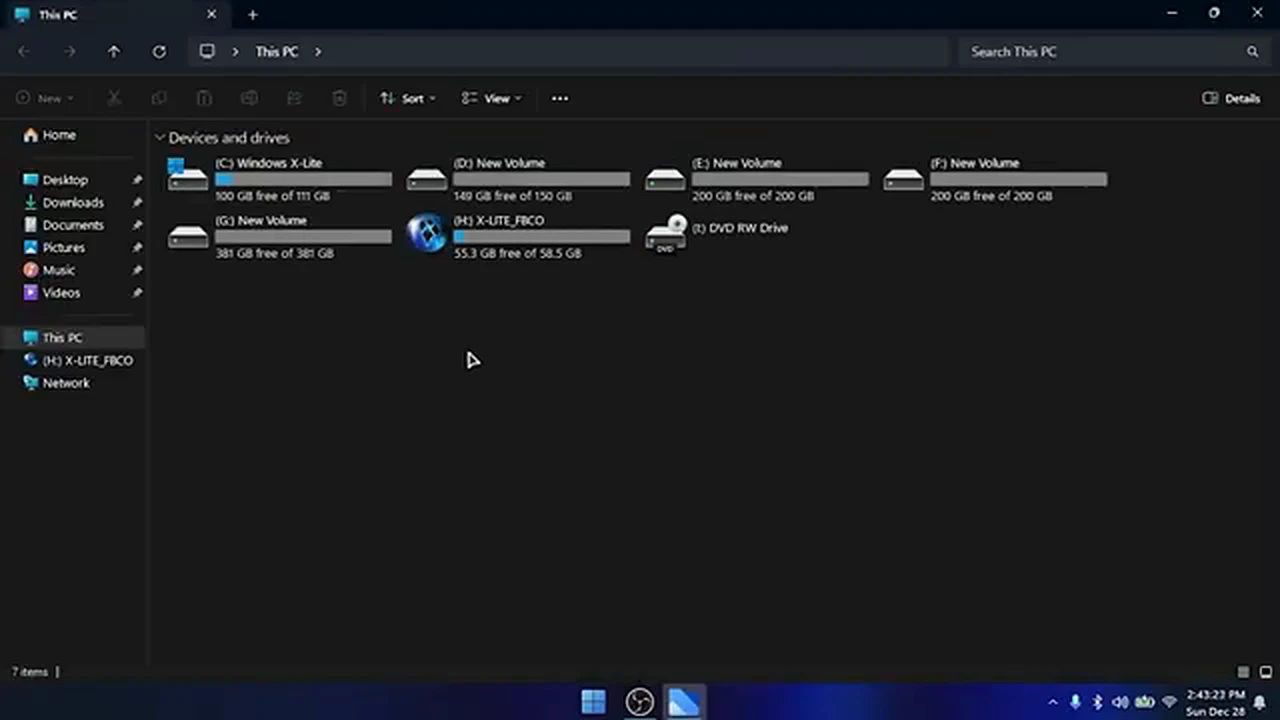
Windows Security opened cleanly, all six areas reporting no action needed: virus and threat protection, account protection, firewall, app and browser control, device security, and device performance. On the surface, that is reassuring. Underneath it sits the one decision in this whole build that I would most want to make twice.
During installation, Optimum 11 offers two paths: with Defender, or without it. This machine was installed with Defender on, deliberately. What the presenter stressed, and what I want to stress harder, is that the choice is one-way. Install without Defender and you cannot switch it back on later. There is no toggle to find, no function to re-enable. It is simply gone.
If you try this build at all, install it with Defender on. If you already installed it without Defender and are wondering how to get protection back, the honest answer is that you do not get it back from inside this system. You reinstall, or you accept the risk with your eyes open, and neither is a good surprise to meet after the fact.
03:25 — About says 25H2 Pro, and says it plainly
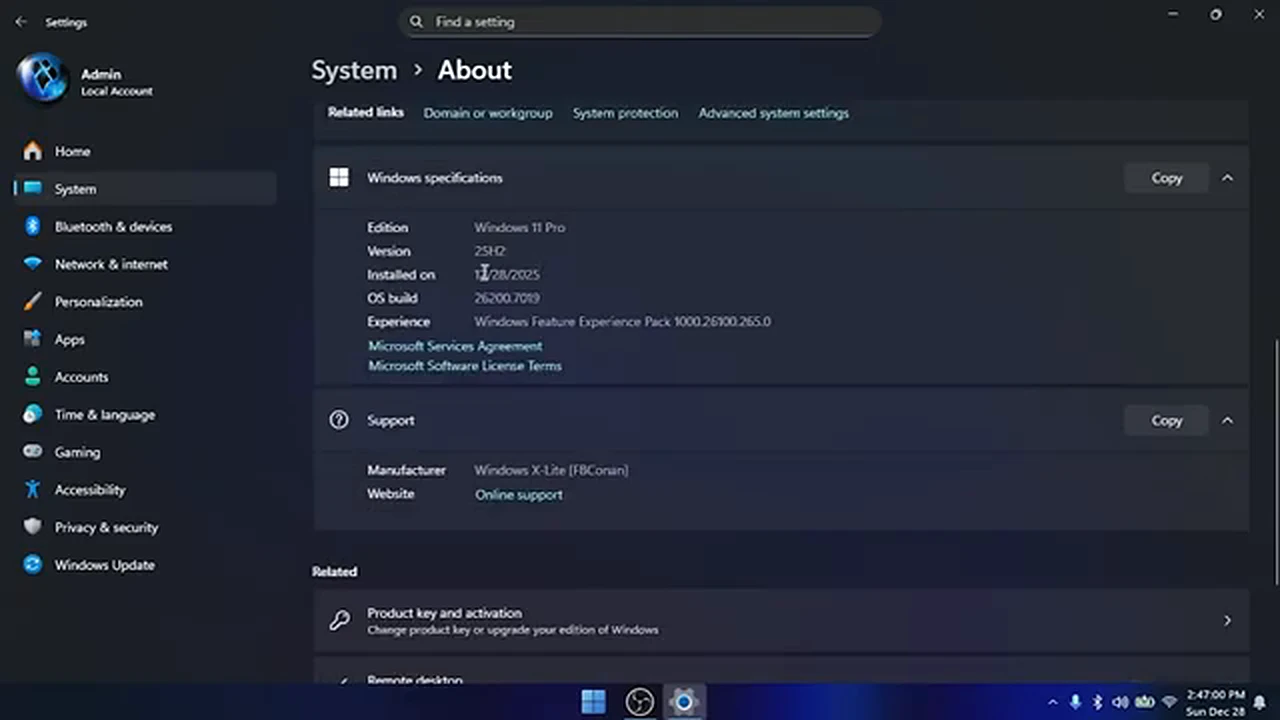
Settings, then System, then About, and the build stopped being a rumor and became a specification. Edition: Windows 11 Pro. Version: 25H2. OS build 26200.7093. Manufacturer listed as Windows X-Lite. The hardware underneath: the i7 laptop, 8 GB of RAM, about a terabyte of storage. Nothing here tried to hide what it was. Its About page names its maker.
Most of the Settings panels looked like Settings always looks. Network, personalization, accounts, privacy, Windows Update — all present, all in the usual places. It is easy to forget, while clicking through familiar panels, that the system underneath them is not the one Microsoft ships.
03:50 — Detour: the USB port that would not work
One USB port on the laptop simply did not work. The others did. The dead one needed its driver installed before it would recognize anything, and until that driver went in, nothing plugged into that port existed as far as the system was concerned.
The fix was the ordinary one: fetch the driver the machine normally uses and install it. But it was a reminder that “drivers work” is a claim you verify port by port, device by device, not a promise you accept in bulk. Wi-Fi and Bluetooth worked, and still one port sat dead until it got individual attention. Your machine will differ: this kind of quirk varies from one computer to the next, so do not read my smooth Wi-Fi connection as a guarantee for your hardware. Budget an hour after installation for this kind of small, annoying detective work, and check every port and peripheral you actually use before you declare the installation a success.
04:02 — Updates paused until the year 3000
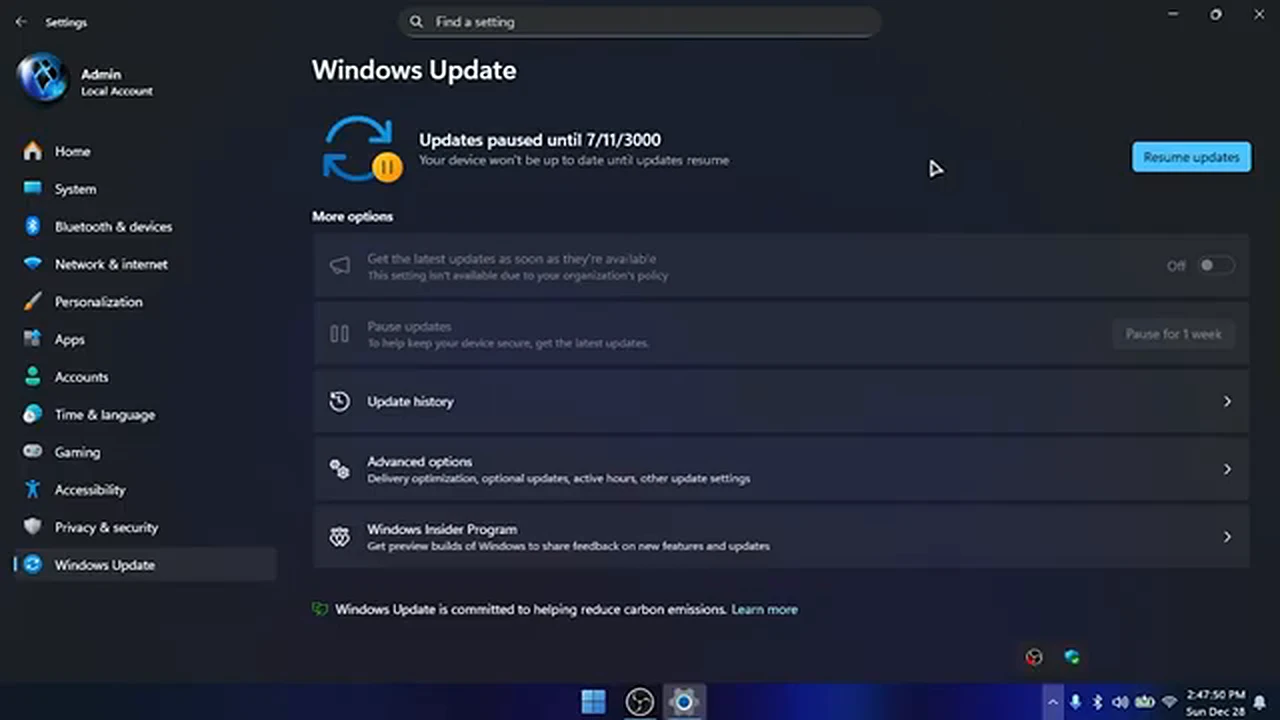
Windows Update had the most honest screen of the whole session, and it was funny until I thought about it properly. Updates were paused until 7/1/3000. The year 3000. Not next week, not after a restart — effectively forever.
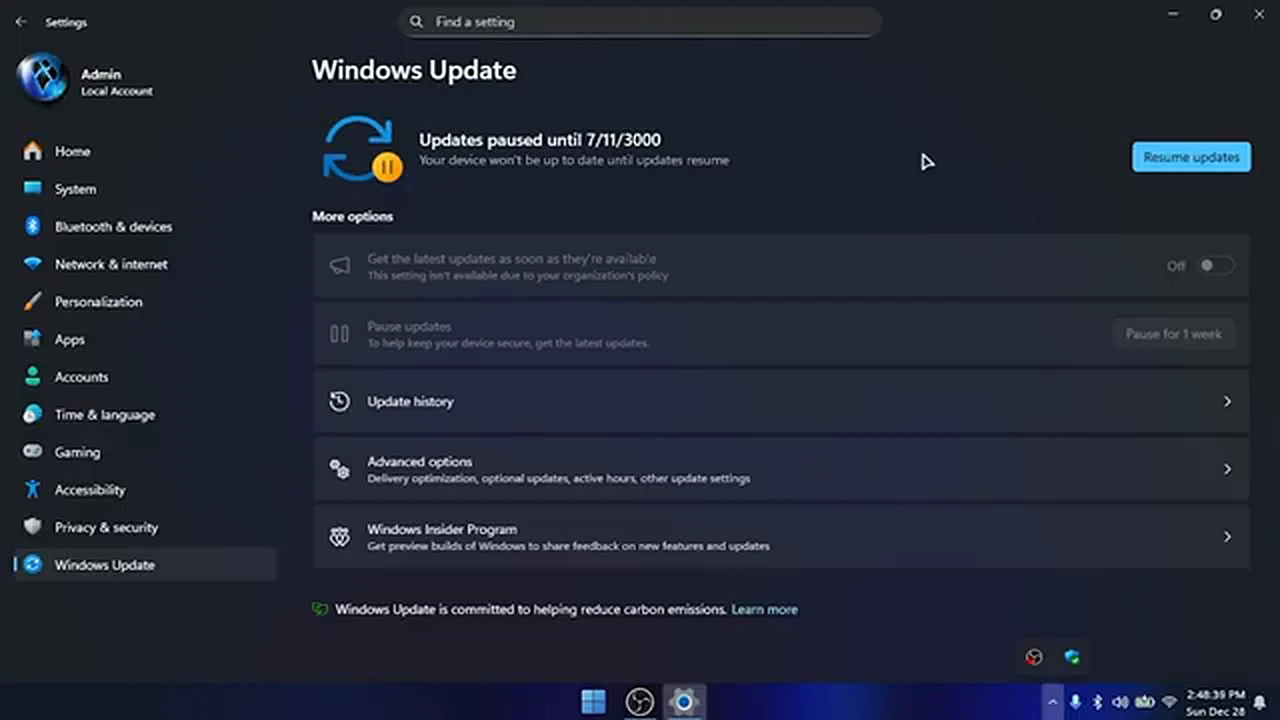
In practice, it means this machine will not receive normal Windows updates in the usual way, and whatever patching happens will come through the build’s own channel, if it comes at all. This system trades the official maintenance pipeline for lightness, and you should know that before you depend on it. I left the pause alone. Resuming updates on a build designed to hold them off felt like an experiment that ends with a broken afternoon.
04:28 — Right-click hides a toolbox
The best surprise of the session was hiding in the most boring place: the right-click menu on the desktop. Alongside the usual View, Sort by, and Refresh sat tools that stock Windows makes you hunt for. Command Prompt, without a trip through Start. Control Panel, the same. Kill Unresponsive Tasks, which shuts down a frozen program in one click instead of a Task Manager expedition. Restart Explorer. Safe Mode. System Properties.
Kill Unresponsive Tasks earned its place in my notes at once. You know the scene: a program freezes, it will not open, and it will not close, and the whole computer starts to drag because of it. Having a one-click answer to that, right where your hand already is, is the kind of small kindness that makes a lightweight build feel designed rather than merely stripped.
05:36 — The Extras folder rabbit hole
The Extras + Info folder on the desktop turned out to be the build’s junk drawer, in the good sense. Inside were the extra settings and registry tweaks the builders ship, including toggles for the Snap Bar and Snap Layout features, and an option to enable the printer — off by default, since most people do not need it, but there if you do.
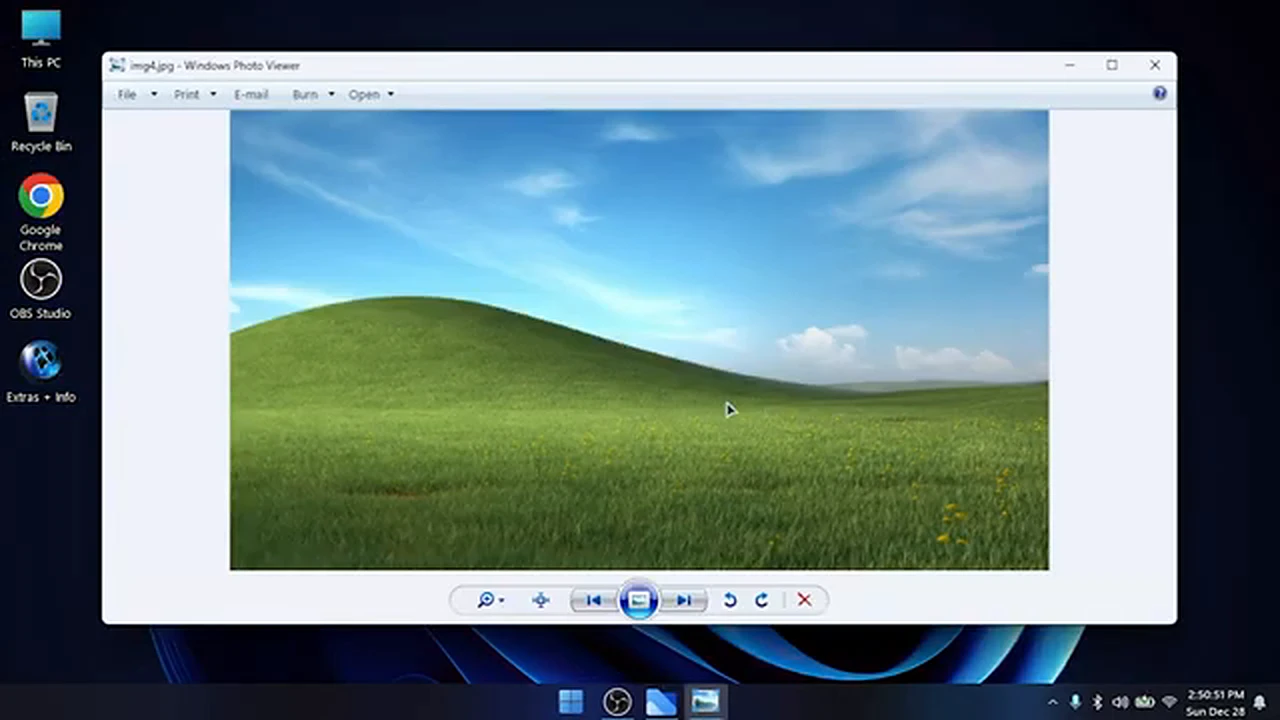
The same corner of the system held a folder of bundled wallpapers. A couple were genuinely good, including a soft landscape I kept coming back to. On a machine you are trying to rescue from the drawer, the way it looks matters more than it should. I changed it, and the desktop immediately felt less like a compromise.
06:40 — Task Manager, and why I do not trust my own numbers
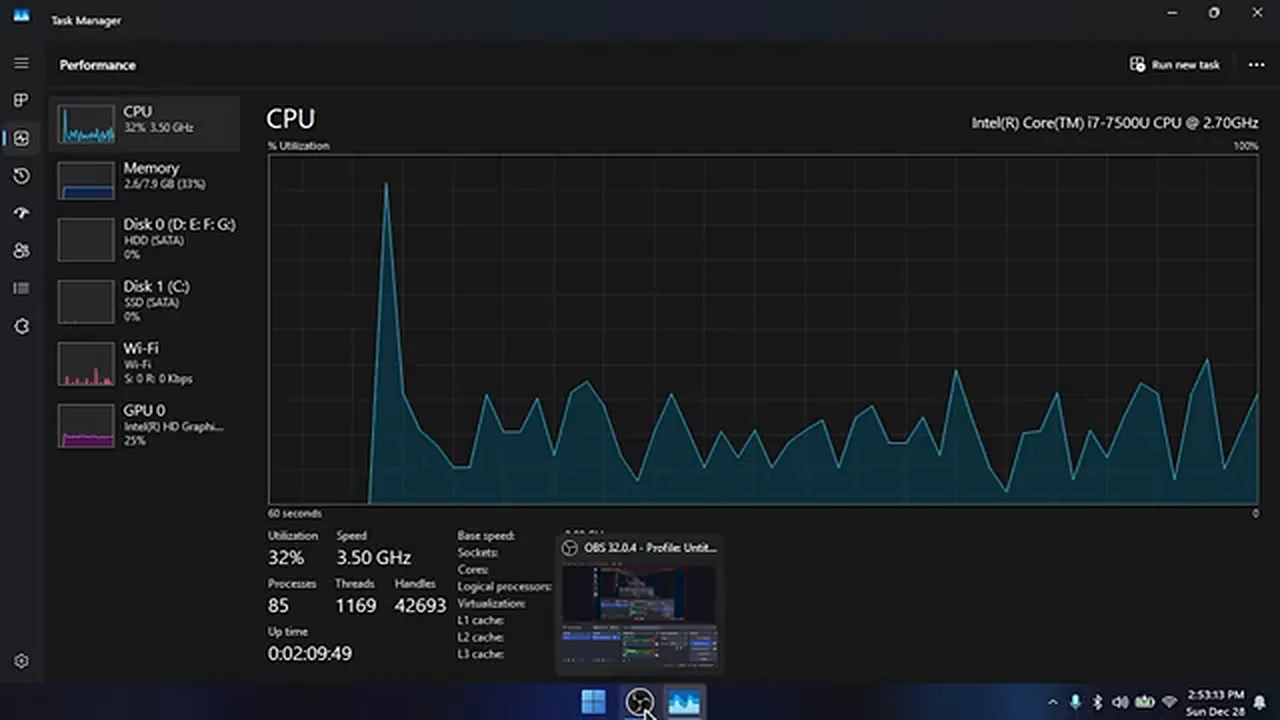
Task Manager was the moment the session almost lied to me, and I am glad I noticed. Memory sat at about 2.6 GB in use, which sounds impressive until you remember what else was running: OBS Studio, recording the session. OBS was eating processor time and pushing the process, thread, and handle counts well above what the system would show at rest.
The honest reading, as far as I could judge, is this: the system idles light, with far fewer background processes than official Windows 11, and everyday use leaves plenty of headroom on 8 GB of RAM. What I can say from direct experience is narrower: during the whole session, with a screen recorder running on top of everything else, I felt no choppiness, no lag, no stutter. On 2 GB or 4 GB, with a 3rd- or 4th-generation processor, I would expect some of that smoothness to go away. I do not know how much.
06:55 — Light mode and the last look around
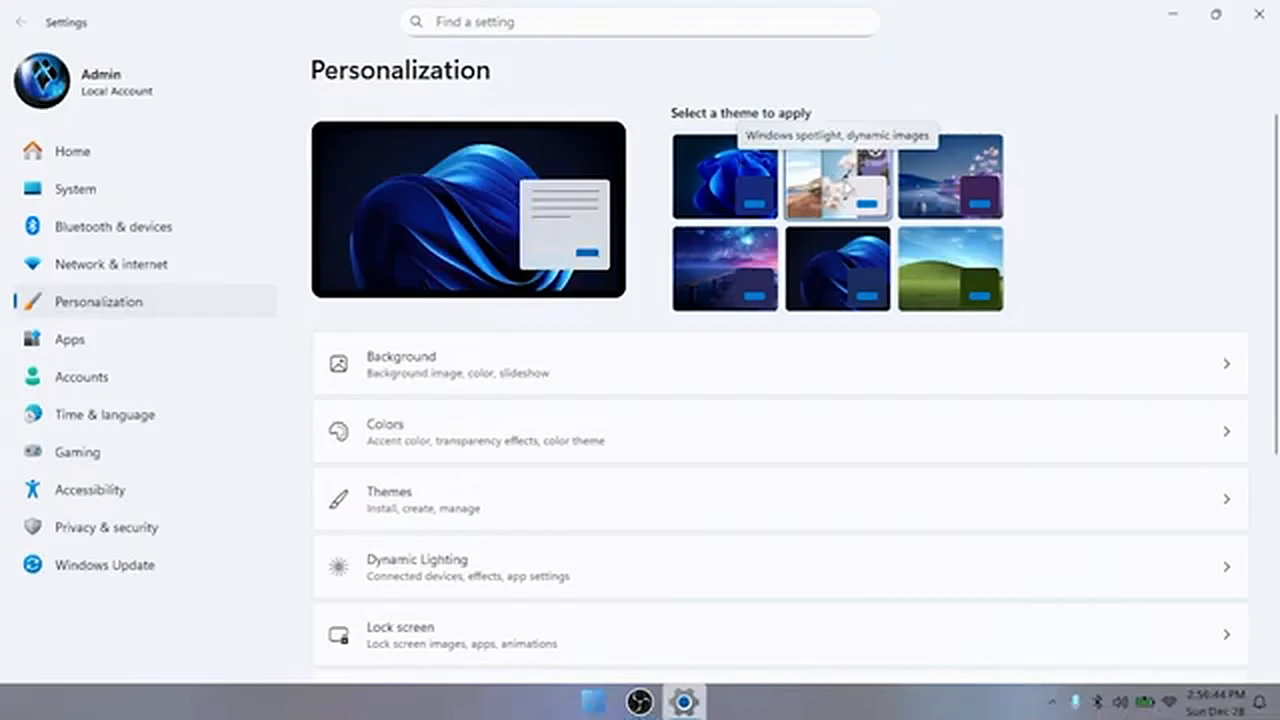
Dark mode is the default here, and it suits the blue wallpaper and the stripped-down interface. But defaults are not obligations, so I went the long way round to check: right-click, Personalize, then Themes, where a row of ready-made themes waits. Switching to a light theme took seconds, and the whole interface followed — Settings, File Explorer, the lot — without complaint. It felt like the right ending to the tour: a system that lets you change its face easily, even if it will not let you change some of its deeper decisions at all.
End of the log — the verdict I wrote down
So: safe, or a virus? Neither word quite fits, and that is the verdict. I found no virus, no data-stealing file, no behavior that set off alarms during a full session of ordinary use. I also found a system I cannot fully verify, built by a third party. Do not trust it blindly. Do not put anything on it that you would miss.
Try it if your computer has 2 GB or 4 GB of RAM, if official Windows 11 refuses to install or crawls when it does, and if the machine’s job is browsing, media, study, or everyday tasks. Install it with Defender on, and keep important files backed up elsewhere. If the machine still has a spinning hard drive, buy an SSD first: it will do more for speed than any lightweight build. Skip it if your machine is powerful enough for official Windows 11, or if you do banking or money work on that computer. Official Windows — heavier, slower on old hardware, and accountable — is the right answer for you. The full installation is covered step by step in the Optimum 11 install guide on this site; read its warnings before downloading anything.
I closed the session with the same rule I opened it with: a light system is a good servant and a bad master. Use it for what it is good at, keep your secrets somewhere else, and let the old machine earn its second life honestly.