Open a browser and type a question. Ten blue links appear. You open the first, skim past the ads, and find it does not answer the question. You go back, open the second, and scroll through three screens of background before the useful paragraph shows up. That loop felt normal for years. It was not fast, and it was not smart, but everyone did it the same way.
Comet AI Browser bets the loop itself is the problem. Instead of handing you pages, it reads them, pulls the answer together, and shows its sources. Sometimes it tries to do the task for you. The browser starts to feel like an assistant inside a window. This article follows that shift, from why the old way ran out of steam to how Comet works now, and where it still falls short.
The browser stopped evolving, then it got heavy
Early browsers had one job: fetch a page and show it. As the web grew, the job grew too. Tabs let you keep ten pages open, bookmarks helped you find them again, and extensions let a password manager live inside the browser. Together, they turned the browser into the one program most people never close.
Chrome won that era by being fast, and familiar when everything else changed. The video notes that more than 60% of people use Chrome, and the number is easy to believe: the same icon, the same address bar, the same extensions. Search sat at the center. You searched, Google listed, and advertising followed. Most people accepted the trade, because moving to a new browser felt like more trouble than it was worth.
Then the weight caught up. On a powerful machine, Chrome feels fine, and the video is honest about that. On an older laptop, it feels different. The fan spins up, switching tabs lags, and every extension adds drag. The browser gets heavier the longer you use it. People did not leave Chrome because they disliked it. They stayed and put up with the slowdown, because no rival offered a reason strong enough to move.
Google did add AI to Chrome, but in the video it looks like an experiment bolted on, not a new way of browsing. A helper appears in places, yet the routine stays the same: search, open, read, go back, repeat. The assistant visits; it does not run the browser. Once you get used to a direct answer, ten blue links feel like a library trip for one fact.
The $34.5 billion knock on the door
The video opens with a story that explains why this moment feels different. A short while ago, Perplexity AI reportedly offered $34.5 billion to buy Google Chrome, and Google turned it down. The figure tells you how much Chrome is worth as a doorway to the web. Whoever controls that doorway controls a huge flow of searches, data, and advertising.
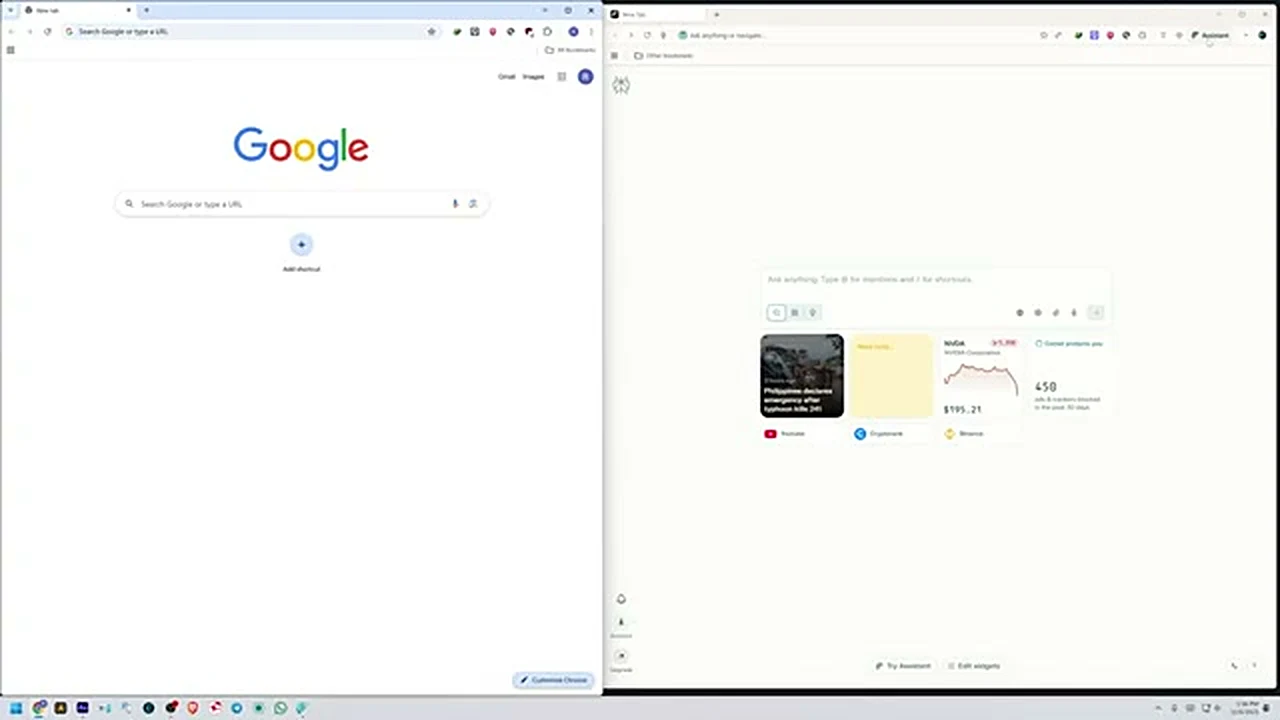
Perplexity did not stop there. Soon after, it launched its own browser, called Comet. It is built on Chromium, the same open-source foundation Chrome uses, but with an AI assistant integrated from the start rather than added later. That distinction is the whole idea. Comet is not Chrome with a chatbot stuck on the side. It is an attempt to rebuild the browser around the assistant, so asking, summarizing, and acting become the normal way to browse.
Do not treat Comet as finished. The video is clear that it is new, that not everything works perfectly, and that the demo comes from ten to twelve days of everyday use. The fair question is not whether it beats Chrome in every way today. It is whether its new shape is useful enough to try alongside the browser you trust.
What actually changed: answers first, links second
The biggest change is hard to see in a screenshot. In the old routine, a search gave you links. In Comet, a question in the address bar can give you an answer in plain language, with sources beside it. The assistant gathers what it finds, combines it, and presents a short briefing. Check the sources, because a fluent answer can sound certain even when a detail is wrong.
For heavy readers, the change is practical. Think of a research page with tabs for overview, funding, markets, and history. The old way meant opening each tab and keeping figures straight in your head. The new way lets you ask for the full picture in one go. You still need to verify numbers that matter, especially prices, which move while you read. But the gathering, which used to take most of the time, is largely done for you.
The second change is quieter, and it is why switching feels less painful. Because Comet is built on Chromium, it speaks the same language as Chrome underneath. Extensions, bookmarks, and history can be brought across when you sign in during setup. You do not start from an empty browser. Check that each extension you depend on works after the move. But the fear of losing everything is much lower now.
Installing Comet today, step by step
Getting started takes a few minutes, from the browser you already have. Search for Comet browser download and look for the official Perplexity page at the top of the results. Do not grab an installer from a random download site. Click Download Comet. In the video, the file is only about 14 MB, a starter that fetches the rest during installation.
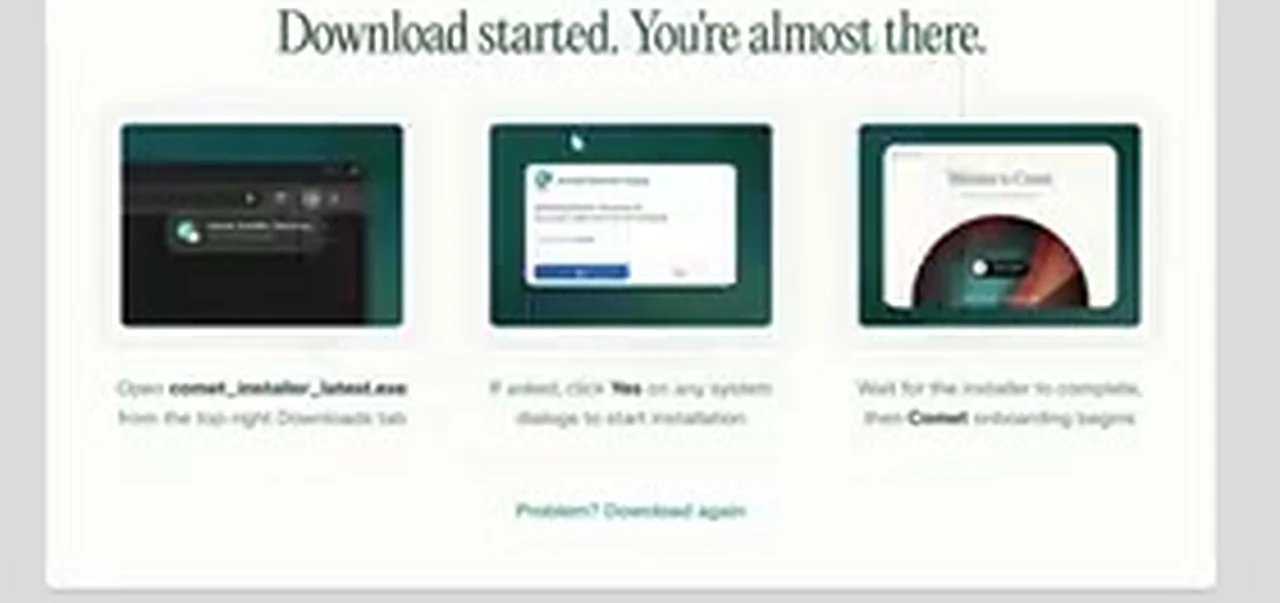
Once it has downloaded, open your downloads and run the installer, comet_installer_latest.exe. If Windows asks whether to allow changes, click Yes. It will download the remaining files and set Comet up. In the video, the installer shows the line Built with Perplexity in mind. When it finishes, Comet opens and invites you to sign in. If it is already installed, it may simply open the existing copy.
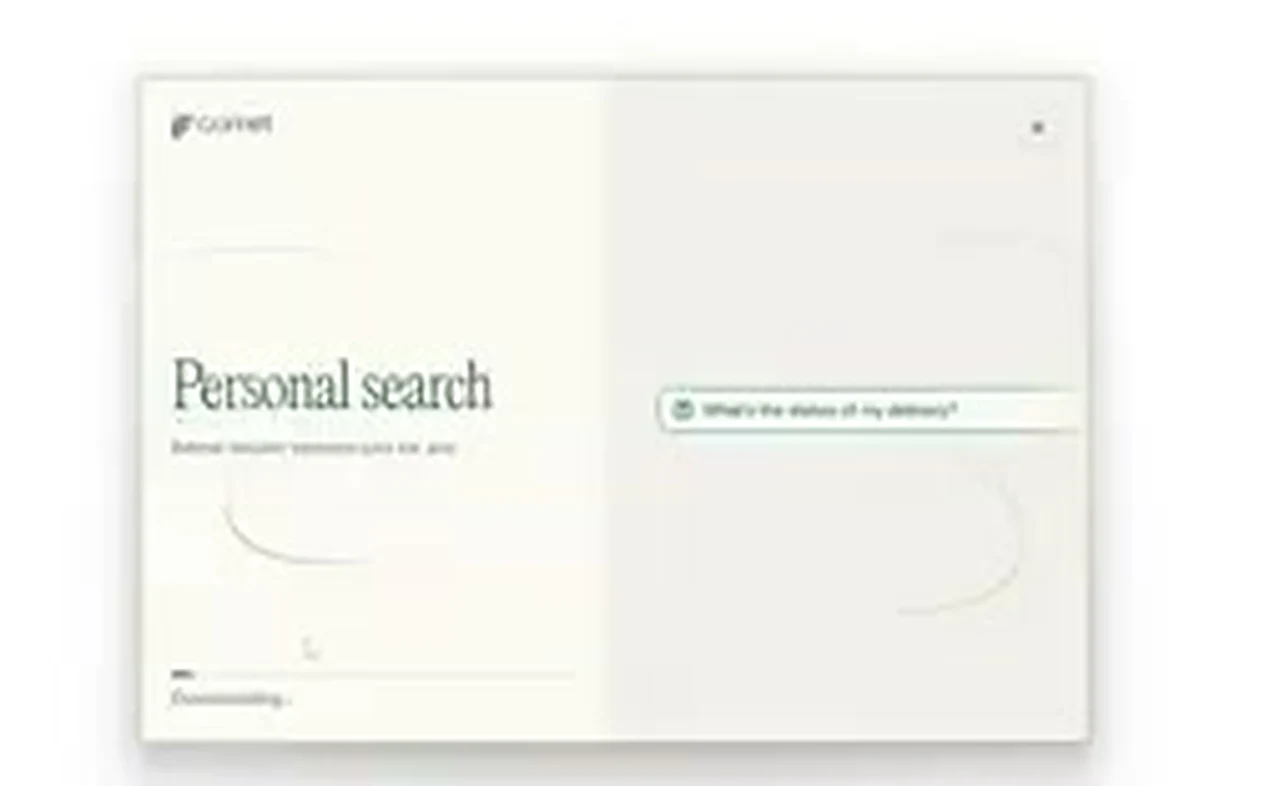
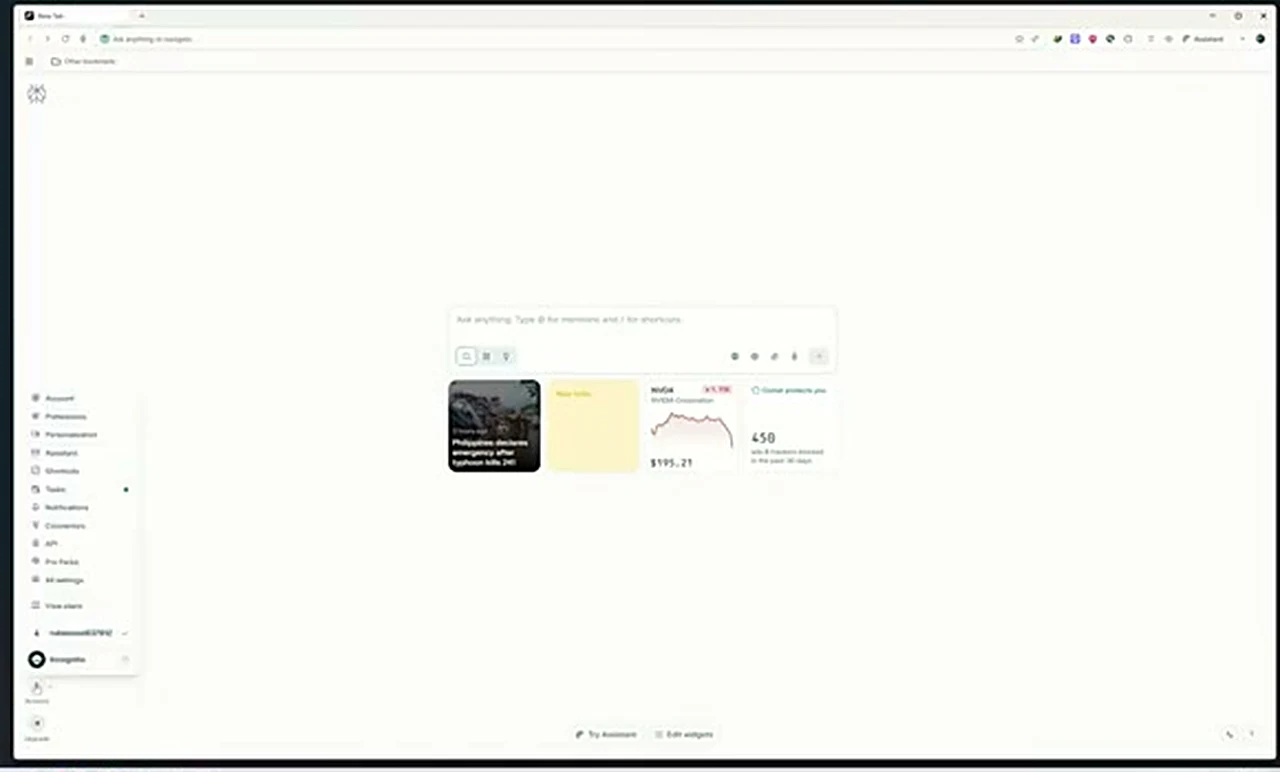
Sign in when Comet asks, and take the import step seriously. This is where Comet offers to bring in bookmarks, history, and extensions from Chrome, and granting permission makes it feel familiar on day one. In the demo, the Chrome extensions appear in Comet after import. Check them on the home screen. The home screen centers on a prompt inviting you to ask anything. You can still search the old way; Comet simply makes the assistant the easiest option.
Three jobs where the new shape shows
Installation is the easy part. Here are three jobs from the video, each showing a different side of the assistant. None is perfect. All show why the browser feels different once the assistant is built in.
1. Reading without reading everything
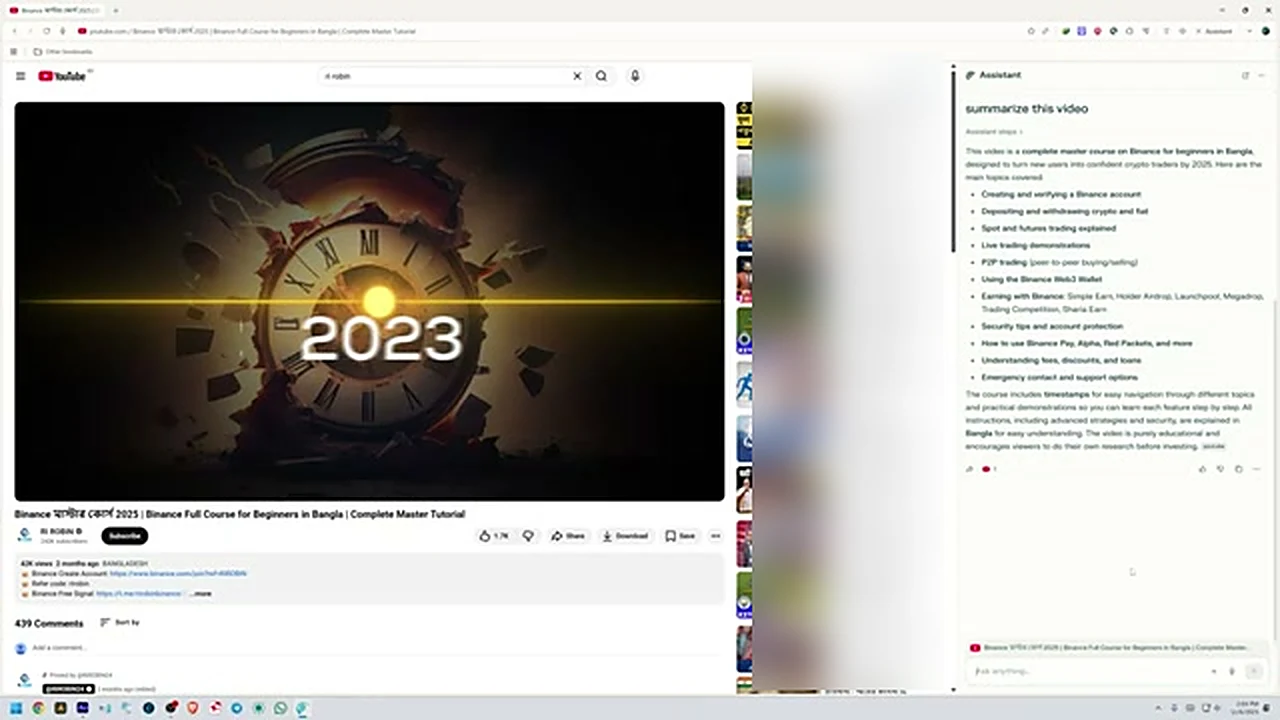
Open a video page, open the assistant panel, and ask it to summarize the video. In the demo, Comet lists the main steps in a long tutorial: downloading the file, building a bootable drive, choosing a clean install or an upgrade, and finishing setup. For a two-hour course, that outline tells you in seconds whether it covers what you need. It does not replace watching when details matter. But for deciding where to spend your time, it beats guessing from a title.
2. Research in one pass
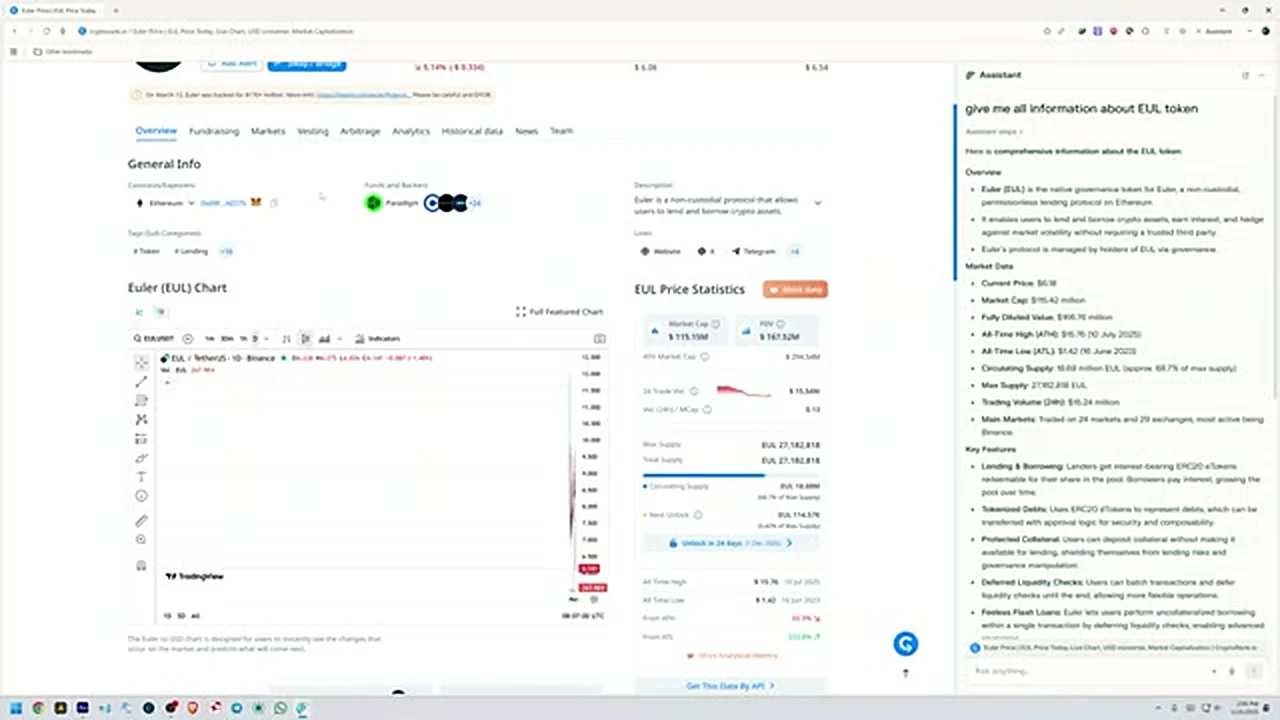
The same trick works on a research page, and the saving is larger because such pages are built to be clicked through. Ask for all the information about a token on the open page, and the assistant returns an overview, price, highs and lows, supply, volume, features, and notes on funding and the team. Prices change, so check the live figure on the source page, and treat the summary as a starting point, not a recommendation.
3. Letting it do a task, with a human at the till
The boldest feature tries to act, not just answer. In the demo, the assistant is asked to order the best computer mouse from a shopping site. It takes control of the page, shown by a glowing border, searches for mice, and compares rating, price, and sales. It picks a rechargeable wireless mouse, opens the product page, and explains its choice. Then it hits the key limit: the site needs you to log in. Payment must still be chosen by hand. That boundary is reassuring.
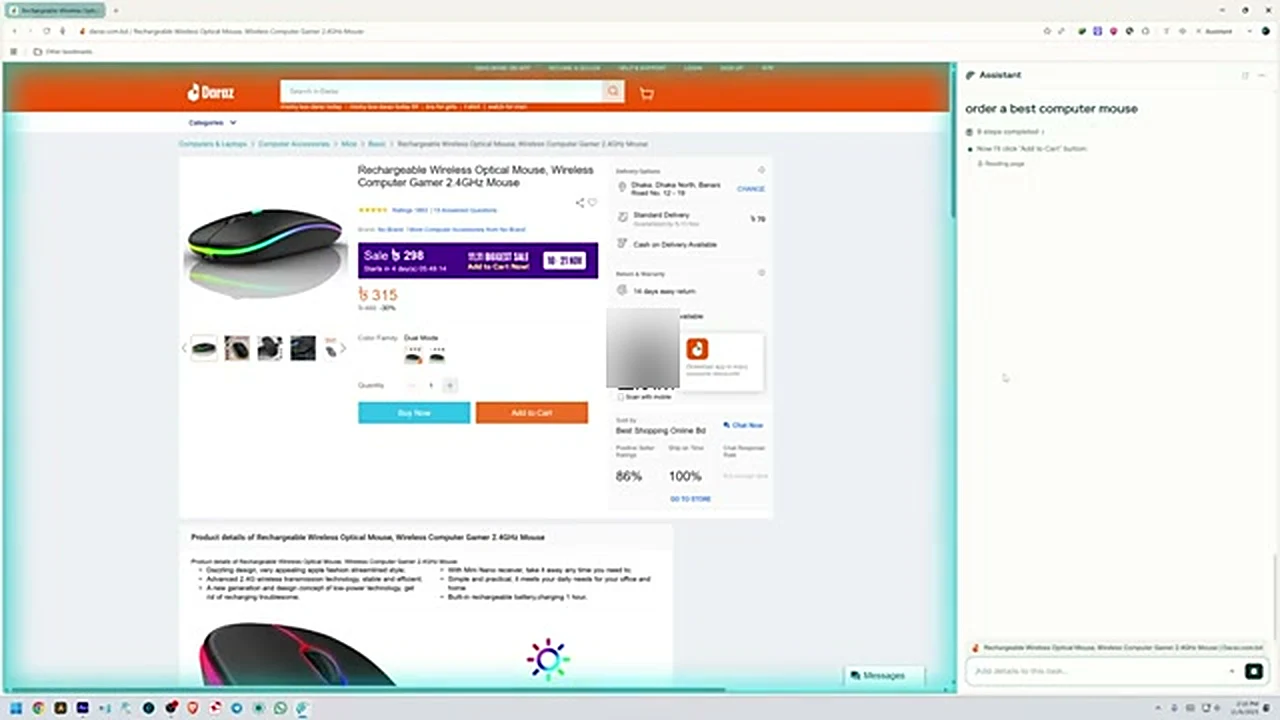
It can compare numbers, not feel the mouse in your hand, so check for yourself before you pay.
What has not changed, and what to watch
A new browser does not fix the web underneath it. Logins still need passwords, paywalls still block articles, and badly built pages still load slowly. An AI layer adds its own ways to go wrong: it can misread a page or present a guess as a fact. The video is upfront that Comet is not working perfectly yet. When an answer matters, open the source. When a task touches money, stay in control of payment.
Privacy deserves the same careful look. The video presents Comet as tracker-free, not following your searches to target ads, unlike the tracking tied to Chrome and Google. Treat that as the browser’s pitch, not a verified result. Before moving your daily browsing, open settings and check what is on: the default search engine, the data the assistant can read, which extensions can see your browsing, and what signing in syncs.
Performance needs a test on your own machine. The video calls Comet lightweight, but that is an impression, not a benchmark. Give it a week with your usual tabs open, keeping Chrome installed as a fallback.
Before you switch for good, run through these five checks. They take ten minutes and save the frustration that makes people abandon a new browser on day two.
- Confirm every extension you depend on works in Comet, especially your password manager.
- Check that bookmarks and saved passwords came across, and that daily sign-ins work.
- Set your preferred default search engine and starting point: assistant or plain search.
- Review the privacy settings: what the assistant can read, what syncs, and what stays on the device.
- Keep Chrome installed for one week as a fallback before you remove it.
The verdict for now
Comet does not end Chrome, and anyone who says otherwise is selling a headline, not a browser. Chrome is too woven into how people work, with too many extensions, logins, and habits attached, for any new browser to replace it overnight. What Comet proves is that the job description has changed. For thirty years, a browser fetched pages. Now an attempt exists to make it understand the page, summarize it, and sometimes act on it.
Try it seriously if you spend your day researching, reading long pages, or watching long videos to extract a few facts. Try it if your machine struggles with a heavy browser, or if you are tired of being tracked in exchange for a list of links. Stay with Chrome if your work depends on one specific extension, if your workplace manages your browser, or if you need everything to work exactly as today.
Browsers change slowly, and then suddenly. For years, nothing moved: the same icon, the same tabs, the same list of links. Then a rejected buyout, a new browser, and an assistant in the address bar changed the question from which browser is fastest to which understands what you are trying to do. Install Comet, give it a real week, and judge it on your own work. If it earns its place, you will stop opening ten tabs to answer one question.