Come In. We Will Walk Through This Together.
Imagine you have just opened a new program and you have no idea what any of the buttons do. That is where this article starts. We will walk through the ChatGPT Atlas Browser slowly, one screen at a time, and I will explain every new word the first time it appears. If you have used Chrome to open a website, or asked ChatGPT a question, you already know enough to follow along.
A browser is the program you use to open websites. Chrome is a browser. Safari is a browser. Atlas is a new browser from the people behind ChatGPT, the chat tool that answers questions in plain language. Atlas builds that chat tool into the browser itself, so help sits beside every page instead of in a separate tab. You will also hear the word agent. Here it means a browser that can carry out a small job in several steps, such as searching ten shops for the lowest price. That is the point of Atlas, and where you must stay alert, because a browser doing jobs for you can get a detail wrong.
One honest note first. When the video this article is based on was recorded in late 2025, Atlas was only available for Mac computers, and the full agent features were mainly for people paying for the Pro plan. Treat availability details here as a snapshot from the video, and check the official Atlas page for the current position before you download anything.
Watch the full video walkthrough above to see every screen described in this tour.
First, What Are You Actually Looking At?
When Atlas opens, what you are looking at is, at first glance, an ordinary browser: a wide white page, a box near the top, and a small panel on the side. The difference is quiet. In Chrome, if you want help from ChatGPT, you open it in another tab and copy things back and forth. In Atlas, a side panel called Ask ChatGPT stays beside you while you browse, so you can ask about the page you are reading without leaving it. Underneath, Atlas is built on Chromium, the shared engine that also powers Chrome, so most sites behave in Atlas much as they do in Chrome. The presenter had used Atlas for about a month and a half, and had also tried the similar Comet browser from Perplexity. His summary was measured: Atlas felt like an introduction, not a finished replacement for Chrome.
The Front Door: Finding It and Getting It Onto Your Computer
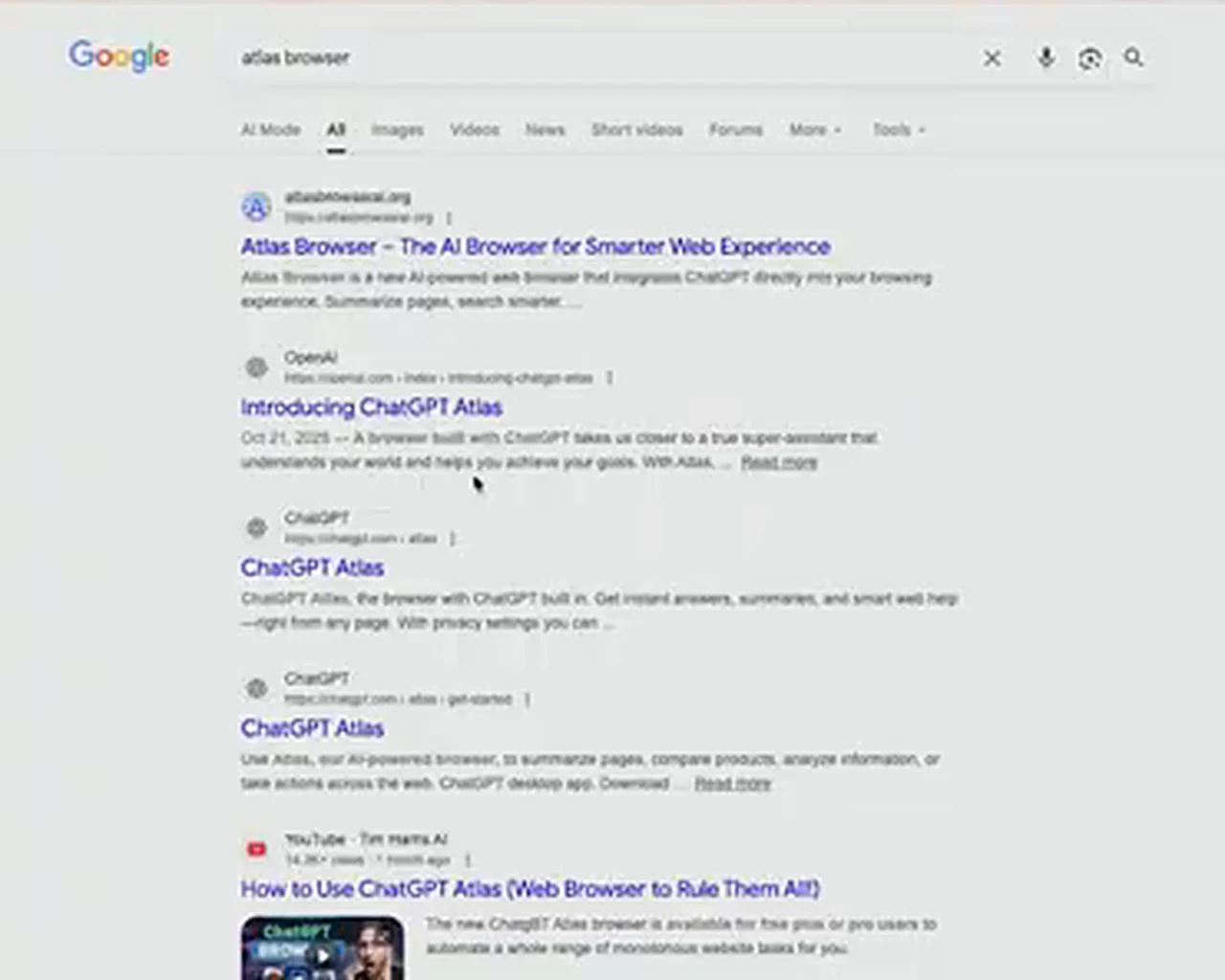
We start where the video starts: with an ordinary search. What you are looking at below is a Google results page after typing atlas browser. The top results point to the official Atlas pages. Always start there, and never use a random link promising a free download. On the official page you choose the download for Mac. A download is a copy of the program coming onto your computer. On a Mac, you open the downloaded file and drag the Atlas icon into your Applications folder, where Mac computers keep their programs.
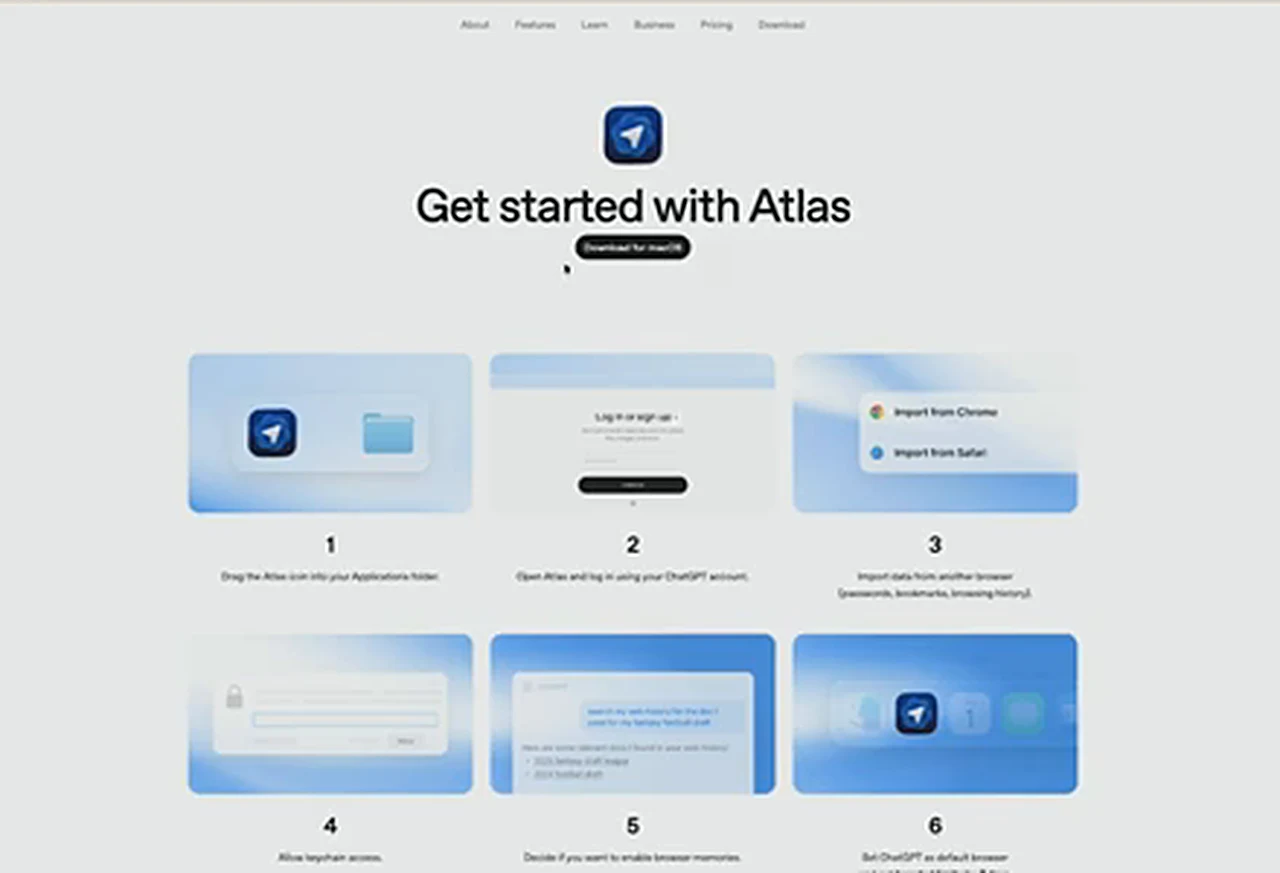
What you are looking at next is the setup page: the Atlas name and logo, a short line about bringing ChatGPT with you across the web, and six small cards covering installation, signing in, bringing your old bookmarks across, and privacy settings. A bookmark is a saved shortcut to a page you want to find again. Signing in means telling the program who you are with an email account. In the video, the presenter signed in with a Google account and created a ChatGPT account.
A word for Windows users. At the time of the video, there was no Windows version yet, and the presenter was waiting for one himself. Do not let impatience push you towards unofficial Atlas installers. If a download claims to be Atlas for Windows from an unknown site, close the page and wait for the official release.
Your First Minute Inside: A Slow Look Around
Look at the home screen with me. In the middle there is one box, and it does two jobs. Type a website address into it to go there, or type a question in ordinary words, in English or Bangla, and Atlas will answer. In the video the box says, in effect, Ask ChatGPT or type a URL. A URL is the address of a page on the internet. Along the side sits the Ask ChatGPT panel, so you can ask about the page in front of you without opening a new tab.
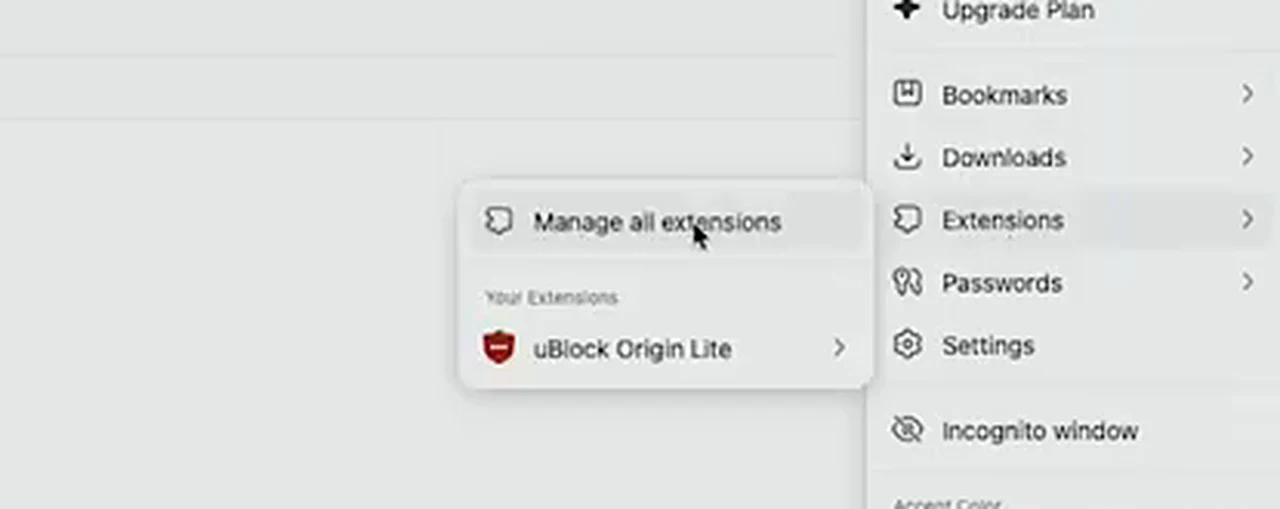
Next, extensions: small add-ons that give your browser one extra ability, like blocking adverts. Atlas can use extensions from the Chrome Web Store. What you are looking at below is the browser menu, with the Extensions entry open. The presenter already had an ad blocker installed, uBlock Origin Lite, and showed how to reach Manage all extensions from the same menu. Atlas does not yet show every Chrome setting, but for everyday reading that did not get in the way.
Watch It Answer a Real Question
The presenter asked a question many people in Bangladesh ask before a big purchase: what does the iPhone 17 Pro Max cost here, and where is it cheapest? First he showed the familiar way: Google, a page of blue links, and opening each shop yourself. Then he asked Atlas. What you are looking at below is the answer: prices in Bangladesh grouped by storage size, plus links called sources showing where each fact came from. A source is the page an answer was drawn from, and it lets you check a claim instead of taking the chat window on trust.
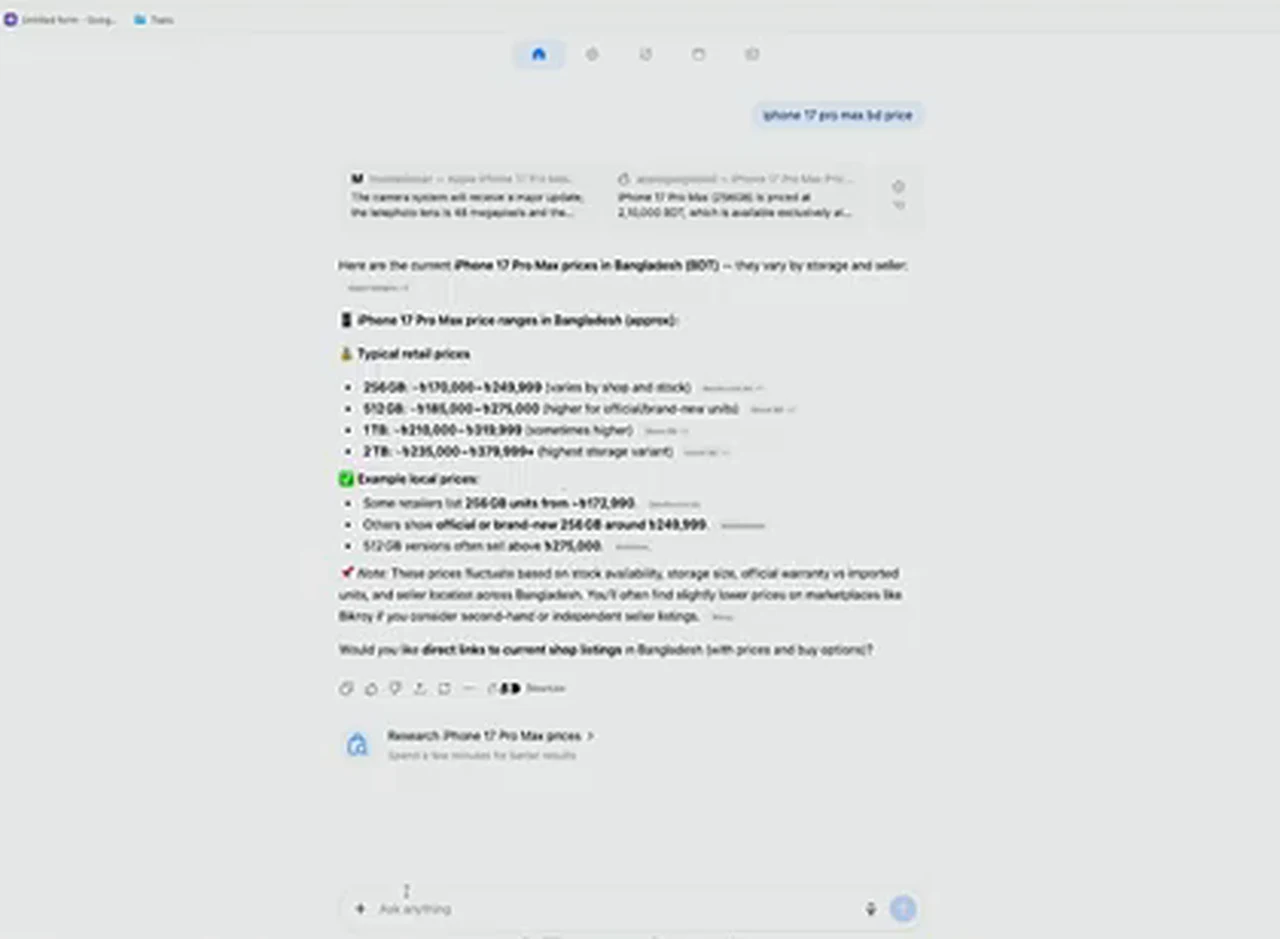
Then he asked for the best price, in English and in Bangla. Atlas searched Bangladeshi shops and quoted Tk 105,990 from a shop called Dazzle, with a link. When the presenter opened the shop link, the price did not match. A chat summary can be out of date within hours, so always open the shop link and read the price there before you pay. One more lesson, about location: Google already knew the presenter was in Bangladesh. Atlas did not, until the question named Bangladesh. Name your country in questions about shops and prices.
Now Ask About the Page You Are Already On
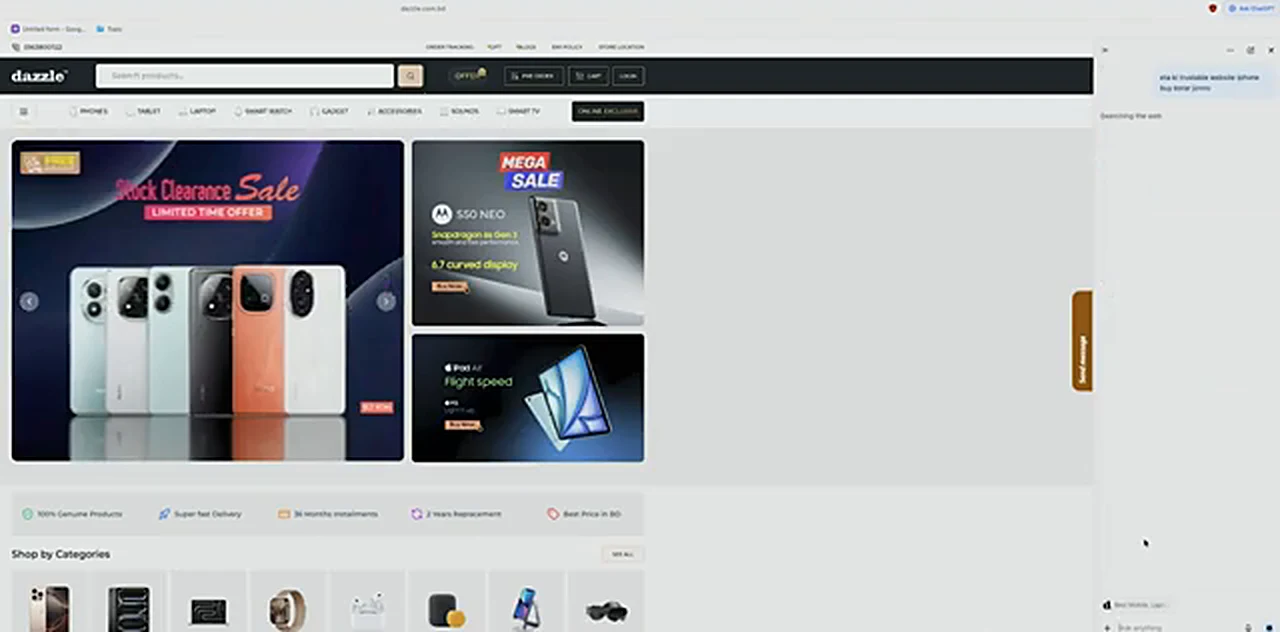
Suppose you are on a shop website you have never bought from. In Atlas, you ask the side panel while the shop page stays open. What you are looking at below is that moment. On the left is the Dazzle shop website, a Bangladeshi online store. On the right, Ask ChatGPT answers a question along the lines of is this a trustworthy website to buy an iPhone from?, gathering signals from the shop site, Facebook, Instagram, YouTube, and other pages, then giving a verdict with sources. A summary of reviews is a starting point, not a guarantee, so read the sources and be extra careful with advance payments.
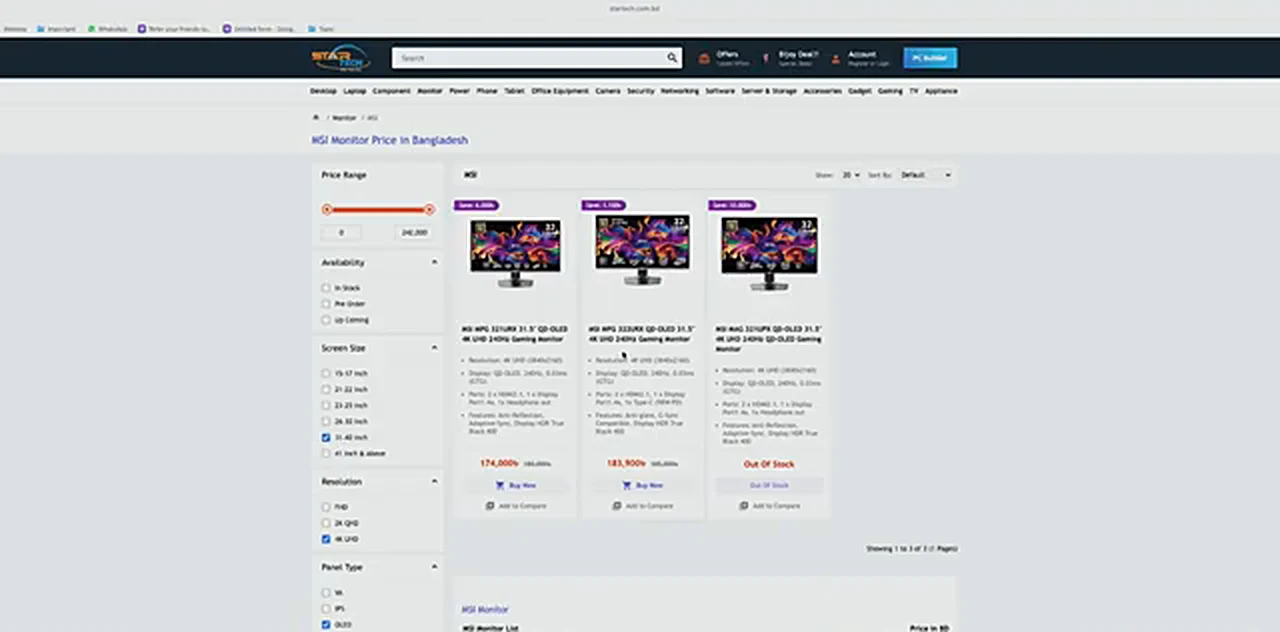
The same help works for comparing products. The presenter opened a page for an MSI gaming monitor, the MPG 321URX QD-OLED, a 31.5-inch 4K screen at 240Hz, and used the panel to find alternatives and get the best price. What you are looking at below is the result: the same monitor from different Bangladeshi shops, prices side by side. When he asked Atlas to order the monitor, nothing happened on the free plan. Ordering and paying belonged to the paid side in the video, so treat hopes for the paid version as expectations, not promises.
Finding Something You Saw Last Week, By Just Asking
You saw a page last week and cannot remember where it was. Normally you would dig through your history, the record of pages you have visited. In the video, the presenter could not find an obvious History button in Atlas. The answer is to ask, in ordinary words, for the page you need, and Atlas searches your past browsing and brings it back, with details of when you visited it. Try it as you would say it to a person: find the monitor page I looked at a few days ago.
Before You Make It Your Everyday Browser: Four Honest Cautions
Atlas is pleasant to use, and it is tempting to move everything into it at once. The presenter warned against exactly that, and his advice is the most important advice in the video.
- Keep banking and crypto out of it for now. Do not sign in to a bank account, payment account, or crypto wallet or exchange inside Atlas until the browser is mature. Use your established browser for money.
- Check every price and fact on the source page. The iPhone price in the video did not match the shop page. Treat every answer as a lead, and open the source link before you act or pay.
- Remember the free limits. Deeper agent jobs, like completing an order, were not available on the free plan in the video. If a feature does nothing, it may be a paid feature rather than a fault.
- Say where you are. Atlas did not always know the presenter was in Bangladesh. Name your country in questions about shops, prices, and delivery.
None of that makes Atlas a bad browser. It makes it a young browser, and young software deserves a trial period. Use it for reading, searching, comparing, and asking questions. Keep money and sensitive accounts in the browser you already trust.
Your First Ten Minutes, In Order
- Search for atlas browser and open the official Atlas result.
- Download Atlas for Mac, install it, and sign in, creating a ChatGPT account if you need one.
- Type one question in the home-screen box, and notice how the answer and sources appear together.
- Open a shop page, open the Ask ChatGPT panel, and ask whether the shop looks trustworthy. Read the sources.
- Ask for the best price on something real, naming Bangladesh, then open the shop link and compare the price yourself.
- Open the menu, look at Extensions, and add one extension you trust from the Chrome Web Store.
- Ask Atlas to find a page you visited earlier, and see how asking replaces hunting through history.
That is the whole tour. You know what Atlas is, how to find it safely, what the home screen asks, how price and trust questions work, and where the free version stops. The presenter’s verdict, after a month and a half of use, was warm but measured: he liked Atlas, preferred the fuller free experience of Comet for the moment, and planned a deeper look once Atlas reached Windows. Worth trying for everyday questions, and worth keeping on a short leash until it has earned your trust.