It always happens on the worst evening. You sit down to get one thing done, and three different programs want your attention first. Chrome says an update is waiting. WinRAR says a new version is ready. A little pop-up in the corner says something else finished downloading an update you never asked for. Each one wants its own download, its own installer, its own restart, and none of them will wait politely. So you click “remind me later” on all of them, and the pile quietly grows for another month.
I lived like that for years, with well over a hundred programs on my computer and no realistic way to track which ones were current. Then I started using one small tool that turned the whole mess into a single screen and a single button. This is the full tour of that tool — what it does, what it does not do, and whether it earns a permanent place on your computer.
Why Updates Pile Up (And Why It Matters)
Software updates arrive in three flavors, and they never arrive together. Security updates close holes that attackers actively use. Patch updates fix crashes and broken features. Performance updates make things faster or lighter. A single program can receive all three in one month, and the average computer runs dozens of programs. Do the math, and you get a new update landing every few days, forever.
Doing it by hand means visiting each developer’s website, finding the right download, running the installer, and saying yes to the same prompts over and over. Some programs update themselves, but plenty do not — and the ones that do usually nag you at the worst moment. So most people postpone updates until something breaks. Outdated software is one of the easiest ways a good computer becomes a vulnerable one, and the fix was never “try harder.” The fix is a tool that does the checking for you.
The Tool: Patch My PC Home Updater
Patch My PC Home Updater is a free updater for home Windows computers, made by the Patch My PC team — the same people behind enterprise patching tools used by IT departments. It scans every installed program, compares each version against the latest release, and shows you exactly what is outdated. Then it downloads and installs the updates for you, one after another, without you babysitting each installer. It also carries a library of hundreds of programs you can install from the same window, plus a startup manager and a simple uninstaller.
One honest note up front: the product has paid tiers. The pricing page lists Patch, Plus, and Premium plans, and the paid plans add things like scheduling and extra automation. But the free download covers the core job — scanning, updating, and installing from the library — and that is more than enough for most home users. This is not a promotion; it is a walkthrough of a genuinely useful tool. Download it only from the official patchmypc.com website, never from a random download mirror.
From Download to First Scan in Four Minutes
Search for “Patch My PC Home Updater” and open the official site. The home page says it plainly: easily install and update apps on your home PC, free to download. You get two download buttons.
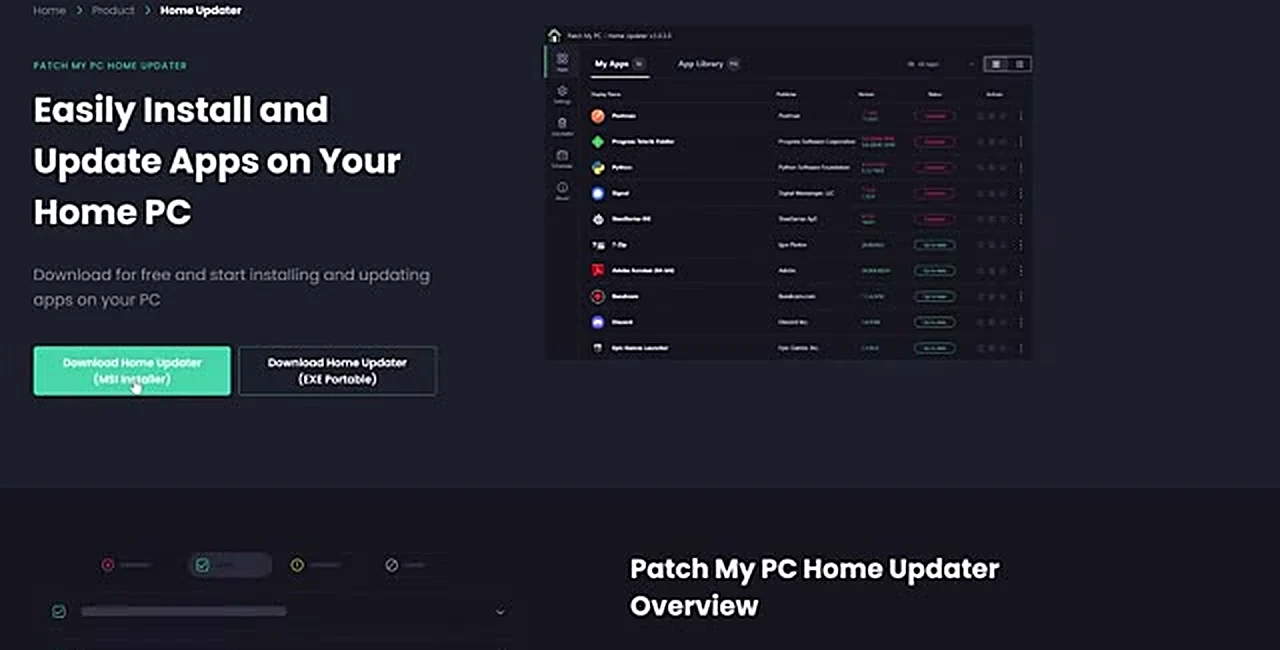
MSI Installer is the right pick for your own computer — it installs the program properly, the way any normal Windows program installs. EXE Portable needs no installation at all: keep it on a USB stick and run it on any computer to check and update software there, without leaving anything installed behind. Both are tiny downloads, a few megabytes. If you only ever use one computer, take the MSI installer and move on.
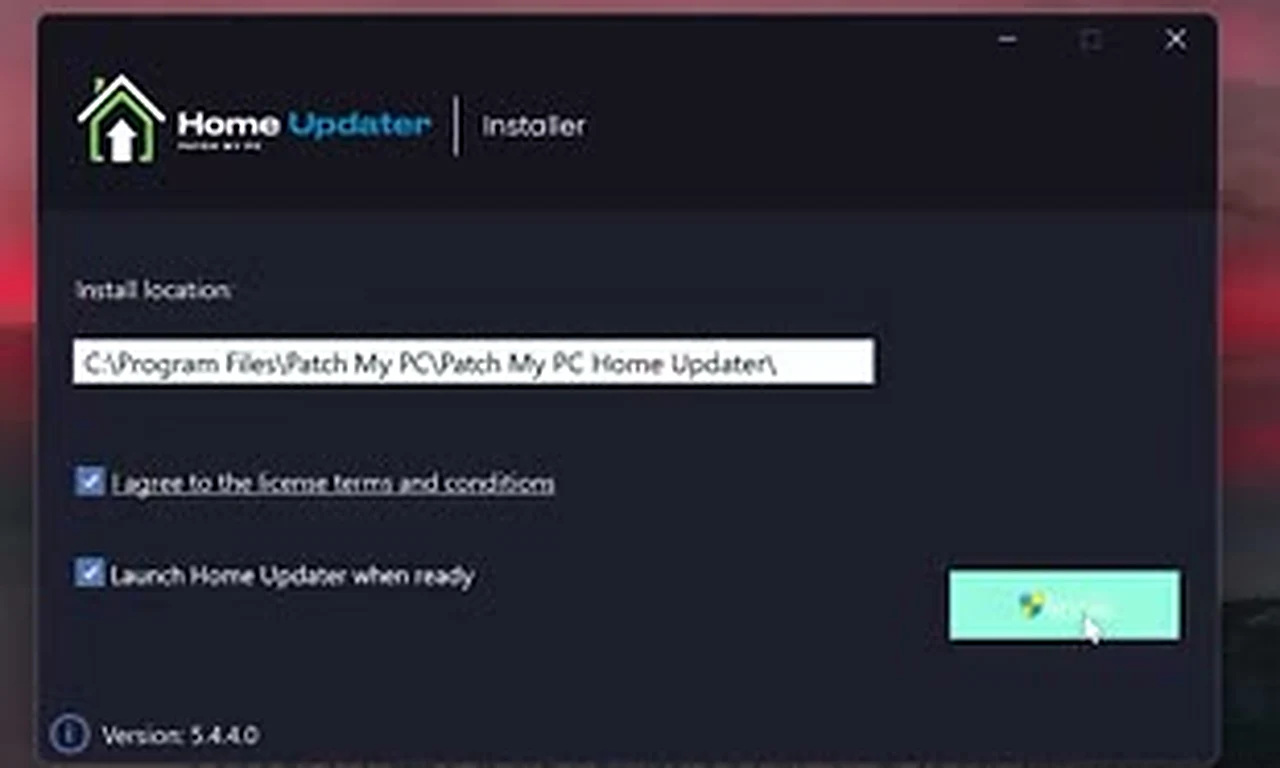
Double-click the installer, tick the box to agree to the license terms, and click Install. Windows will ask for administrator permission — click Yes. The installer finishes in seconds and offers to launch the program right away; leave that box ticked. A moment later you see a scan already in progress, and then the truth about your computer, laid out in a neat grid.
Room One: My Apps — The Dashboard That Tells the Truth
The first tab, My Apps, is where you will spend most of your time. Every detected program appears as a card showing its icon, its name, the version installed, and the newest version available. Outdated programs are marked in red; up-to-date ones in green. In the video, Google Chrome sat there in red — a newer version already out while the installed one lagged behind — alongside WinRAR, qBittorrent, and several others. The Summary panel on the right counts the waiting updates and holds the button that matters: Start Updates.
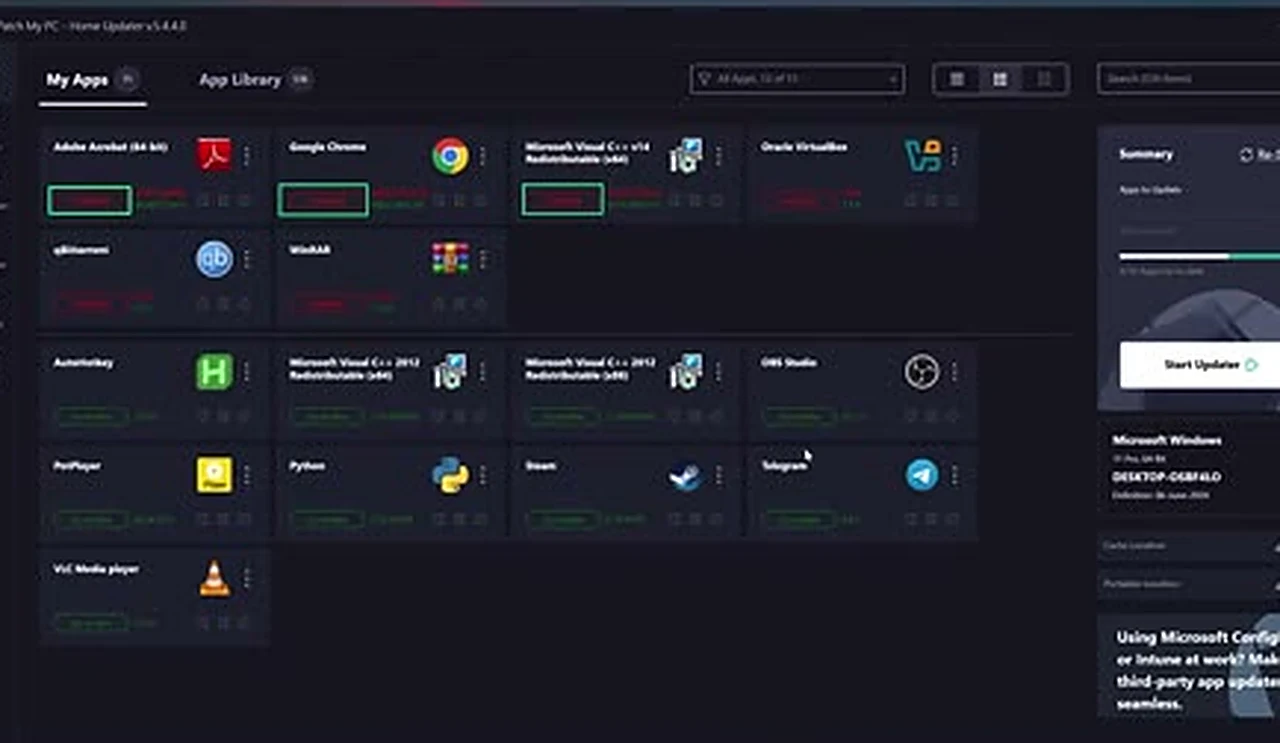
Click it and walk away. The tool downloads each update and runs each installer silently, one after another, and the cards flip from red to green as they finish. No browser tabs, no “next, next, finish” marathons, no bundled offers to decline. A full sweep of a neglected computer takes a few minutes. When it is done, everything on the list is current, and you did exactly one click. Open the program again in two or three weeks and repeat; if an update appears sooner, the program can notify you.
One detail worth knowing: the scan only knows about programs in its catalog. Something rare or obscure may not appear on the list at all — that program simply keeps updating itself the way it always did. The catalog covers the mainstream software most people run, and it grows with every release.
Room Two: The App Library — 550 Apps, One Click Each
The second tab is the App Library, and it quietly replaces a whole afternoon of fresh-install setup. Around 550 programs live here, sorted and searchable: browsers like Brave and Firefox, tools like 7-Zip and Everything, utilities like HandBrake, creative apps like Canva, plus runtimes, messaging apps, and graphics drivers. Scroll the categories or type a name in the search box.
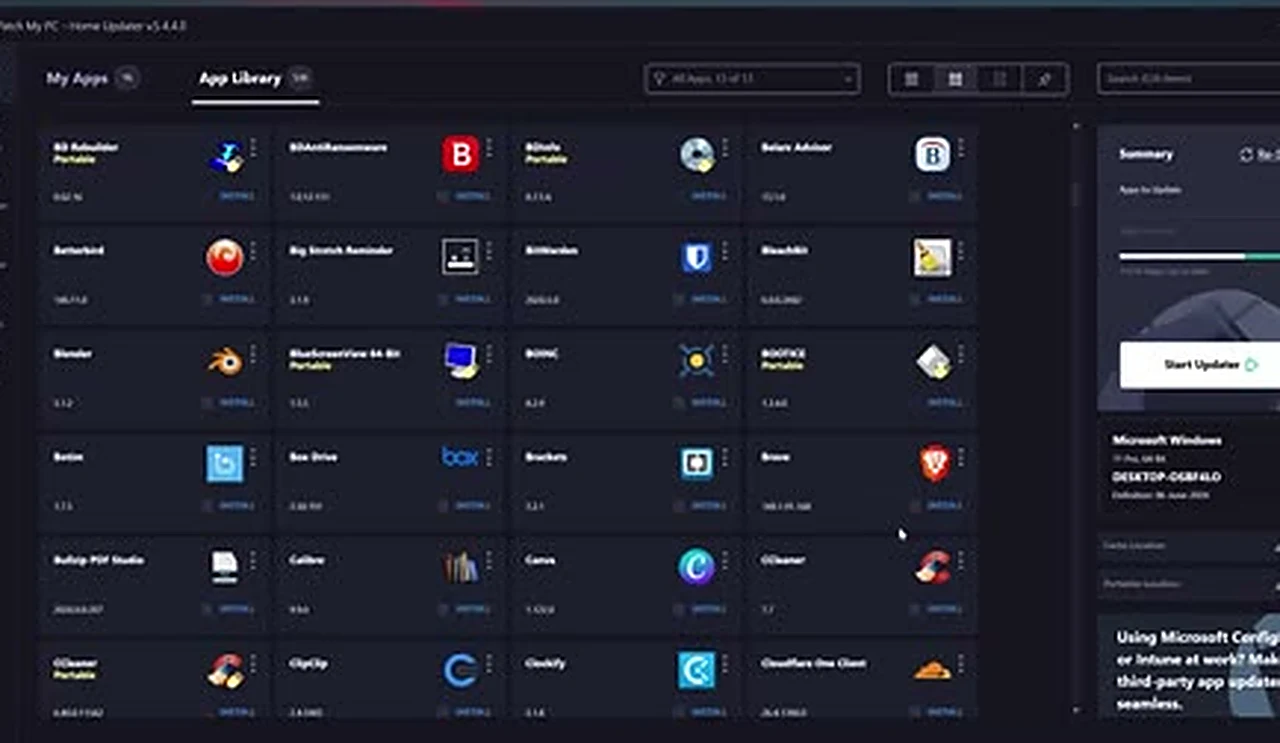
Installing is one click on the program’s Install button. The tool fetches the official installer and runs it silently — you never visit the developer’s website, never hunt for the real download button among the ads, and never uncheck a bundled toolbar. It is the same one-click convenience as the updates, applied to software you do not have yet. The usual new-computer ritual — a dozen websites, a dozen downloads, a dozen installers — becomes a checklist you work through from one chair.
Room Three: Startup — The Boot-Time Bouncer
The Startup tab answers a question most people never ask: what launches itself every time your computer starts? Every row shows a program’s name, publisher, location, and whether it is Enabled or Disabled at startup. Plenty of programs help themselves to a startup slot during installation, and each one adds seconds to your boot and background weight forever after.

Here you can disable anything you do not need at boot, with one click per row. Disabling is not uninstalling: the program still works perfectly when you open it yourself; it just stops inviting itself to every startup. Be conservative — if you do not recognize an entry, leave it alone or look it up first. But the obvious freeloaders, like a chat app you open twice a year, can go. One nice touch: Patch My PC itself shows up in this list, and the presenter keeps it disabled, so the updater only runs when opened deliberately instead of popping up after every boot. That is the right default for a tool you use a few times a month.
Room Four: The Uninstaller — Out With the Old
The last tab is the Uninstaller: a clean list of installed programs with version, publisher, and install date, plus a search box for long lists. Select a program and uninstall it from here instead of digging through Windows Settings. It runs the program’s own uninstaller, so the result matches the normal route — just faster to reach.
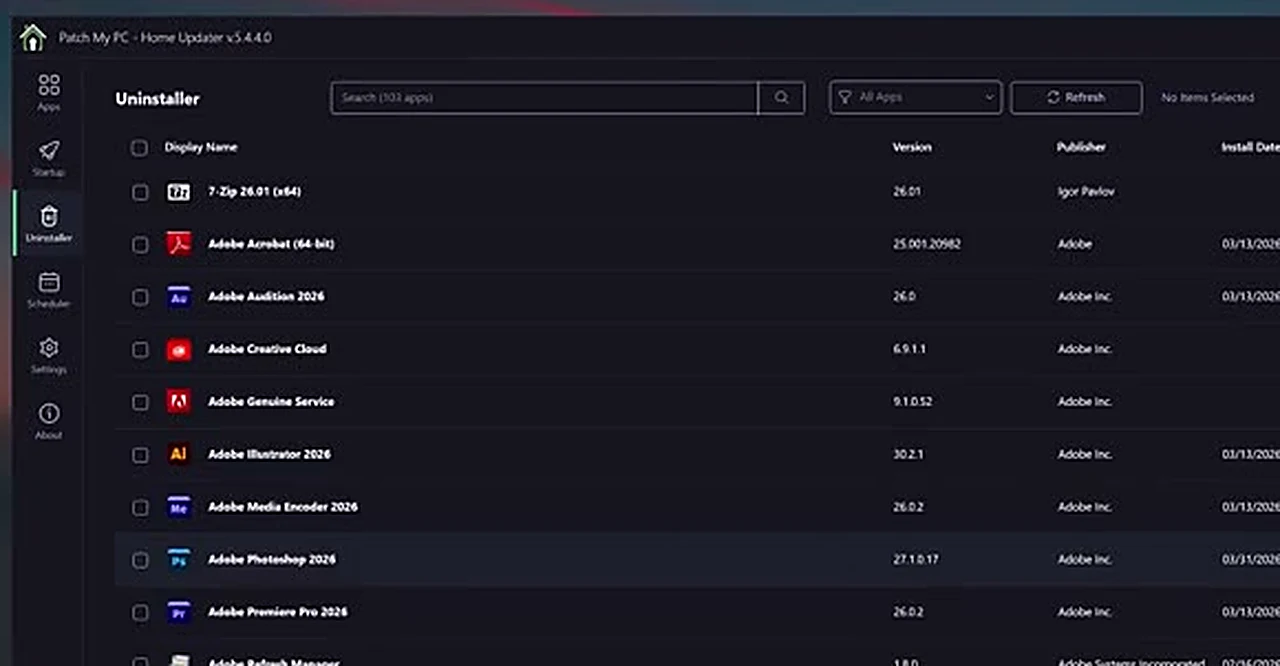
Be aware of its limit: a standard uninstall often leaves leftovers — empty folders, stray registry entries, leftover shortcuts. For a truly thorough removal, a dedicated tool like Revo Uninstaller is still better, because it hunts down those leftovers afterward. Think of this tab as the quick option for everyday removals, not the deep cleaner. And never uninstall something you cannot identify; if a name means nothing to you, search it before you remove it.
The Fresh Windows Playbook
Here is where the tool earns its keep twice over. After a clean Windows install, the ritual is always the same: browser, archiver, media player, runtimes, messaging apps, a dozen websites, a dozen installers, and a first round of updates a week later. With this tool, install Patch My PC first, open the App Library, and work down your list. Browser, 7-Zip, VLC, qBittorrent, Python, Steam, Telegram — one click each, installed silently while you do something else. Then flip to My Apps and let it verify everything is the newest version. A setup that used to eat an evening fits into a coffee break, and the same tool stays on the computer to keep everything current.
It also suits the family-support role most of us hold: install it on a relative’s machine, show them the one button, and a rescue visit becomes a two-minute check — red means old, green means current.
The Honest Limits
No tool does everything. First, it is not Windows Update: system updates, Windows drivers, and Microsoft Store apps live outside its world, so keep Windows Update running as usual. Second, its catalog is large but not infinite; rare software will not appear and still needs its own update habits. Third, scheduled automatic updating is a paid feature, so free users open the program on their own rhythm — every two or three weeks is plenty. Fourth, the uninstaller is basic, as noted above. Finally, the usual safety rule applies: get it from the official site only. A fake “updater” is one of the oldest tricks for delivering malware, so if a search result offers this tool from anywhere but patchmypc.com, close the tab.
The Verdict
Most utility software promises to save time and then demands attention of its own. Patch My PC Home Updater is the rare exception: one click every few weeks, and everything is current — no nagging, no website-hopping, no installer marathons. The free version covers the whole core job, the library makes fresh installs painless, and the startup and uninstall tools cover the maintenance most people never get around to. Install it, run your first scan, and watch a month of postponed updates finish themselves. Then forget about it until next month — that is rather the point.
Frequently Asked Questions
Is Patch My PC Home Updater really free?
Yes, the core features — scanning, updating, and installing from the App Library — are free to download and use. Paid tiers add extras like scheduling, but the free version is fully usable and is what this guide covers.
Is it safe?
Yes, when downloaded from the official patchmypc.com website. It fetches updates from the vendors’ own official sources and runs installers silently, skipping bundled offers. Avoid copies from other download sites.
Does it replace Windows Update?
No. It updates third-party desktop software only. Windows itself, Store apps, and drivers still come through Windows Update, which you should leave enabled.
What is the difference between the MSI installer and the portable version?
The MSI installer installs the program on your computer like any normal software. The portable EXE needs no installation — run it from a USB stick on any computer to scan and update that machine without leaving anything behind.
How often should I run it?
Every two to three weeks, or once a month, is enough for most people. Open it, click Start Updates, and let it finish. The paid version can run on a schedule automatically.