An older computer can leave you stuck between two bad choices. Windows 10 is getting harder to live with, the machine may not support Windows 11, and wiping everything for Linux feels reckless when your printer, your games, and that one Windows-only program still matter. The better answer is to keep both: install Zorin OS beside Windows 11 and choose which system starts each time. This guide does it with a USB pendrive, and it branches to match your setup instead of assuming your computer looks like someone else’s.
Start Here: Which Situation Are You In?
Answer four questions before you download anything. Two minutes here saves an hour of undoing a wrong turn later.
1. Do you have a spare USB pendrive?
If yes, stay here: this guide builds a bootable pendrive with Rufus. If no, use the different method that turns a small partition on your hard disk into the installer, covered in the no-USB Zorin OS dual-boot guide on this site. Mixing the two methods halfway through leaves installs half-finished, with no boot menu.
2. Is your disk GPT or MBR?
Rufus must match the disk Windows already uses: UEFI systems use GPT, older Legacy systems use MBR. Guess wrong and the pendrive may refuse to boot.
3. Where will Zorin OS live?
It needs its own free space, 30 to 50 GB at least, made by shrinking your main drive or by handing over a spare partition or an old Linux install. Branch 2 covers both roads.
4. What if only Windows starts after the install?
That is usually a boot-order problem, not a failed install, and Branch 4 fixes it from the BIOS.
One warning covers every branch: back up anything you cannot afford to lose before you touch partitions. The steps below leave Windows alone, but one wrong click on the installation-type screen can erase a whole disk. Copy photos, documents, and work files to another drive or cloud storage first, while Windows still boots normally.
Watch the Whole Process First
The video below shows the full install on a real machine, including the phone-recorded BIOS screens. Watch it once through, then follow the branches at your own pace.
Branch 1: If You Have a Pendrive, Build It With Rufus
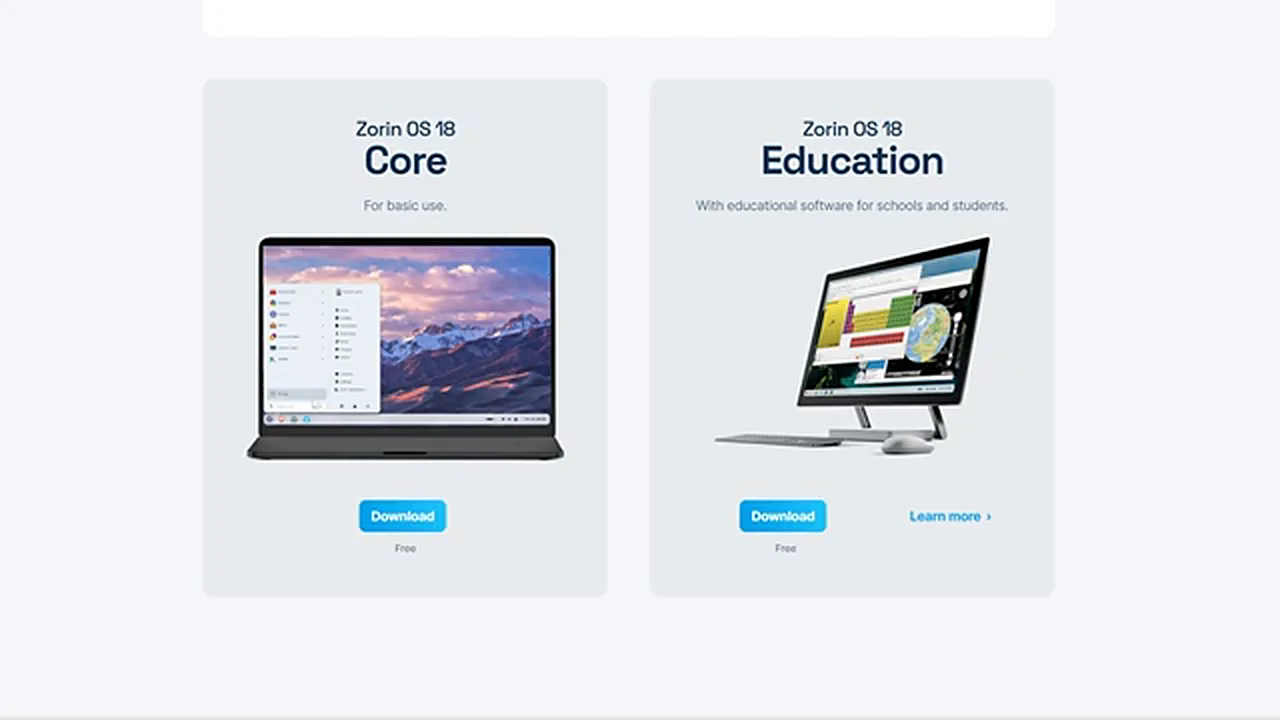
Open the official Zorin OS website and go to the download page. The paid Pro edition appears first, so skip it: you want the free Core edition, the everyday version most people need. The site may ask for an email address; you do not have to give one, choose the skip option and the download starts. The file is several gigabytes, so let it finish completely. A half-downloaded file makes a pendrive that boots halfway and then stops, and that looks exactly like a hardware problem.
Before Rufus, check your disk. In Computer Management, go to Disk Management, right-click the disk where Windows lives, choose Properties, open the Volumes tab, and read Partition style: GPT means UEFI, MBR means Legacy. Check the disk that holds Windows, not a storage disk.
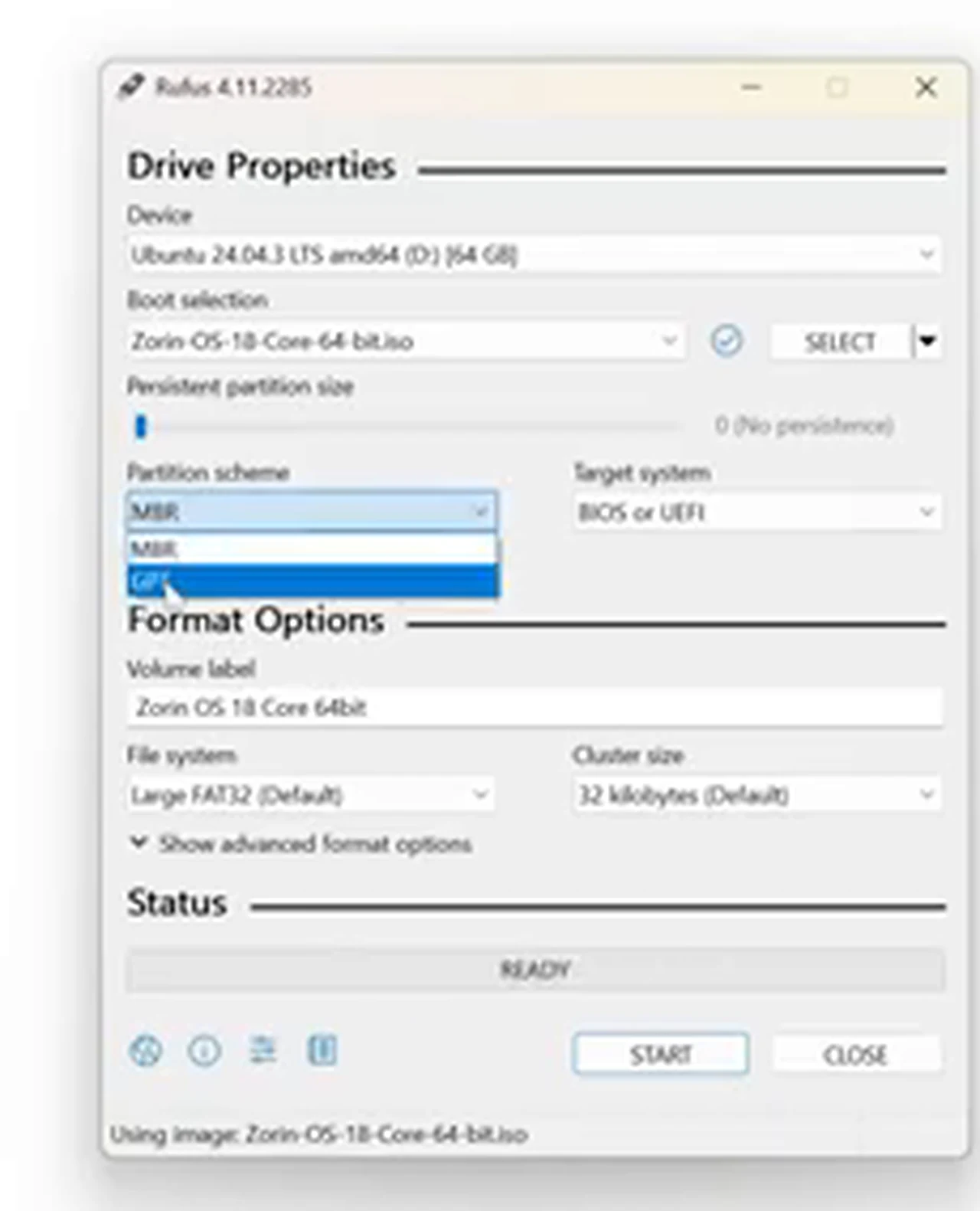
Download Rufus from its official website; the latest version is the first download on the page. Connect the pendrive, open Rufus, and click Select to choose the Zorin OS file. Under Partition scheme, pick GPT for UEFI or MBR for Legacy, leave the other settings alone, click Start, and confirm the erase prompts. Everything on the pendrive will be wiped.
Branch 2: If You Need Space, Shrink a Drive or Reuse One
Back in Disk Management, look at your drives. Windows sits on the C: drive on an SSD, with a hard disk for storage. The SSD had room to spare, but a second disk works just as well. What matters is unallocated space belonging to no drive yet. Zorin OS goes there; Windows keeps the rest.
Road A: Shrink the drive Windows uses
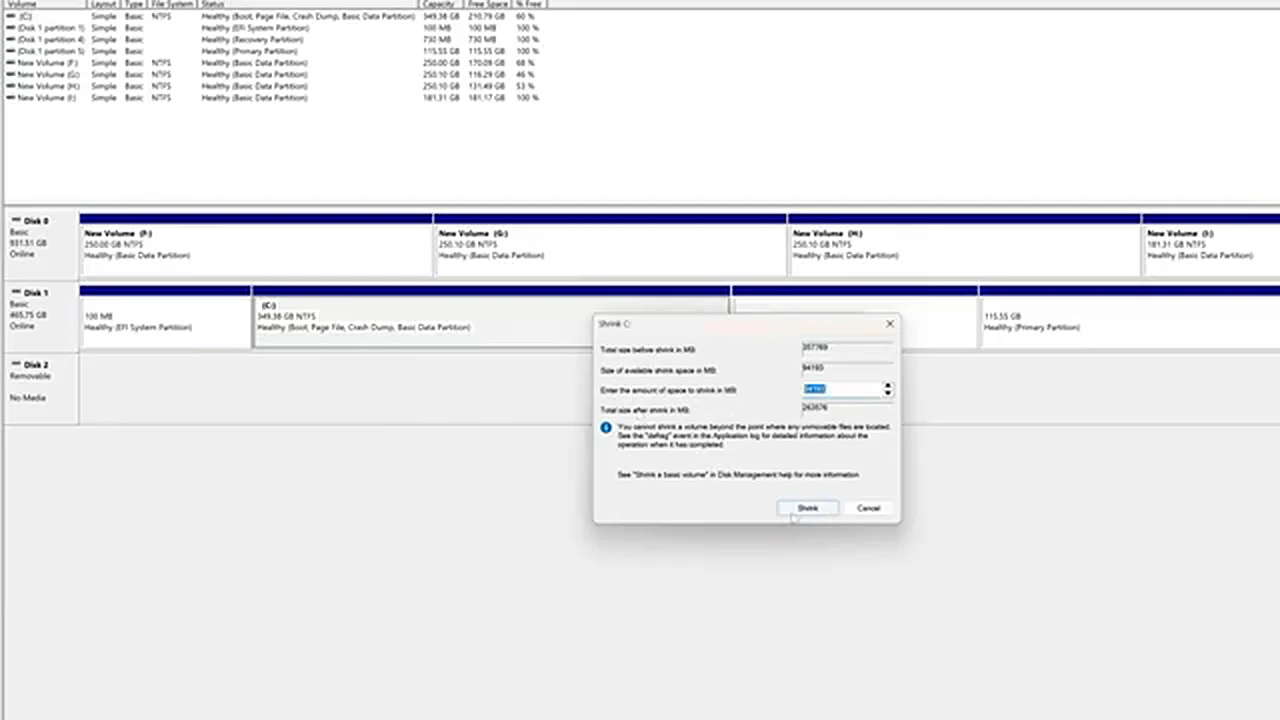
Right-click the drive with room to spare and choose Shrink Volume. The video works with about 94 GB available on a 350 GB drive and plans for 50 GB. Windows asks for megabytes, so multiply gigabytes by 1024: 50 GB is 51200 MB. Type that number in and click Shrink. Do not format the resulting unallocated space or give it a letter. Leave it empty; that is where Zorin OS goes.
Road B: Reuse a spare or retired partition
If you already have a partition you do not need, the video shows the other road. A 115 GB partition held an old Ubuntu system that was no longer used, with nothing else on it. Right-clicking it and choosing Delete Volume turned it into free space in seconds. Only take this road if you are certain the partition holds nothing you need: deleting a volume removes the system on it, with no undo. If it holds anything you still use, take Road A instead.
Either road ends with free space visible in Disk Management and Windows still booting normally.
Branch 3: If You Do Not Know Your Boot Key, Find It Before You Restart
Every motherboard has a key for the boot menu and a different key for BIOS setup. You need the boot-menu key. On the Gigabyte board in the video, F8 opens the boot menu and Delete opens the BIOS. On other boards it is often F12, F11, or Esc. If you do not know yours, search the web for your model plus the words boot menu key before you restart. Keep the pendrive plugged in, restart, and tap the key repeatedly the moment the screen goes dark; the menu only waits a few seconds.
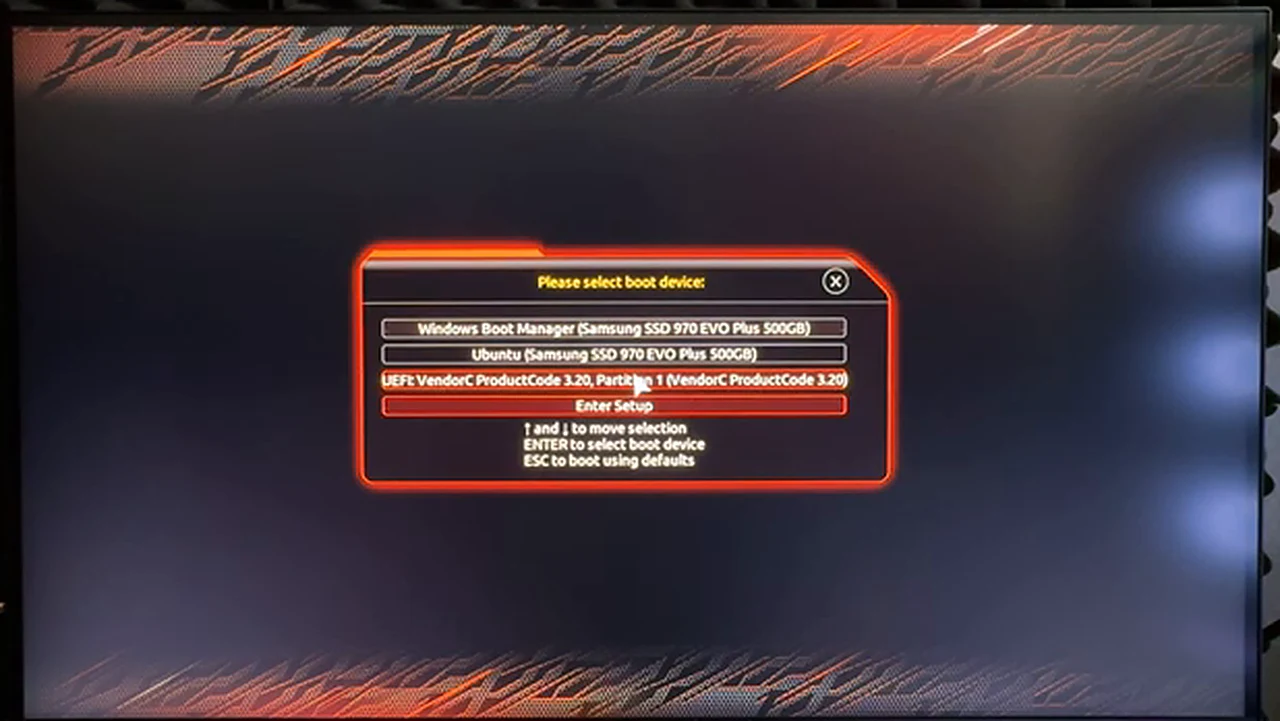
In the menu you will see Windows Boot Manager and, below it, the pendrive, listed as a UEFI device; in the video it is the third entry. Select it and press Enter, then keep Try or Install Zorin OS selected and press Enter again. Zorin OS loads into a live desktop from the pendrive. Nothing is installed yet, so check Wi-Fi, mouse, and screen before you commit.
The Shared Core: Install Zorin OS Into the Free Space
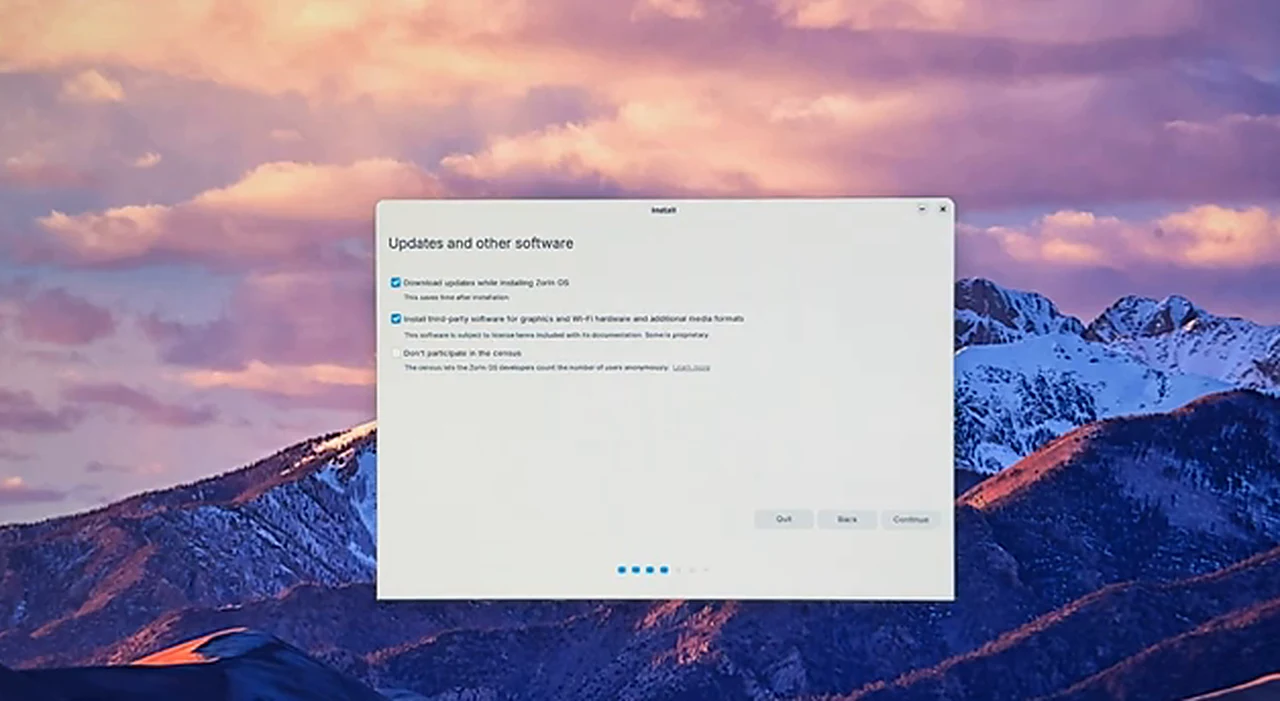
Every branch now joins the same road. Click Install Zorin OS, keep English, and click Continue. Choose the English (US) keyboard layout; if you use a different layout at home, change it here, because the wrong layout makes passwords behave strangely. A wired connection is already active in the video, so no Wi-Fi is joined; on Wi-Fi, join it or skip it, as the install works offline. Next, keep both boxes ticked: download updates while installing, and install third-party software for graphics, Wi-Fi, and media formats.
Now comes the screen that decides whether Windows survives. The installer offers three choices: install alongside Windows Boot Manager, erase the disk and install Zorin OS, or Something else. This guide deliberately takes Something else, because the manual route lets you point the installer at the exact free space you prepared instead of letting it guess. Never choose erase unless you truly want Windows gone; it formats the whole disk. Read this screen slowly, choose Something else, and click Continue.
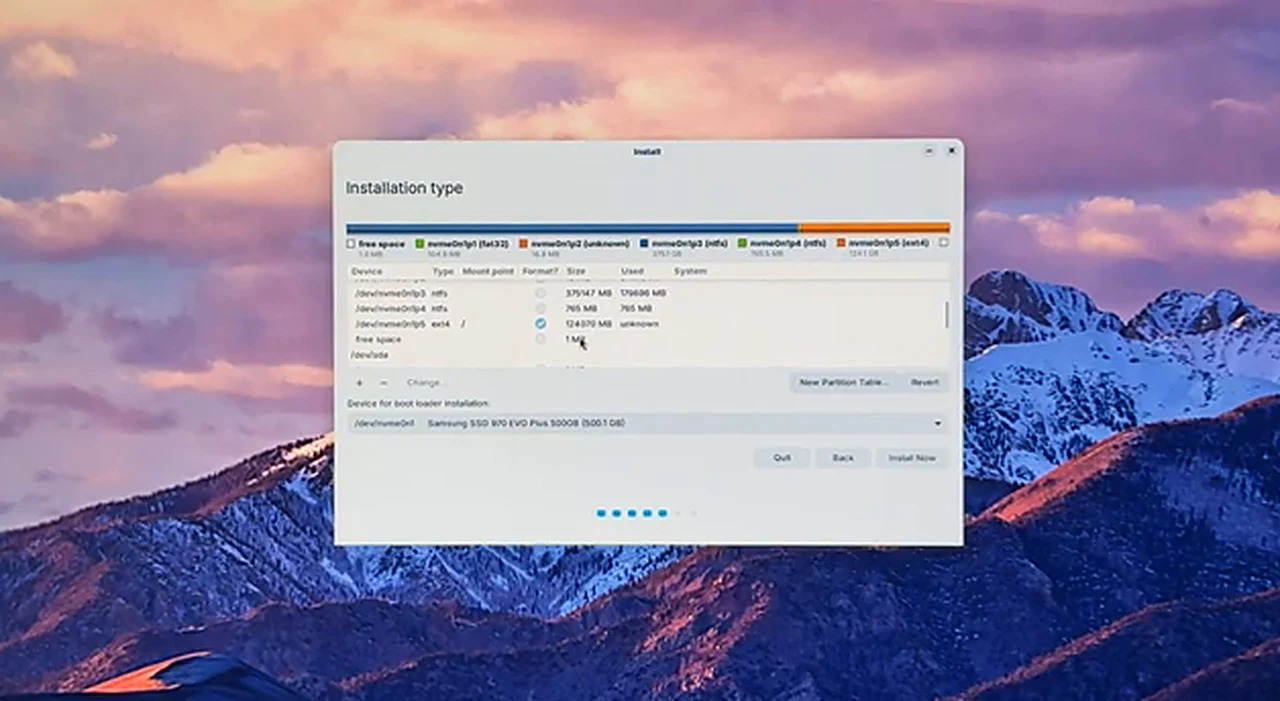
In the partition table, find the free space from Branch 2; on the video machine it is the free space on the SSD. Select it, click the plus button, leave size and type as they are, and set only the mount point to /, marking it as the root of the new system. Click OK. Check the line at the bottom: Device for boot loader installation must point at the installing disk, the SSD here, not the storage hard disk, or the boot menu may never appear. When both look right, click Install Now, confirm, set the time zone to Dhaka, and complete the ‘Who are you?’ details.
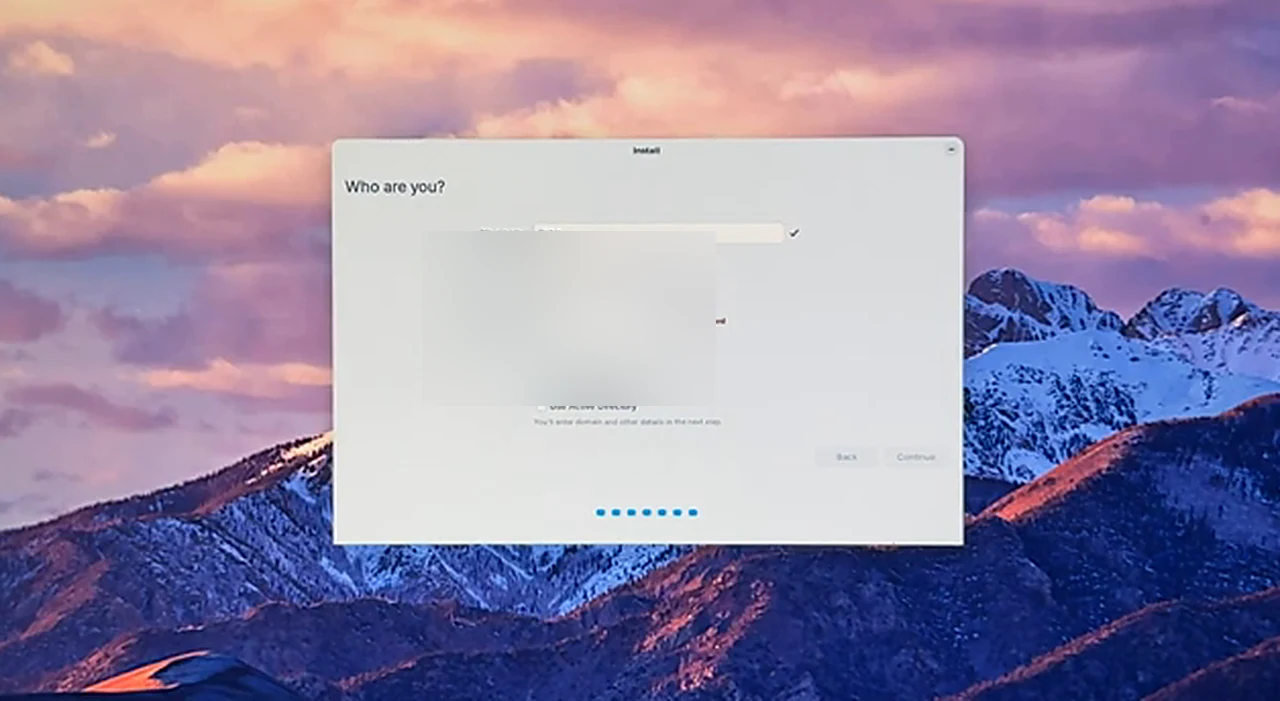
Type your name, let the installer suggest a computer name, pick a username, and choose a password you will remember. The video uses a short password only because the install will not be kept long; do not copy that habit. Pick a real password, and keep the option set to require it at log-in. The name and password in the screenshot are blurred, and yours should stay private too: never share a screenshot of this screen with the fields filled in. Click Continue and leave the machine alone while files copy. When it finishes, click Restart Now, remove the pendrive when told to, and press Enter.
Branch 4: If the Menu Appears, Choose. If Only Windows Starts, Fix the Order
Road A: The boot menu appears
The boot menu, often called GRUB, lists Zorin OS first and Windows Boot Manager below it. Select Zorin OS, press Enter, and log in. Zorin OS opens and offers a short tour; the video declines it and goes to Settings. Open the file manager: the hard disk and its files are still there, readable from Zorin OS. That proves the dual boot worked without harming Windows.
To switch to Windows, shut Zorin OS down, wait for the machine to start again, and choose Windows Boot Manager from the same menu. Windows 11 opens as normal. From now on, every start is a choice: if you do nothing for about ten seconds, the menu picks Zorin OS on its own, so select Windows within those ten seconds if you want it.
Road B: Only Windows starts, and there is no menu
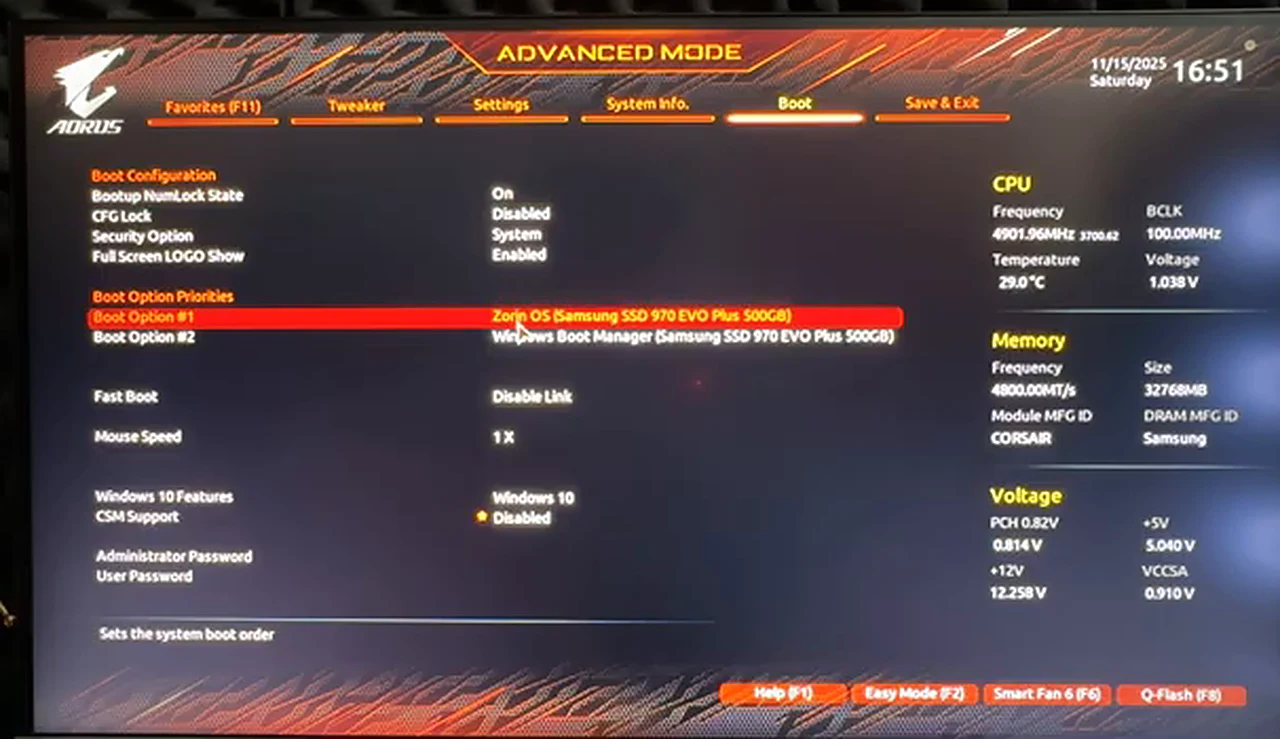
Do not reinstall. Restart, open the BIOS with its key, Delete on the Gigabyte board in the video, and go to the Boot tab. Under Boot Option Priorities, look at Boot Option #1. If it says Windows Boot Manager and Zorin OS sits second, Windows will always win and you will never see the menu. Move Zorin OS first so it loads first and offers the menu, with Windows second. In the video the order is already correct, so nothing is changed, and the BIOS is left with Exit Without Saving. If you changed the order, save and exit instead, restart, and the menu should appear.
Living With Both: What Changes, and What Does Not
Zorin OS is light and quick on older hardware. The desktop is calm and ordinary files open without fuss, but one limit matters: Windows programs do not simply install on Linux. Most software needs a Linux version or an alternative, and some setup needs terminal commands. If your work depends on one Windows-only program, keep Windows as your main system. If it is browsing, documents, and media, Zorin OS may become the system you boot into first.
Two habits keep a dual boot healthy. Never delete the Zorin OS partition from Windows Disk Management, and never format the small EFI system partition: either can break the boot menu for both systems. Before a major Windows update, keep your boot-menu and BIOS keys handy; an update can put Windows back at the top of the boot order, and the fix is the BIOS visit from Branch 4, not a fresh install.
That is the whole map: a pendrive built to match your disk, free space made by shrinking or reusing a partition, a boot key found before the restart, a manual install pointed at the free space with the mount point set to /, and a boot order that puts Zorin OS first. Answer the four questions at the top, follow the branch that matches your machine, and the shared core does the rest. If you get stuck, note the exact screen and message: the fixes for a Rufus error, a missing pendrive, and a missing menu are three different fixes, and the screen tells them apart.