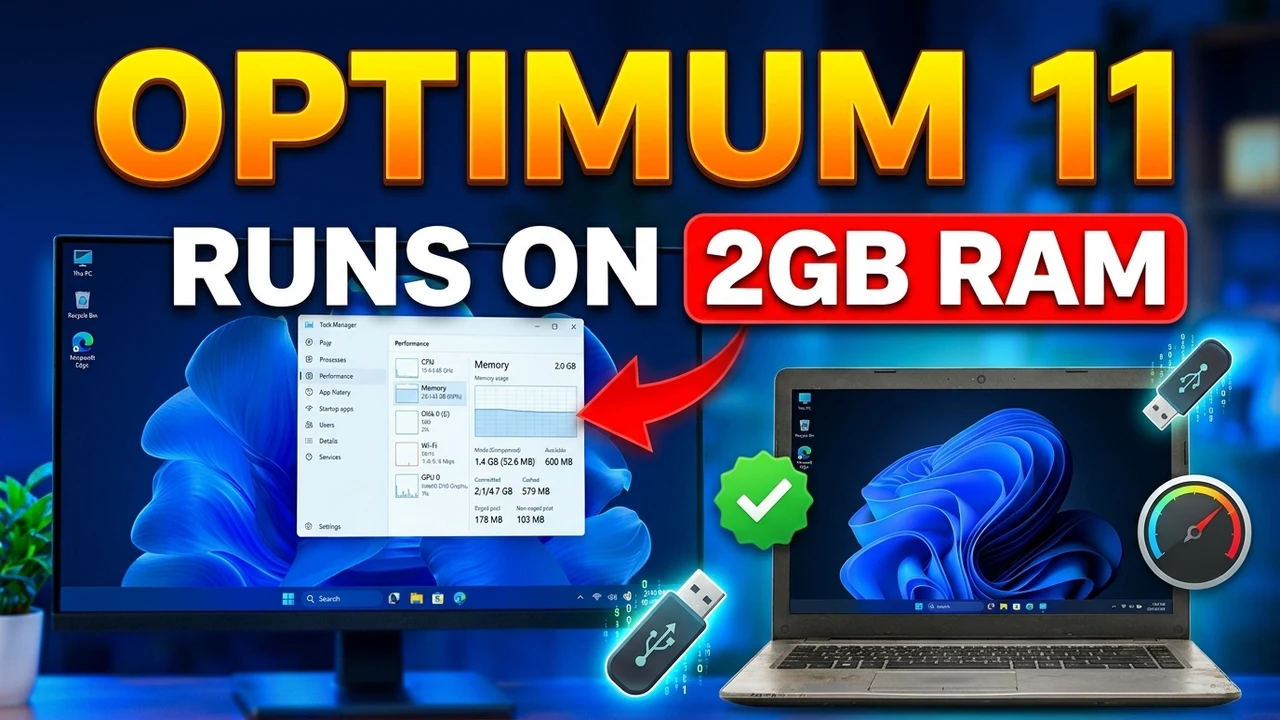
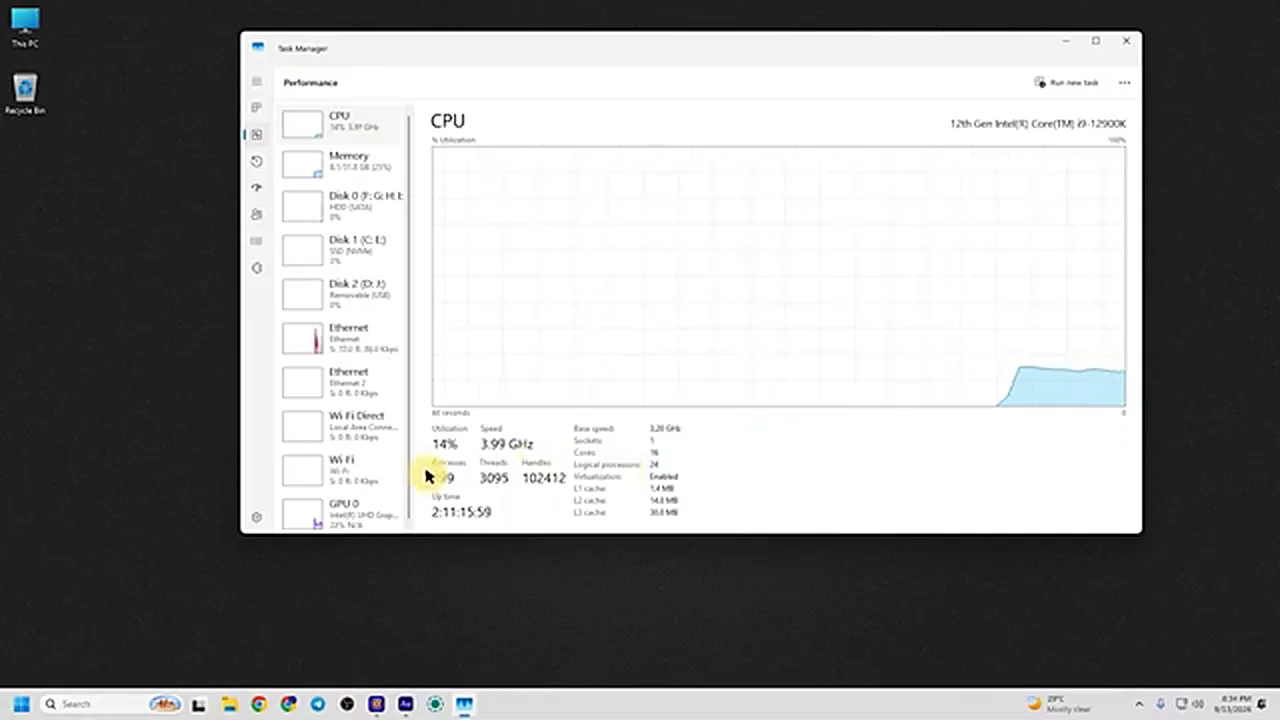
Here is a depressing sight every owner of an old computer knows well. The machine has just booted. Nothing is open. You have clicked absolutely nothing — and Task Manager already shows 199 processes running and memory being eaten alive. That is official Windows 11, idling. Now imagine that same behaviour on a machine with 4 GB of RAM, or 2 GB. It does not crawl; it gives up.
It is not even only about speed. On a lot of that older hardware, official Windows 11 will not install at all: Microsoft’s requirements demand TPM 2.0, Secure Boot and a fairly modern processor, and plenty of perfectly serviceable machine from a few years ago fail at least one of those checks. So the owner faces a short menu of bad options — stay on an ageing Windows 10, wrestle with bypass tricks, or replace hardware that still works. That is the gap this lightweight build walks into.
This guide is about the escape hatch: Optimum 11, the lightweight Windows 11 build from the Windows X-Lite team — in this case their 26H1 Pro release. It is made for exactly the machine described above: an older laptop or desktop with 2, 4 or 6 GB of RAM that official Windows 11 either refuses to install on, or technically installs on and then runs like it is moving through wet cement. Below is the full install, exactly as it happens — plus an honest section at the end about who should not use it.
What Optimum 11 Actually Is
Optimum 11 is not a theme or a tweaking script. The X-Lite team takes Microsoft’s own Windows 11 file, decodes it, rebuilds it with the unnecessary weight stripped out — background services, bundled extras, features most people never touch — and releases the result as a ready-to-install ISO. The team has been publishing these builds for three to four years, and the presenter in the video below says he has run Optimum builds long-term on his own old 4 GB laptop without issues.
One honest warning before anything else, because it matters: this is not an official Microsoft product. It is a modified build made by a third-party team. The video itself gives the same advice — if you are highly strict about security, skip this and install official Windows 11 instead (our full official install guide, including the unsupported-hardware route, covers that path). For a spare machine, a media PC, or an old laptop that would otherwise go to landfill, the trade-off is a different conversation. Know which one you are having.
The Difference, in Numbers
| Official Windows 11 | Optimum 11 (X-Lite) | |
|---|---|---|
| ISO size | Roughly 8 GB | Roughly 2.5 GB |
| Processes at idle | ~199 (in the video’s test) | ~60–90 |
| Hardware checks | TPM, Secure Boot, RAM minimums | Already removed in the ISO |
| First boot | Long setup: account, privacy, offers | Straight to the desktop |
| Windows Defender | Always on | Your choice during setup: on or off |
Those are the project’s figures and the video’s measurements, and the install below lets you see most of them with your own eyes. You will need three things: the Optimum 11 ISO (from the Windows X-Lite website — search “Optimum 11”), the free Rufus tool, and a pen drive of 8 GB or more. And the standard warning, in bold because it is the one that bites people: the install formats your C drive. Back up anything on it that you care about.
Making the Bootable Pen Drive
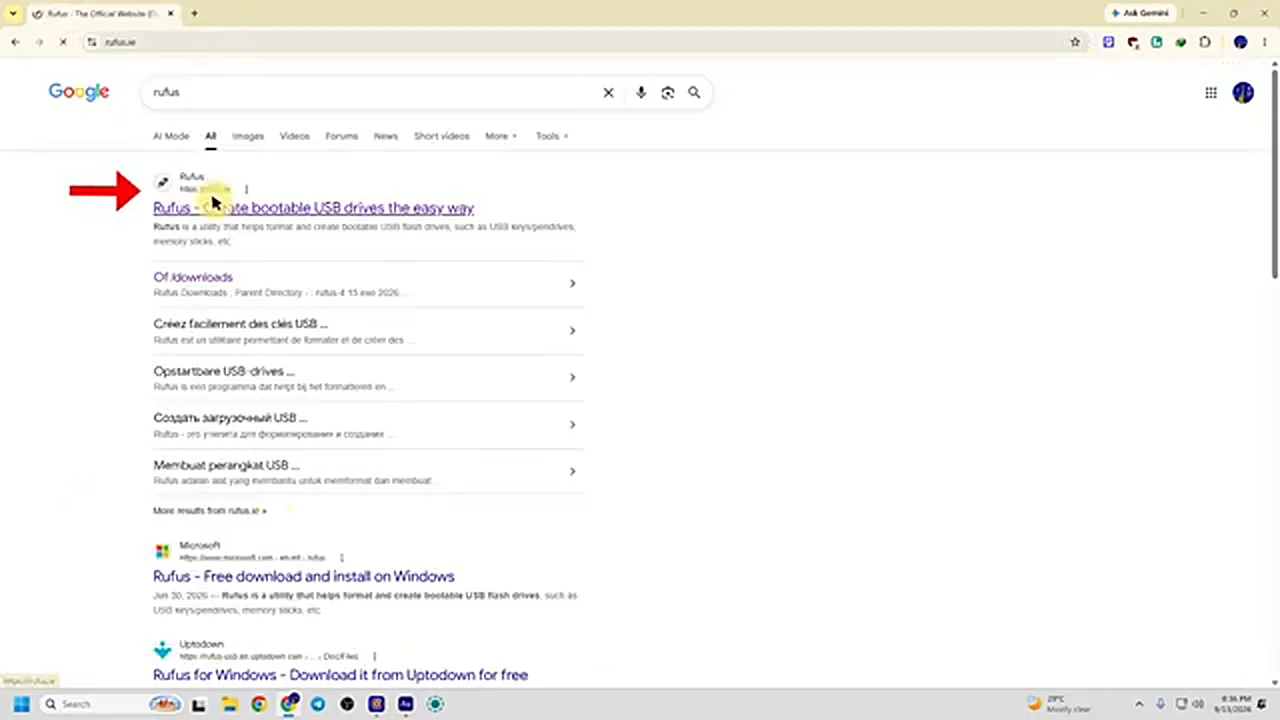
Start with Rufus — download the latest version from its official site and run it. It needs no installation. Connect your pen drive, then in Rufus click SELECT and choose the Optimum 11 ISO you downloaded; the pen drive is picked up automatically as the device.
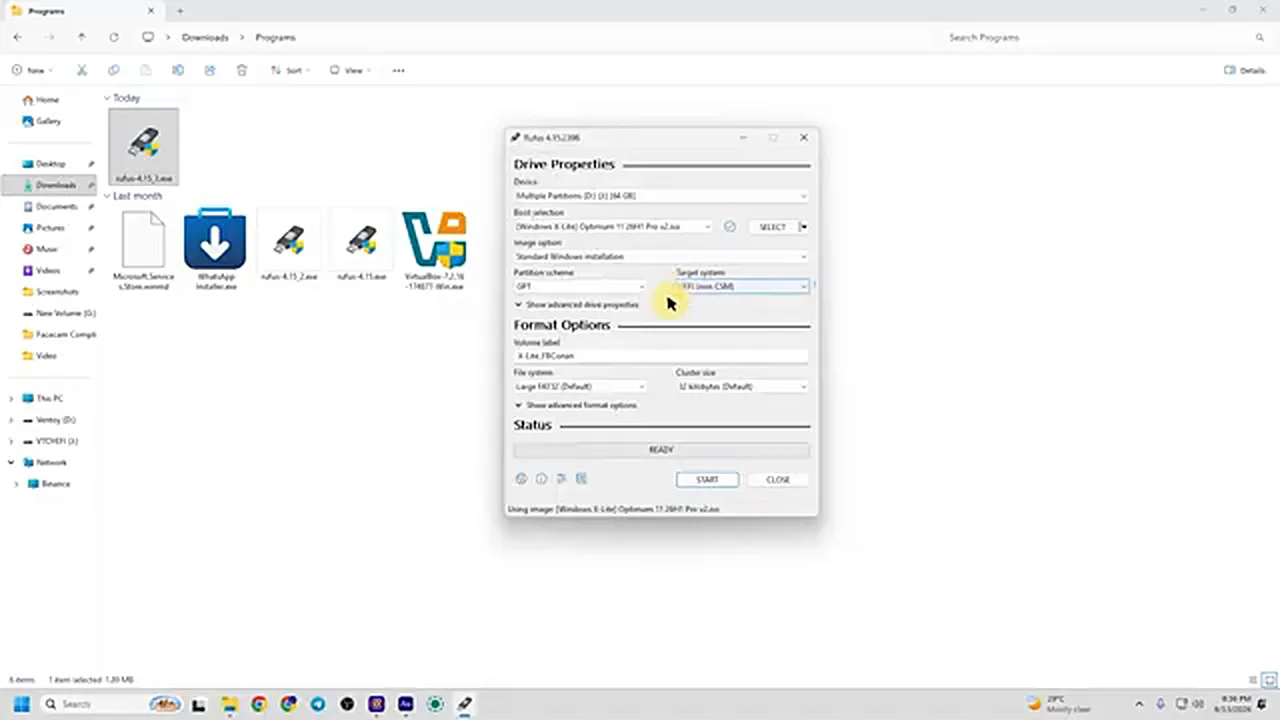
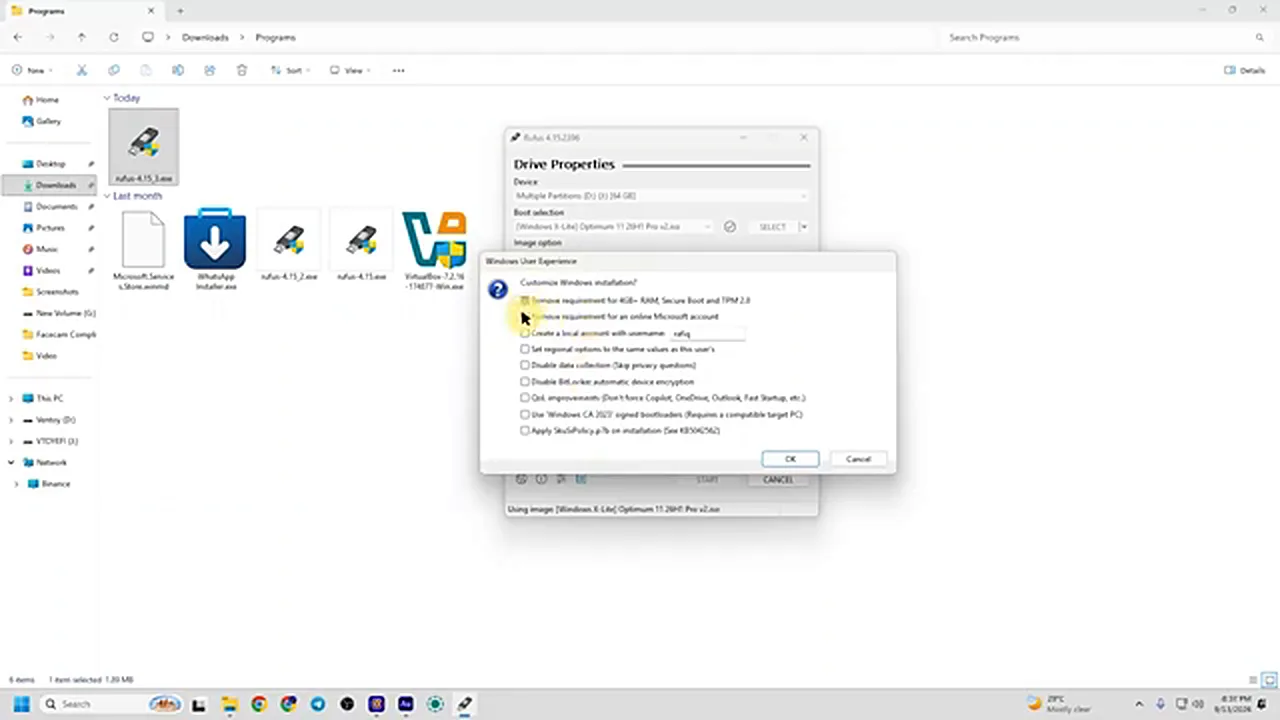
Leave the partition scheme on GPT — this is Windows 11, after all — and press START. Rufus then shows its usual “Windows User Experience” dialog with options for removing hardware requirements and the Microsoft account. Here is the pleasant surprise: with this ISO, those boxes are decoration. The requirements were removed by the X-Lite team when the build was made, so there is nothing for you to configure. Just press OK through the dialogs.
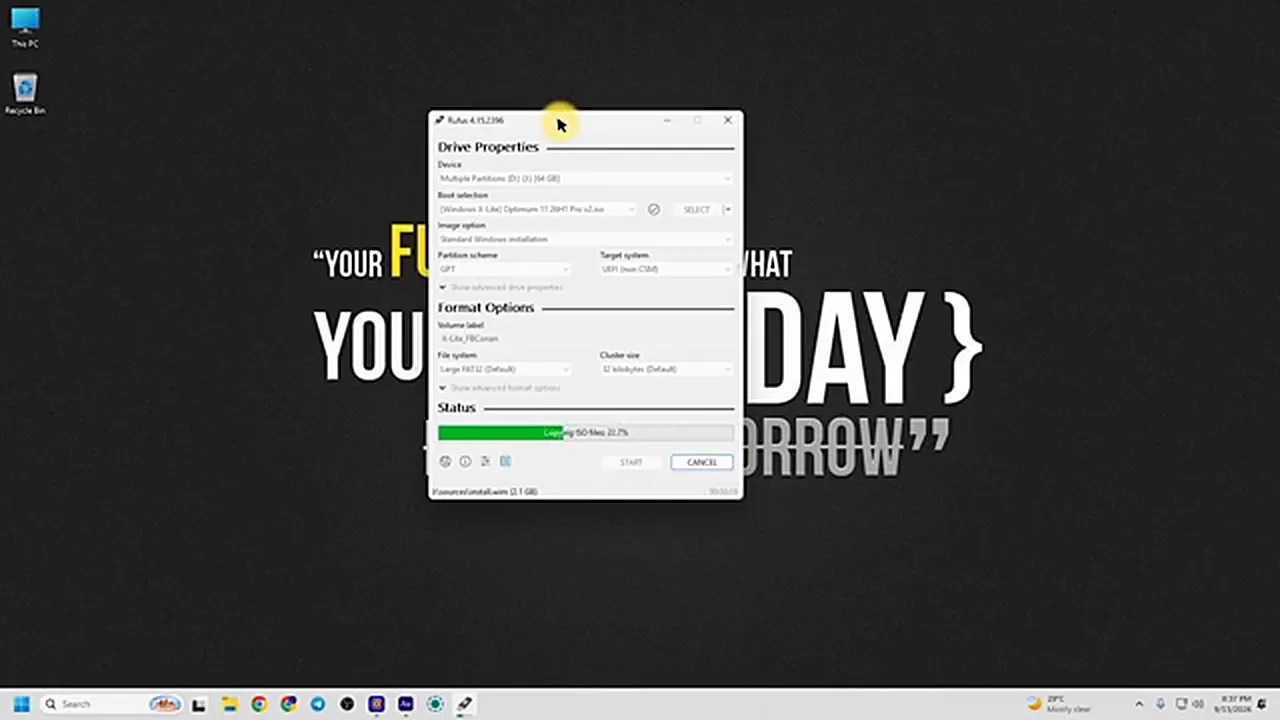
Wait for the progress bar to finish and the status to say READY. Your bootable pen drive is done, and because the ISO is only about 2.5 GB, this part is noticeably quicker than with the official image.
Booting From the Pen Drive
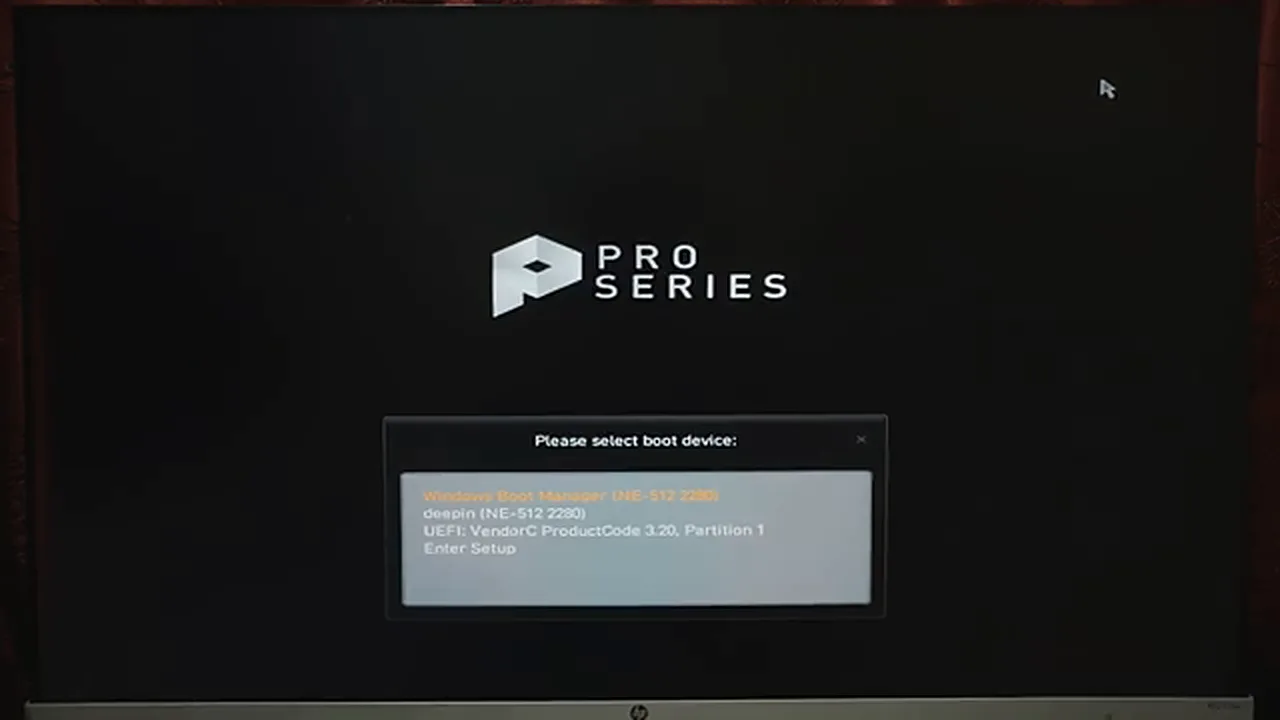
Move the pen drive to the computer you are rescuing, switch it on, and tap its boot-menu key as it starts. The key depends on the brand — the machine in the video uses an MSI motherboard, where the key is F11; a quick search for your own brand plus “boot menu key” will tell you yours. In the boot menu, select the pen drive (it was the third entry in the video’s list) and press Enter.
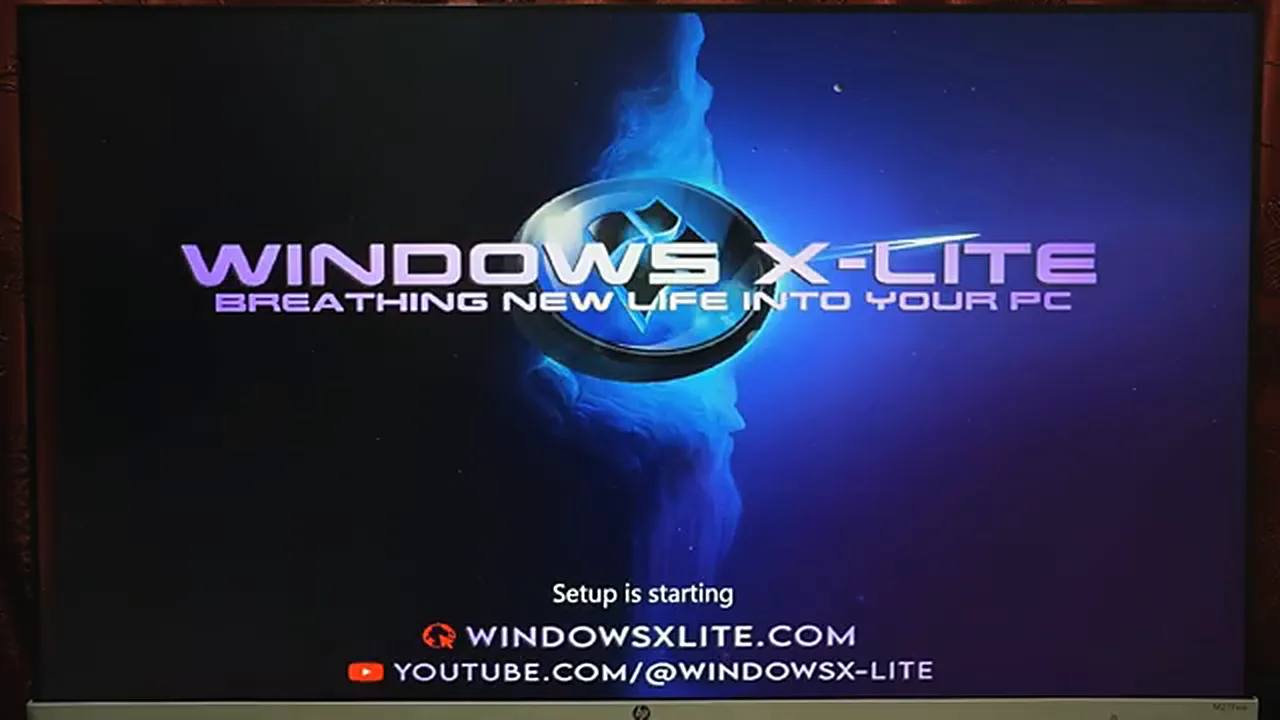
The One Real Choice: Defender On or Off
Before the disk screen, the X-Lite setup asks something official Windows never does: do you want Windows Defender ON or OFF? Turning it off squeezes out a little more performance, which is why the option exists. The video keeps it ON, and that is the sensible default for most people — security is not the place to save a few megabytes of RAM. Choose OFF only if the machine genuinely struggles and you understand what you are giving up. Then click Next.
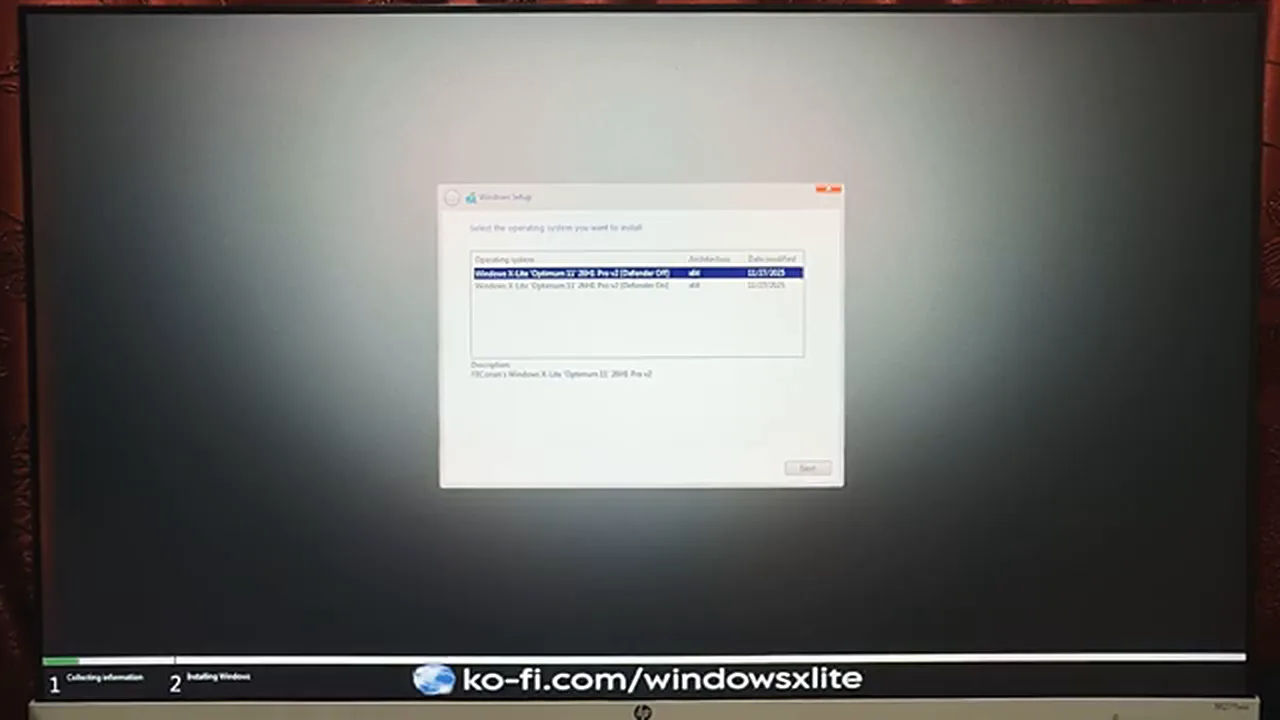
Pick the Drive, Then Watch It Fly
Now select your C drive — carefully. The machine in the video has a second hard disk that must not be touched, and yours might too. Choose the drive Windows belongs on, format it, and click Next.
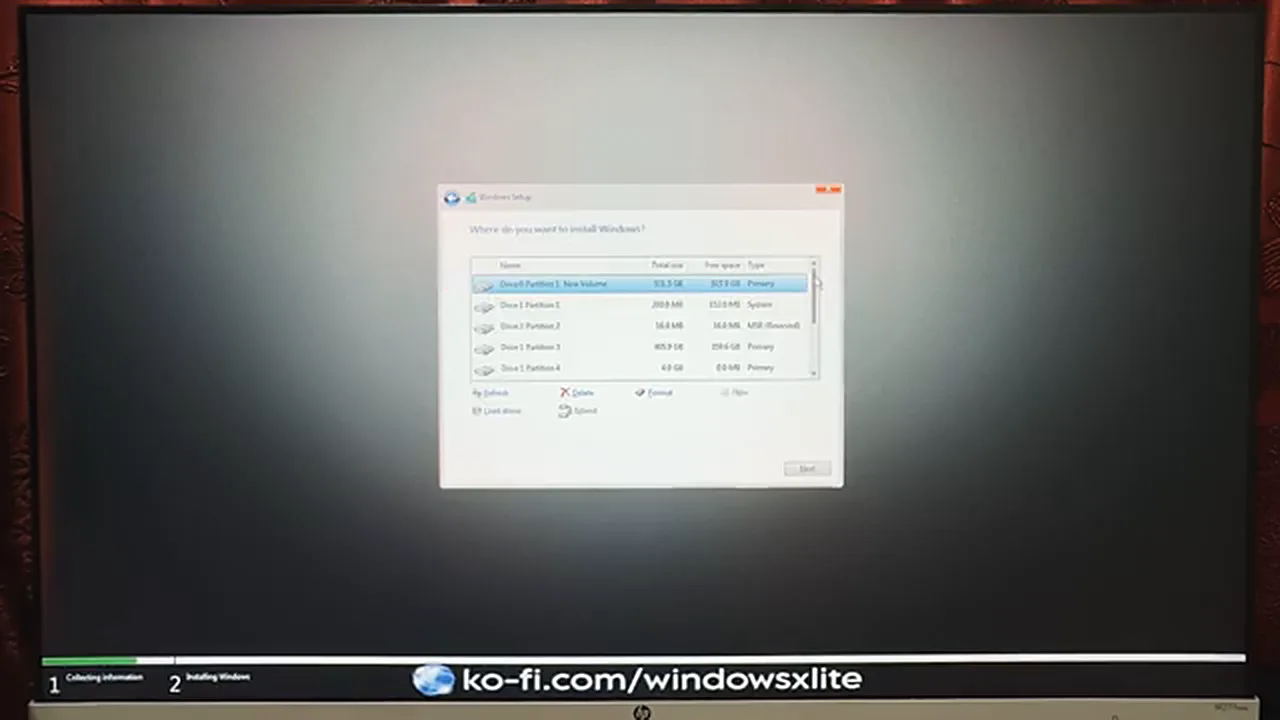
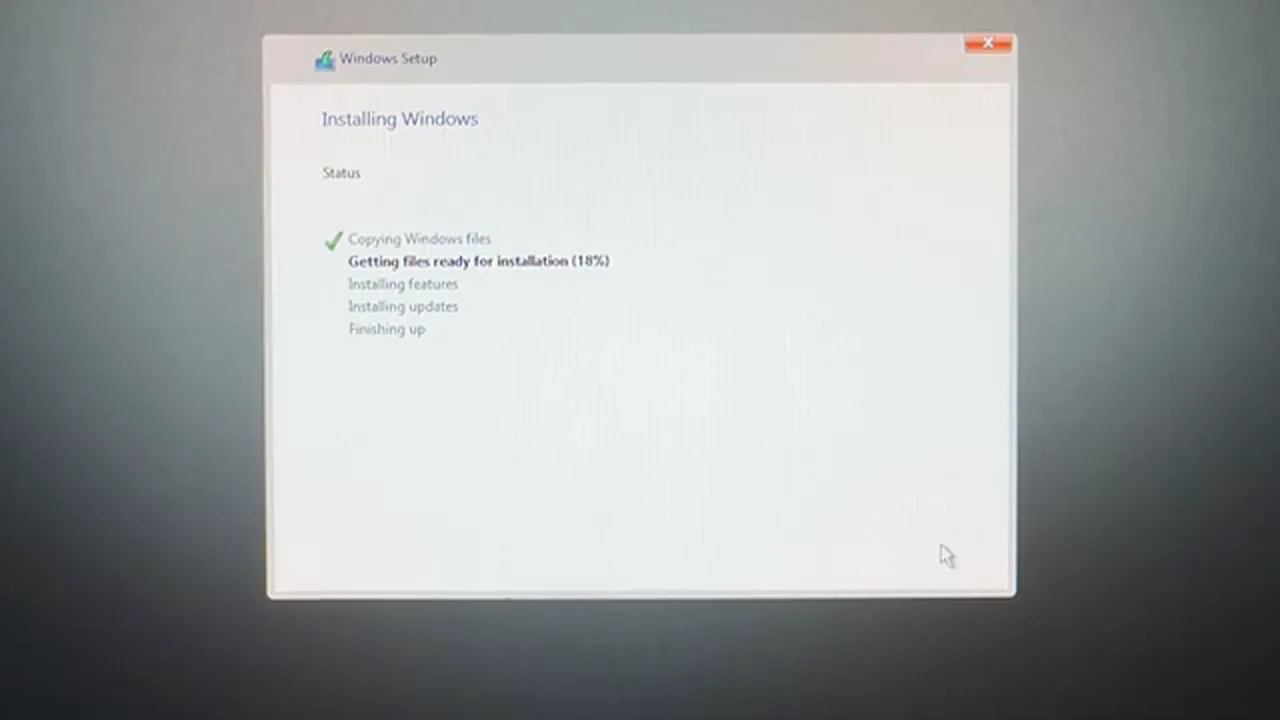
Then comes the party trick. The whole installation finished in about a minute and a half on the video’s machine. Yours will vary — that test PC is relatively strong, and a genuinely old hard disk will take longer — but even so, this is a fraction of the official install’s time, because there is simply far less operating system to copy. When the PC restarts, pull the pen drive out. Its work is done.
Straight to the Desktop — No Interrogation
Anyone who has installed official Windows 11 knows the ritual that follows the first restart: region, keyboard, Wi-Fi, Microsoft account, privacy toggles, offers, more offers. Optimum 11 skips the entire ceremony. The machine restarts, and you land directly on the desktop. First impressions: it is Windows 11, but tidied by someone with strong opinions. The Start menu has the neat, classic two-pane layout reminiscent of Windows 7 and 10, the system tray is nearly empty, and whole categories of functions have simply been removed.
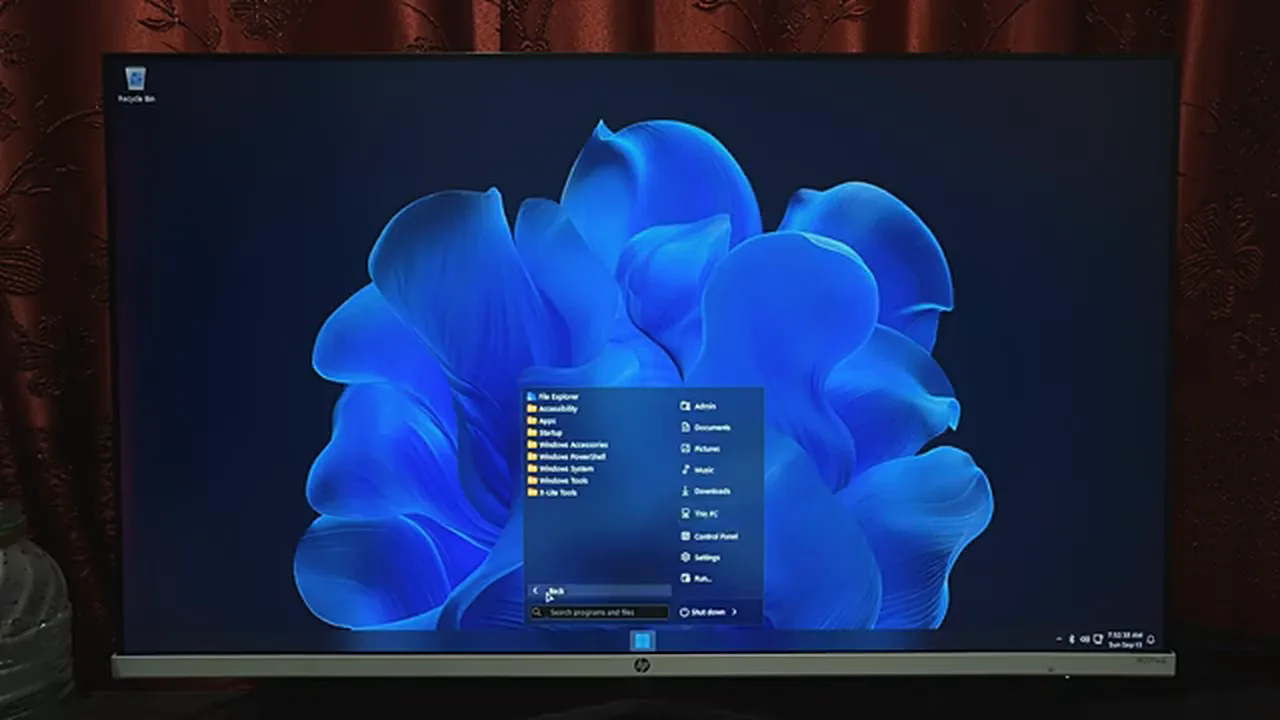
The First Ten Minutes: Drivers, Then Proof
Do not start installing your software yet. A fresh system needs its drivers first, and the build expects you to fetch them: open the update section, let the pending driver updates download and install, and only then judge the machine. Without drivers — graphics especially — no operating system feels right.
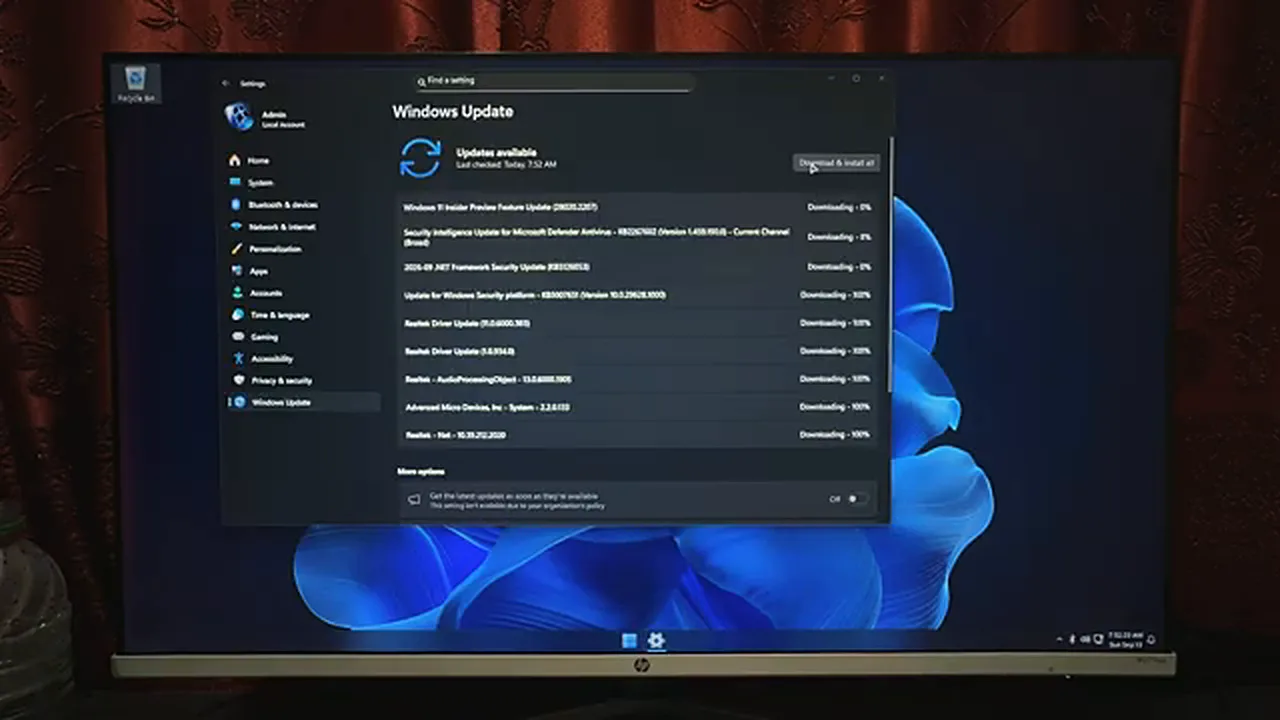
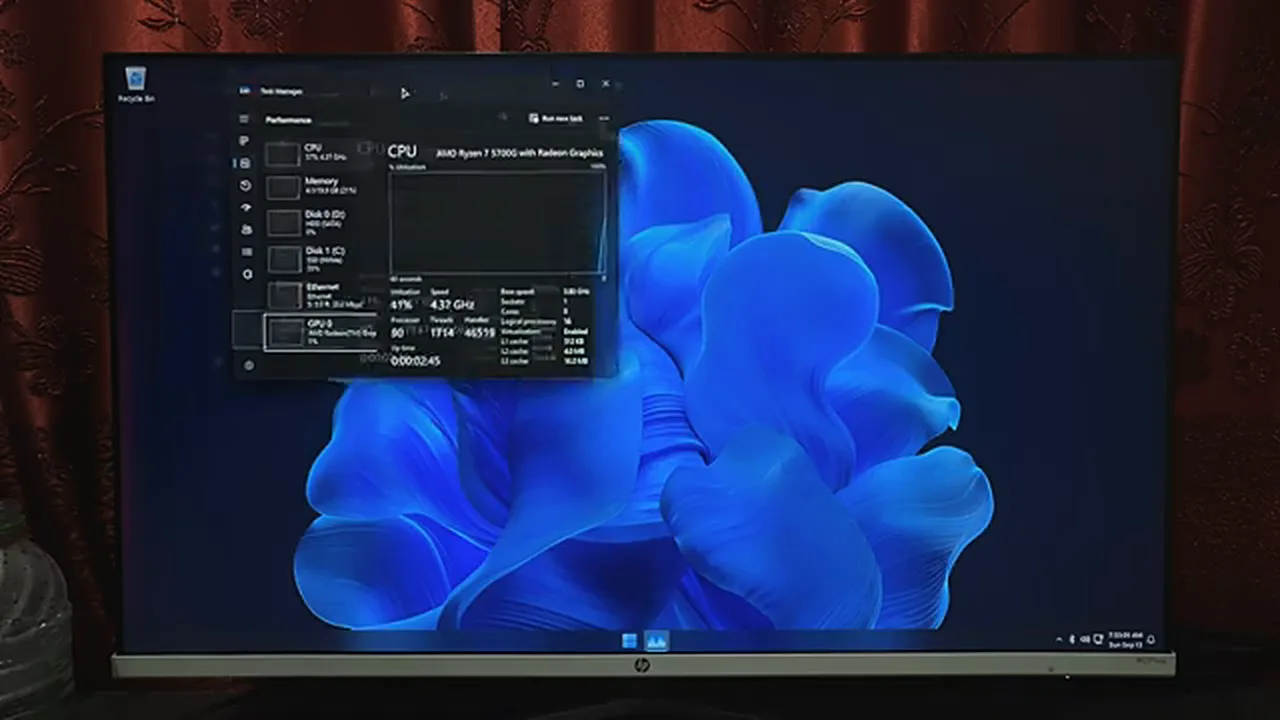
While the drivers install, open Task Manager for the receipt. Even during the update activity, the process count sits around 87–90 — and the presenter notes it settles nearer 60–70 once the machine is idle. Compare that with the 199 processes and the multi-gigabyte idle appetite of the official build from the start of this article. That difference is the entire point, and on a 2 or 4 GB machine it is the difference between “usable” and “furniture”.
Once the drivers are in, do one quick tour before calling it finished. Open Device Manager and look for yellow warning marks — anything flagged there still needs a driver, and the manufacturer’s website for your exact laptop or motherboard model is the safest place to fetch it. Connect to your Wi-Fi, let the machine sit for ten minutes so the first indexing and background chores settle, and only then open your browser and usual apps. This little settling-in routine is worth it on any fresh install, and doubly worth it on old hardware where first impressions can be misleadingly sluggish.
Who Should Skip This
Honesty section, as promised. Skip Optimum 11 if the machine holds sensitive work data, banking, or anything where a security problem would be a disaster: a modified operating system from a third-party team asks for trust that official Windows does not, no matter how clean the team’s track record so far. Skip it, too, if your hardware can actually run official Windows 11 well — the official build with the Rufus requirement bypass (linked earlier) gives you Microsoft’s own system with support and updates intact. One more practical difference to go in with your eyes open: on heavily stripped builds like this, big feature updates can turn into a fresh-install job with a newer ISO rather than the one-click upgrade official Windows offers, so keep your files backed up and your pen drive handy. And if you love Windows 10’s feel more than 11’s, the same team publishes a Windows 10 X-Lite build built on the same idea.
For the machine it is actually aimed at, though — the old laptop in the cupboard, the family desktop that wheezes through boot — Optimum 11 is one of the most convincing second lives you can give it. A 2.5 GB download, a ninety-second install, and a desktop that arrives without a fight. The hardware was never the problem. The weight was.