I know the reinstall dance well. A program starts misbehaving, so I uninstall it, download it again, install it fresh — and the exact same problem comes straight back. For a long time I blamed the new download. The real explanation was simpler: the first uninstall had never finished the job.
This guide tests that idea instead of just stating it. The video behind this article runs the same job two ways, on the same computer, minutes apart. First, Adobe After Effects is removed the normal Windows way, through Control Panel. Then other programs are removed with Revo Uninstaller. The difference is visible on screen: in the folders that survive the first method, and in the scan results after the second.
The Experiment: One Job, Two Tools
The setup is plain. No registry editor, no command line, no hunting through hidden folders. Round one uses only what Windows gives you. Round two adds Revo Uninstaller and lets it do the extra work Windows skips. One detail makes the results more honest: the program in the main Revo round, Adobe Lightroom, had barely been used. It was installed mainly for the video and opened once or twice, so its leftover pile was always going to be small. A second Revo run, on a program that had seen real use, tells the fuller story.
Round One: The Control Panel Uninstall That Wasn’t Finished
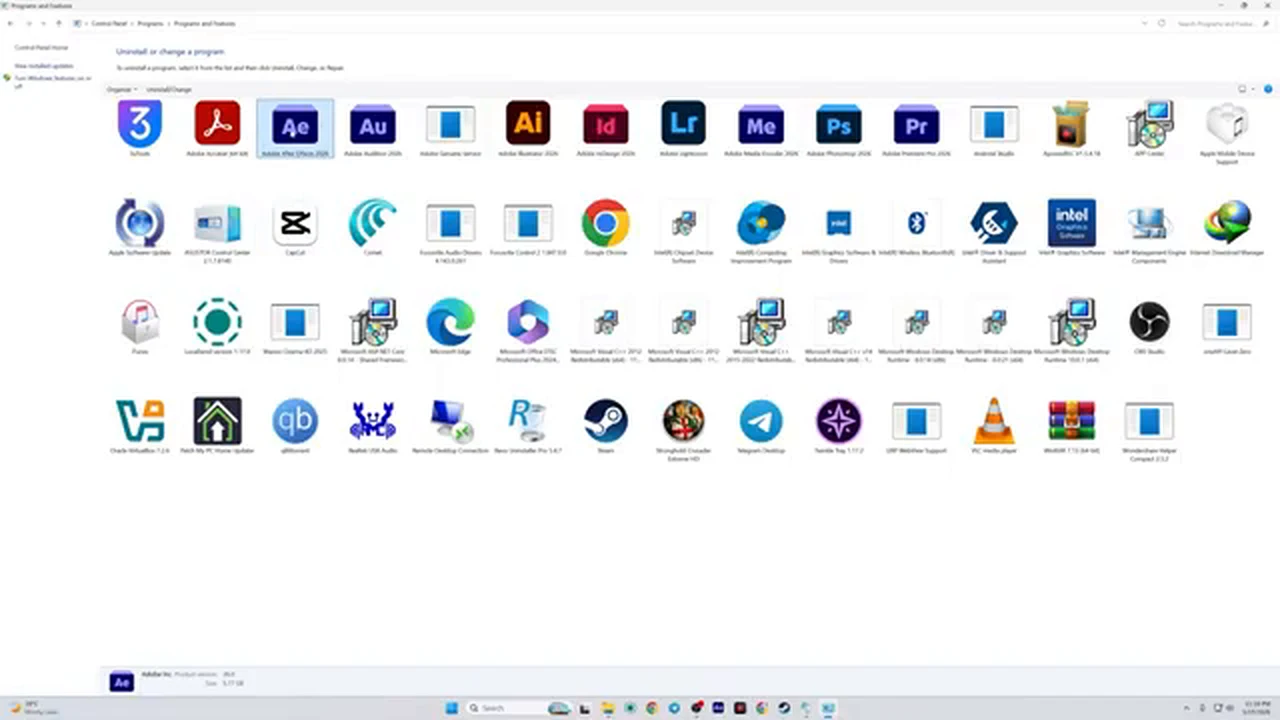
Round one starts in Control Panel, under Programs and Features. After Effects is selected, Uninstall is chosen, and the program’s own uninstaller runs. Everything behaves as it should: the uninstaller finishes, the window closes, and After Effects vanishes from the list. Windows gives no warning and no leftover report. If you stopped there, you would reasonably think the job was done.
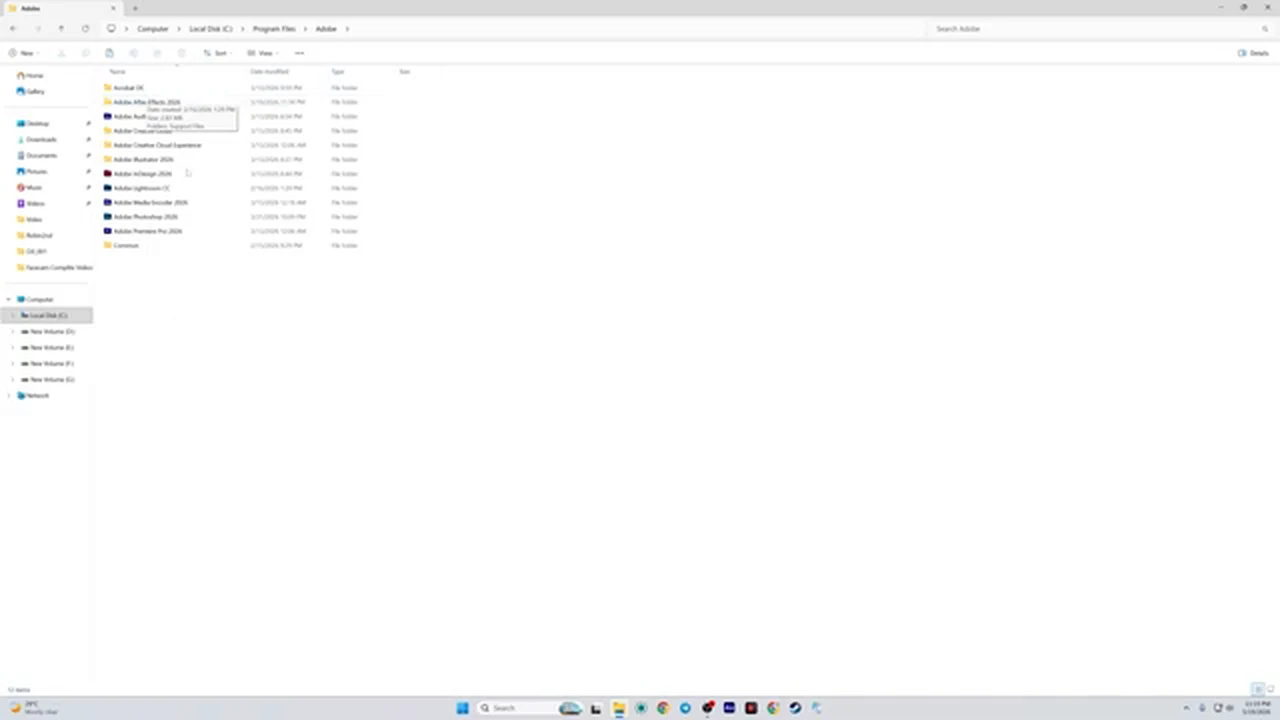
Then comes the check most people never make. In File Explorer, inside the C drive under Program Files, the Adobe folder is still there — and it is not empty. Folders for After Effects and several other Adobe programs sit where they were, holding files the uninstall never touched. These are real folders with real contents, still taking up space in the path where the program used to live.
The visible folders are only what you can find without trying. Registry entries, settings, caches, and data in other folders also survive, hidden in places File Explorer does not show by default. This is not really a bug. Control Panel mostly hands the job to the program’s own uninstaller, which removes what its maker chose to remove. There is no second pass, no registry scan afterwards, and no question about the support folders left behind. The job is declared finished the moment that uninstaller says so, whether or not anything remains.
Round Two: The Same Job, With Revo Uninstaller
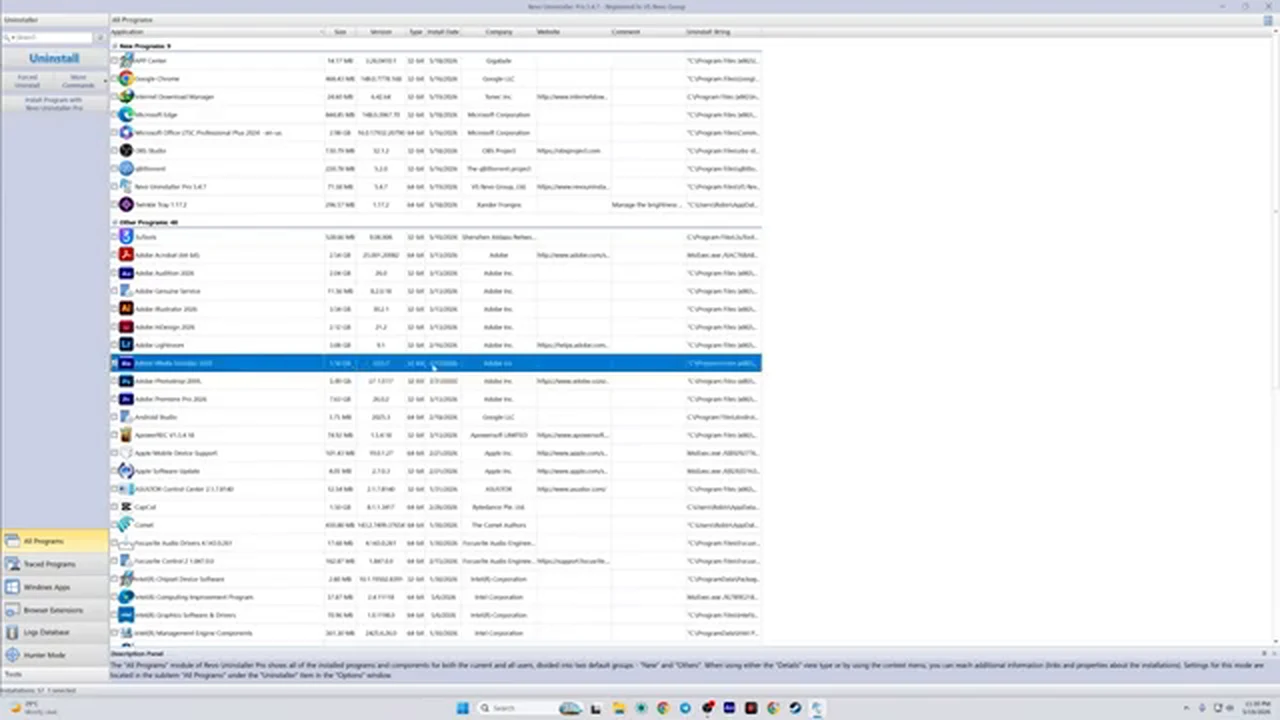
Round two opens Revo Uninstaller and its All Programs list, with sizes, versions, and publishers in neat rows. Adobe Lightroom 9.1 is selected and Uninstall is clicked. Before anything is removed, Revo asks a question Control Panel never asks.
A confirmation box appears for Adobe Lightroom, 32-bit, version 9.1, from Adobe Inc., with three checkboxes: create a System Restore Point before uninstalling, create a full Registry Backup before uninstalling, and automatically delete all found leftovers. In the video, the first two are unchecked to keep the demonstration moving, and the third is left unchecked too, so every leftover can be reviewed before deletion. Copy that last choice on your first run: with the third box unchecked, nothing is deleted blind. You see the list first, and you tick it only when you are comfortable letting Revo clear what it finds unseen.
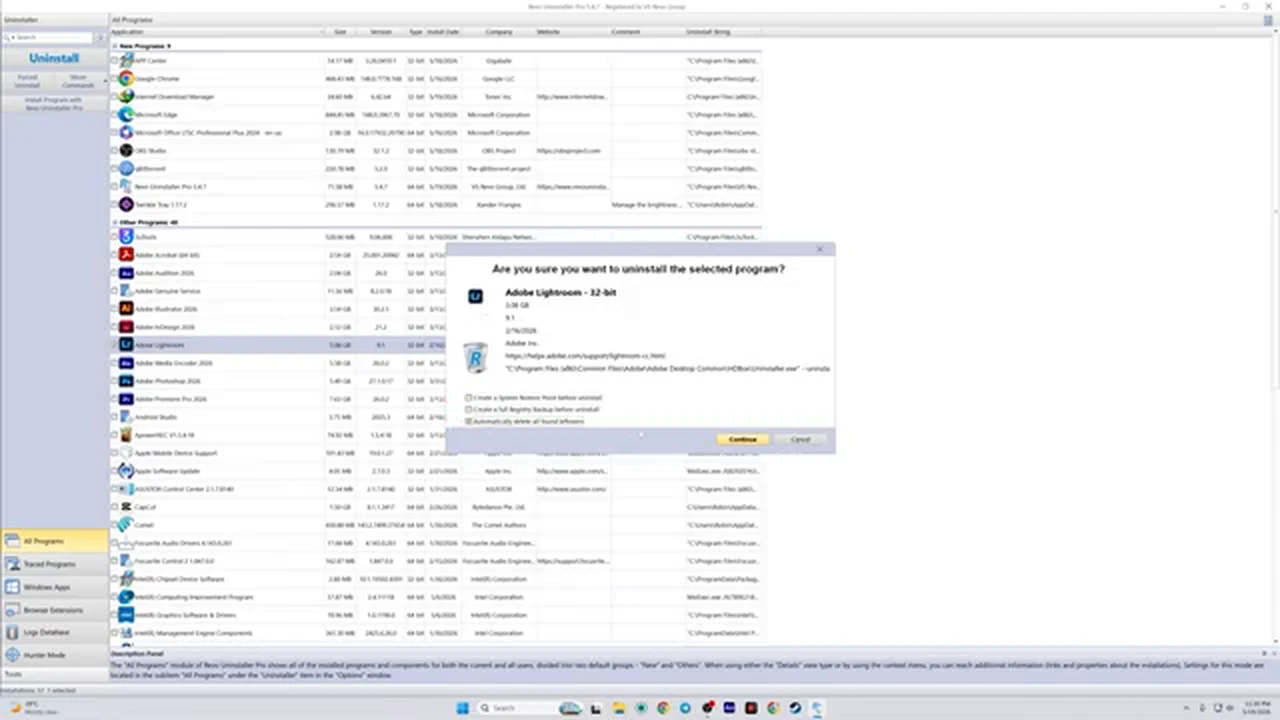
Clicking Continue runs the program’s own uninstaller first, exactly as before. The difference starts when it finishes. Revo scans the drive, including the C drive and every place the program scattered files, hunting for what the standard uninstall missed. Its results window, titled Found leftover files and folders, lists what survived — in the Lightroom run, a folder and several files under Program Files and the Start Menu that a normal uninstall had walked past.
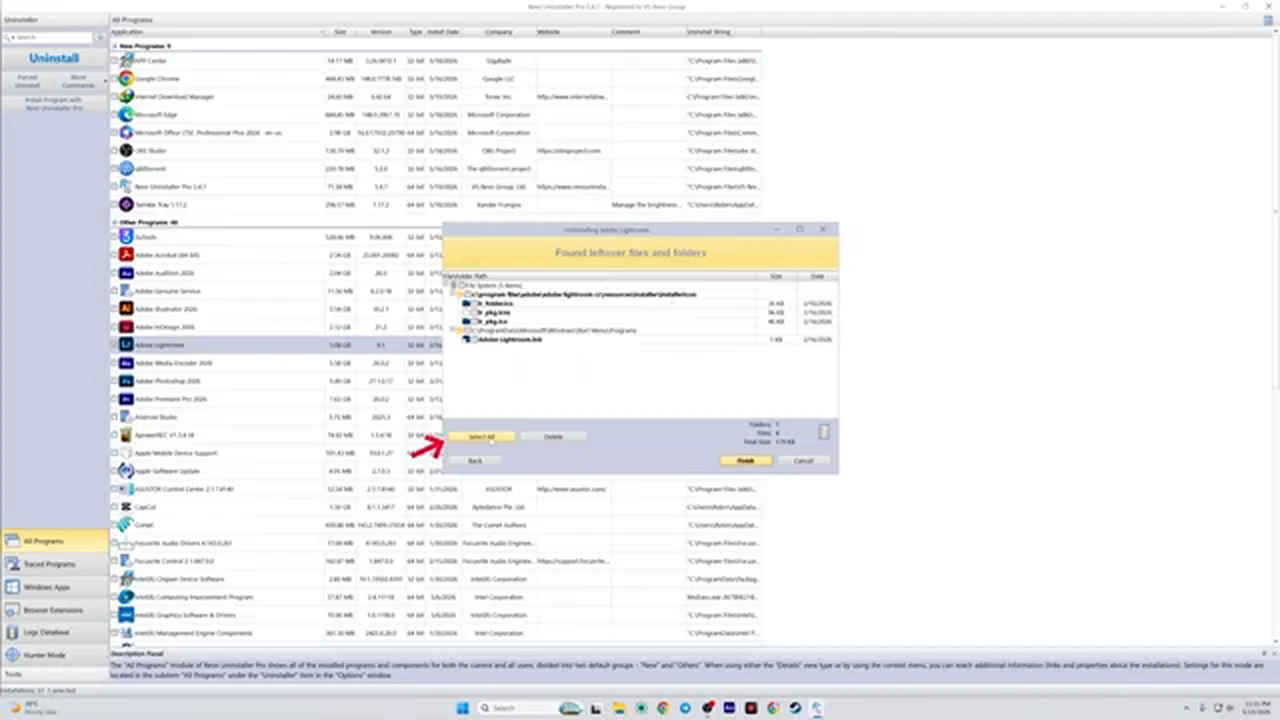
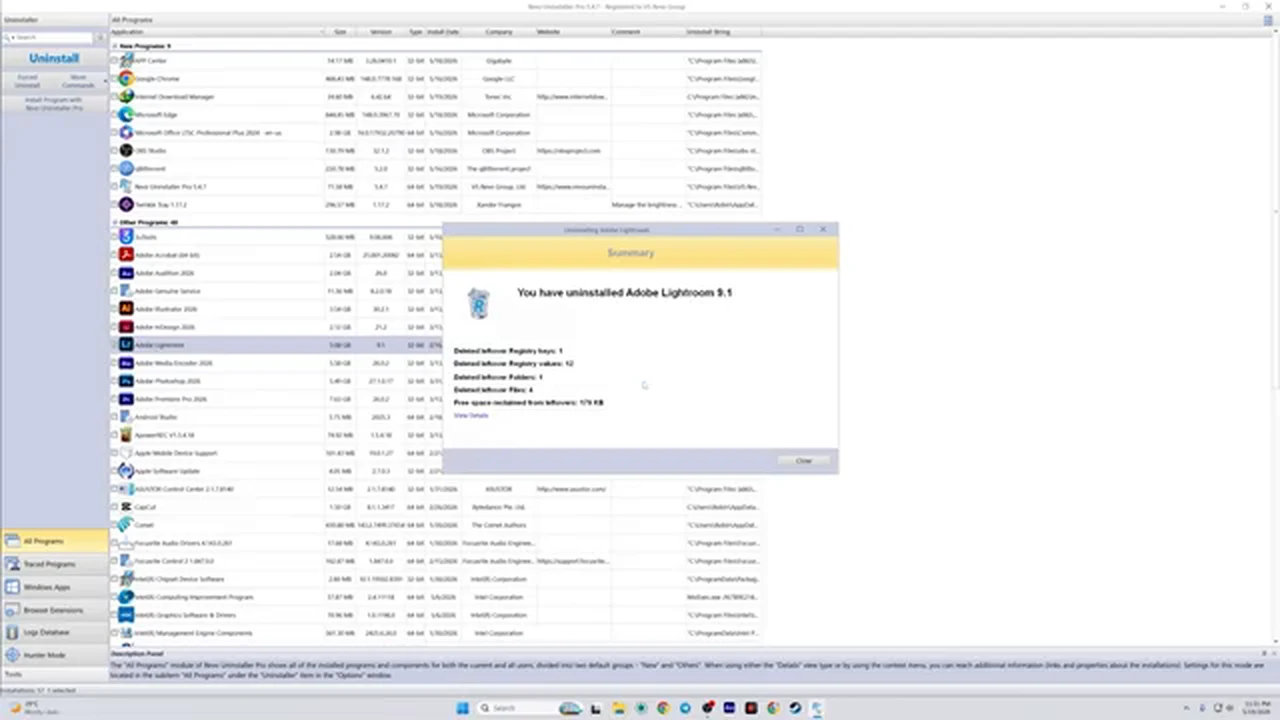
Select All marks every leftover, Delete removes them, and a confirmation click settles it. Revo then scans again for leftover registry information and offers the same choice there. Only when both scans are clear does the summary appear. For Lightroom, the barely used program, the totals were modest: 1 registry key, 12 registry values, 1 folder, and 4 files deleted, reclaiming 179 KB. Modest — yet even this best-case program left thirteen registry items and five files and folders behind after a standard uninstall.
The Second Run That Proved the Point
The next run removes any doubt. The video then removes 3uTools, a program that had actually been used, with the same scan. This time Revo reports 12 leftover folders and 23 leftover files. The summary is the number worth remembering: 12 registry keys and 16 registry values deleted — 28 registry entries in total — plus 12 folders and 23 files, reclaiming 105 KB. Same tool, same method, same computer. The only difference was how much the program had been used.
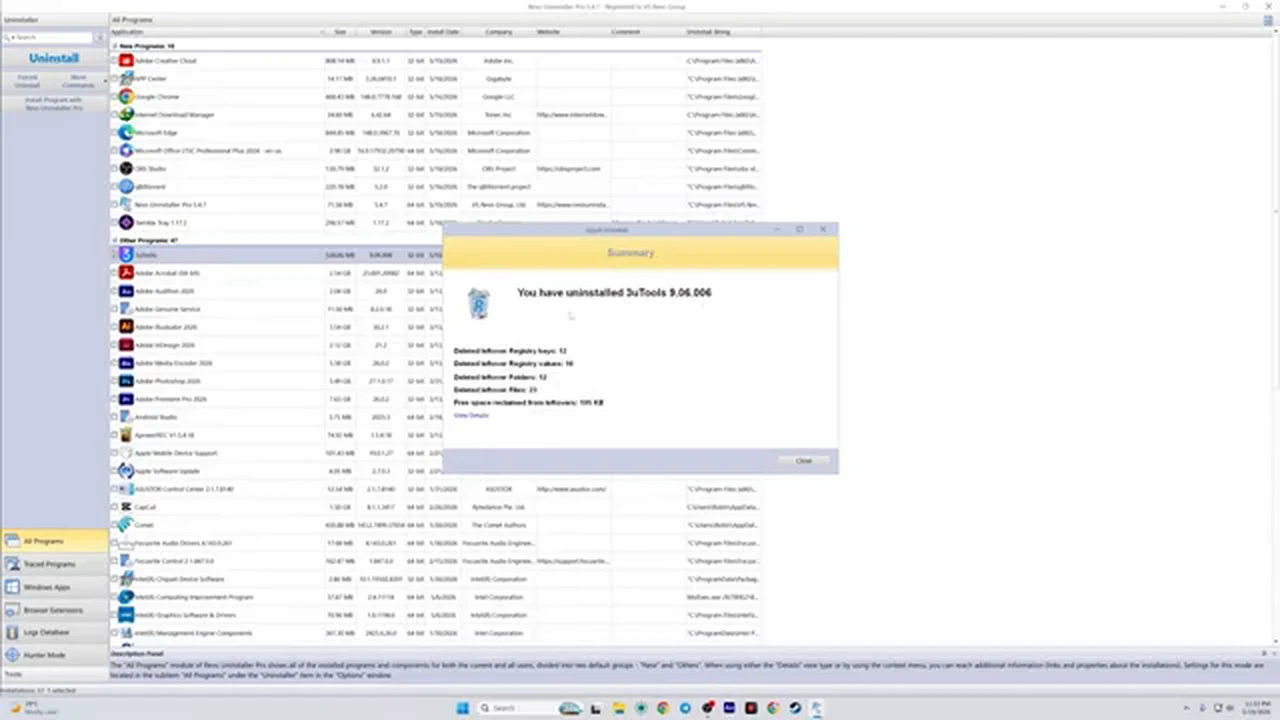
Side by side, the pattern is clear. Control Panel left whole Adobe folders in Program Files, with no count and no warning. Barely used Lightroom left 13 registry items and 5 files and folders. Well-used 3uTools left 28 registry entries and 35 files and folders. The longer a program has been used, the more a normal uninstall leaves behind — exactly backwards from what you would want. The programs you most need a clean break from are the ones a standard uninstall handles worst.
Why Leftover Files Are More Than Wasted Space
Disk space is the least interesting part. A few hundred kilobytes will not slow a modern computer. The real costs are quieter. First, leftovers steal the benefit of a fresh start: if old settings, caches, and registry entries survive, a fresh install finds them and resumes with the same broken configuration. The reinstall was never fresh. Remove everything properly, and the new install genuinely starts clean — which is why stubborn problems often disappear after a complete removal and reinstall.
Second, leftovers can keep the past running. A deleted program can leave startup entries, services, and background components that still load. The video warns bluntly that if the removed software was the spyware type, its remnants could keep tracking activity after you believed it was gone. Most leftovers are just inert files, but you cannot tell the dangerous kind from the harmless kind by a folder name. A program is only truly gone when its files, registry entries, and background traces are all gone. Third, the pile quietly taxes the machine over time: longer startups and a registry full of entries pointing at programs that no longer exist.
How to Use Revo Uninstaller the Safe Way
Here is the routine slowed down, with one safety change from the video. There, the restore point and registry backup boxes were unchecked for speed. On your own machine, especially the first time, keep them ticked. They cost a minute and give you a way back if anything unexpected happens.
Two cautions: never delete registry entries by hand outside a tool like this unless you know exactly what an entry does — the registry has no undo button, which is why the backup checkbox exists. And never batch-remove several programs in one hurried session. Remove one, check everything else still works, then move to the next, so you know exactly which removal caused a problem if one appears.
After the Uninstall: The Two Minutes Most People Skip
Two habits complete the cleanup. Empty the Recycle Bin, since deleted leftovers only truly leave the computer then. And think about temporary files separately: they can be deleted through Windows itself, but the video points to a separate one-click temp cleaner, linked in the video description. That is a companion habit, not a replacement — Revo removes one program completely, while a temp cleaner sweeps the general clutter. Finally, check Task Manager’s Startup tab after removing a program that used to start with Windows, and disable any entry that remains.
Paid, Free, and Getting It From the Right Place
Revo Uninstaller is paid software, and the video is upfront about that, while noting it can also be used free, including a trial from the official website and a post on the creator’s own website about longer free use. Treat that with care: get any uninstaller only from the developer’s official website. Never download it from a random site, a shortened link, or a video comment, and never run a cracked copy. A tool able to delete registry entries and system files is the last thing you want from an untrusted source.
The Verdict From the Experiment
Control Panel uninstalls remove a program well enough to make it disappear from the list, and badly enough to leave its folders, settings, and registry entries behind. Revo Uninstaller removes the program, goes back for everything the first pass missed, shows you what it found, and proves the result with a summary. You do not need it for every tiny utility you try once. Use it for the programs that matter: the big ones, the misbehaving ones, the ones you are removing because something went wrong, and the ones you no longer trust. For those, the extra scan is the difference between deleting a program and actually getting rid of it. Watch the demonstration below, try it on one program you have been meaning to remove properly, and check the summary.
Frequently Asked Questions
Does Control Panel really leave files behind?
Yes. After After Effects was removed through Control Panel, Adobe folders remained in Program Files, with hidden files and registry entries elsewhere. Control Panel runs the program’s own uninstaller and performs no scan afterwards, so whatever it misses stays behind.
Is Revo Uninstaller free?
It is paid software, but the video notes it can be used free, including a trial from the official website. Download it only from the official Revo website.
What do the three checkboxes mean?
The first creates a System Restore Point, the second a full Registry Backup, so you can undo the change if needed. The third, Automatically delete all found leftovers, deletes everything Revo finds without showing you the list. Keep the first two ticked, and leave the third unticked until you are comfortable reviewing leftovers yourself.
Will Revo delete something important by mistake?
It scans only for traces of the program you chose, and shows the list before deleting when the automatic option is off. The risk comes from rushing: removing the wrong program or deleting entries unread. Keep the backup ticked and remove one program at a time.
Why does reinstalling sometimes bring the same problem back?
Old settings, caches, and registry entries survive a standard uninstall, so the fresh install resumes with the same broken configuration. A complete removal clears those traces, so the reinstall genuinely starts clean.
Do I still need to empty the Recycle Bin?
Yes. Deleted leftovers land in the Recycle Bin first and only leave the computer for good when you empty it.