The presenter opens with a verdict, not a feature list. Of all the Linux systems he has used — Ubuntu, Kali, Mint, and the rest — Deepin OS 25 is the one that felt the most finished. It looks and behaves a lot like Windows.
The promise is simple: one USB stick, about an hour, and Windows stays exactly where it is. When you are done, your computer asks at every startup which system you want. But getting there means five decisions, and each one is a door. This guide walks you through every door in the order you will meet it, with the exact screens from the video.
Door 1: Try It First, or Just Install It?
The presenter has a standing rule: try Linux in VirtualBox first. It is good advice.
Deepin is the one case where he bends his own rule. His argument is that Deepin feels so much like Windows that a trial tells you very little you will not learn in the first ten minutes of the real thing. If you know Windows well and you are curious, skip the rehearsal and install it for real.
Door 2: Keep Windows, or Wipe Everything?
Before you download anything, answer one question: do you want Windows to survive? In this video the answer is yes, and that choice shapes everything that follows. Dual boot means two systems on one computer: Windows keeps its partition, Deepin gets its own space, and a boot menu lets you pick at startup.
The alternative is a full replacement: Deepin takes the whole drive, Windows and everything on it is gone, and there is no going back without reinstalling Windows from scratch. The machine in the video has a 500 GB SSD running Windows and a separate hard drive full of files. The hard drive is never touched in the entire process — not once. Copy that discipline: know which disk holds your life, and leave it alone.
What You Need Before You Start
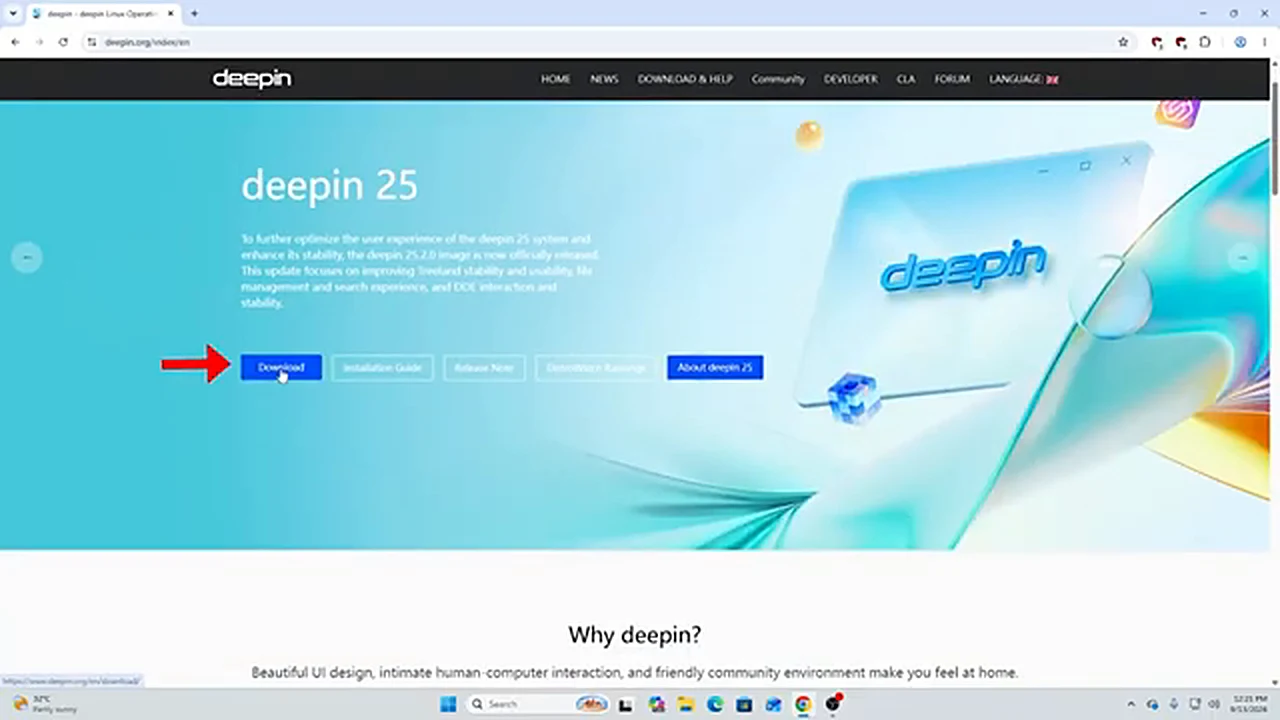
Gather four things. A USB stick with at least 16 GB — the Deepin ISO is almost 7 GB, so an 8 GB stick is too tight. The Deepin OS 25 ISO from the official deepin website (Community edition, AMD/Intel build). Ventoy, the small tool that makes the stick bootable — version 1.1.17 in the video, about 15 MB. And 50 to 70 GB of free space on your SSD, which you will carve out shortly.
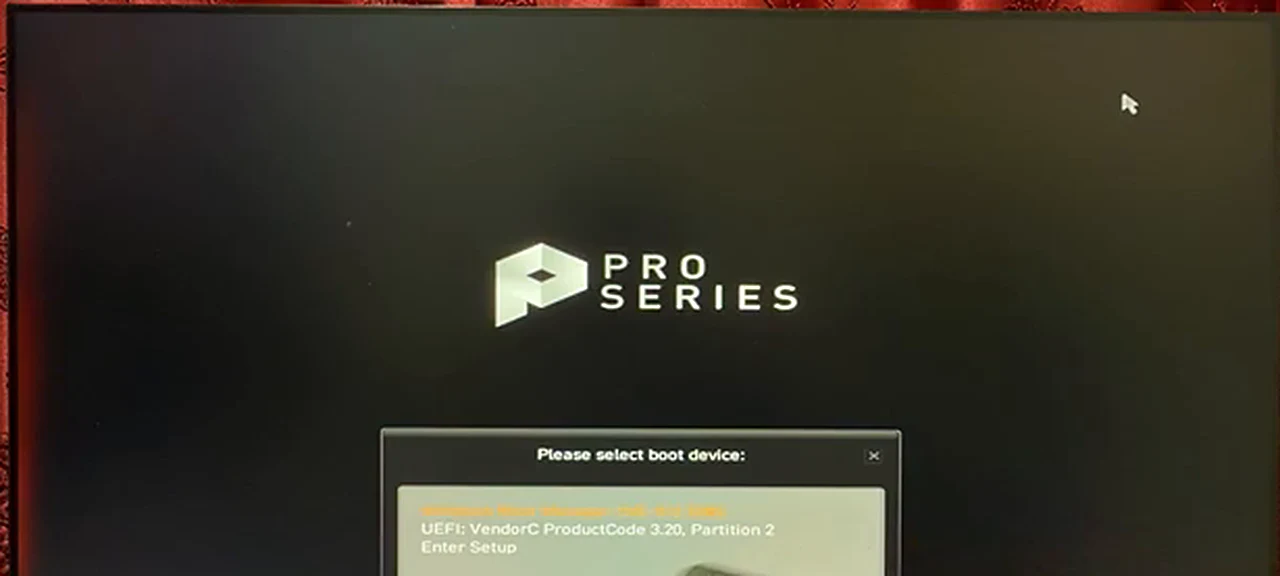
You also need your boot key — the key that opens the boot menu. On the MSI motherboard in the video it is F11. On other brands it is often F12, F8, or Esc, so search your brand plus “boot menu key” before you start. Back up anything you cannot afford to lose.
Build the USB Stick With Ventoy
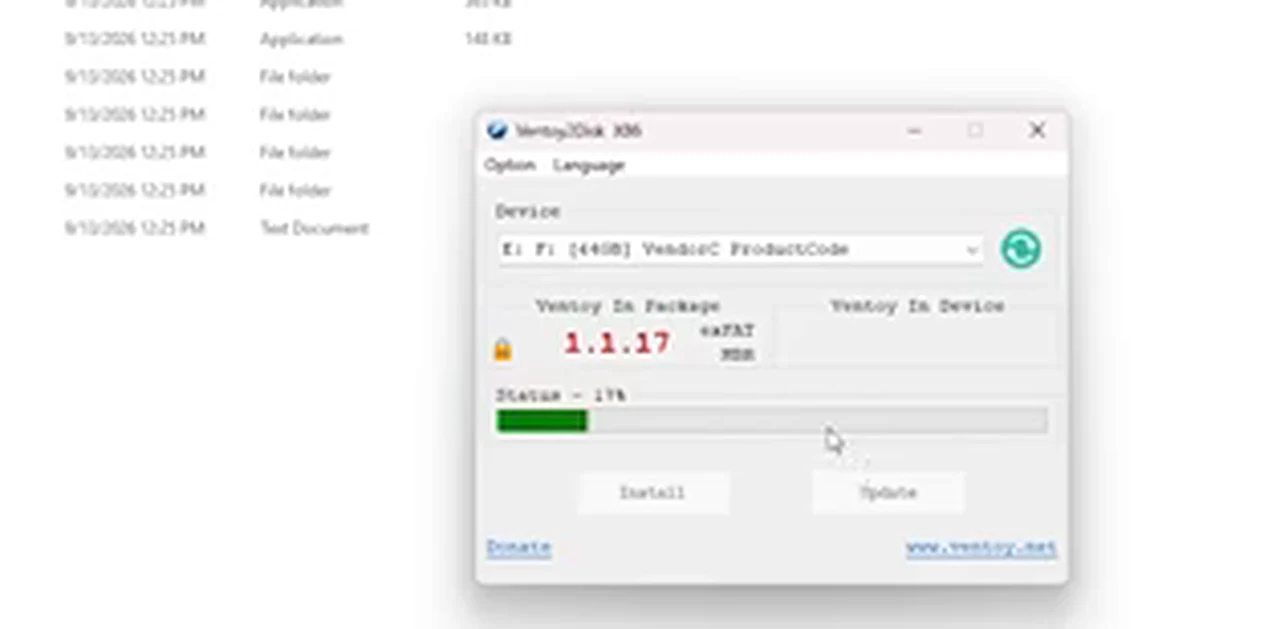
Ventoy is the reason this setup is easier than the old days of flashing tools and ISO-writing modes. Download it, extract the zip, and double-click Ventoy2Disk. Your USB stick should already be selected in the Device box — check it is the right drive, because the next step formats it. Click Install, confirm twice, and it installs in seconds.
Then copy the Deepin ISO file and paste it onto the stick. That is the whole job. Ventoy boots whatever ISO files sit on the drive, so a second system is just another ISO dropped next to this one.
Door 3: Carve Out 70 GB Without Touching Your Files
Dual boot needs its own empty space, and you must create it before the installer runs. Everyone else, stay here: this is the step where a mistake costs real data.
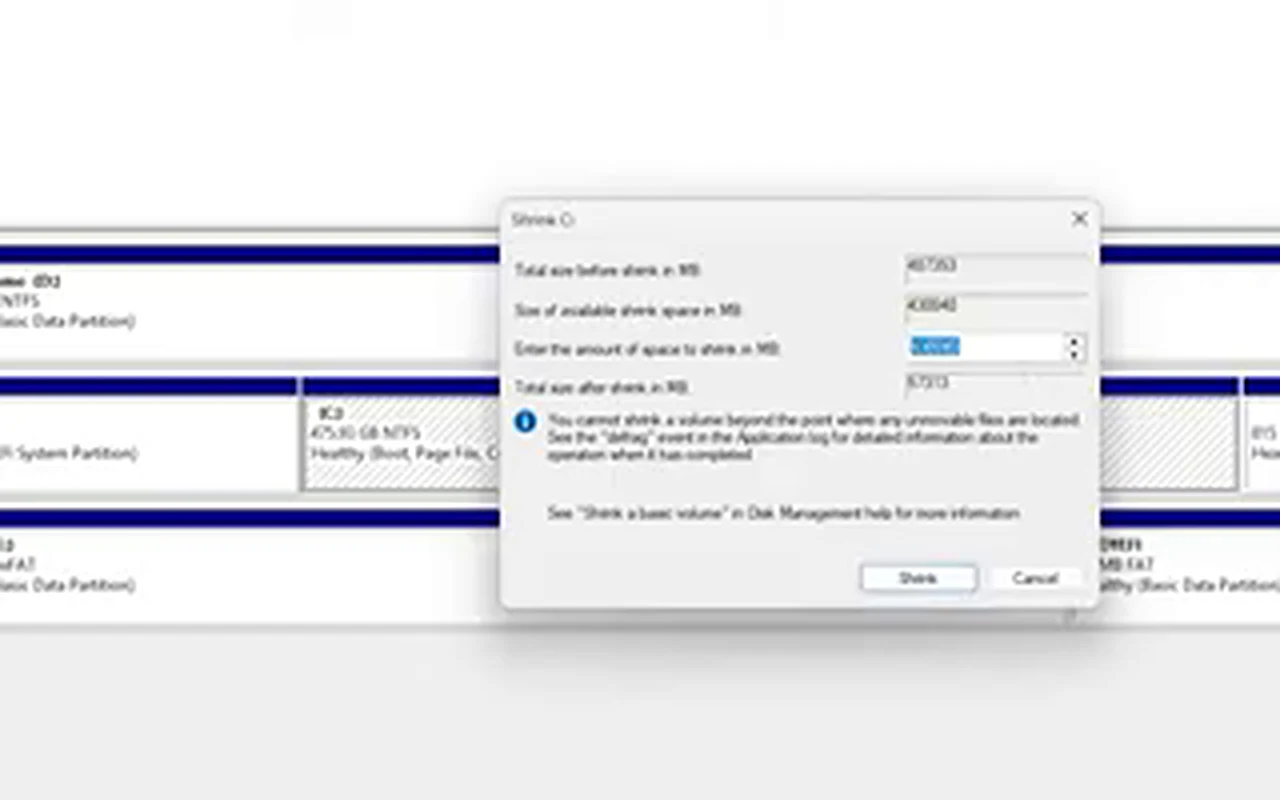
Open Computer Management from the Start menu, then Disk Management. The presenter works only on the 500 GB SSD that holds Windows; the data hard drive is left exactly as it is. Right-click the Windows partition (usually C:) and choose Shrink Volume. Windows asks how much space to free, in megabytes. The video uses 70 GB, and the math is 70 × 1024 = 71680, so that number goes in the box. Fifty or sixty gigabytes is enough, but 70 leaves breathing room.
Click Shrink, and a block of unallocated space appears. Leave it exactly like that — unformatted, unallocated, untouched. Do not create a volume from it or give it a letter. The Deepin installer will claim that empty space itself. If you have both an SSD and a hard drive, shrink the SSD only.
Door 4: Secure Boot — the Error That Stops Everyone
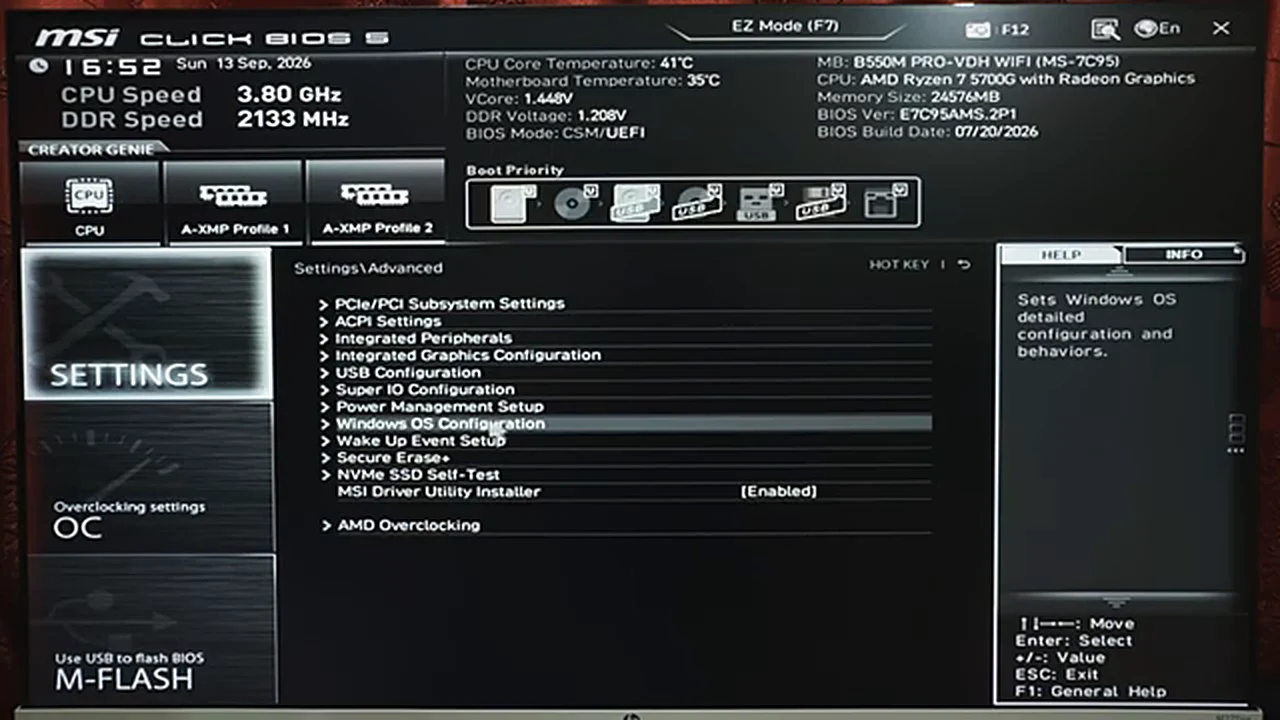
Here is the moment that ends most first attempts. You boot from the USB stick, and instead of the installer you get an error. The cause is Secure Boot, a firmware feature that refuses to load systems it does not recognize. Deepin is not on its list, so the boot fails before it starts. The fix is the same for every Linux dual boot: turn Secure Boot off in the BIOS.
On the MSI board: press Del during startup to enter the BIOS, switch to Advanced Mode with F7, then Settings, then Advanced, then Windows OS Configuration, where Secure Boot sits. Set it to Disabled, save, and exit.
Two practical notes. If Secure Boot already shows Disabled and the stick still refuses to boot, toggle it: set it to Enabled, save, go back in, and set it to Disabled again. On some boards that round trip is what makes the setting actually stick. You can check the state first in System Information, under Secure Boot State.
Boot From the Stick and Read the Menu
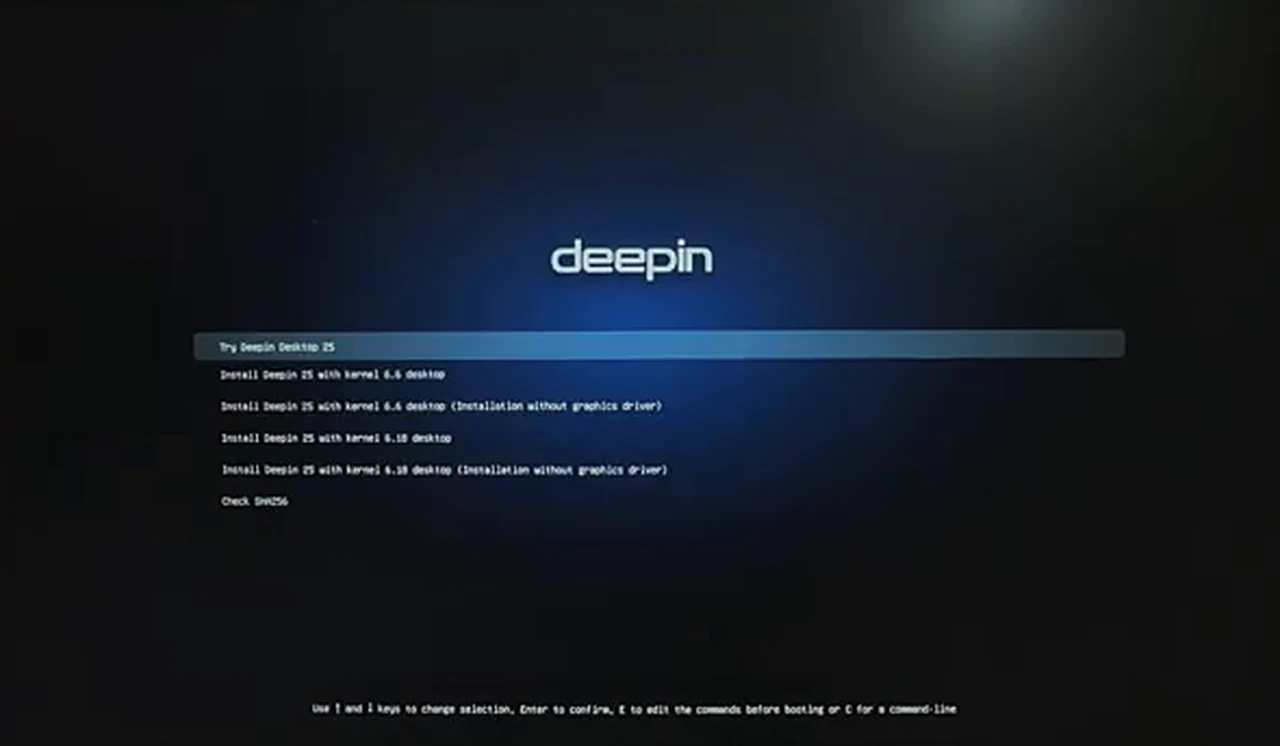
Restart, press your boot key — F11 on the MSI board — and pick the USB stick from the boot menu. Ventoy’s menu appears. Read it before you press anything: four entries, and only one installs Deepin.
“Try Deepin Desktop 25” runs the whole system from the stick without installing anything — the no-commitment test drive. “Install Deepin 25 with kernel 6.6 desktop” is the real install, and the option used in the video. “Install Deepin 25 with kernel 6.6 desktop (installation without graphics driver)” is the rescue option: if the normal installation gives you a black screen, go back and pick this one; it installs without loading the graphics driver, and the driver arrives later through updates.
Door 5: Full Disk or Custom — Read This Twice
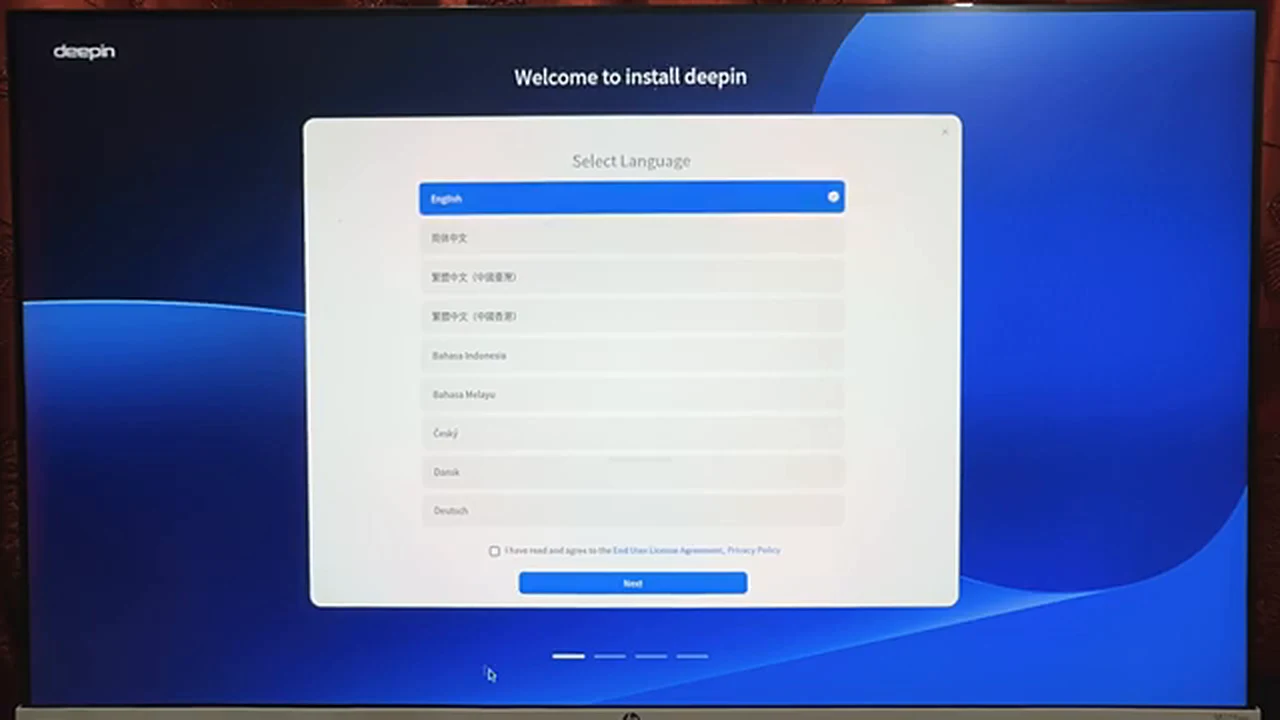
The installer opens with a language screen. Keep English, tick the agreement box, and click Next. The next screen is the most dangerous one in the whole process, so slow down. It offers an installation method, and the recommended option is Full Disk. Full Disk means exactly what it says: the installer takes the entire selected drive — every partition, Windows included — formats it, and installs Deepin on the lot.
Full Disk is right only for a single-boot install where you genuinely want Windows gone. For a dual boot it is the wrong door, and the video walks straight past it. Click Back, and choose the Custom option. That is where your 70 GB of empty space is waiting.
The Split Deepin Does for You
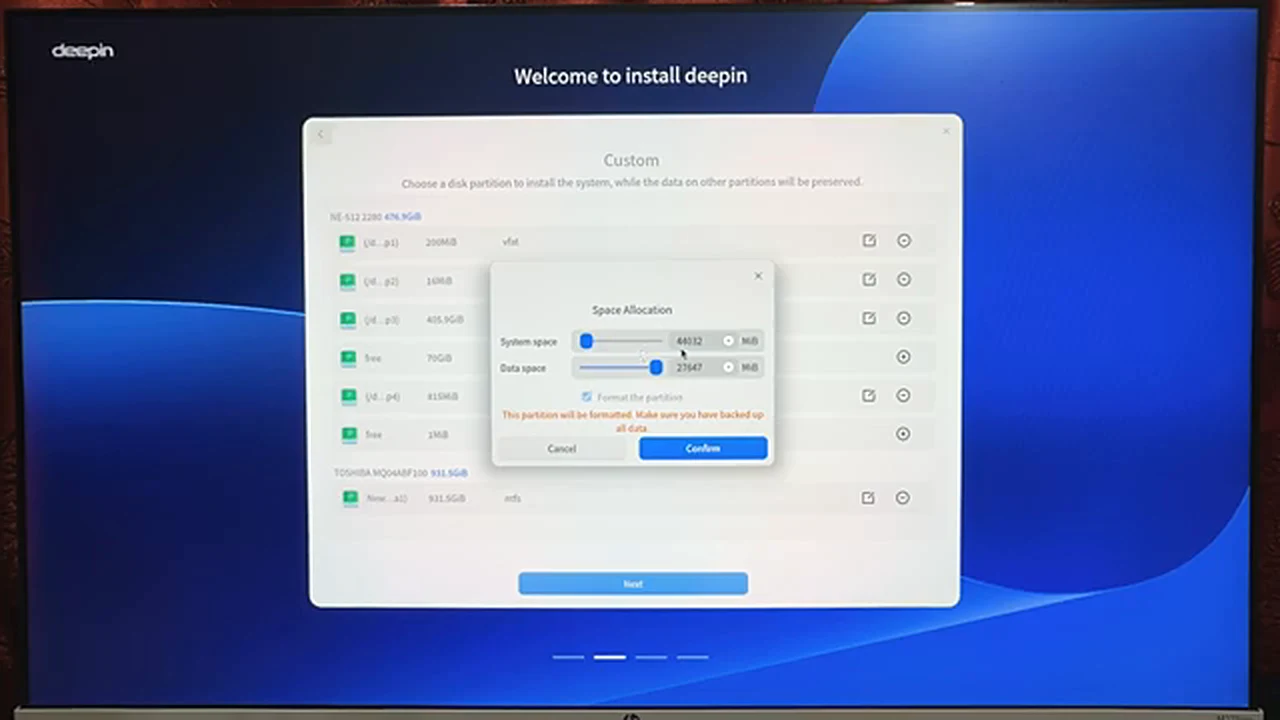
The Custom screen lists your disks. Find the 70 GB of free space in the SSD’s row, select it, and click the + button. A Space Allocation dialog appears, and Deepin has already done the thinking: it splits the space into a system partition of about 44 GB, where the operating system lives, and a data partition of about 27 GB for your files. Accept the defaults and confirm.
Click Next, then Start Installation, and wait while the installer copies files and configures the system. When it finishes, shut the machine down and pull the USB stick out. If the stick is still plugged in at the next startup, some computers boot straight back into Ventoy, and you will wonder why your new system has vanished.
First Boot: Two Honest Surprises
Switch the machine on and watch what happens. On the video’s computer, Windows boots first, straight to the familiar desktop, with no menu in sight. That is not a failed install — it is just the BIOS boot order, which still has Windows first. Restart, press F11, and pick the Deepin entry.
The second surprise is a Windows one, and the presenter is honest about it: after Secure Boot was disabled, Windows asked for a PIN and then the Microsoft account password, and he did not have the password to hand, so he could not sign in on camera. Windows still boots fine, but keep your Microsoft account password ready before you start, so a login prompt never strands you.
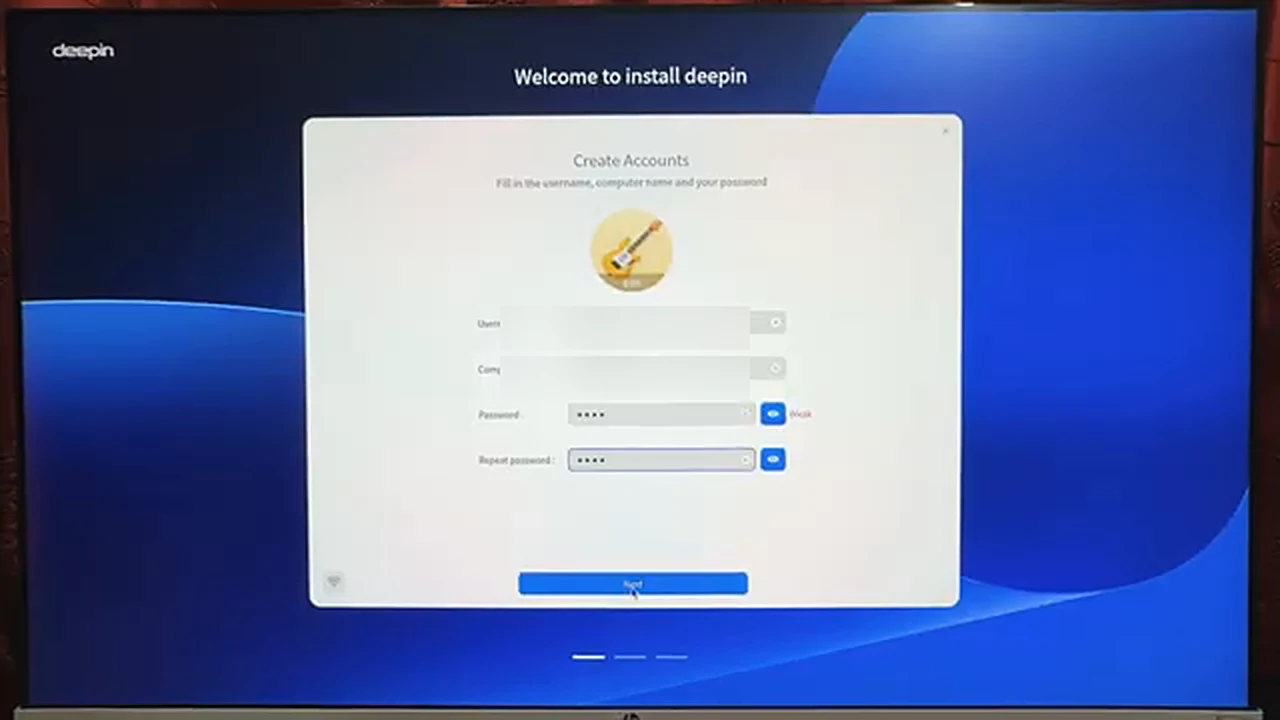
Deepin’s own first run is quick. Create a username and password, keep the language on English and the keyboard on English (US), set the time zone to Asia/Dhaka and the region to Bangladesh, and click through.
Living in Deepin: The First Ten Minutes
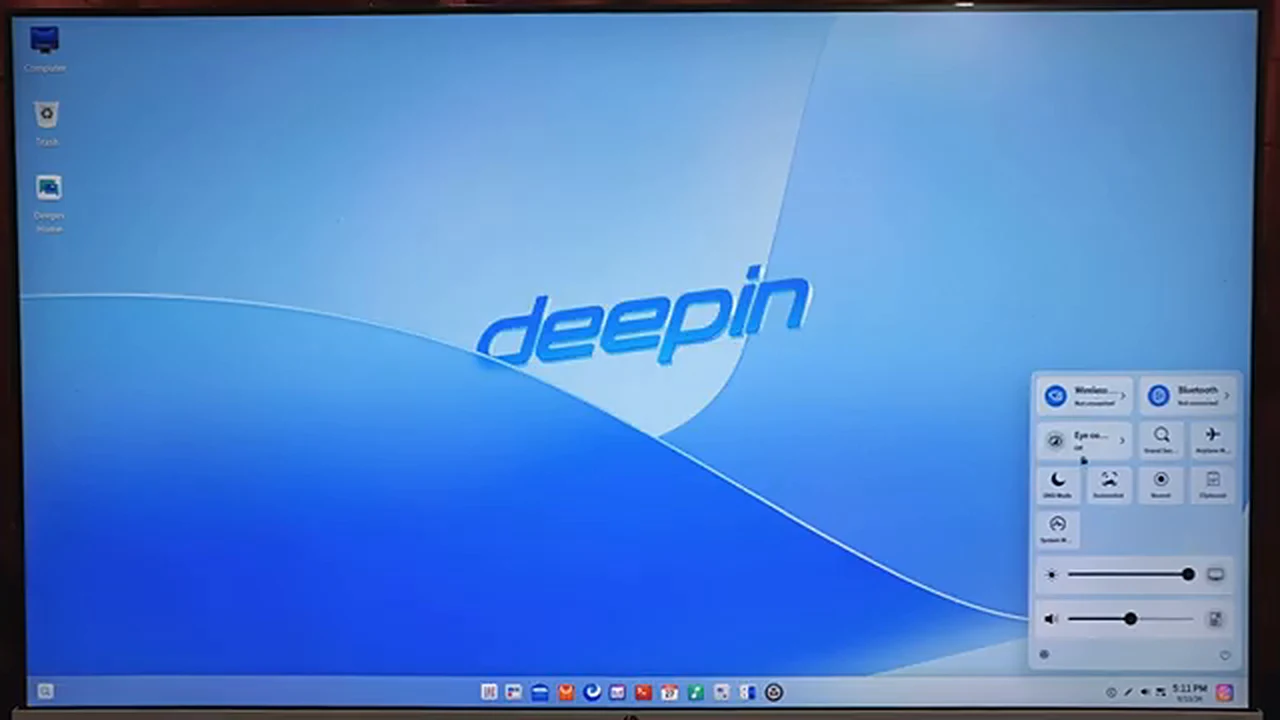
The desktop is where Deepin’s reputation comes from. Open the control center from the bottom-right corner and everything daily is in one panel: Wi-Fi and Bluetooth switches, Eye Comfort for late nights, a built-in screen recorder, airplane mode, a clipboard manager, and brightness and volume sliders.
Then open Settings and go to Personalization, where Deepin stops looking like a default install and starts looking like yours. Themes come in light, dark, and auto; the taskbar can sit in the classic Windows position, centered like Windows 11, or as a mac-style dock;the dock can grow or shrink.
Two housekeeping jobs finish the setup. Sign in with a Deepin ID to use the app store, and install any waiting System Updates — updates bring in hardware drivers, including the graphics driver if you used the no-graphics-driver install. LibreOffice is preinstalled, and a video player is included.
The Honest Limits
Deepin is the most Windows-like Linux the presenter has used, but it is still Linux. Windows-only software — certain games, some professional tools, a few banking apps — will not run natively, and you will need alternatives or a virtual machine. Some Wi-Fi chips only behave after updates. Secure Boot stays off while Deepin is installed; turning it back on can stop Deepin from booting. None of it is a deal-breaker, but all of it is worth knowing before you commit 70 GB.
Frequently Asked Questions
Can I install Deepin without a USB stick?
Not with this method — the installer needs a bootable drive. A no-USB route exists for another distro: the Zorin OS guide on this site installs from a partition on the disk itself,: How to Install Zorin OS Without USB.
Will dual boot delete my Windows files?
Not if you use the Custom path and install only into the empty space you shrank. The Full Disk option is the one that erases everything, which is why this guide tells you to walk past it.
How much space does Deepin really need?
The installer splits 70 GB into roughly 44 GB for the system and 27 GB for data. Fifty to sixty gigabytes total is workable if your SSD is tight. See the exact-size method in Partition a Hard Disk or SSD in Windows (Exact Sizes).
What if I get a black screen during install?
Go back to the Ventoy menu and choose the “installation without graphics driver” entry. The driver arrives through System Update afterward.
Can I remove Deepin later and keep Windows?
Yes. Delete Deepin’s partitions from Windows Disk Management, extend Windows back over the freed space, and repair the Windows boot entry from a Windows recovery USB if the boot menu still points at Deepin.
The Verdict
Deepin OS 25 earns the presenter’s verdict the old-fashioned way: it stays out of your way. The installer asks five clear questions, the desktop feels familiar within minutes, and the customization runs deep enough that two Deepin desktops rarely look alike. If Linux has always felt like a project, this is the one to try — Watch the full video below to see every step happen on a real machine.