Last month I went to download a small free tool. The download page had five buttons that all said “Download”. One was real. The other four were ads dressed up to look exactly like the real one, and I had to study each button like a puzzle before I dared to click. That is the modern web in one scene: ads no longer sit politely at the edges of the page. They pretend to be the thing you came for, and one wrong click can drop a junk installer onto your computer.
This guide fixes that in about five minutes, in two parts. Part 1 is the fast path: install one free extension and get on with your day. Part 2 is the deep dive — what changed, why the old favourite ad blockers vanished from the Chrome Web Store, and how to handle the edge cases. Do Part 1 now, and come back to Part 2 when you are curious.
Part 1: The 5-Minute Fast Path
Here is the whole fast path in one sentence: install Pie Adblock from the Chrome Web Store, and ads stop appearing on the sites you visit. It is free, it works on Chrome, Edge and Brave, and it needs no setup.
Step 1: Find Pie Adblock on the Chrome Web Store
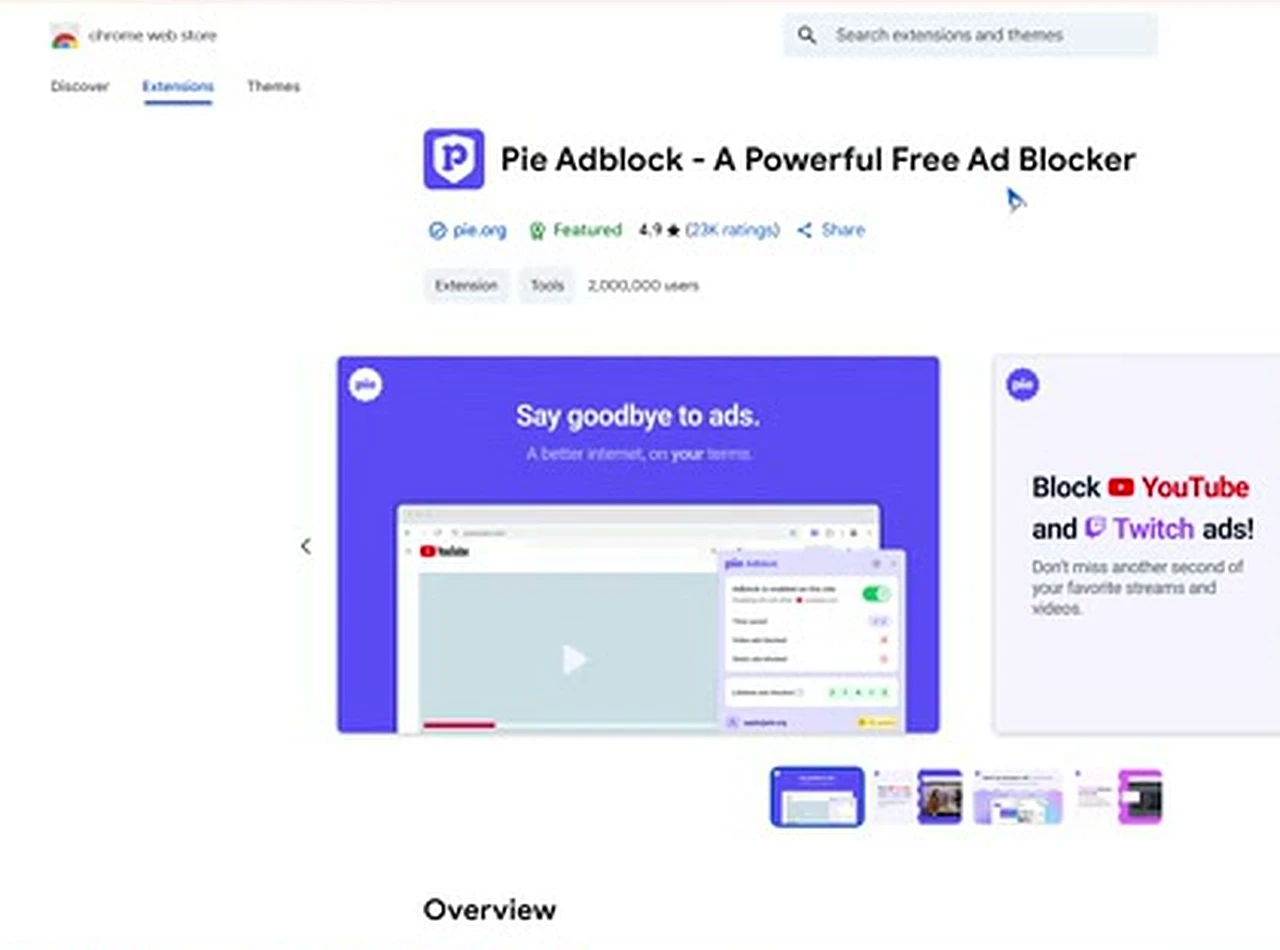
Open Chrome, go to the Chrome Web Store, and search for “Pie Adblock”. Open the result called “Pie Adblock – A Powerful Free Ad Blocker” and check the details first: it is published by pie.org, carries a 4.9-star rating, and lists around 2,000,000 users. Those three signals are how you tell a genuine extension from a copycat. Never install an ad blocker from a random search result or a download-site link — the official store listing is the only source to trust.
Step 2: Add it to Chrome and let it work
Click “Add to Chrome”, then confirm on the small pop-up that appears. Chrome installs the extension in a couple of seconds and pins its icon to the toolbar. That is the entire setup. Pie Adblock starts filtering the moment it is installed, and clicking its toolbar icon on any page shows how many ads it has blocked there.
Step 3: Open a news site and see the difference
Now open any ad-heavy news site — the kind with a banner across the top and boxes wedged between every paragraph. Reload the page. The banner space is gone, the layout pulls itself together, and the article is suddenly the thing on the screen instead of the ads around it. It loads faster too, because all those ad scripts and trackers are no longer downloading.

Try a second site before you call it done. If both load clean, the blocker is working, and you are finished with Part 1.

Step 4: The YouTube check
Open YouTube and play any video. The pre-roll ad that normally forces you to sit through a promo — or hunt for the Skip button — does not appear, and the video starts straight away. Mid-roll interruptions on longer videos are gone too. One honest note: YouTube and the blockers are in a quiet arms race, so if an ad ever slips through after a YouTube update, give the extension a day or two — the block lists update constantly, and the fix usually lands on its own.
Part 2: The Deep Dive
Why ads stopped being just annoying
A decade ago, an ad was a banner you ignored. Today the worst ads are a security problem. The fake download button is the classic trap: on free download sites, the ad network serves a big green “Download” button right above the real one, and the file it delivers is a bundled installer or something worse. Then there are pop-ups claiming your computer is infected, and autoplaying video ads that eat data and battery while you read.
There is also the quiet cost nobody sees: tracking. Most ads arrive with trackers that follow you from site to site. Blocking ads therefore makes pages readable, removes a whole category of malware delivery, and cuts off a large chunk of everyday tracking — which is why an ad blocker is now closer to essential software than to a convenience.

Why your old ad blocker disappeared
If you have blocked ads for a few years, you probably remember uBlock Origin — the gold standard many guides recommended, including an older video on this channel. Search for it on the Chrome Web Store today and you will not find it. Google removed the classic version in the move to Manifest V3, the new rulebook for Chrome extensions, which limits how extensions can filter network requests. The full-strength uBlock Origin was built on the older, more powerful system. Google’s own business is advertising, so the timing suited them — but blockers built on the old model had to adapt or leave the store.
The result is a confusing landscape: some old recommendations are dead links, and some familiar-looking extensions are unofficial copies. The blockers that still work well are the ones built for the new rules from the start — which is why Pie Adblock is the first recommendation in this guide. It is free, and it is maintained for the browser as it exists today.
The power-user option: uBlock Origin from its own website
That does not mean uBlock Origin is dead. It is still excellent, and still the choice of people who want the most control — it is just no longer in the Chrome Web Store. If you want it, get it from its own official website, ublockorigin.com. Click “Get uBlock Origin”, then “Add to Chrome” on the page that follows, and it installs like any other extension. The same page also links the lighter Manifest V3 version, uBlock Origin Lite.
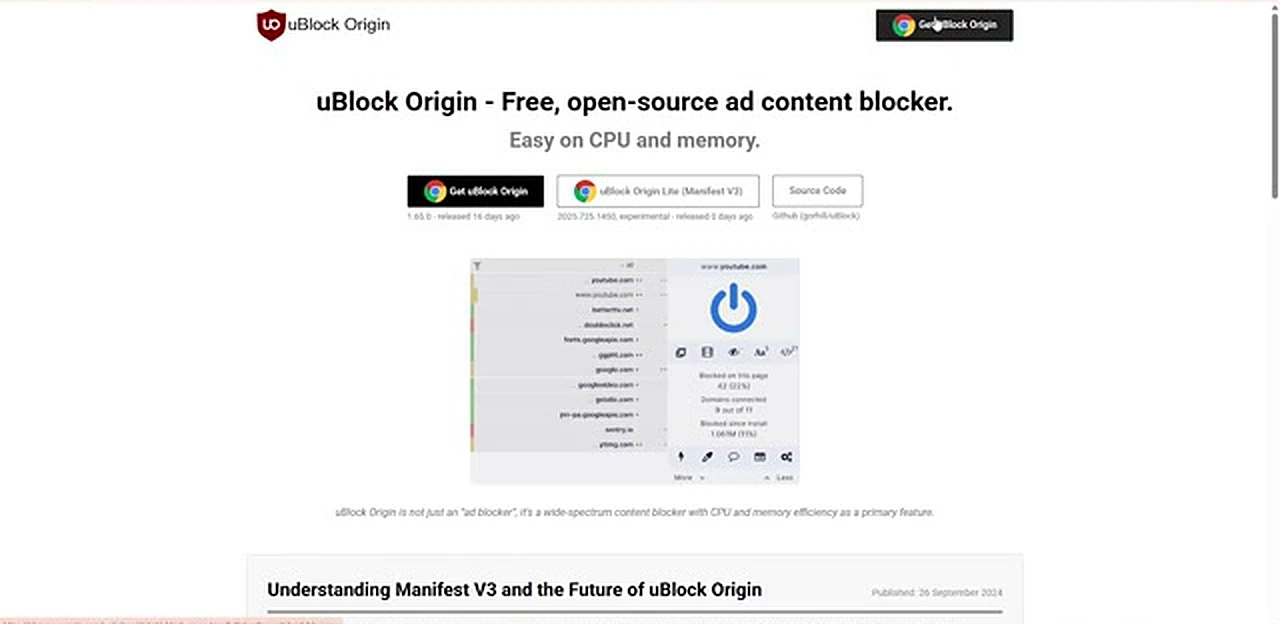
Two warnings come with this route. First, because the extension is not from the Web Store, Chrome may show a warning and occasionally suggest removing it, saying it is no longer supported. That message is about the store listing, not about safety — uBlock Origin from its own official site is safe. Second, never download uBlock Origin from anywhere except ublockorigin.com: a fake copy of a famous ad blocker is a perfect delivery vehicle for malware. Can you run both at once? Yes — the video’s presenter does exactly that. It is not required, though: one good blocker is enough for most people, so start with one and add the second only if a site still lets things through.
Firefox and Brave: same blockers, different stores
Not everyone uses Chrome, and nothing in this guide is Chrome-only. Firefox has its own add-ons store, where you will find the same extensions under the same names. It never adopted Google’s Manifest V3 restrictions in the same way, so uBlock Origin still works there at full strength with no warnings at all. For Firefox users, uBlock Origin is the natural first pick.
Brave is the easiest case of all. It is built on Chromium, so it supports the Chrome Web Store directly — open the store in Brave, find Pie Adblock, and install it exactly as you would in Chrome. Brave also ships with its own built-in Shields, so its users get a decent level of blocking before they install anything. Microsoft Edge users are covered by the same route, since Edge supports Chrome Web Store extensions too. On every browser, the rule is the same: the official store or the developer’s own website — nowhere else.
The one click you will actually need: pausing on one site
Sooner or later, a site will ask you to turn the blocker off. News sites with paywalls do this most often: you sign in, and a message says the page will not load properly unless you disable your ad blocker. Click the extension’s icon in the toolbar and switch it off for that one site only — the blocker stays on everywhere else.
Use this pause generously but thoughtfully. If a site you genuinely value — a small blog, a local newspaper, an independent creator — asks politely and the ads are not hostile, consider leaving the blocker off there. Ads are how much of the free web pays its bills. The line is simple: pause for sites you trust and want to support; keep blocking on sites that serve fake download buttons, pop-ups, or anything that tries to trick you.
What no ad blocker can remove
Honesty matters here, because ad blockers are not magic. After installing one, you will still see some things that look like ads — and that is expected. Many news sites publish sponsored articles that are part of the page itself, not separate ad slots — a “recommended” story box that is actually paid placement. A blocker cannot remove those without breaking the page, because technically they are content, not ads. You will also still see YouTube’s own promotions, like the Premium banner, because those come from YouTube itself rather than an ad network.

The way to judge your blocker is not “is every trace of promotion gone” but “are the intrusive ads gone”. No pop-ups, no autoplaying video, no fake download buttons, no pre-roll on YouTube. If that is true, the blocker is doing its job. The sponsored boxes that remain are easy to scroll past.
When something breaks after installing
Three problems cover almost everything that can go wrong. First, a site looks broken — a button does nothing or a page loads half-finished. Pause the blocker for that site and reload; if the site works again, leaving it paused there is the correct fix. Second, ads suddenly return on a site that was clean yesterday. This usually follows a browser or YouTube update: wait a day, then check that the extension is still enabled — the block lists refresh themselves automatically. Third, the extension icon vanishes from the toolbar. Open the puzzle-piece extensions menu, find the blocker, and pin it back. None of these needs reinstalling.
Frequently Asked Questions
Is it legal to block ads?
Yes — you are choosing what your own computer downloads and displays. Some sites may refuse to serve you content while a blocker is active; pause the blocker for that site or go elsewhere.
Is Pie Adblock really free, or is there a catch?
The ad blocking itself is free, with no account and no trial period. Like many free extensions, it offers optional paid extras, but you do not need any of them to block ads. If an extension ever demands payment before it blocks a single ad, uninstall it.
Will an ad blocker slow down my computer?
No — it does the opposite. Pages load faster because the browser downloads far less: no ad scripts, no tracking beacons, no autoplaying video.
Can I use an ad blocker on my phone?
On Android, Firefox supports extensions, so you can install uBlock Origin in Firefox for Android and get the same protection. Chrome on Android does not support extensions at all — use Brave or Firefox instead. On iPhone, Safari supports content-blocker apps from the App Store, which work the same way.
Why do some ads still appear on YouTube sometimes?
YouTube actively fights ad blockers and changes its ad delivery regularly, so an ad can occasionally slip through right after one of those changes. The blockers respond by updating their filter lists, usually within a day or two, and the ads disappear again without you doing anything.
The Bottom Line
Five minutes is all it takes to change the way the web feels. Install Pie Adblock and the fake download buttons, the shouting video ads and the YouTube pre-rolls are gone. If you want the strongest tool available, get uBlock Origin from its own website instead — or run both, as the video demonstrates. The only real skill you need afterwards is knowing when to pause the blocker for a site you trust. Watch the full video below.