You finish installing Windows, and everything looks fine at first. So you run Windows Update, watch the bar reach 100 percent, and assume the job is done. Drivers? Sorted. That is what updates are for, right?
That assumption once cost me an afternoon. Setting up a freshly installed laptop, I found text with fuzzy edges and icons slightly too large. Nothing flashed an error, so I almost left it alone — until a video stuttered badly. The cause was a graphics driver Windows Update had never properly delivered.
This guide debunks that belief and walks through Intel’s own free tool that settles it: the Intel Driver & Support Assistant.
The Myth: Windows Update Installs Every Driver
The myth survives because it is almost true. After a fresh install of Windows 10 or Windows 11, Windows Update usually finds a working driver for your display, network adapter, and sound. Your computer boots, connects, and makes noise — easy to mistake for a finished job.
But “working” and “correct” are not the same thing. The driver Windows Update hands you is often a safe, generic, or older version — chosen for stability across thousands of machines, rather than the newest driver built for your exact Intel hardware. Intel moves faster on its own hardware, and its newest driver may take weeks or months to reach Windows Update, if it ever does.
Worse, some Intel drivers are simply missing after a fresh install. Graphics, Wi-Fi, and audio drivers are the usual absentees, and graphics is the worst offender. You can update Windows for months and still run a basic display driver that was only meant to get a picture on the screen until the real driver arrived. There is no pop-up saying so. Windows Update is a good start, and you should still run it — but it is not the finish line. For Intel hardware, the finish line is checking with Intel directly.
The Proof Is Already On Your Screen
A missing or outdated Intel driver leaves fingerprints. If two or three of these sound familiar, you have a driver gap, not a broken computer:
- Text looks blurry or chunky, and icons look larger than they should.
- Video stutters or tears, and games run far worse than the hardware should allow.
- No Wi-Fi networks appear, or Wi-Fi is missing from the taskbar entirely.
- The speaker icon shows a red cross, or sound never appears.
- Bluetooth will not pair, or has vanished from Settings.
- Device Manager shows a yellow warning triangle, or an entry called “Unknown device.”
That check takes thirty seconds: right-click Start, open Device Manager, and look under Display adapters, Network adapters, and Sound, video and game controllers. Named hardware with no warning symbols is healthy; yellow triangles mean Windows does not know what it is looking at.
Symptom, Likely Cause, and First Check
| What you see | Most likely missing driver | Check this first |
| Blurry or oversized text | Intel graphics driver | Display adapters |
| No Wi-Fi networks | Intel Wi-Fi driver | Network adapters |
| Speaker icon with a cross | Intel audio driver | Sound, video and game controllers |
| Bluetooth missing | Intel Bluetooth driver | Bluetooth |
| Everything “works” but feels rough | Older generic driver | Run the Intel scan below |
Symptoms overlap: audio trouble can be a graphics problem, and missing Wi-Fi can look like a dead router. A scan answers the whole question at once.
Why Hunting Drivers By Hand Wastes An Afternoon
The old way was to find your exact model online and hope you downloaded the right file — a maze of generations and adapter numbers, where one wrong pick makes things stranger. Random driver sites are worse: outdated, bundled with extras, or repackaged by strangers. A driver runs deep in the system, so get it from the company that made the hardware.
Meet The Tool: Intel Driver & Support Assistant
The Intel Driver & Support Assistant, often shortened to Intel DSA, is a small free program from Intel. Install it once, and it opens a page in your browser that scans your computer, lists the Intel hardware it finds, and tells you which drivers have updates. You choose what to download, and it fetches each driver directly from Intel.
It only covers Intel hardware, and it needs an internet connection. Note the distinction from a large all-drivers pack that carries many brands and works offline: that is a different method for a different situation — useful with no connection, or when fixing many brands at once. This guide is not that method. For Intel hardware with a working connection, going straight to Intel is shorter and cleaner.
One honest limit: it can only offer what Intel has released for your hardware. On a very old machine it may find nothing new, and that is a real answer, not a failure.
Before You Start: Three Quick Checks
- Confirm you have Intel hardware. In Device Manager, under Display adapters, look for Intel UHD Graphics, Intel Iris Xe, or another Intel name.
- Connect to the internet and plug in a laptop. Use a cable if Wi-Fi is the very thing that is missing.
- Save your work and make a restore point. Search Windows for “Create a restore point” first. A graphics install can briefly black out the screen.
The Walkthrough, Step By Step
Step 1: Search For The Official Tool
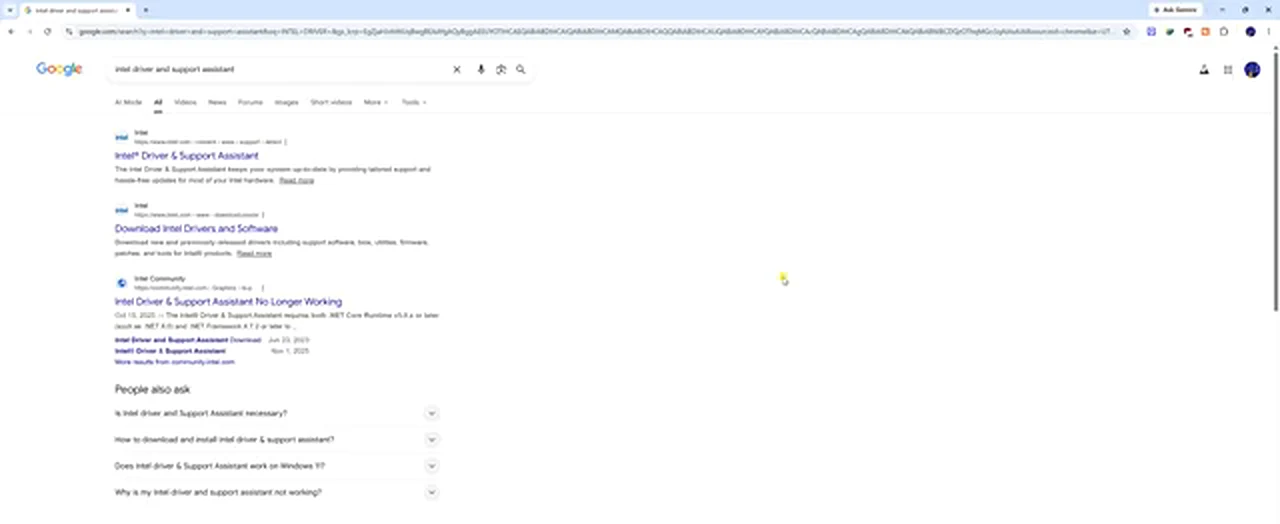
Search for “intel driver and support assistant”. The first result should be Intel’s own page, titled “Intel Driver & Support Assistant,” on intel.com. Click that result — not an ad, not a download mirror. Starting at Intel is what keeps the process safe.
Step 2: Download It From Intel’s Support Page
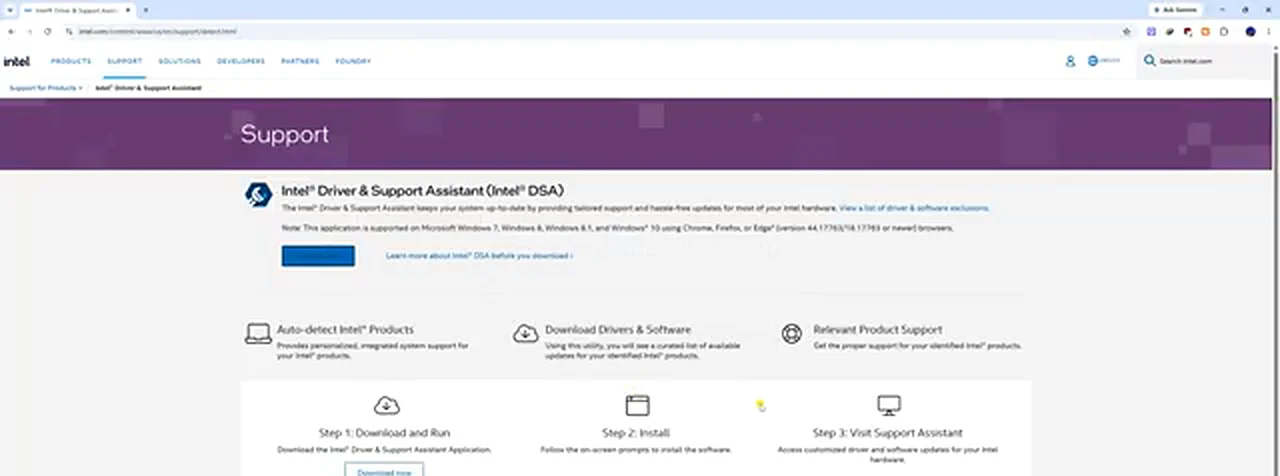
Intel’s Support page lays the process out in three steps: download and run, install, and then visit the Support Assistant. Click the download button and a very small installer will download. Small is normal — the assistant is lightweight, and the big downloads come later, when it fetches the drivers.
Step 3: Install The Assistant And Launch It
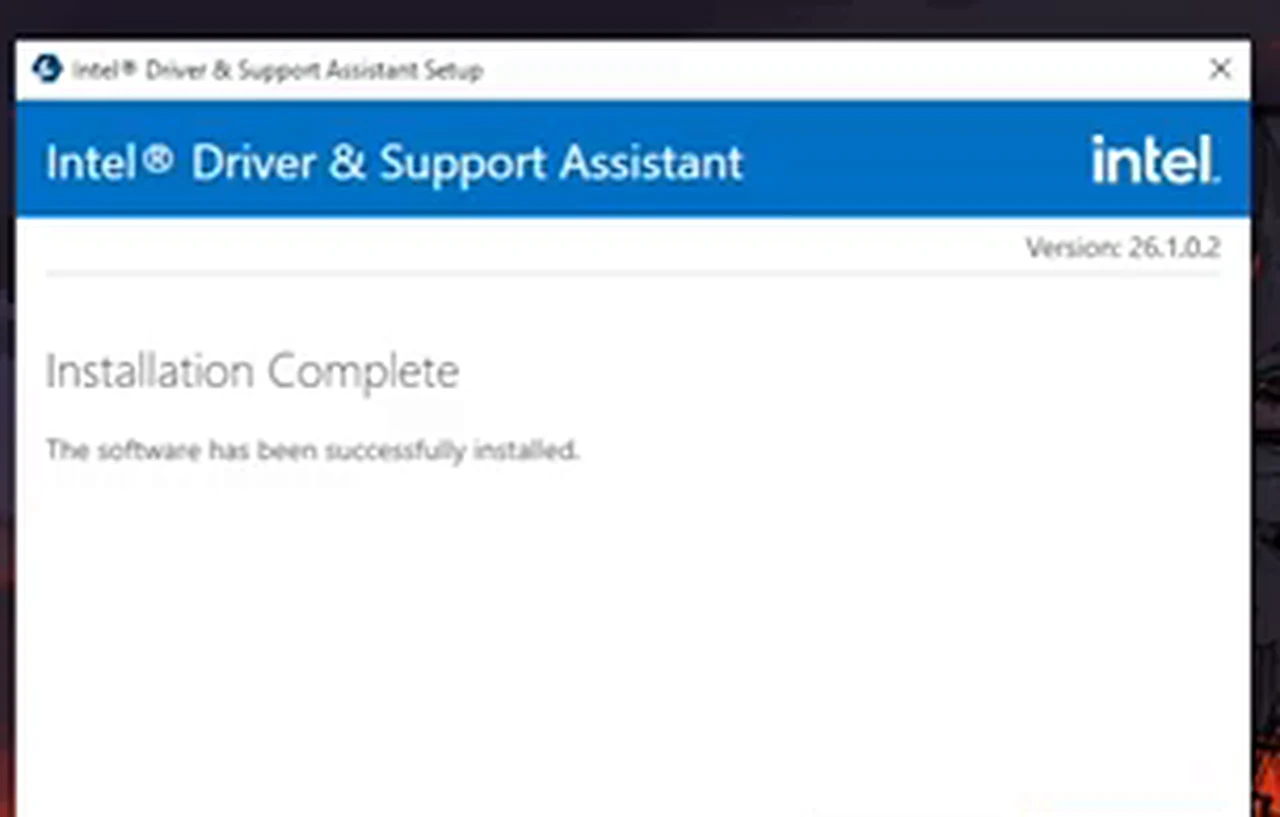
Open Downloads, double-click the installer, and click Yes at the permission prompt. At “Installation Complete,” click Launch: the assistant opens your browser to the Intel scan page. If the browser does not open, launch the assistant from the Start menu or system tray.
Step 4: Let It Scan Your Computer
The page will show “Scanning your system…” for a short while. Let it finish.
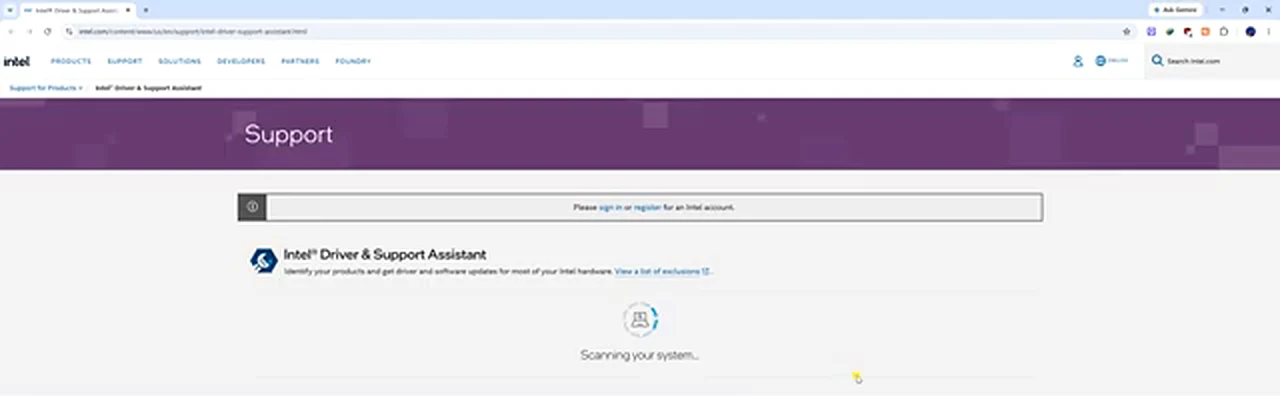
On one desktop in the demonstration, the scan returned a green banner: “Your Intel drivers and software are up to date.” It listed the machine — a Gigabyte Z690 AORUS PRO board — and the drivers it had checked. If you get that result, stop and enjoy it.
Step 5: Read The List, Then Download All
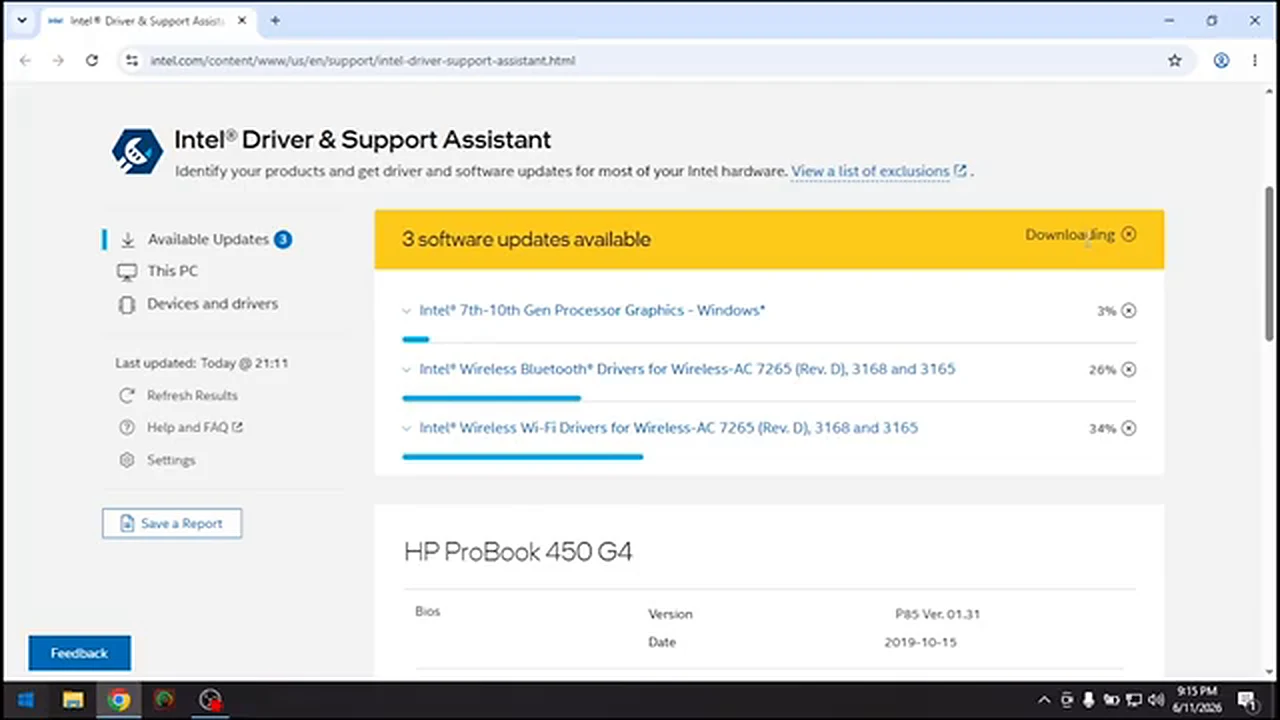
On a laptop, the same scan found three updates: “Intel 7th-10th Gen Processor Graphics – Windows,” “Intel Wireless Bluetooth Drivers for Wireless-AC 7265,” and “Intel Wireless Wi-Fi Drivers for Wireless-AC 7265” — on an HP ProBook 450 G4. The tool read the hardware itself; you never had to know the model numbers.
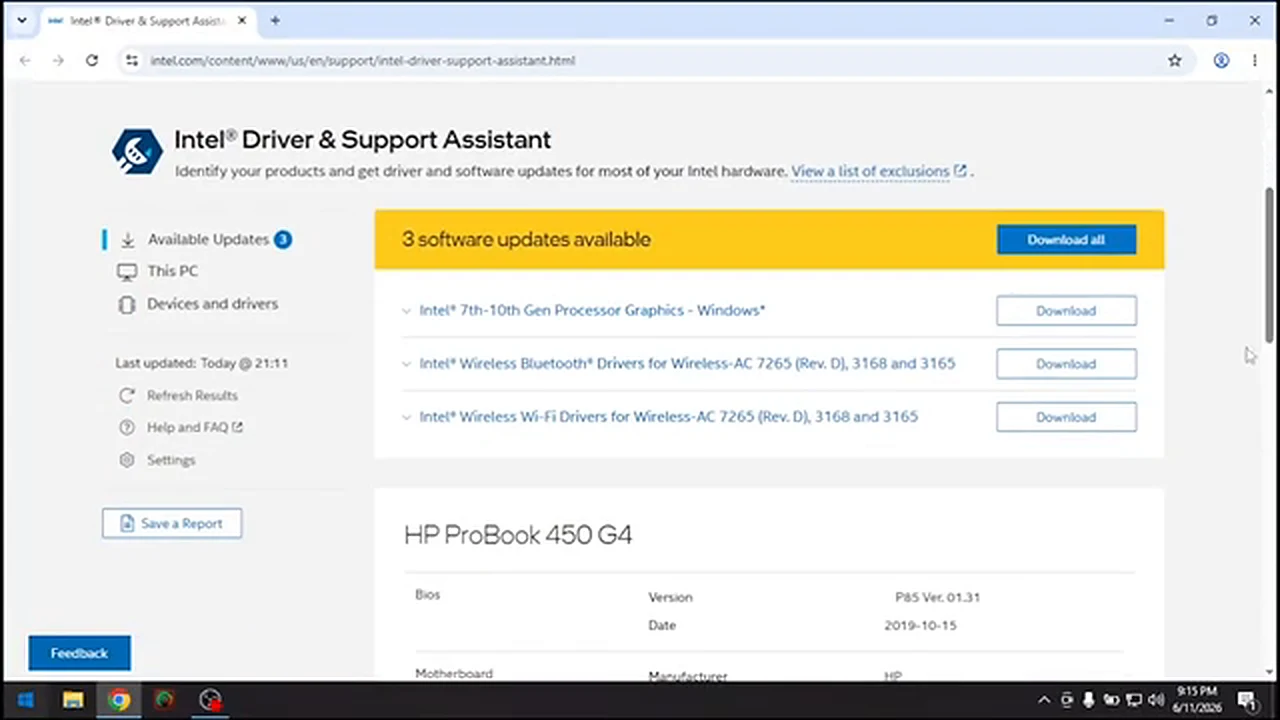
For a machine that has just been reinstalled, click “Download all.” The graphics driver is usually the largest by a wide margin and takes the longest, while Bluetooth and Wi-Fi finish much faster. Wait until every download is done before installing anything.
Step 6: Install The Graphics Driver First
The graphics driver goes first. Its installer, the Intel Graphics Driver Installer, opens in front of the browser. Agree to the license, and after a short “Pre-Install” stage it will install the Intel Graphics Driver and the Intel Graphics Command Center.
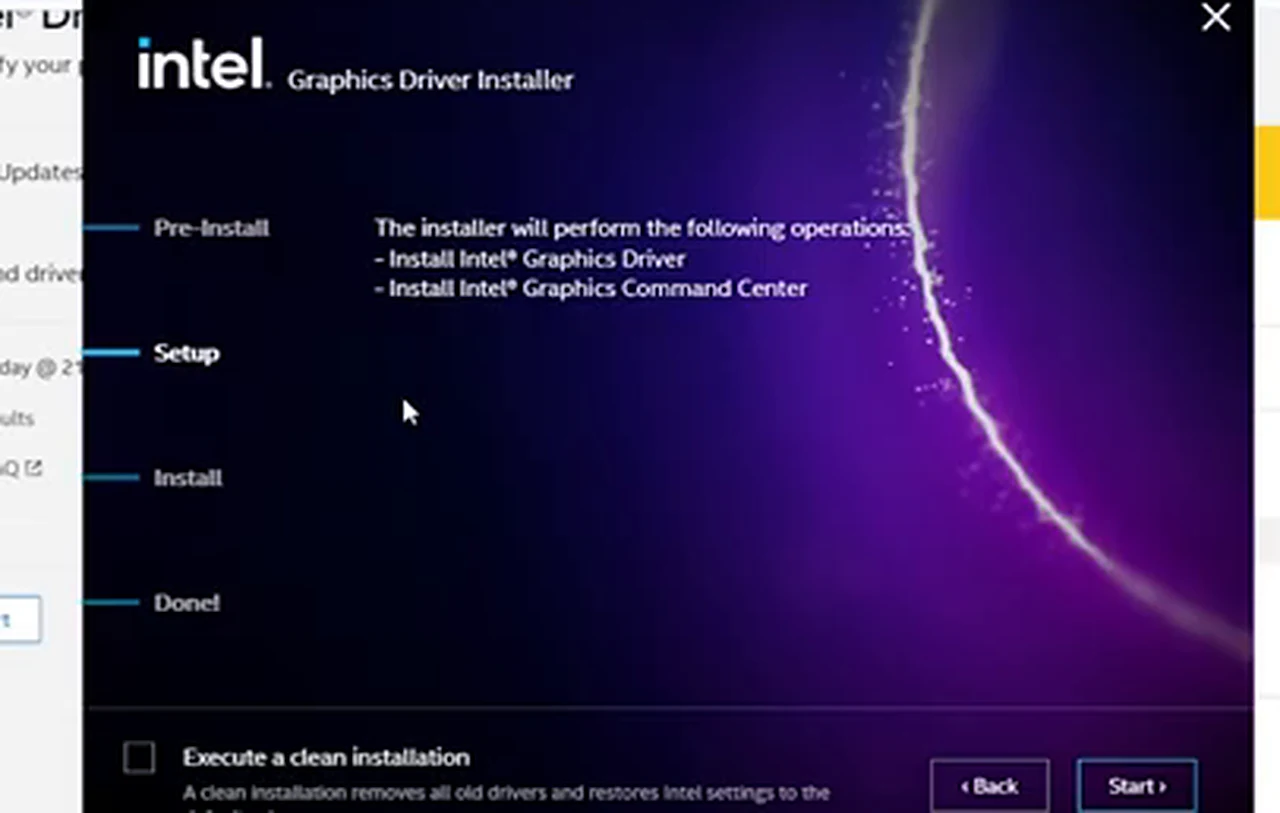
At the bottom is a checkbox worth understanding: “Execute a clean installation.” It removes the old graphics driver completely and restores Intel’s settings to their defaults. When you are replacing an old or generic driver — exactly this guide’s situation — that is the right choice. Tick it, click Start, and leave the computer alone.
Now the part nobody warns you about. While the old driver is removed, your screen may flicker or go black, and sound may cut out. In the video, the screen recording itself stopped at this point — the rest was never captured. That is not a disaster: the new driver is installing underneath. Do not force a restart. Wait; restarting mid-install can strand the computer with half a driver.
Step 7: Install The Rest, Then Restart
Install the remaining drivers one at a time — Bluetooth and Wi-Fi are usually quick and quiet — then restart. This is not optional: drivers only fully take effect after a restart, and leftovers like a crossed-out speaker icon very often clear up then. After rebooting, repeat the thirty-second check: no warning triangles, Wi-Fi present, Bluetooth present, video sharp and smooth.
What If The Scan Says You Are Up To Date?
Believe it, but confirm the symptoms are gone. If the screen is still blurry or Wi-Fi still missing after a clean scan, the cause is elsewhere — a cable, a monitor setting, a Wi-Fi switch, or another maker’s hardware. A clean scan lets you stop chasing drivers and look in the right place.
The Mistakes That Undo A Good Install
- Drivers from random download sites. If it is not from Intel, Microsoft, or the computer maker, treat it as untrusted.
- Skipping the restart. Judging the result before a restart leads to reinstalls that make the real state harder to read.
- Running two driver tools at once. Pick one method, finish it, restart, and check.
- Forcing a restart during a black screen. A black or flickering screen during a clean graphics install is expected.
- Chasing the newest number forever. Once Intel says you are up to date and the symptoms are gone, stop.
How Often Should You Run It?
Run it after a fresh Windows install, after a major feature update, when a symptom appears, or when a game or new monitor misbehaves. A check every month or two is plenty otherwise.
Watch The Walkthrough
Frequently Asked Questions
Is Intel Driver & Support Assistant free?
Yes. It is free from Intel, and the drivers are free. If a website asks you to pay for it, you are on the wrong website.
Does it work on Windows 10 and Windows 11?
Yes. The demonstration was recorded on Windows 11, but the search, download, scan, and install steps are the same on Windows 10.
Will it update a graphics card from another brand?
No. Intel DSA only covers Intel hardware. Other brands need their maker’s own driver tool or support page.
My screen went black during the install. Did I break something?
Almost certainly not. A black or flickering screen during a clean graphics install is expected. Wait several minutes without touching the power button. In the demonstration, the recording itself stopped at this stage, and the install still completed.
The speaker icon still shows a cross. What now?
Restart first, and check again only after the restart. Audio trouble during a graphics install is common, because the audio driver is closely tied to the graphics driver. If the cross remains, run the scan again and check Device Manager under Sound, video and game controllers.
Can I use it without internet?
No. It needs the internet to check Intel’s catalogue and download drivers. With no connection, an offline driver pack is the method for that situation — a different tool.
The belief that Windows Update handles every driver makes a fresh install feel finished in one click. It is wrong in the way that matters: the drivers it misses are the ones you notice every time you look at the screen. Checking with Intel takes ten minutes and replaces a guess with a named list of your hardware. Run the scan, install what it offers, restart — and never again assume 100 percent means done.