
It was almost midnight, and I still had one thing to finish. The room was dark, the screen was blazing, and my eyes felt like they had sand in them. When I finally shut the computer down, the headache stayed behind — and I woke up with it still there.
If that evening sounds familiar, you are not alone. Most of us set brightness once — usually at full blast, the way the monitor arrived — and never touch it again. The fix is embarrassingly simple, and on a desktop it takes one tiny, free program. This guide covers the whole thing: why full brightness costs more than you think, the quick software fix for desktops, laptops, and multiple monitors, and a day-and-night routine you can actually stick to.
What Full Brightness Really Does to Your Eyes
Your eyes were not built to stare at a light source for eight hours straight. A monitor at full brightness in a dim room is like a lamp pointed at your face: your pupils shrink to cope, the muscles that focus your eyes work overtime, and you blink less, so your eyes dry out. After an hour or two, that shows up as burning, watering, or a gritty feeling.
The real problem is the mismatch. Brightness only feels comfortable when it roughly matches the light around you. A screen that looks fine at noon becomes a floodlight at 11 at night. I noticed the change the first week I started managing brightness properly: my eyes stopped feeling tired by nine in the evening, and the headaches that used to arrive with long sessions mostly stopped showing up.
The Quick Fix: One Small Program Called Twinkle Tray
Here is the part that surprises most desktop owners: Windows has no built-in brightness slider for a regular desktop monitor. Laptops get one, because the screen is built into the machine. A desktop monitor is a separate piece of hardware, so Windows leaves brightness to the buttons on the monitor itself. Nobody does that twice a day.
Twinkle Tray solves that by putting a brightness slider in the system tray, a click away, for every monitor connected to your computer. It is a small, free program for Windows. Once installed, you click its icon near the clock, drag a slider, and the brightness changes right away — no monitor menus, no hunting for buttons. Setup takes a few minutes, and after that, changing brightness takes two seconds instead of two minutes. That is why you will actually do it.
Step 1: Find the Official Download
Open your browser and search for “Twinkle Tray”. The official site should be the first result — the project page for Twinkle Tray, a brightness slider for Windows. Click that result, not a random download site. Small, popular utilities attract look-alike download pages, and the official page is the only source worth trusting. If the first result looks like an advertisement or a download aggregator, skip it and look for the official project page by name.
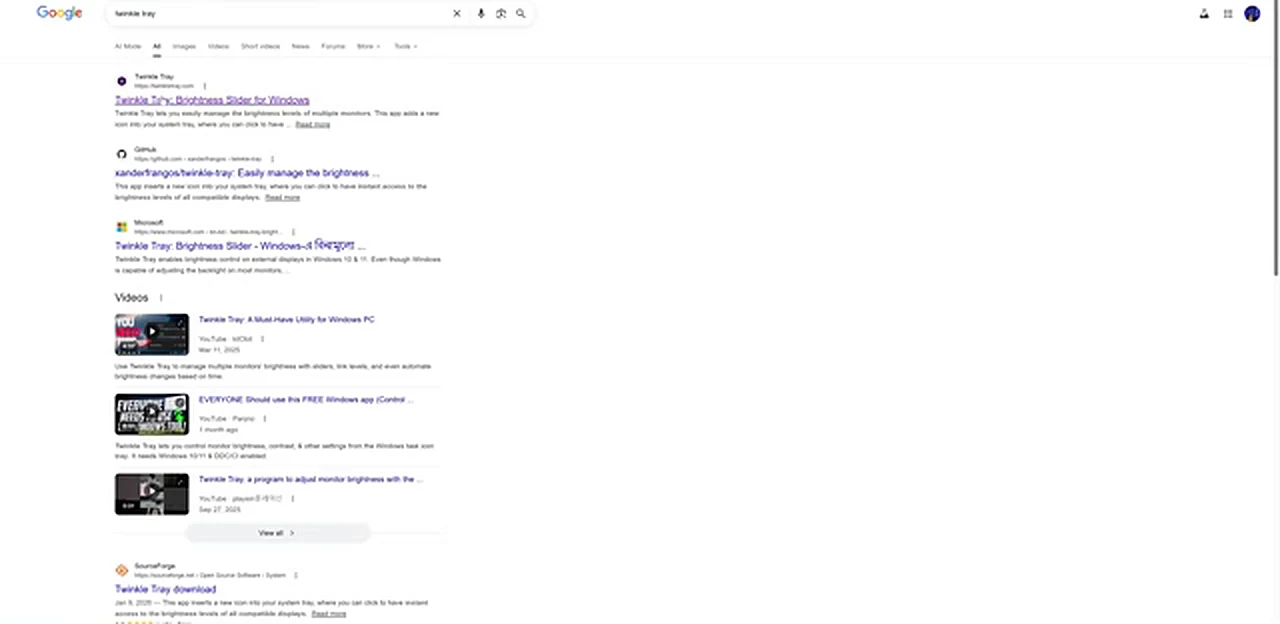
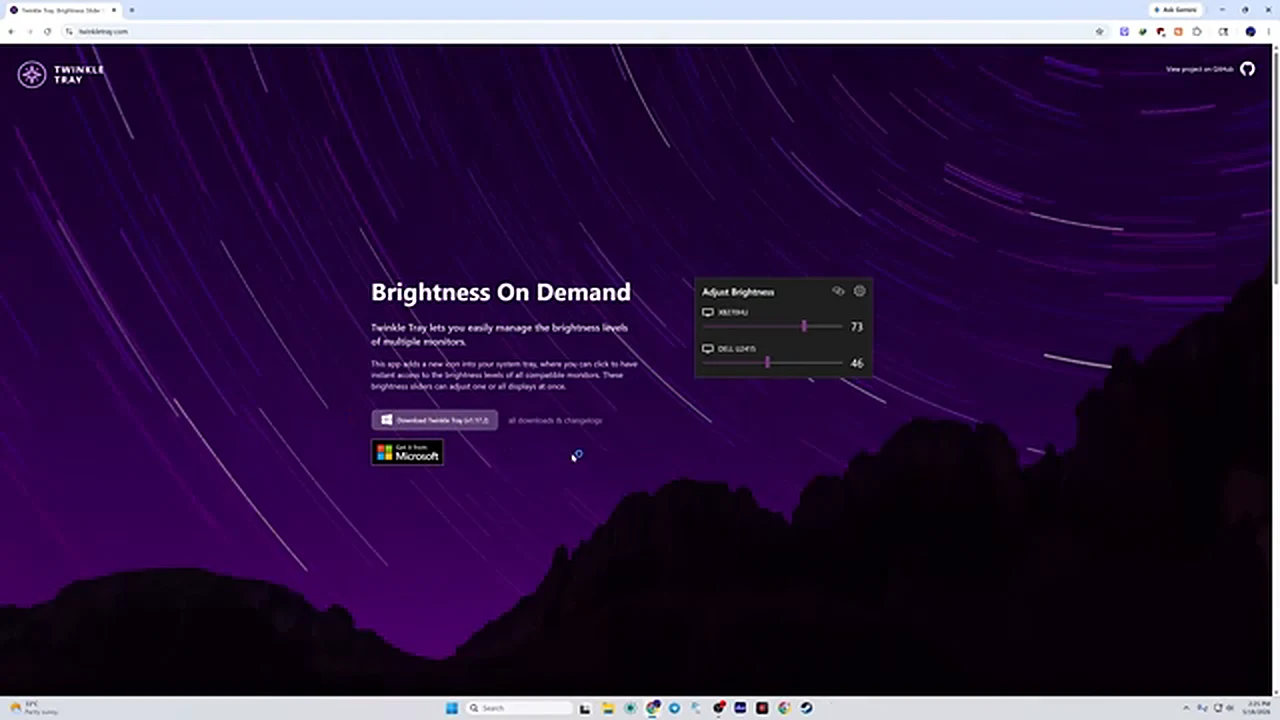
On the official page, the idea is explained in one line: Twinkle Tray lets you manage the brightness of multiple monitors from the system tray. Save the installer somewhere you can find it, like your Downloads folder.
Step 2: Install It in Under a Minute
Open the downloaded installer and double-click it. The setup is about as short as setup gets: a small installer window, a progress bar, and then it is done. When it finishes, close the installer window. Twinkle Tray is already running — it just does not announce itself with a big window.
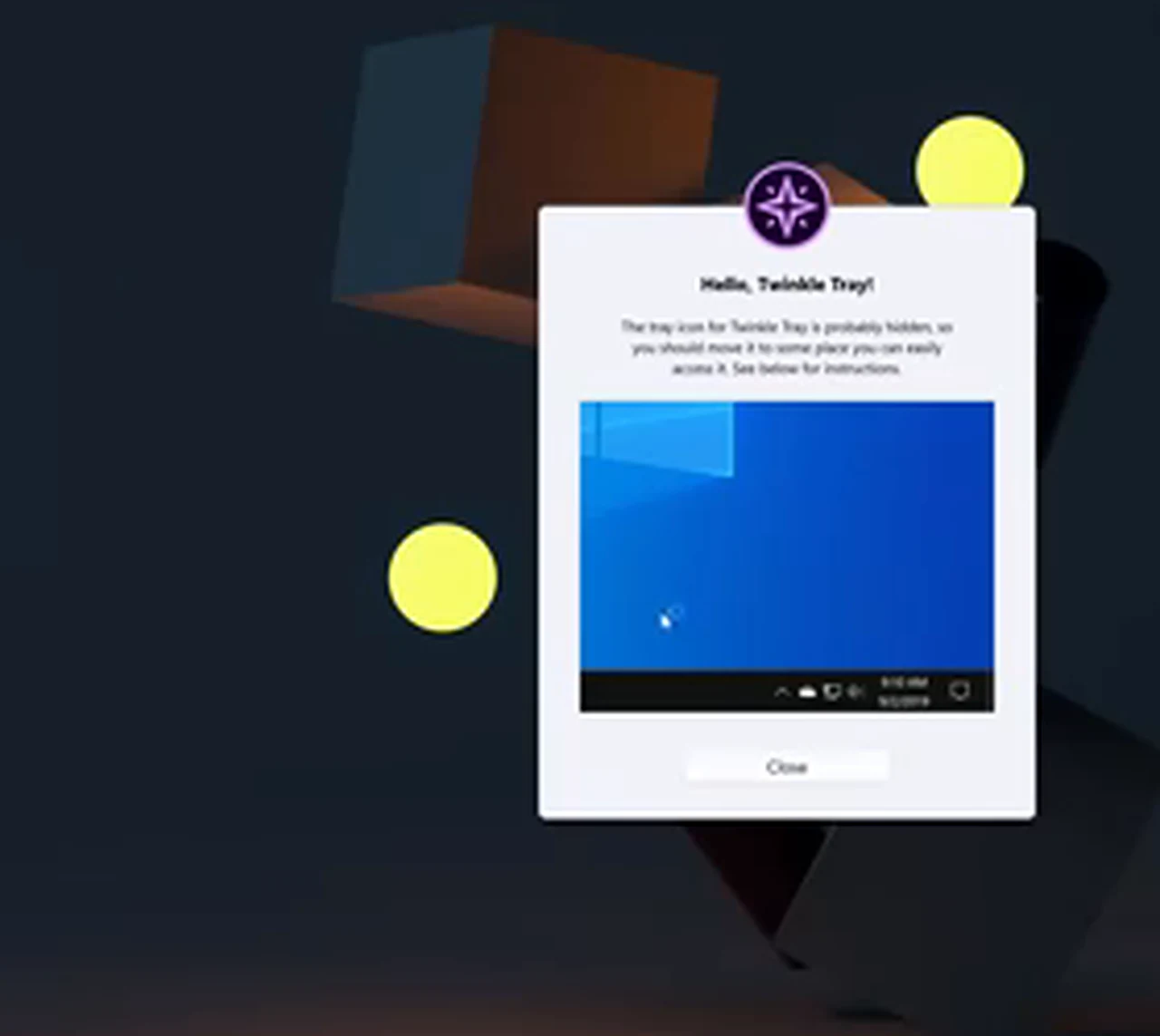
The first time it runs, Twinkle Tray shows a short welcome message. Its icon lives in the hidden-icons area at first, which is why the welcome note tells you where to find it. Click Close on the welcome message and move on to the tray.
Step 3: Control Brightness From the System Tray
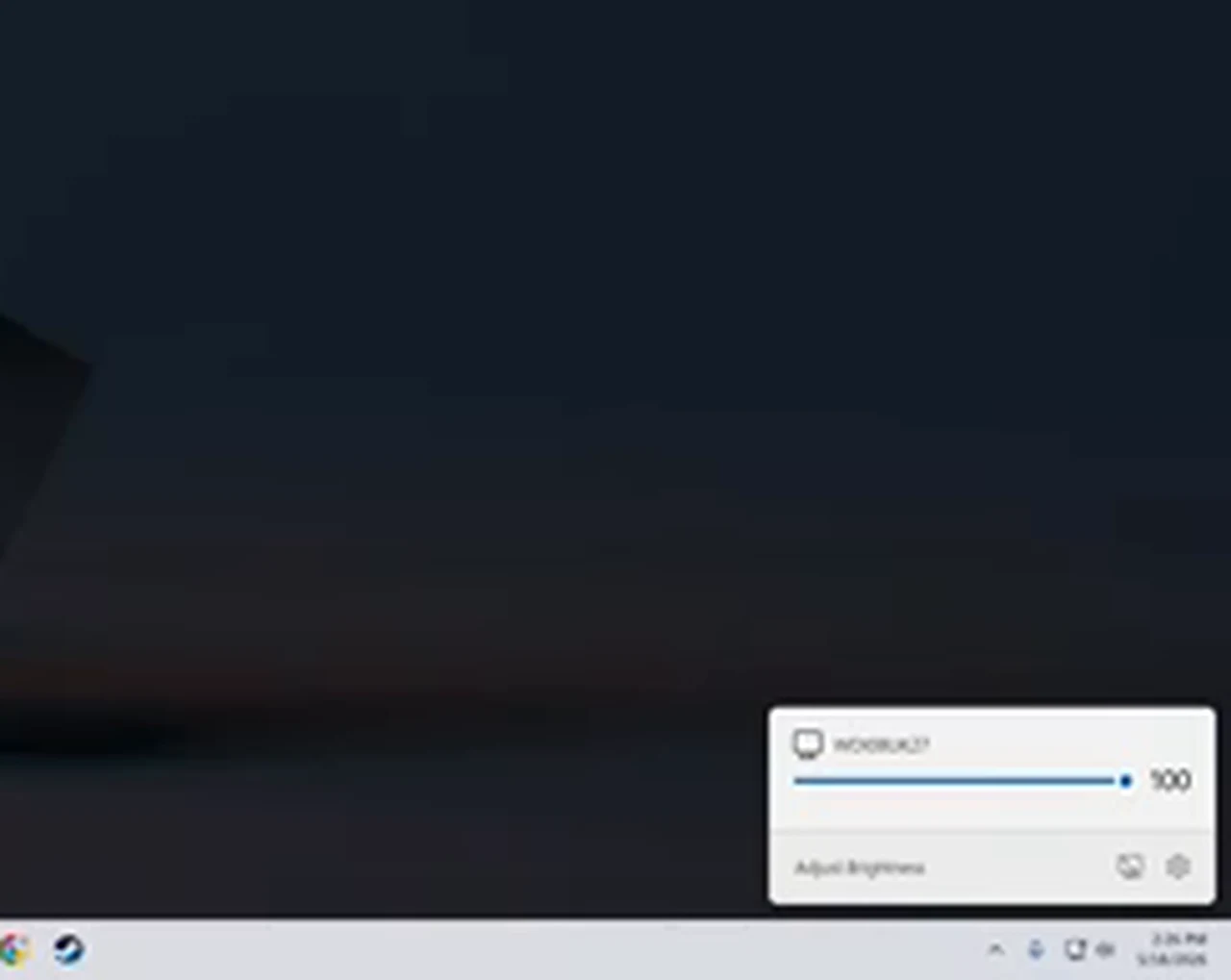
Click the small upward arrow in the bottom-right corner of the taskbar to show the hidden icons, then click the Twinkle Tray icon — a small star-like symbol. A compact panel pops up with a slider and the brightness percentage. Drag the slider left to dim the screen, or right to brighten it. The change happens live, while you drag, so you can watch the screen settle to a level that feels right instead of guessing a number. When it looks comfortable, click anywhere else and the panel closes. That is the entire daily routine: click, drag, done.
Morning means a quick drag upward; evening means a longer drag down. The slider remembers where you left it, so each adjustment starts from your last level. After a week, the motion becomes automatic — brightness control becomes a habit once it stops being a chore.
One Slider for Each Monitor
This is where Twinkle Tray earns its place over the buttons on your monitor. If two monitors are connected to one computer, the tray panel shows a separate slider for each display, labeled by monitor name. You can dim the second monitor — the one you glance at for chat or reference — while keeping the main screen brighter for focused work, or bring both down together in the evening. The official site demonstrates exactly this, with two monitors sitting at different levels in the same panel.
In a two-monitor setup, the screens almost never match — different models, ages, and defaults. Setting each one to a level that looks the same to your eyes removes the constant readjustment every time you look across.
What About the Keyboard Keys on a Laptop?
Laptops are a different story, and a happier one — when everything is working. Most laptops have brightness keys in the top row of the keyboard, usually on the F1 and F2 keys, marked with little sun symbols. Hold the Fn key and tap the sun-up key to brighten, or the sun-down key to dim. When the laptop’s drivers are installed correctly, those keys just work, and they are the fastest way to adjust brightness on the go. If you own a laptop and the keys already work, you may not need any software at all for day-to-day control.
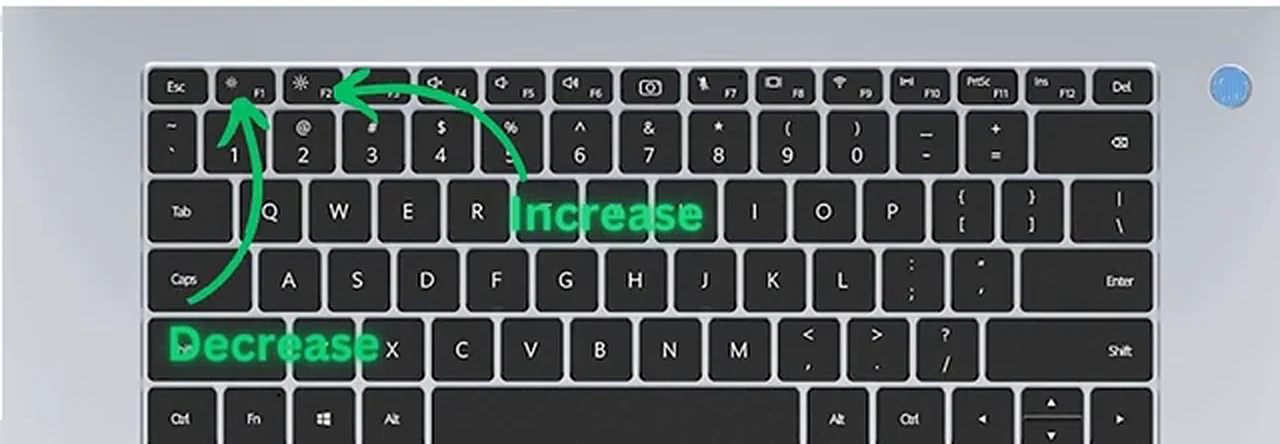
But “when the drivers are installed” does a lot of heavy lifting in that sentence. Plenty of laptops — especially after a fresh Windows install or a major update — end up with missing or generic display and hotkey drivers. The keys stop responding, the brightness slider vanishes from Windows Settings, and the screen sits stubbornly at one level. The missing piece is almost always the driver: the display driver from the laptop maker’s support page, or the hotkey utility for that brand. Restart after installing it, and the keys usually come back to life.
Even with working keys, Twinkle Tray still earns its place on a laptop. The keys jump in fixed steps, while the tray slider gives fine control — 63 percent instead of 60 or 70, if that is where your eyes feel best. Think of the keys as the quick option and Twinkle Tray as the precise one.
Why Desktops Never Had This Slider in the First Place
It is worth understanding why this problem exists, because it explains why the fix has to be a separate program. A laptop screen is part of the laptop, so Windows can talk to it directly and offer a brightness slider in Settings. A desktop monitor is an independent device with its own menu and its own buttons, so Windows treats it as a display, not as a light it controls. Twinkle Tray bridges that gap by speaking to the monitor through the display connection itself, adjusting the monitor’s own brightness setting — the same setting the physical buttons change — from software.
A Day-and-Night Routine You Can Actually Keep
Numbers help, but only as a starting point, because every room and every monitor is different. A sensible daytime range is 60 to 80 percent — bright enough to stay crisp in a lit room, without blasting your eyes. At night, with the room lights low, 20 to 40 percent is usually plenty, and many people settle somewhere in the low thirties. Adjust by feel: text should look clear without the screen feeling like a light source.
The routine that sticks is the one with the fewest steps. In the morning, when you sit down and the room is bright, push the slider up into the daytime range. In the evening, when the sun goes down, drag it down into the night range. One more choice is worth making deliberately: light mode versus dark mode. Dark mode lowers the bright white on screen, but it changes how colors and photos truly look — a problem if you work with images or video. Staying in light mode with lower brightness keeps true colors without the glare.
When the Slider Does Nothing: Quick Troubleshooting
Most of the time, Twinkle Tray works the moment it is installed. When it does not, the cause is usually the connection between the computer and the monitor. Older connections and some adapters cannot carry brightness commands at all, so the slider moves, but the screen stays the same. If that happens, try an HDMI or DisplayPort connection, and check the monitor’s own menu for a setting that allows external control. On a laptop, reinstall the display driver from the maker’s support page and restart.
Frequently Asked Questions
Is Twinkle Tray free?
Yes. It is a small, free utility for Windows. Download it from the official project page, and avoid copies on unrelated download sites.
Does it work on a desktop monitor?
Yes — desktops are exactly the case it was built for. Windows has no built-in brightness slider for an external monitor, and Twinkle Tray adds one to the system tray. It works on laptops too.
Can it control two monitors at once?
Yes. Each connected monitor gets its own slider in the panel, so you can set different levels per screen or bring them all down together.
Why do my laptop brightness keys not work?
Usually a missing driver. After a fresh Windows install or a major update, the display driver or the maker’s hotkey utility may be absent. Install the driver from the laptop maker’s support page, restart, and test the Fn plus sun keys again.
What brightness level should I use?
Start with 60 to 80 percent during the day and 20 to 40 percent at night, then adjust by feel. The right level matches the light in your room and keeps text clear without glare.
Is lowering brightness better than using dark mode?
They do different jobs. Dark mode changes colors; brightness changes light output. You can use both, but lowering brightness helps even in light mode, and it keeps the true colors of your work intact.
Brightness is one of those settings that feels too small to matter until you fix it. Install Twinkle Tray, find your daytime and nighttime levels, and give your eyes a week at the right light. It costs nothing and takes minutes. Your eyes will notice long before you do, and that is rather the point.