You installed Linux beside Windows out of curiosity. Now the novelty has worn off, the disk feels cramped, and every restart means negotiating with a boot menu you no longer want. So you delete the Linux drive, restart with relief — and there it is again, offering you a system you just deleted.
That is not your mistake. Removing dual boot has two halves, and most quick guides show only the first. This guide does both, starting with the five questions people ask before they click Delete.
The 5 Questions Everyone Asks Before Removing Dual Boot
1. If I delete the Linux partition, will Windows still boot?
Yes, if you finish the second half. Windows lives on its own partition, so deleting Linux removes Linux, not Windows. The trouble starts only when you stop there: Linux left a small boot folder behind, and that folder keeps telling your computer to offer a choice at startup. Once it is gone too, Windows boots straight through. The real danger is deleting the wrong partition — Windows, EFI, or recovery. So identify the right one first, as shown below.
2. Will I lose my Windows files or have to reinstall Windows?
No. You do not need to reinstall Windows, and your Windows files, programs, and settings stay put. What you will lose is everything inside the Linux partition, because deleting a volume wipes it completely. Copy anything you still want out of Linux first: documents, downloads, project files, and bookmarks. Back up anything precious in Windows too, as a safety net.
3. Why does the boot menu still appear after I deleted Linux?
Because the menu does not live inside the Linux partition. Startup choices live in the EFI system partition, a hidden partition of about 100 MB. Linux placed a folder there — ubuntu, kali, debian, fedora, or your system’s name — beside the Microsoft folder. Deleting Linux removes the operating system but leaves that folder, so your computer still offers it, even though choosing it now leads nowhere. Open the EFI partition, look inside its EFI folder, and remove only the Linux folder. Leave Microsoft and Boot alone.
4. Does this method work on every computer?
It works on most computers today: Windows 11 or 10 in UEFI mode on a GPT disk. The walkthrough shows how to check that in thirty seconds. If your disk uses the older MBR layout, do not follow these EFI steps; an MBR computer boots differently and needs a different repair. The method covers Ubuntu, Kali, Linux Mint, and other Linux systems, because they all leave a boot folder in the same EFI place. Only the name changes. If you installed Linux more than once, you may find two leftover folders or two EFI partitions, covered below.
5. Can I get the freed space back into my C: drive?
Sometimes. After deletion, the space becomes unallocated: empty room with no letter and no file system. Disk Management can extend C: into it only if it sits immediately to the right of C:, with nothing between. Often a recovery partition sits in the way, and Extend Volume stays greyed out, exactly as in the video. In that case, make the freed space a separate new drive for storage, which always works, or use a reputable partition tool to merge it.
Before You Touch Anything: Backup and the GPT Check
Copy anything you want to keep out of Linux first, while Linux can still boot. Then back up anything in Windows you would hate to lose.
Open Disk Management: press Start, type Computer Management, open it, and go to Disk Management. Find C:. It will usually say Healthy, Boot, Page File, Crash Dump, and Basic Data Partition. That is Windows. Do not touch it. Beside it, you will probably see a small EFI System Partition, about 100 MB, and a recovery partition. Leave those alone too.
Check whether this guide fits your computer. Right-click the disk itself — the label on the left saying Disk 0 or Disk 1 — choose Properties, and open the Volumes tab. If Partition style says GUID Partition Table (GPT), proceed. If it says Master Boot Record (MBR), stop and find an MBR guide.
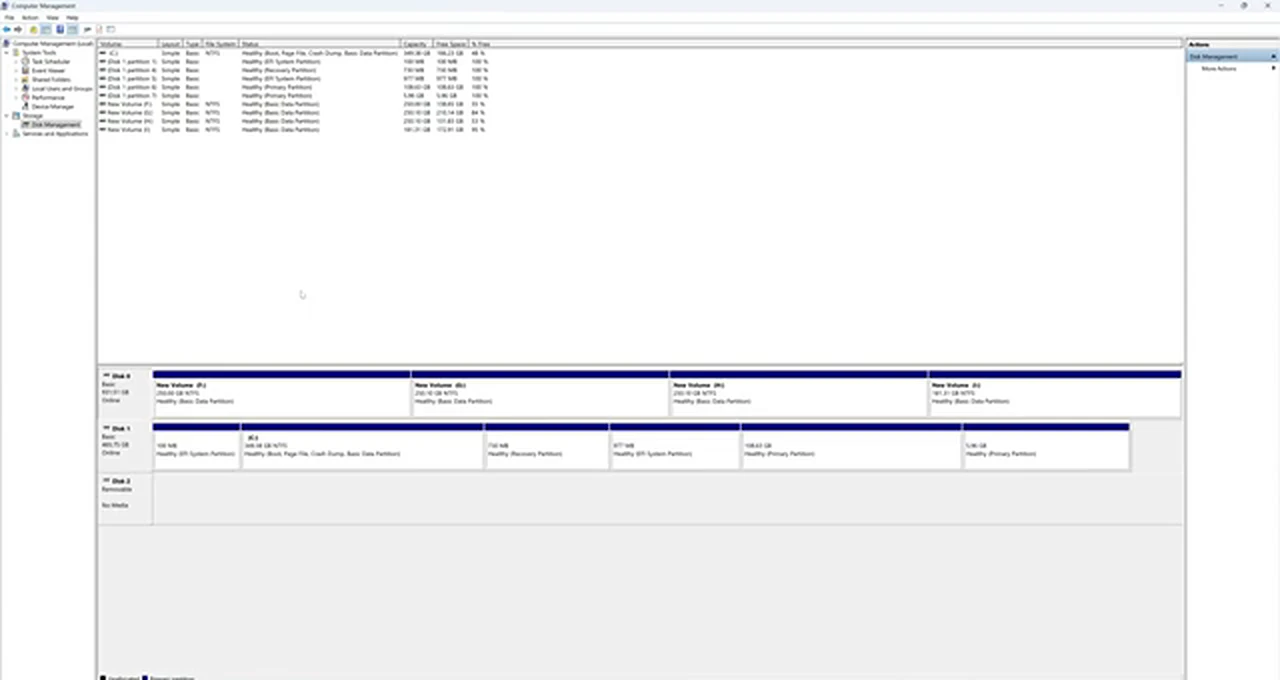
Now identify the Linux block. In the video, the Kali partition is 108 GB on Disk 1. A Linux partition often has no drive letter and is labelled Healthy and Primary Partition, without Windows labels like Boot and Page File. If two blocks look alike, do not guess. Match the size to what you gave Linux.
Part 1: Delete the Linux Partition in Disk Management
Right-click the Linux partition and choose Delete Volume. Windows warns that all data on the volume will be lost. Check once more that you have the right block, and click Yes. The block turns black and reads Unallocated. Linux is gone: its files are gone, and it can never boot again.
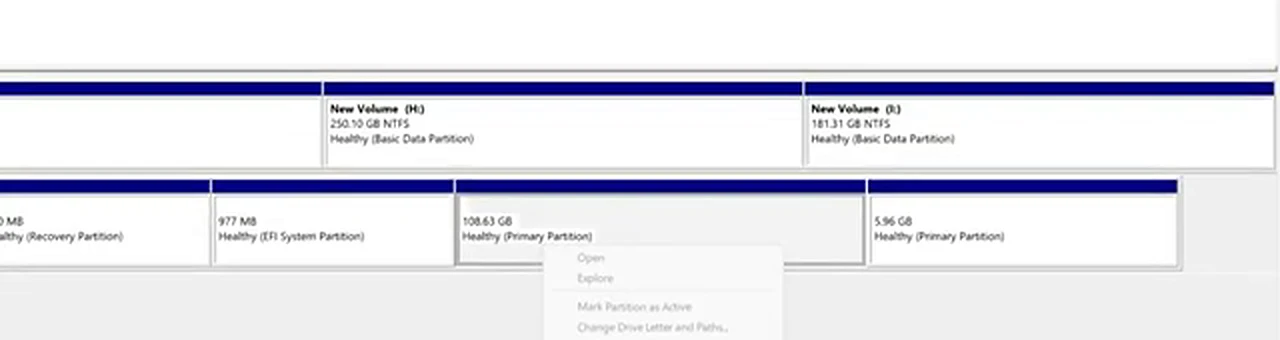
In the video, a second leftover primary partition is deleted the same way, because an earlier Linux install had been removed incompletely. Most readers will have only one to delete.
Right-click C: and check Extend Volume. If the unallocated space sits directly beside C:, extend C: now. More often, as in the video, it is greyed out because another partition sits between C: and the freed space. Leave that for the end.
Part 2: Why Restarting Now Still Shows the Old Menu
Restart now, and the old menu would appear again. Choosing Linux would fail, because its files are gone, and you would have to pick Windows by hand every time.
The reason is the EFI system partition. It is tiny and hidden, but it is where your computer looks first at startup. Linux left a folder there, and until that folder is removed, the menu stays. The next two parts reach it safely: give the hidden partition a temporary letter, look inside, remove one folder, and hide it again.
Part 3: Give the EFI Partition a Letter With DiskPart
The EFI partition has no drive letter, so you cannot open it in File Explorer. DiskPart can give it one temporarily. Press Windows + R, type diskpart, and press Enter. Click Yes, then type:
list volume
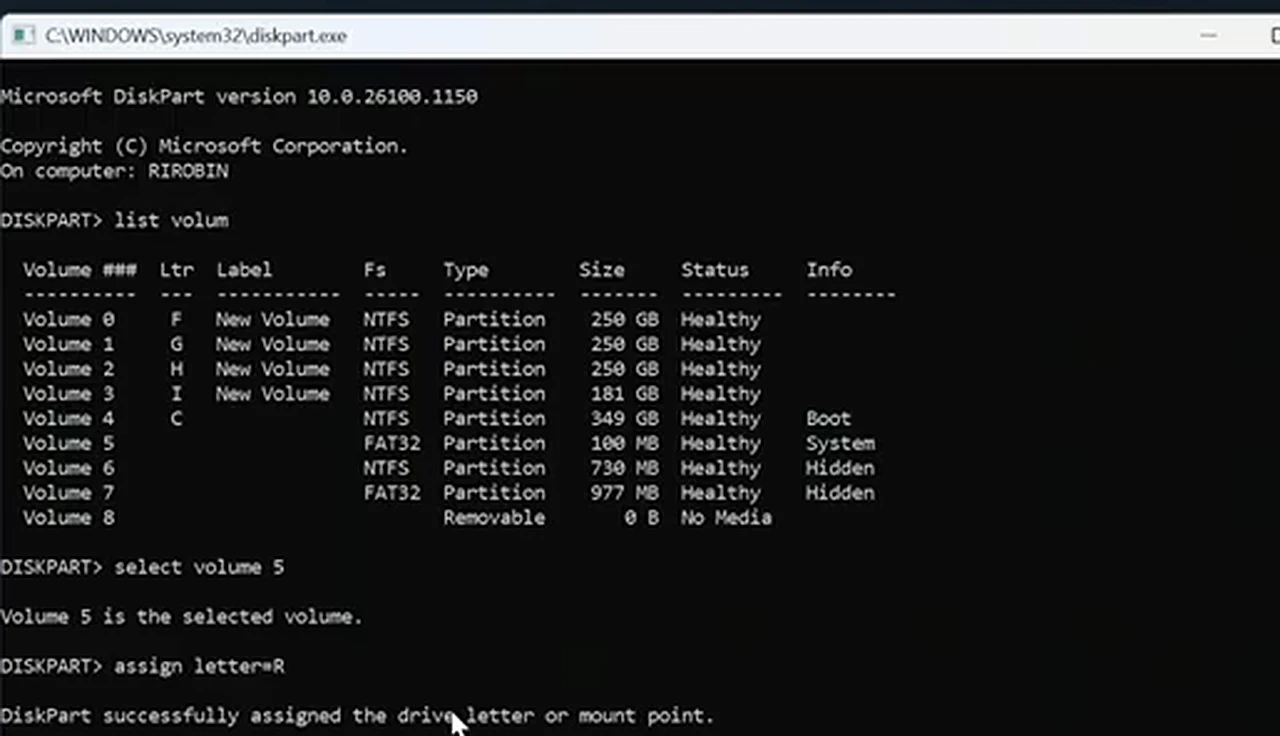
You will see every volume: drives with letters like C:, F:, G:, and H:, plus a few with no letter. Find the one with FAT32 as its file system, System as its info, and a size of about 100 MB. That is the EFI partition. Ignore any volume marked Hidden for now; the video shows a second FAT32 volume from an older install, checked later. Note its number. In the video it is Volume 5, but yours will probably differ.
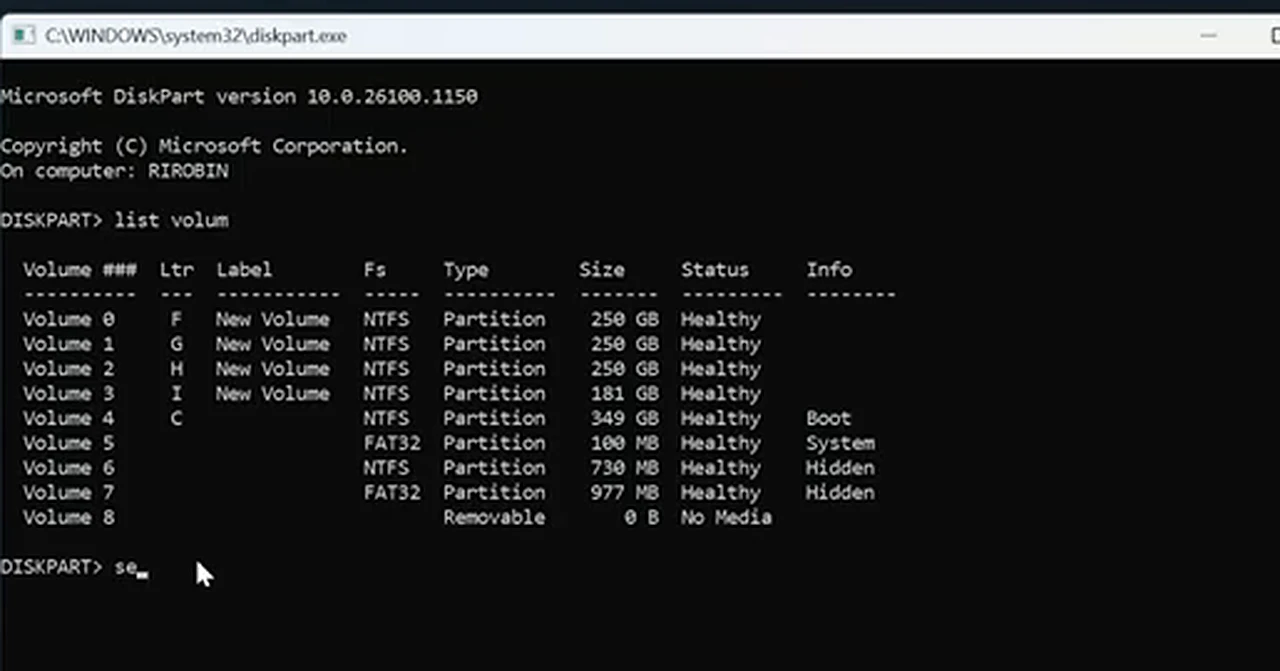
Type the next two commands, replacing 5 with your number:
select volume 5
assign letter=R
DiskPart confirms the letter. It does not matter which free letter you use; R is used because it is free. Type exit and press Enter. Do not browse R: in File Explorer. The next step uses Command Prompt.
Part 4: Delete the Linux Boot Folder in Command Prompt
Search for cmd in the Start menu, right-click Command Prompt, and choose Run as administrator. Click Yes. Switch to the letter you assigned:
R:
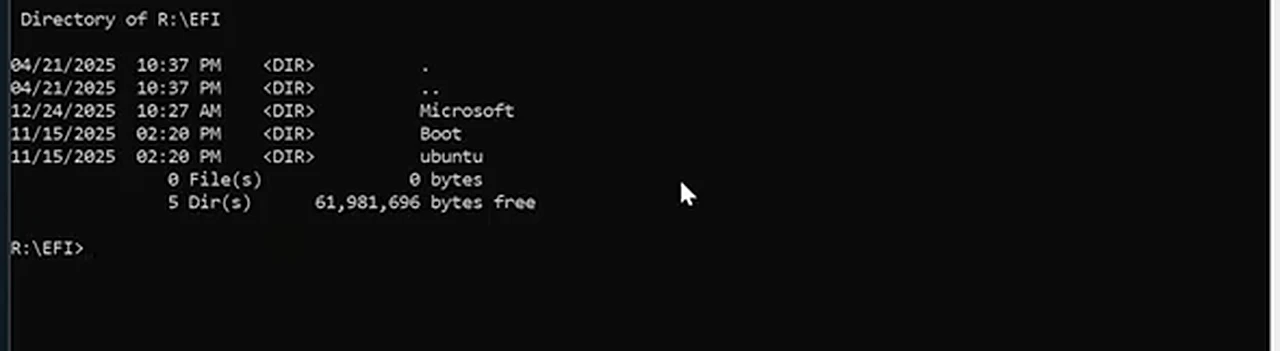
Press Enter, type dir, and press Enter. You should see a folder called EFI. Move into it:
CD EFI
Press Enter, type dir again, and press Enter. You will see Microsoft and Boot, plus one folder for your Linux system. In the video, the first EFI partition shows ubuntu, left by an earlier Ubuntu install, even though the computer now runs Kali. Yours might be ubuntu, kali, debian, fedora, or linuxmint. That folder, and only that folder, is the one to remove.
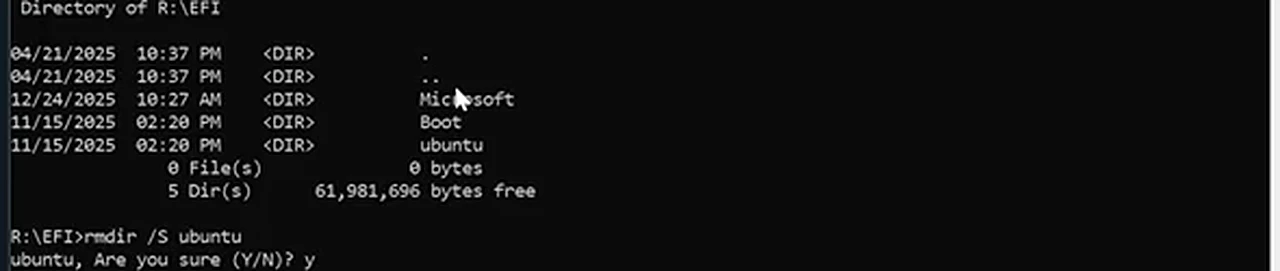
Remove it with rmdir and the /s switch, using the name you saw, for example:
rmdir /s ubuntu
Press Enter, type Y to confirm, and press Enter. Then type dir once more. The Linux folder should be gone, with Microsoft and Boot still there. Do not skip that check. If Microsoft or Boot is missing, stop and do not restart; Windows needs those folders to start.
When the check looks right, hide the EFI partition again. Return to DiskPart, type list volume, select the same volume, and type remove letter=R, then exit. This extra care, beyond the video, returns EFI to its normal hidden state.
Part 5: Check for a Second EFI Partition, the Leftover Trap
This is the part most people miss. After the first cleanup, the presenter finds another EFI system partition, 977 MB, holding boot data from the other installation. Had he stopped earlier, Kali would still have offered itself at startup.
Check your computer the same way. Look in Disk Management for another EFI System Partition, or in DiskPart, run list volume and look for another FAT32 System volume. If there is only one, move on to restarting. If there is a second, repeat Part 3 and Part 4 with a different free letter. In the video the second volume is Volume 7, and it gets P:
select volume 7
assign letter=P
Then, in an administrator Command Prompt:
P:
dir
CD EFI
dir
This time the listing shows kali. Remove it the same way:
rmdir /s kali
Confirm with Y, type dir again, and check that kali is gone while Microsoft and Boot remain. Then remove the temporary letter as before. The second pass takes two minutes, and it is the difference between a menu that is truly gone and one that returns next restart.

Part 6: Restart and Reclaim the Freed Space
Restart and watch the first boot. On a successful cleanup, the Windows 11 or 10 startup screen appears directly, with no menu and no GRUB screen. In the video, Windows 11 comes up on its own, with no trace of Ubuntu or Kali. That restart is your proof.
If the menu still appears, do not panic or reinstall anything. Boot into Windows, return to DiskPart, and check for an EFI volume you missed, or a folder name typed wrong. Names must match exactly. In almost every case, a surviving menu means a surviving folder, and one more careful pass fixes it.
Once Windows boots cleanly, deal with the freed space. If Extend Volume is available on C:, extend it. If it is still greyed out, leave C: alone, right-click the unallocated space, choose New Simple Volume, follow the wizard, and give it a letter. You now have a fresh empty drive for files or backups.
If Something Goes Wrong
If DiskPart does not assign a letter, check you selected the FAT32 System volume, not recovery, and try another free letter. If Command Prompt says the folder cannot be found, check spelling against the dir listing, and check you are inside the EFI folder. The prompt should show EFI before you run rmdir. If you see no EFI folder on R: or P:, you may have lettered the wrong volume. Remove the letter and retry Part 3.
The serious mistake is deleting the wrong folder or partition. If you deleted Microsoft or Boot, do not restart. Leave the computer running and get help to repair the Windows boot files. If you deleted the wrong partition, stop, write no new data, and seek recovery help. These outcomes are rare and caused by rushing. Read the listing, check the name, and only then press Enter.
Dual boot was probably worth trying. It served a purpose, and now it is in the way. Removing it takes about fifteen minutes, most of it spent checking you are deleting the right thing. Do the partition first, the EFI folder second, check for a second EFI partition third, and restart. When Windows comes up on its own, the job is finished.