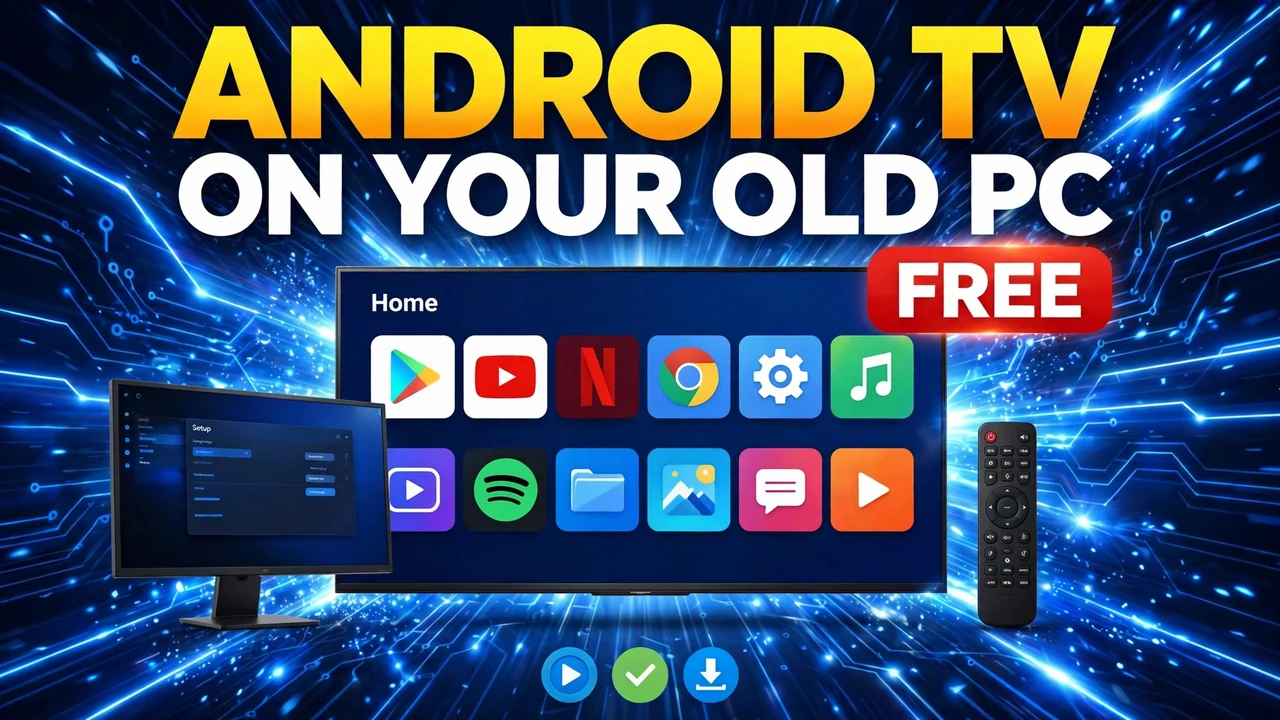
Friday evening, and the television in the living room was already taken. Not broken, just taken, by someone else watching something I had no interest in. In the corner of my room sat the beginning of an answer: an old laptop, plugged into a spare monitor, doing nothing more demanding than collecting dust. I had heard that a computer like that can become a proper Android TV, with the real home screen and the Play Store. I had always filed it under “too fiddly.” That Friday, fiddly started to sound fine.
This is the log of that weekend, in the order it happened. Nothing here replaces Windows, touches your hard drive partitions, or needs a USB stick. Android TV runs inside Windows, in a window you can close — and underneath, your ordinary computer is still there. That matters: this site already has a Zorin OS dual-boot guide, and this is different — Zorin is a second system you boot into, while this is a virtual television inside Windows.
Friday Night: Counting What I Had Before I Started
Before downloading anything, I checked what the old machine actually had. This is not a light trick: you are asking a computer to run Windows and then, on top of that, a whole second system pretending to be a television. The presenter in the video I followed ran it on a serious machine — a 16-core processor and 32 GB of memory — and was honest that his numbers were his numbers, not a prescription.
You need a Windows computer with plenty of free disk space — Android Studio, its kit, and the system image add up to several gigabytes — plus a Google account, a keyboard for navigation, and patience for two large downloads.
Saturday Morning: The Pen Drive Plan Gets Binned
My first idea, and the presenter’s too, was the romantic one: put Android TV on a pen drive, plug it into any computer, and have a television wherever you happened to be. The presenter got it working on one machine, then watched it misbehave when the same drive went into different computers. Different hardware, different quirks, a fresh round of hassle at every desk. Nobody has time for that.
So the pen drive stayed in its drawer. The boring, reliable version — set it up directly on one computer — is the one that still works on Tuesday.
Saturday, Late Morning: Android Studio Goes In
With the kettle on, I searched for “Android Studio download”. The first result is the official developer site, and that is the only one worth clicking. Click the download button, tick the box to accept the terms, and click Download. Then wait — the installer is not small.
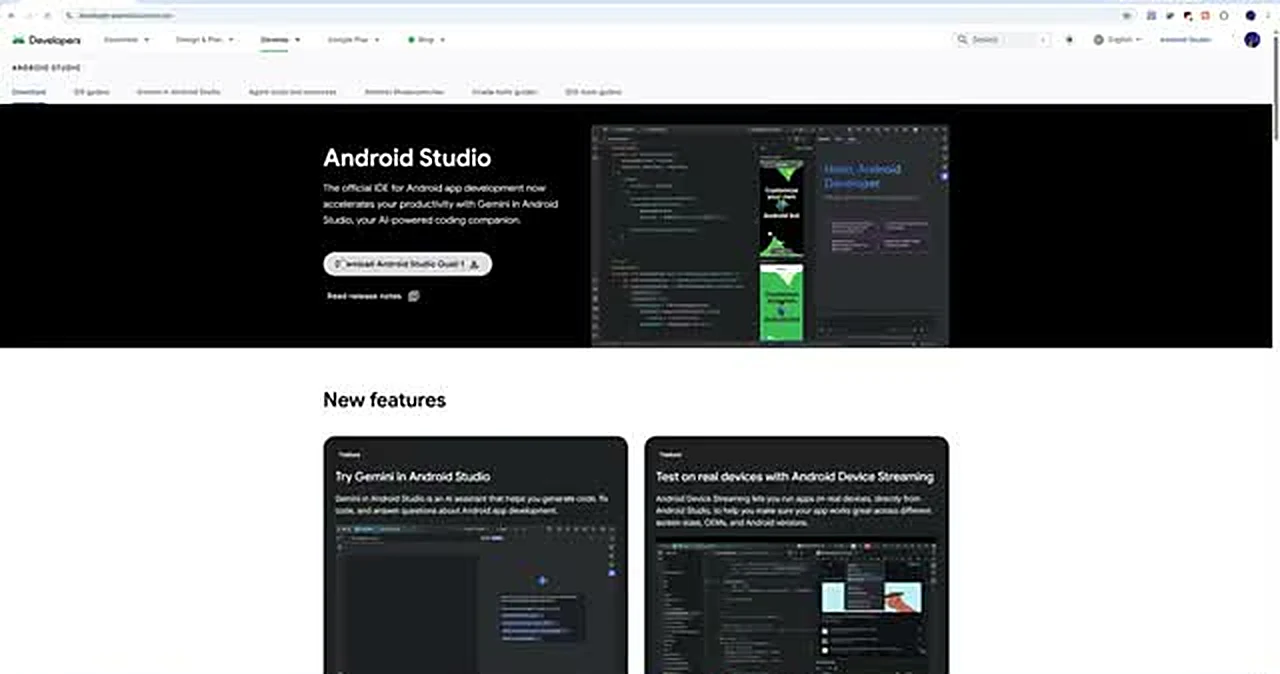
Double-click the installer in the Downloads folder and walk through it like any Windows installer: Next, then one screen worth reading. Make sure the Android Virtual Device component stays ticked — that is the emulator, and without it the rest of this guide goes nowhere. Next again, Install, then Finish. On first launch it asked about sharing usage data; I clicked Don’t Send, as the presenter did. It then offered an update, which I took, but do not go hunting for one if yours does not appear. Some people also see a Custom or Standard setup choice; choose Standard. Either way you land on the Welcome screen, with a small “More Actions” link that matters a great deal.
Saturday, Lunchtime: A Television, Built From a Menu
You do not build an Android TV by installing a television app. Click More Actions, then Virtual Device Manager, then Create Virtual Device. Choose TV from the device types. The list narrows to three televisions: 720p, 4K, and the 1080p set in the middle. Pick Television (1080p) — the size most people actually have on their desk, at 1920 by 1080, and the one the rest of this setup assumes.
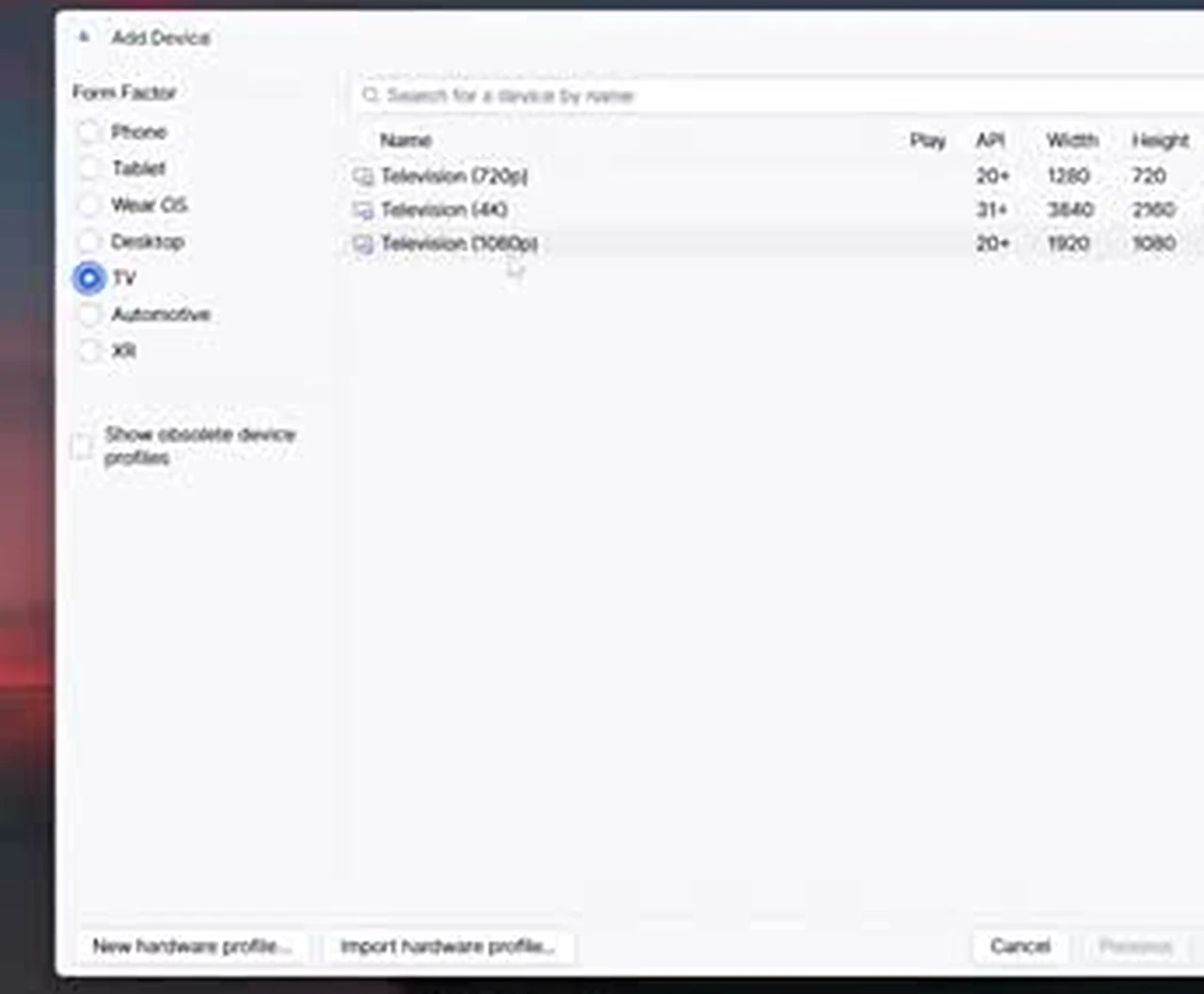
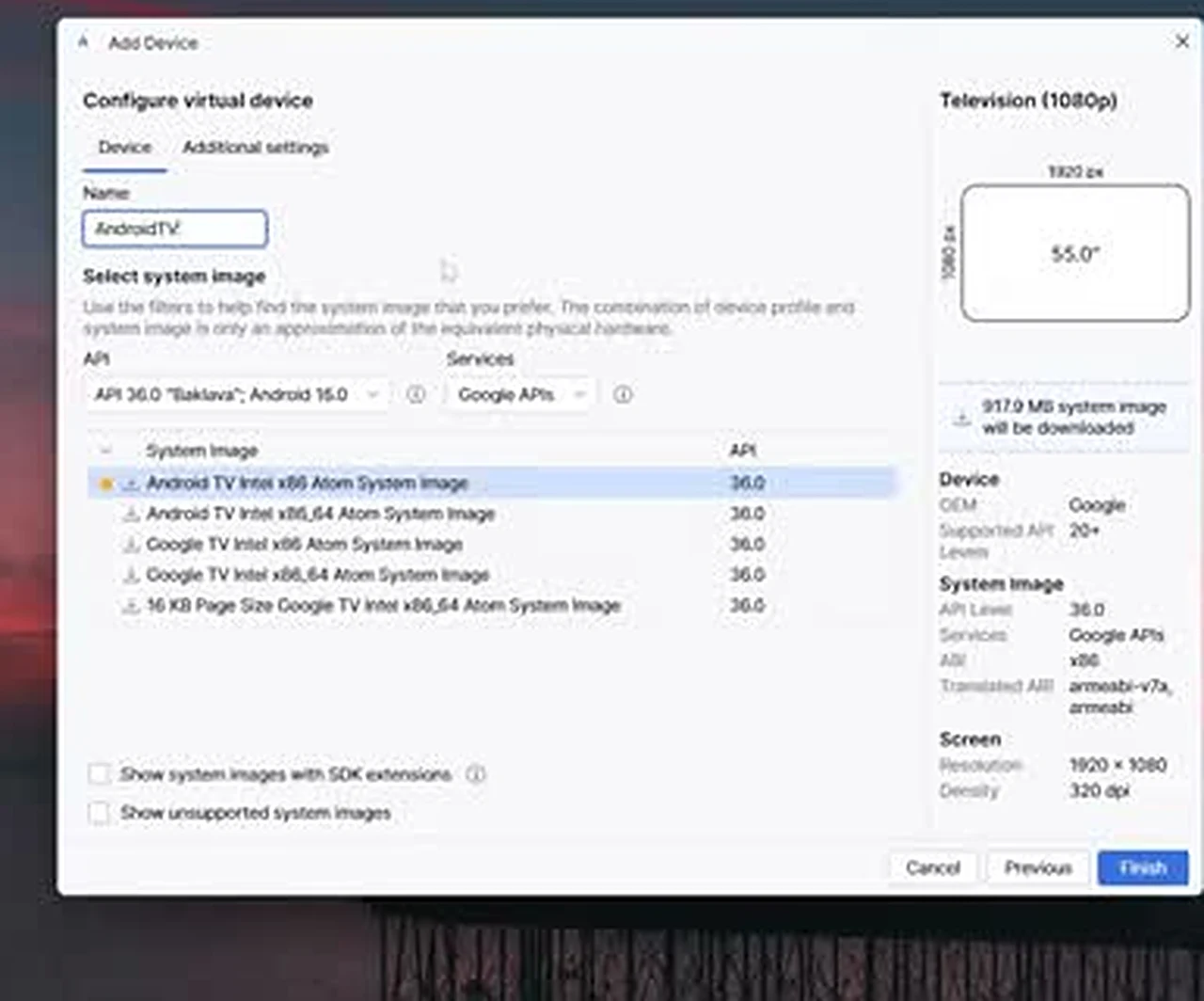
Click Next. At the name box, slow down. I typed AndroidTV — one word, no space, capital A and capital TV — and copied it somewhere safe, because that exact spelling comes back later and the launch script will not find a device whose name does not match character for character. Then the system image list: several similar entries appear, including Google TV variants and 64-bit builds. Select Android TV Intel x86 Atom System Image, on API 36.0 “Baklava”, Android 16.0, with Google APIs. Click the download arrow beside it — a 917.9 MB download, the “almost a gigabyte” the presenter warned about — let it finish, click Finish, and keep that row selected.
Saturday Afternoon: Cold Boot and the Right Amount of Muscle
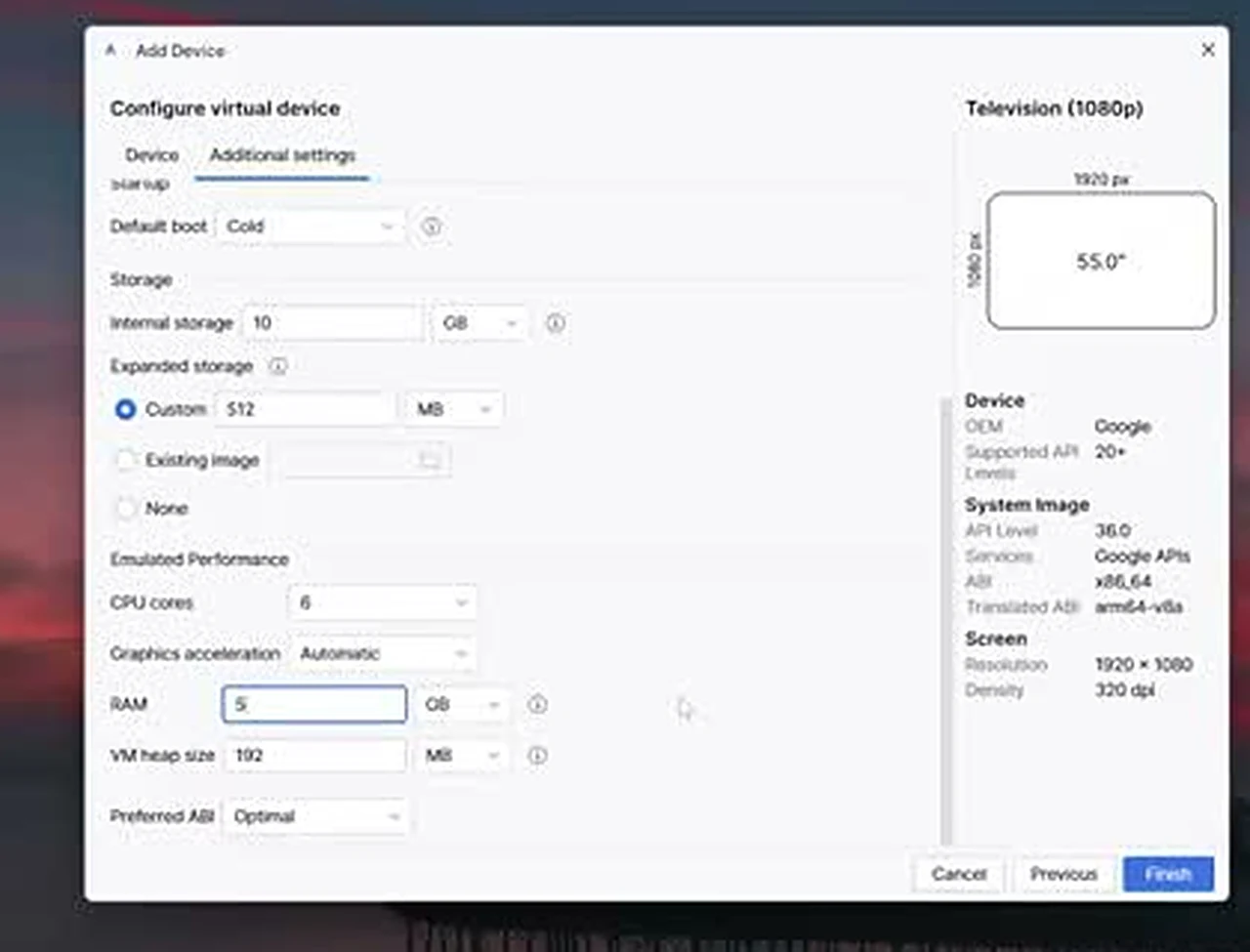
Before clicking Finish, switch to Additional settings. Three settings decide whether your television feels snappy or sulky. First, Default boot: it arrives set to Quick, which resumes from where the television last stopped and can mean a laggy wake-up or a black screen. Change it to Cold, which starts fresh every time. Next, Internal storage: I set 10 GB, because the drive had room; 8 GB or 6 GB will do if space is tight.
Then the muscle. The presenter set 6 CPU cores, because his processor has 16, and 5 GB of RAM, because his machine has 32 GB. Those are proportions, not a recipe. Find your core count in Task Manager (right-click the taskbar, Performance, then CPU) and keep well over half of them for Windows. For memory, a machine with 16 GB can spare 4 to 5 GB; a machine with 8 GB should give about 3 GB and no more. Click Finish, then press Play beside AndroidTV in the Device Manager.
Saturday Evening: First Boot, Small Screen, Big Grin
The emulator window opened. I clicked its power button in the toolbar down the side, the screen went black, and the word “androidtv” appeared in white. Then came the waiting. First boots are slow, and a cold boot starts from scratch. Give it a proper couple of minutes. If it never arrives, close the window and try again; if the emulator will not start at all, check that virtualization is enabled in your computer’s BIOS settings.
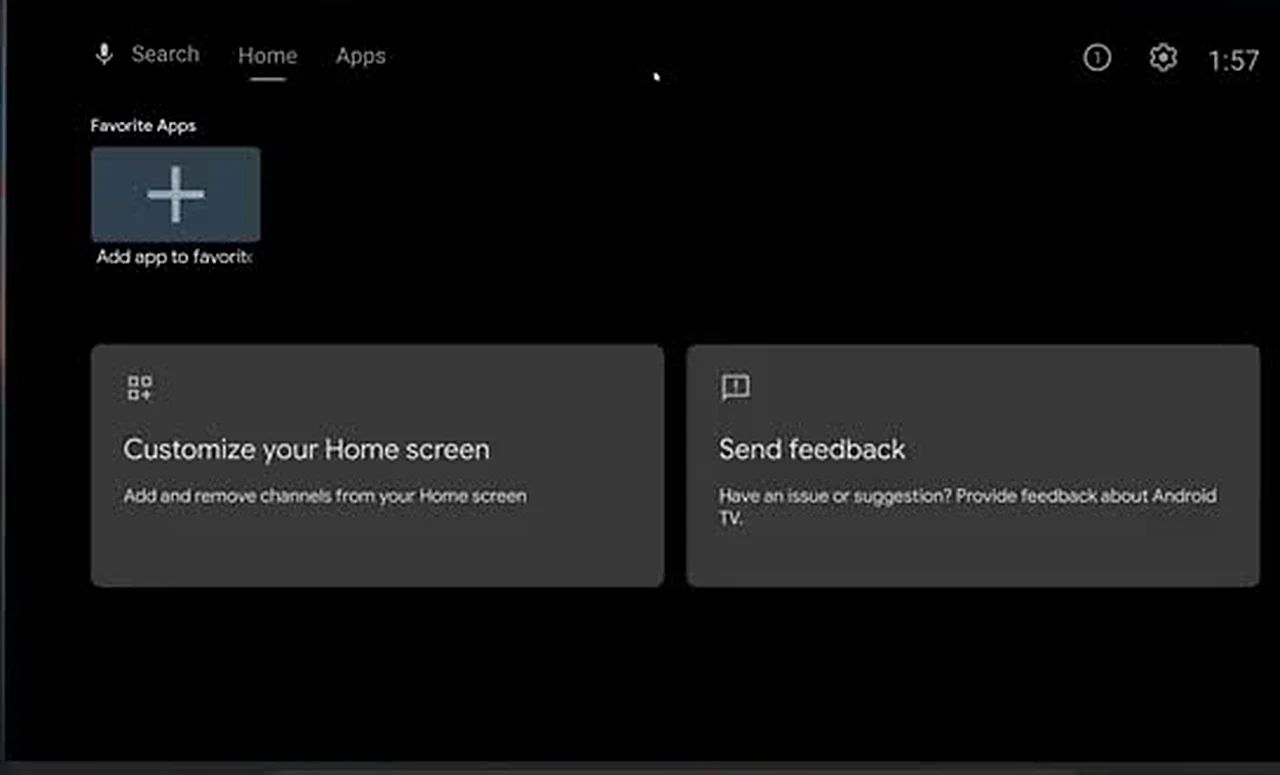
Then there it was: the Android TV home screen, in a window about the size of a postcard. I dragged at the corners and hunted for a fullscreen button. There is nothing — the emulator opens small and stays small. The fix took about ten minutes on Sunday morning.
Sunday Morning: The Two-Megabyte Fix for the Small Screen
AutoHotkey is a tiny, free automation tool for Windows — about 2 MB. Its job here is simple: start the emulator, wait for its window, then stretch that window to fill the screen. Search for “AutoHotkey”, open the official autohotkey.com site, click Download, and take the latest version. Install it, open it, click New, choose Hotkey Script, and name the script the same as your television: AndroidTV. Create it, double-click the new file, and choose Edit in Notepad.
Now the script itself — and I will be straight with you. I am not pasting a long block of code here, because the version that matters is the one the presenter links in the video description and in a post on his own site. Get it from that link. It points at the emulator program inside your Android SDK folder, starts the device with your exact name, waits for the window, and resizes it. Two edits matter: every mention of the television name must match what you typed — AndroidTV, exactly — and the path to the emulator contains a Windows username, which must be yours. Open File Explorer, go to the C: drive, then Users, and read your own folder name there. Paste the edited script into Notepad, save, and close.
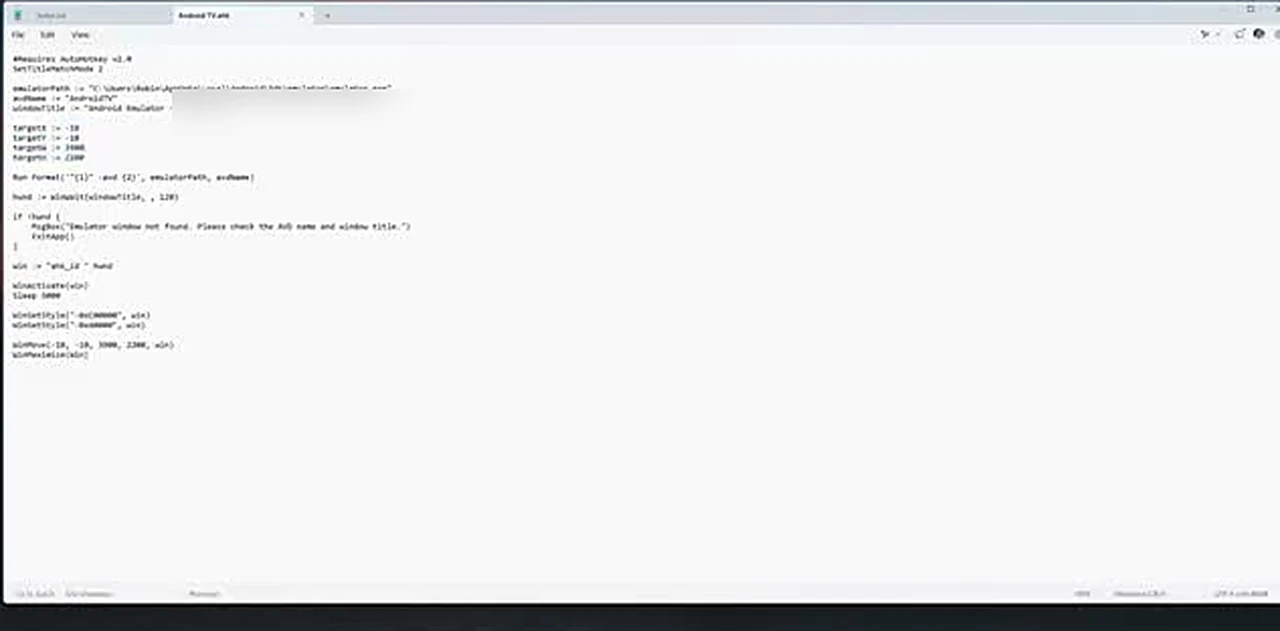
Double-click the script file, and the television starts filling the screen, or very nearly. One honest caveat: the presenter uses a 27-inch 4K monitor, and on his screen the standard script did not fit perfectly — he adjusted the target size, with help working out the numbers for his resolution. On an ordinary 1080p monitor or laptop screen, the script as supplied fills the screen properly, and his laptop test did exactly that. If your monitor is 4K, expect to tweak the size numbers. From now on, you never need Android Studio again to watch television: double-click the script, and the television starts.
Sunday Afternoon: Signing In and Actually Watching Something
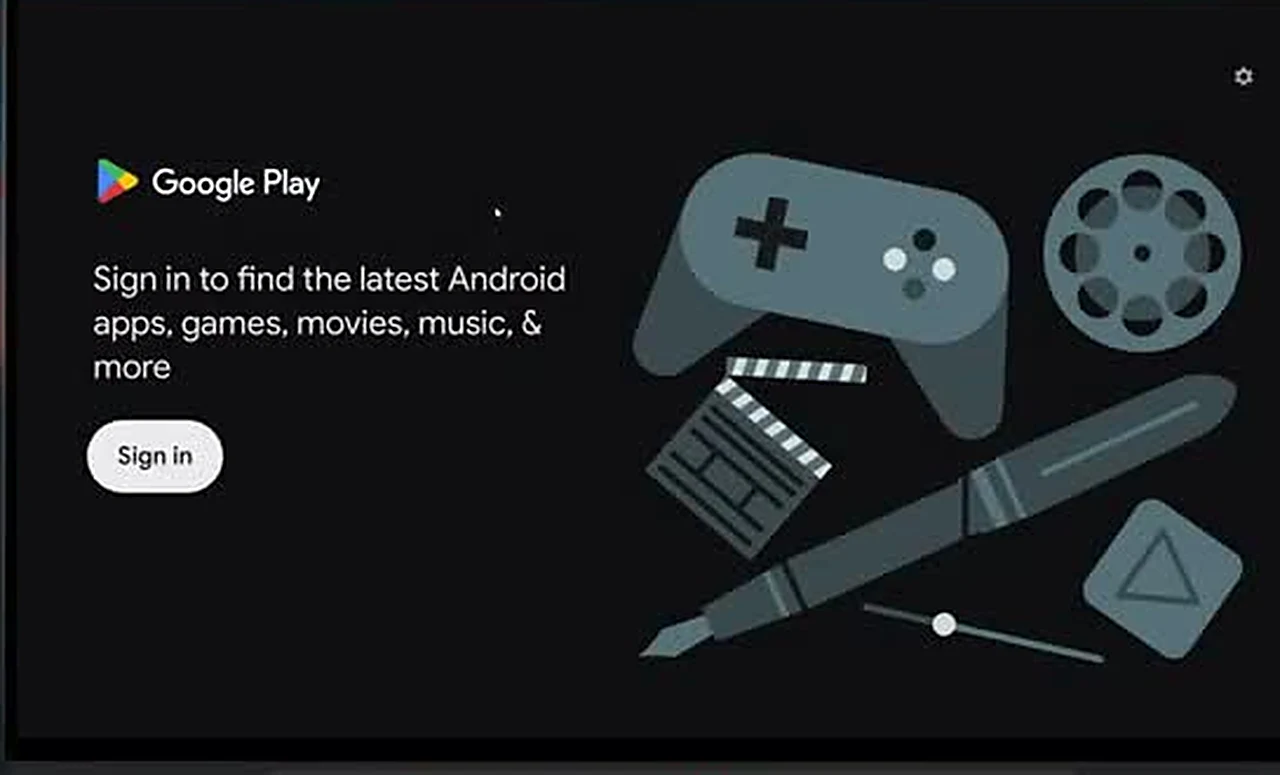
Open Google Play, and it asks you to sign in — and here is the first habit to unlearn. Your mouse is suddenly a second-class citizen. Android TV is built for a remote, and in this emulator that remote is your keyboard: arrow keys to move, Enter to select, back to go back. It feels clumsy for three minutes, then your hands learn it. Sign in, let the Play Store finish its setup, and install the updates it offers before judging performance — a freshly updated system feels quicker.
After that, it is just a television. Install the apps you watch with — the presenter opened YouTube, signed in, and searched like it had always lived there — and arrange the home screen to your taste. When you are done, the power button in the emulator toolbar switches it off, the X closes the window, and your Windows desktop is underneath, untouched. Next time, double-click the script.
Monday Morning Verdict: Keep It or Bin It?
Would I do it again? Yes — for the right machine and the right job. It shines on a spare or older computer with decent memory and a monitor to itself: a bedroom television, a kitchen screen, a way to watch something while the main television is occupied. It costs nothing beyond electricity and needs no new hardware. As your only television, though, it is a poor choice if you need a remote in your hand, perfect 4K fullscreen, or a system a non-technical relative can switch on without thinking. It uses a noticeable chunk of memory and processor while it runs, first boots are slow, and the fullscreen fix is a community script, not a built-in feature — so keep it from the presenter’s own link. None of that stopped me keeping it. On Monday morning the old laptop was still there, and this time it had a job.
If you would rather just show your phone on the PC for a while instead of building a whole TV system, here is how to mirror your phone screen to a PC with no app needed.
Frequently Asked Questions
Is this the same as dual-booting?
No. Dual booting installs a second operating system alongside Windows. This runs Android TV inside Windows as a virtual device. Close the emulator, and you are back in Windows, with nothing partitioned.
Do I need a USB stick?
No. The pen-drive version proved unreliable across different computers, so this guide sets the television up directly on one computer. No USB stick, no boot menu.
Why must the device name match exactly?
The launch script finds the emulator by its name and window title. If you typed AndroidTV, the script must say AndroidTV, with the same capitals and no added space, or it cannot find the window to resize.
Can I use a mouse instead of a keyboard?
Only a little. Android TV is designed around a remote, and the keyboard does that job here: arrows to move, Enter to select, back to go back.
Will it work on a 4K monitor?
It runs, but the script may need its size numbers adjusted, and it may stop just short of edge-to-edge fullscreen. On a 1080p screen it fills the screen properly as supplied.
Do I have to open Android Studio every time?
No. Double-clicking the script file starts the television on its own. Android Studio only returns if you want to change the device settings.